| This field is required. | A required box is empty. Fill in the box marked in red.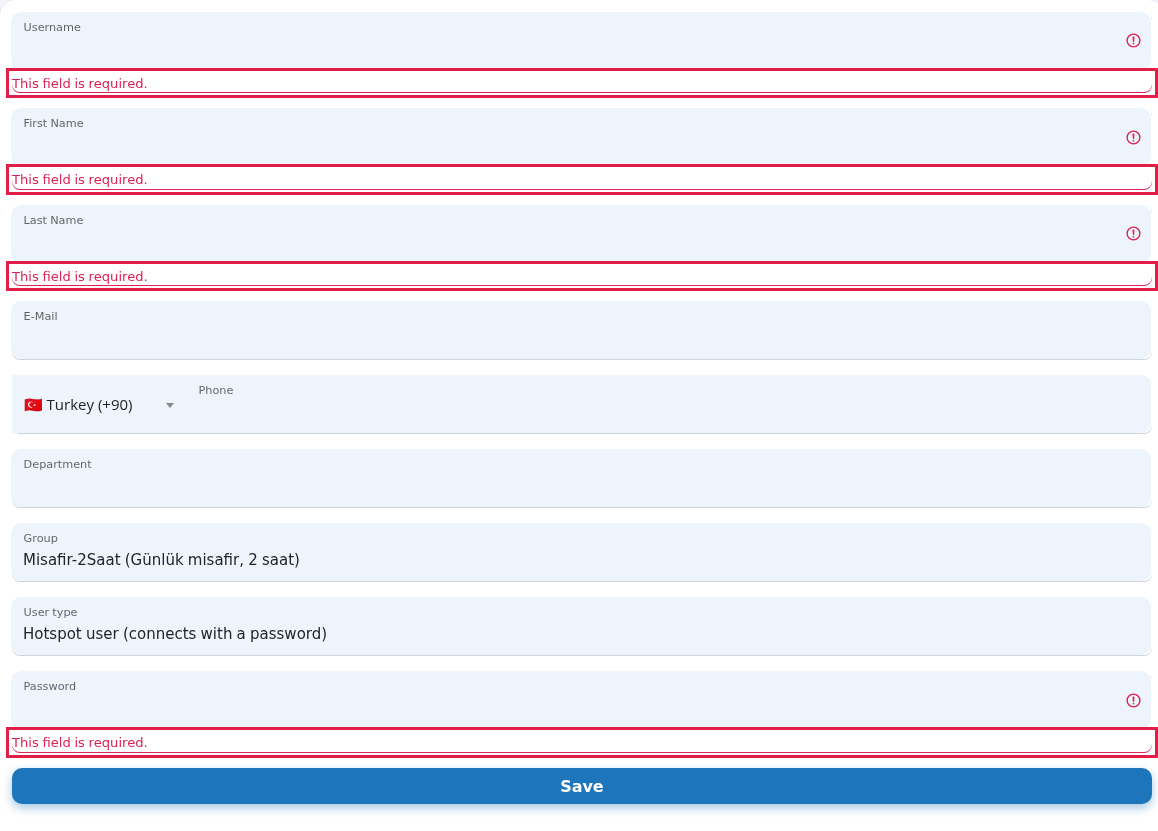
|
| Enter a valid phone number (7-15 digits). | Type the number in digits, without the country code. |
| Mobile phone is required for Staff WiFi (start with + for international numbers). | Fill in the phone if you chose Staff WiFi. |
| This username already exists on this device (source: …). Press the button below to delete it and create the user again. … | An account with the same user name already exists. Use a different name, or press **Delete existing record** to remove the old account; the old record and its login details are deleted and this cannot be undone. The source shows which list the account comes from (example: `StaffUsers` = local users, `SMSUsers` = SMS/WhatsApp guests).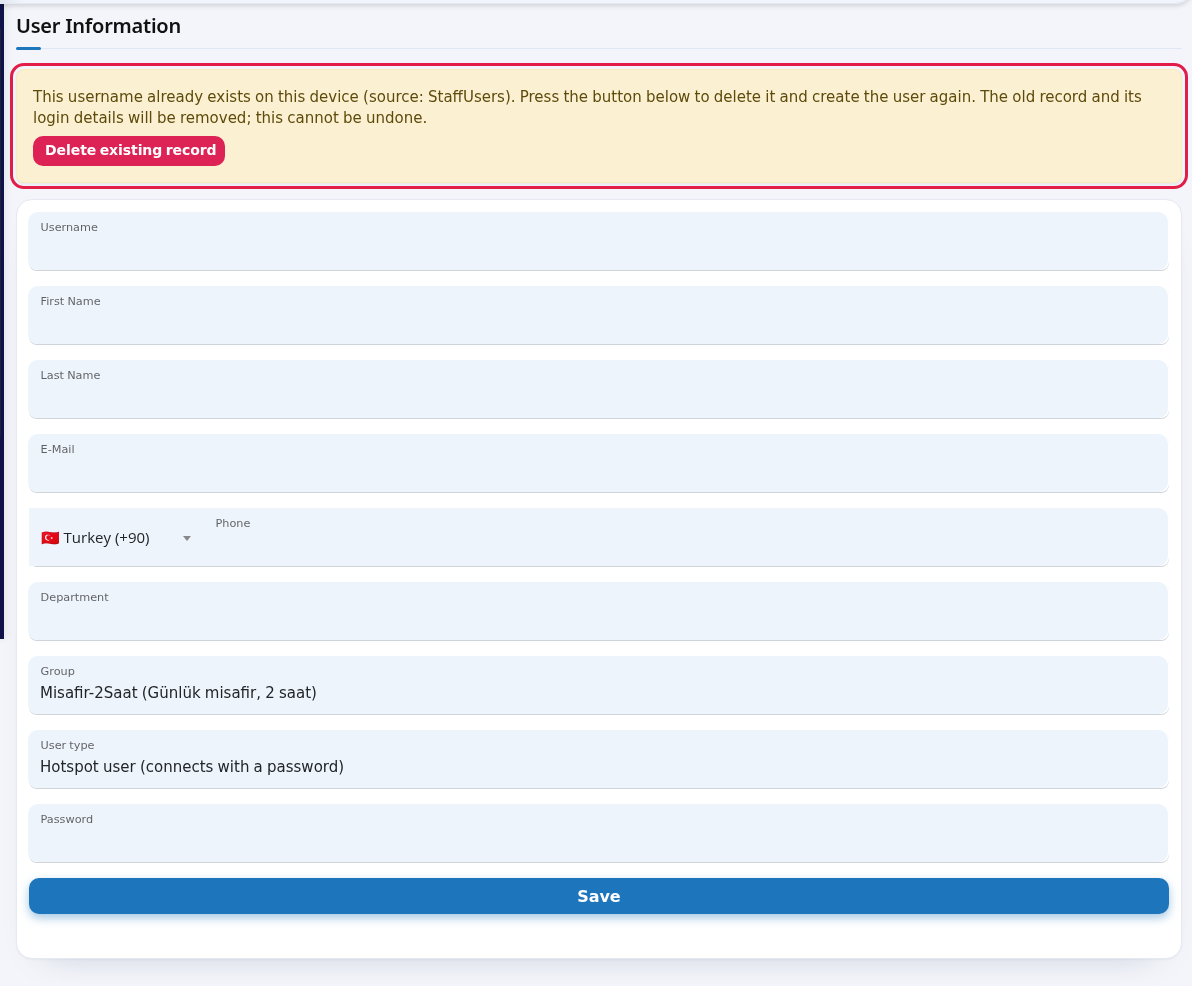
|
| The old record was deleted (…). You can create the user again now. | The old account was removed; fill in the form again and save. |
| The confirmation could not be verified, nothing was changed. Please try again. | The delete confirmation expired. Reload the page and try again. |
| Username not accepted: quote and backslash characters are not allowed, and the maximum length is 50 characters. | Fix the user name. |
| You chose Staff WiFi: enter a valid mobile number (…). The user was not created. | Fix the phone number and save again. |
| The user was created, but the setup link could not be sent via WhatsApp. … | WhatsApp to the international number failed and the link was tried by SMS. Delivery is not guaranteed; pass the setup link to the staff member yourself. |
| The operation could not be completed. Check the details and try again (error code: …). | Saving failed. Check the details and try again; if it keeps happening, contact support with the error code. |