# Ruijie Integration Guide
This guide walks you through the complete integration between a **Ruijie / Reyee gateway** and Useroam Cloud — captive portal authentication (WiFiDog external portal) and legal 5651 syslog forwarding.
> **Before you start:** you need administrator access to the Ruijie web interface, the gateway's active WAN IP address, and the hardware serial number printed on the device label.
---
### **1 - Adding the device to the Useroam panel**
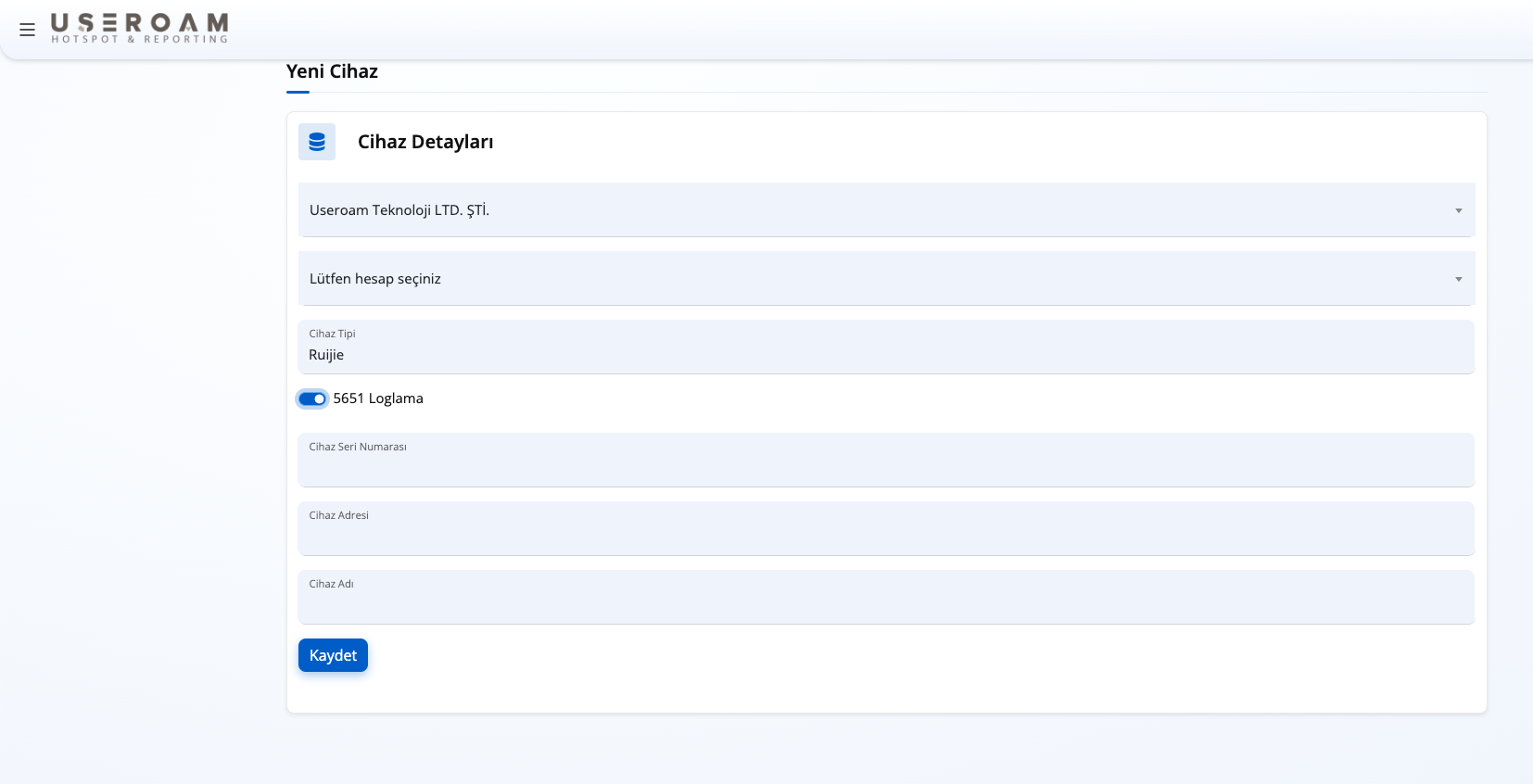
First, sign in to your panel at **[panel.useroam.com](https://panel.useroam.com)** and add a **New Device**.
- **Device Type:** select **Ruijie**.
- **5651 Logging:** tick the 5651 Logging checkbox.
- **Device Serial Number:** \[CRITICAL STEP\] enter the original hardware serial number in full, exactly as printed on the label underneath the device or as shown in the web interface. The Ruijie integration will not work reliably unless this serial number is correct.
- **Device Address:** enter the active WAN IP address the gateway uses to reach the internet.
---
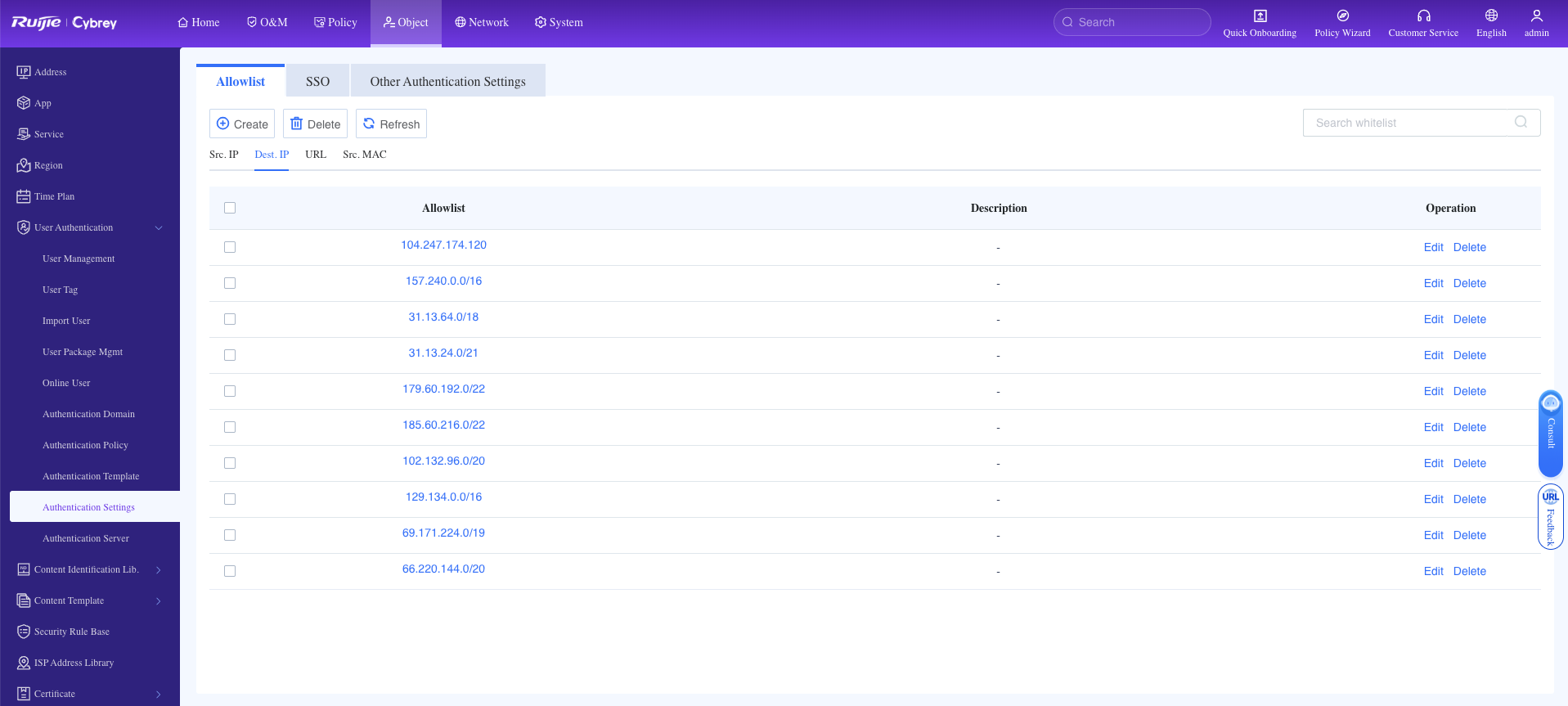
### **2 - Allowlist settings for trusted IPs (Allowlist → Dest. IP)**
In the Ruijie management interface, go to **Object > User Authentication > Authentication Settings** from the top menu. Under the **Allowlist** tab, select the **Dest. IP** option and allow the Useroam Cloud server IP address (`104.247.174.120`) together with your hotspot service networks.
---
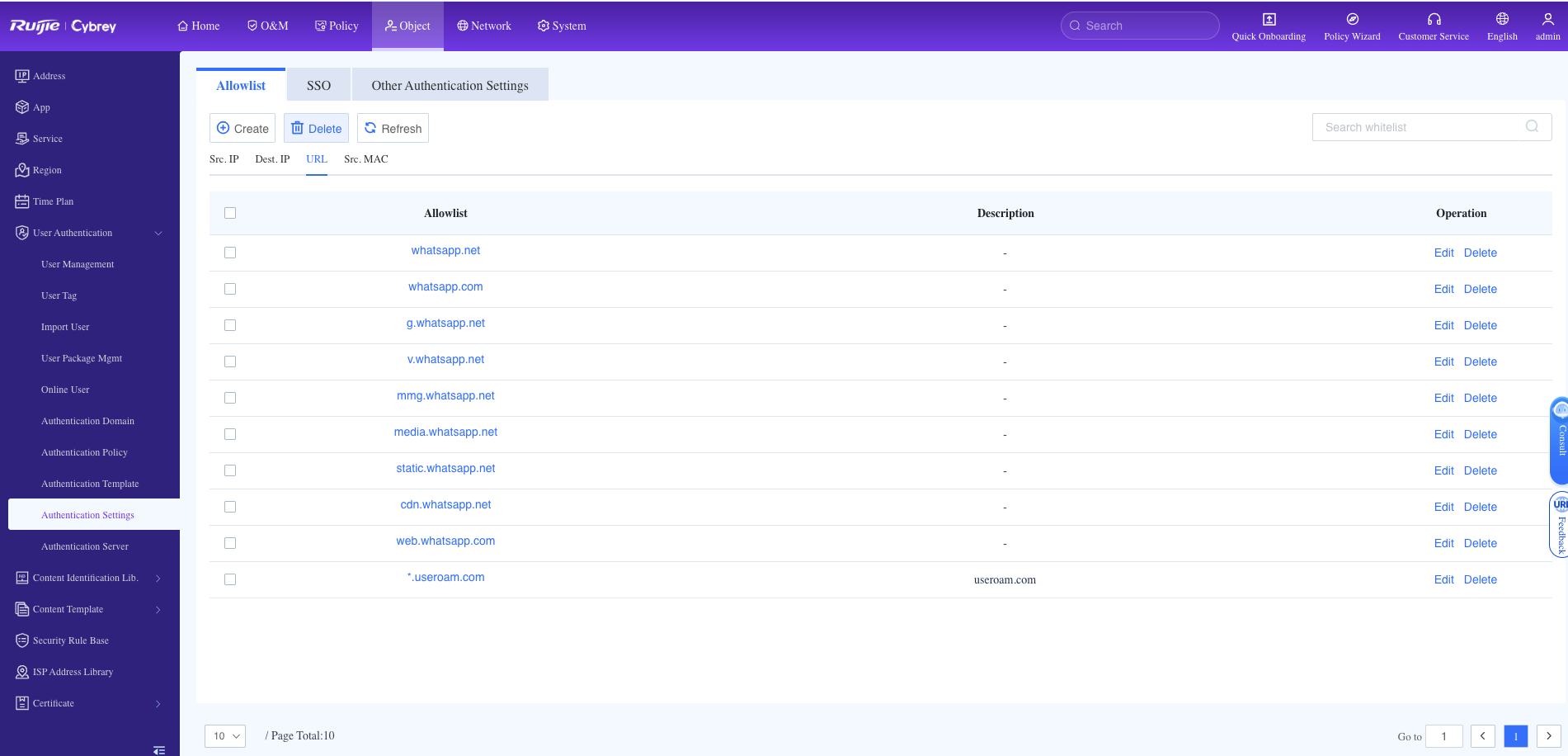
### **3 - Allowlist settings for trusted domains (Allowlist → URL)**
Switch to the **URL** tab in the same menu. Add `*.useroam.com` to the allowlist — guests must be able to reach it *before* they authenticate. Also define URL rules for the messaging and operating-system captive-portal detection domains that mobile devices use to verify the hotspot network in the background (for example the WhatsApp networks).
---
### **4 - External Portal & WiFiDog authentication template**
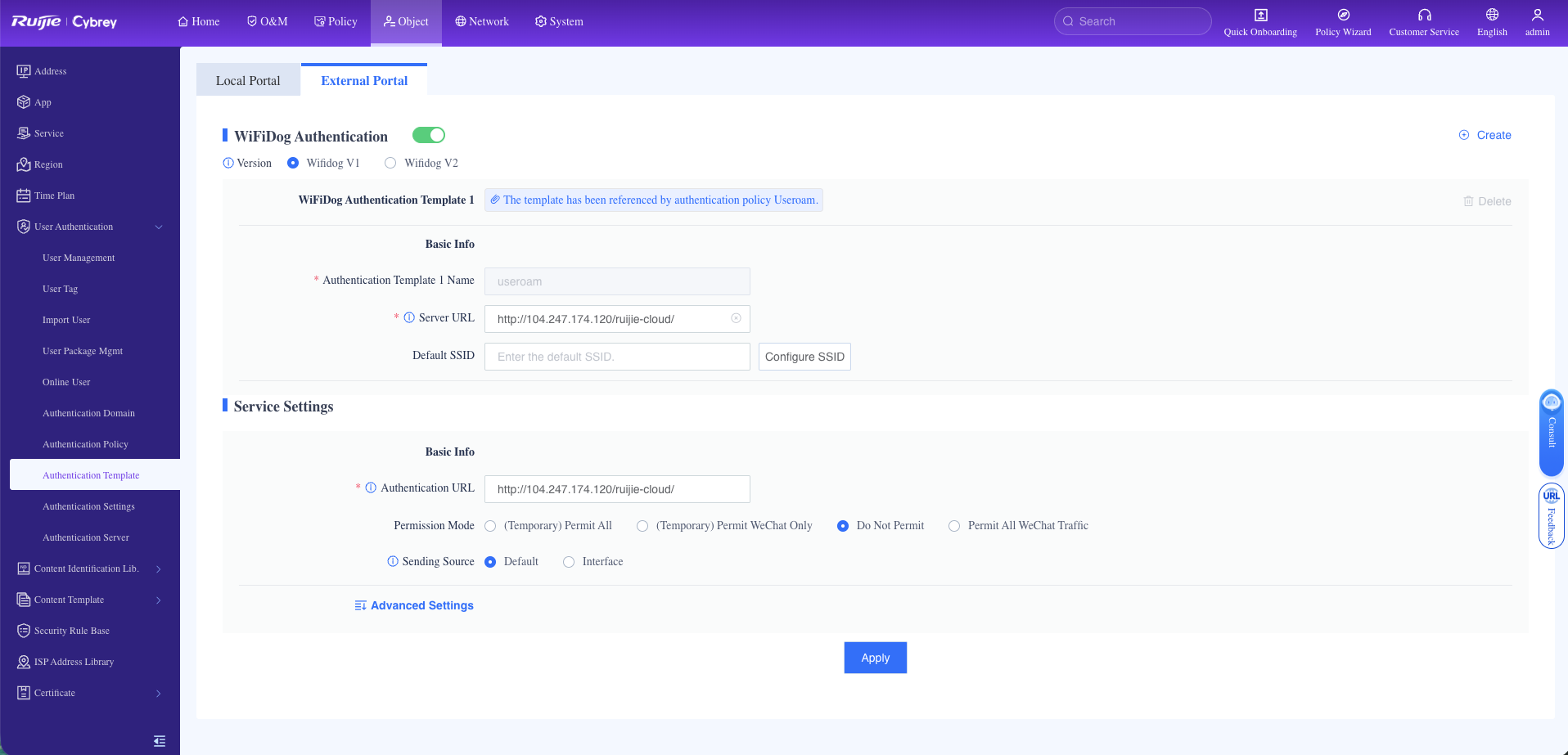
From the left-hand menu, open **Authentication Template** and select the **External Portal** tab. Enable **WiFiDog Authentication**, then create the template:
- **Version:** select **Wifidog V1**.
- **Authentication Template Name:** `useroam`
- **Server URL:** `http://104.247.174.120/ruijie-cloud/`
- **Permission Mode:** select **Do Not Permit**.
- **Sending Source:** leave as **Default**.
---
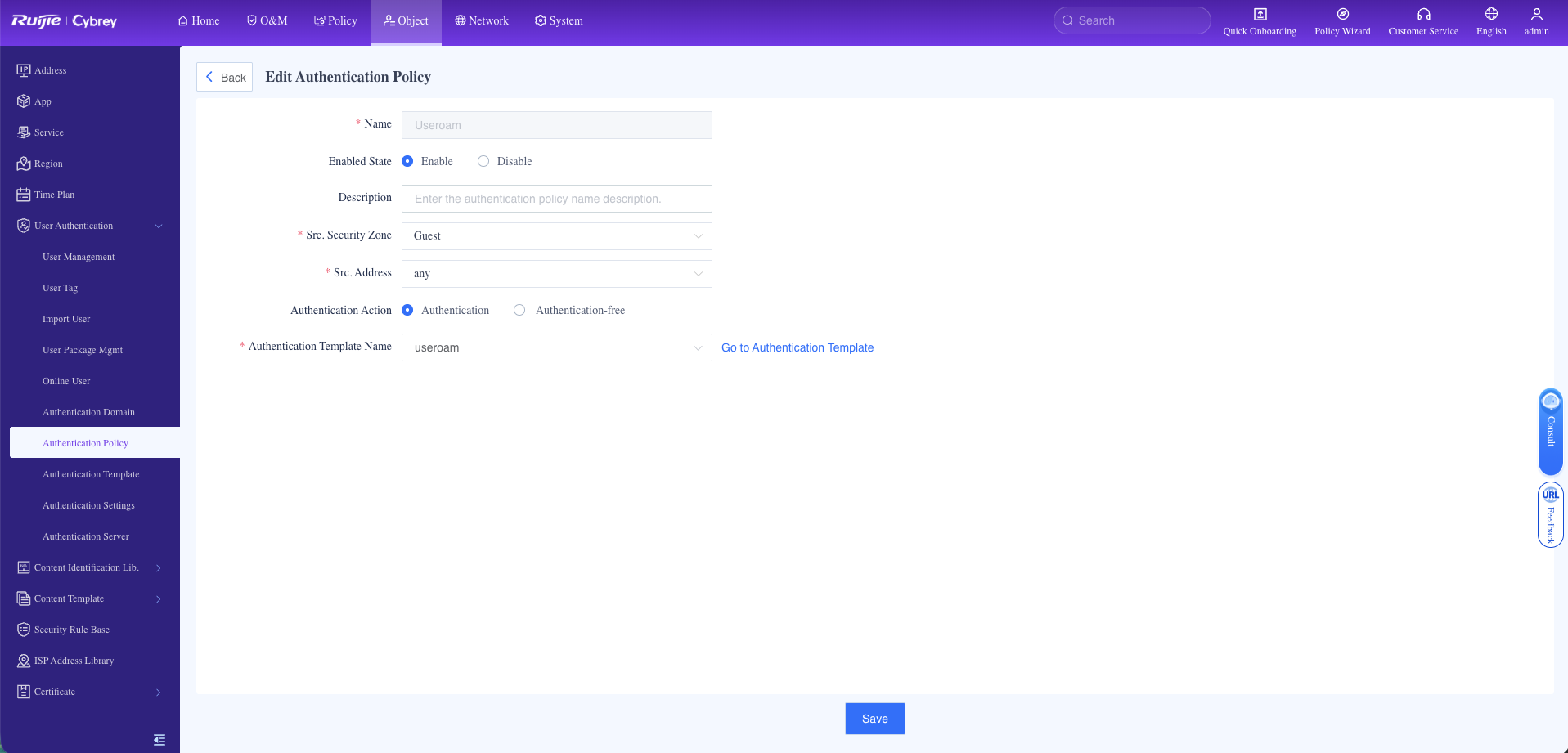
### **5 - Authentication policy (Edit Authentication Policy)**
As the final configuration step, go to **Authentication Policy** in the left menu and either add a new rule or edit your existing guest policy:
- **Name:** `useroam`
- **Enabled State:** set to **Enable**.
- **Src. Security Zone:** select the zone your guest network belongs to (for example `Guest`).
- **Src. Address:** `any`
- **Authentication Action:** tick **Authentication**.
- **Authentication Template Name:** select the `useroam` template you created in the previous step and save.
---
### **6 - Forwarding logs to Useroam (Syslog config)**
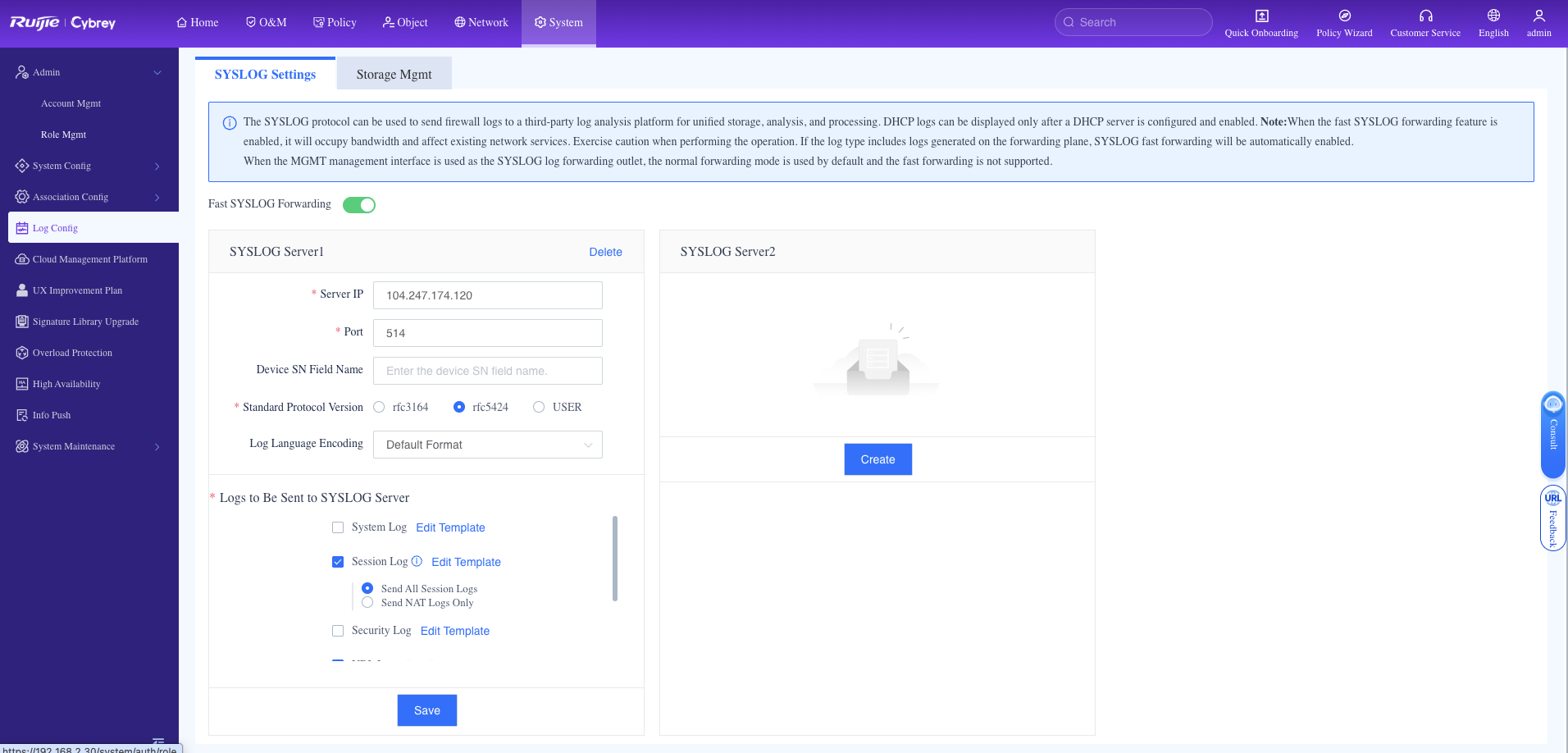
So that guest internet traffic and hotspot session activity can be legally signed under Turkish Law No. 5651, the logs must be forwarded to the Useroam Cloud server. In the Ruijie management interface go to **Advanced > Syslog** and use the **Add** button to define a new syslog server:
- **Syslog Server Status:** set to **Enable**.
- **Server IP:** enter the Useroam Cloud IP address `104.247.174.120`.
- **Server Port:** `514` (the default syslog port).
---
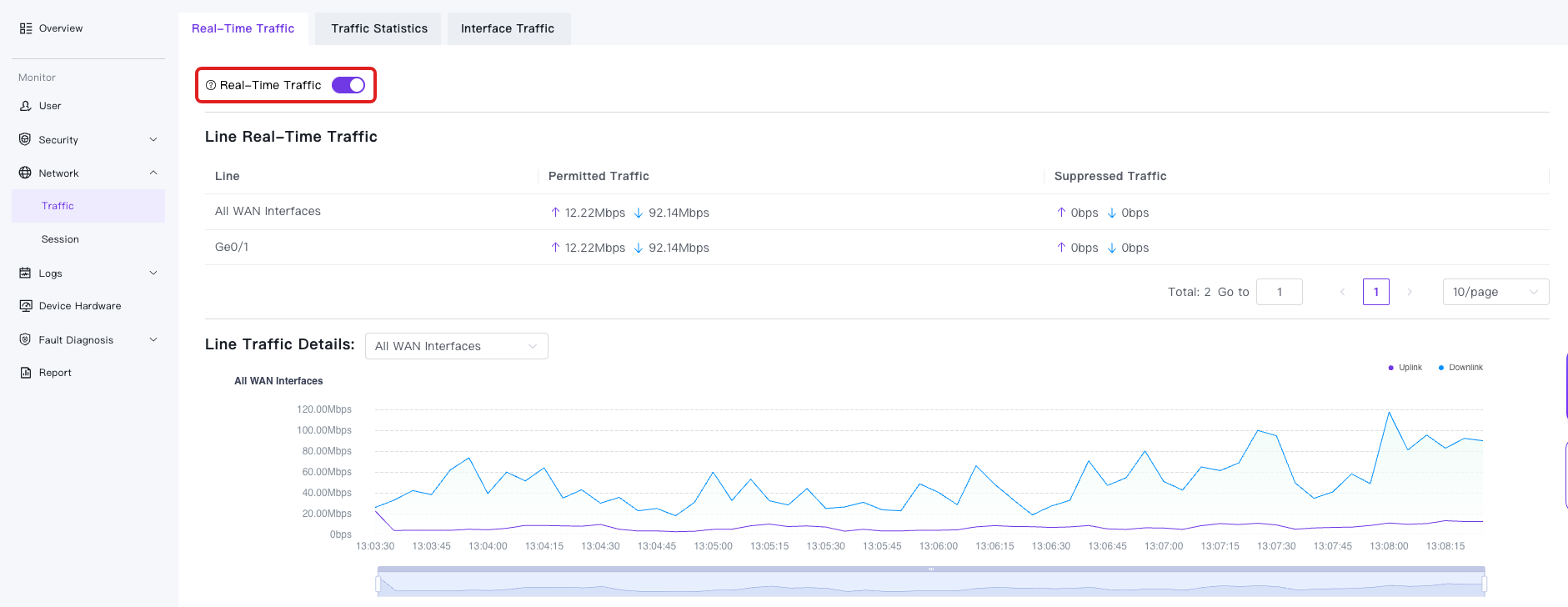
### **7 - Enable traffic reporting (Real-Time Traffic)**
In the Ruijie management interface go to **Monitor > Network > Traffic**. On the **Real-Time Traffic** tab, switch **Real-Time Traffic** on.
### **8 - Enable traffic reporting (Traffic Statistics)**
On the same page open the **Traffic Statistics** tab and switch **Traffic Statistics** on.
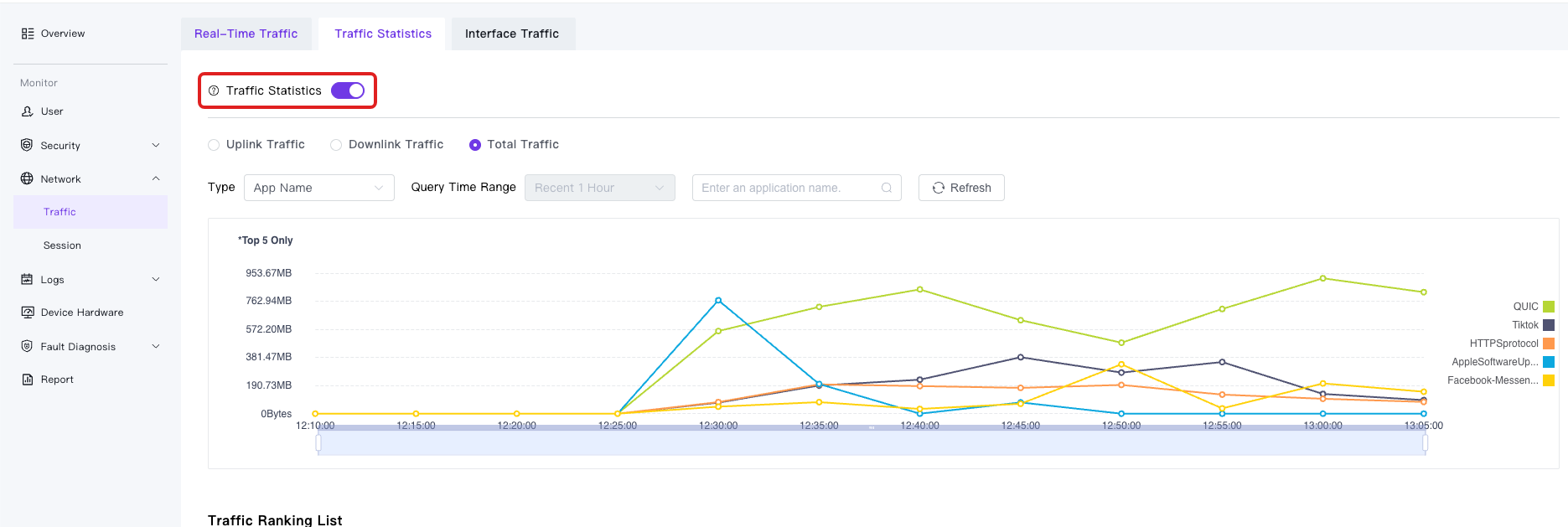
**Why is this required?** Without these two switches the device cannot report guests' download and upload traffic to Useroam, and traffic shows as 0 on the **Active Guests** screen in the panel.
---
#### **Important — integration complete**
That's it. Useroam Cloud Hotspot and the legal 5651 syslog integration are now fully configured on your Ruijie / Reyee gateway. Remember to update the Useroam panel whenever the device serial number or WAN IP address changes, otherwise the integration will stop working. For assistance during the process, contact our technical team at **destek@useroamteknoloji.com**.
---
## Login with WhatsApp — firewall allowlist (walled garden)
For the **Login with WhatsApp** flow to work while the guest is still behind the captive portal (before internet access is granted), the following addresses **must be allowed** in your firewall or walled-garden configuration. Without these rules the WhatsApp login screen will not open and the automatic login based on delivery confirmation will not work.
### Domains to allow (FQDN)
- `*.wa.me`
- `*.whatsapp.com`
- `*.whatsapp.net`
- `g.whatsapp.net`
- `mmg.whatsapp.net`
- `fbsbx.com`
- `*.useroam.com`
### IP addresses to allow
- `157.240.0.0` — Meta / Facebook network block
- `31.13.0.0` — Meta / Facebook network block
- `104.247.174.120` — Useroam panel
**Note:** `157.240.0.0` and `31.13.0.0` are typically `/16` network blocks (Meta infrastructure); we recommend defining them as blocks in the firewall (`157.240.0.0/16`, `31.13.0.0/16`). `104.247.174.120` is the Useroam panel IP (`/32`). Use the domain list if your firewall supports FQDN-based filtering; otherwise use the IP blocks.