# Staff Wi-Fi Administration

Settings, Useroam Connector, inviting staff and certificate management

# Staff Wi-Fi Administration

## What is it for?

**Staff WiFi** lets your employees join the company network **without typing a password**. A personal certificate is installed once on each employee's device; after that the device joins the network on its own. When someone leaves, you close their access with one button; nobody has to be given a new password.

It is completely separate from the guest network. The guest portal ties a sign-in to a phone number; Staff WiFi ties the connection to a **person**.

## When do you use it?

- Your staff network has one Wi-Fi password that everyone knows and you want to get rid of it.
- You want to stop a former employee from joining without changing the password for everyone.
- You want your records to answer "whose device is this?".

## Before you start

- **An administrator account.** The **Staff WiFi** menu is shown only to users with administrator rights. Restricted users cannot open this screen.
- **A separate wireless network (SSID) for staff.** It cannot have the same name as the guest network. Setting that network up for certificate sign-in is done on the device (firewall) side, together with your reseller.
- **Staff records.** There are two ways: 
    - Organisations using Active Directory or LDAP: install [Useroam Connector](/books/staff-wi-fi-administration/page/useroam-connector); employees are brought in automatically.
    - Organisations without Active Directory: create each employee in [Guests &gt; New User](/books/guests/page/new-user) with the user type **Staff WiFi (certificate)**.

## Step by step: first setup

1. In the left menu click **Staff WiFi** (between Captive Portal and Settings). ![Staff WiFi in the left menu](https://help.useroam.com/uploads/images/gallery/2026-09/pw-menu-en.png)
2. On the **Settings** card turn on **Staff WiFi is on**, type your staff network name in **Staff network name (SSID)** (example: `Useroam Staff`) and press **Save**. Details: [Settings and Status](/books/staff-wi-fi-administration/page/settings-and-status). ![Settings card: switch, network name and Save](https://help.useroam.com/uploads/images/gallery/2026-09/pw-ayar-en.png)
3. Add your staff. If you use Active Directory, install the Connector with **Download the Connector app (Windows)** on the **Status** card. If not, create each employee in **New User** with the type **Staff WiFi (certificate)**; the setup link is sent to the employee's phone automatically. ![Status card and Connector download button](https://help.useroam.com/uploads/images/gallery/2026-09/pw-durum-en.png)
4. Share the setup link with your staff: copy it from the **Setup link** card or let them scan the QR code. Details: [Inviting Staff](/books/staff-wi-fi-administration/page/inviting-staff). ![Setup link card, copy and QR](https://help.useroam.com/uploads/images/gallery/2026-09/pw-link-en.png)
5. As employees finish the setup, a **Set up** badge appears next to their name in **Staff and certificate status**. Details: [Certificates and Staff](/books/staff-wi-fi-administration/page/certificates-and-staff). ![Staff list and status badges](https://help.useroam.com/uploads/images/gallery/2026-09/pw-liste-en.png)

## The cards on the screen

![The whole Staff WiFi screen](https://help.useroam.com/uploads/images/gallery/2026-09/pw-ekran-en.png)

<table id="bkmrk-cardwhat-it-doesexpl"><thead><tr><th>Card</th><th>What it does</th><th>Explained in</th></tr></thead><tbody><tr><td>Title **Staff WiFi**</td><td>Below it: "Staff devices connect without a password: set up once, then sign in automatically with a certificate." Breadcrumb: **Home** &gt; **Settings** &gt; **Staff WiFi**.</td><td>This page</td></tr><tr><td>**Settings**</td><td>Turns the feature on, holds the staff network name.</td><td>[Settings and Status](/books/staff-wi-fi-administration/page/settings-and-status)</td></tr><tr><td>**Status**</td><td>Connector status and the number of active certificates.</td><td>[Settings and Status](/books/staff-wi-fi-administration/page/settings-and-status), [Useroam Connector](/books/staff-wi-fi-administration/page/useroam-connector)</td></tr><tr><td>**Setup link**</td><td>The address staff open, and its QR code.</td><td>[Inviting Staff](/books/staff-wi-fi-administration/page/inviting-staff)</td></tr><tr><td>**Staff and certificate status**</td><td>Each employee's setup status and certificate revocation.</td><td>[Certificates and Staff](/books/staff-wi-fi-administration/page/certificates-and-staff)</td></tr></tbody></table>

Settings are **per device**: you see the settings of the device selected in the top menu. If no device is selected, a yellow "No device selected. Pick a device from the top menu." warning appears; pick a device.

## "Staff" means three different things in the panel

<table id="bkmrk-screenwhat-it-is-for"><thead><tr><th>Screen</th><th>What it is for</th></tr></thead><tbody><tr><td>**Staff WiFi** (this book)</td><td>Installing a certificate on an employee's device so it joins the company network without a password.</td></tr><tr><td>[Excluded Users](/books/guests/page/excluded-users)</td><td>Removing the phone numbers of employees who use the guest network from guest reports and bulk messages. 5651 records are kept in full for everyone; this list does not touch the legal log.</td></tr><tr><td>[Useroam Go staff](/books/useroam-go-staff-app/page/staff-accounts-and-departments) (Bumerang &gt; Staff)</td><td>App accounts for requests, rooms and tasks.</td></tr></tbody></table>

Wi-Fi accounts created by hand (hotspot or Staff WiFi type) appear in the [Local Users](/books/guests/page/local-users) list. For many hotspot accounts there are [Bulk Users](/books/guests/page/bulk-users) and [Coupon Codes](/books/guests/page/coupon-codes); they do not issue certificates.

## Frequently asked questions

**I cannot see Staff WiFi in the menu.**  
Your account is not an administrator, or you are a restricted user. Your account needs administrator rights.

**Staff see "Open this page on the company network" when they open the link.**  
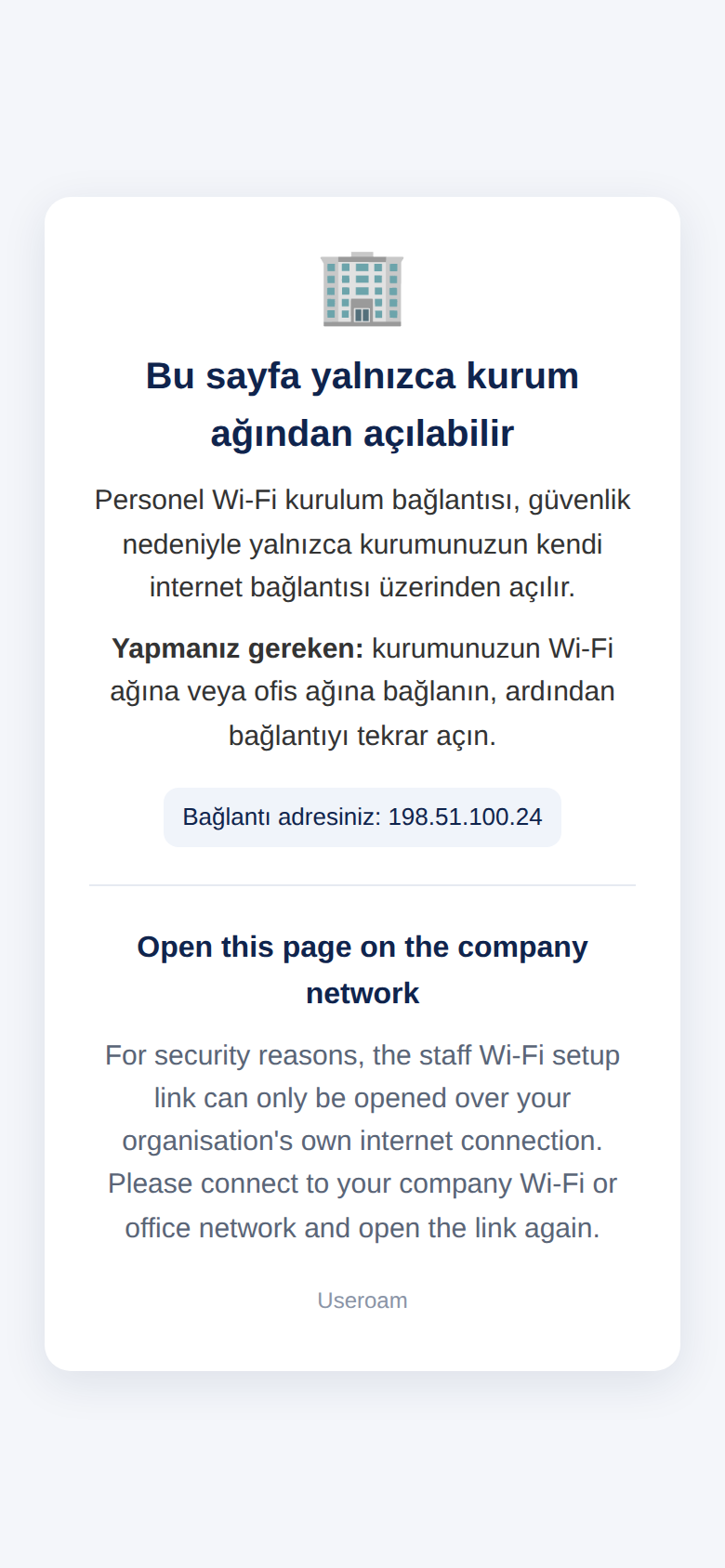
For security, the setup page opens only from the internet connection of a network connected to Useroam. The employee should join your company Wi-Fi and open the link again; it does not open over mobile data.

**Is the network less secure without a password?**  
No. A password can be shared; a certificate belongs to one device, cannot be shared and is revoked individually.

**Do certificates renew themselves?**  
No. A certificate is valid for 825 days. 60 days before it ends the list shows **Expires soon**; ask that employee to run the setup again.

## Related pages

- [Settings and Status](/books/staff-wi-fi-administration/page/settings-and-status)
- [Useroam Connector](/books/staff-wi-fi-administration/page/useroam-connector)
- [Inviting Staff](/books/staff-wi-fi-administration/page/inviting-staff)
- [Certificates and Staff](/books/staff-wi-fi-administration/page/certificates-and-staff)
- [Portal Texts](/books/staff-wi-fi-administration/page/portal-texts)
- Guides to send to employees: [iPhone and iPad](/books/staff-wi-fi/page/iphone-and-ipad-setup), [Android](/books/staff-wi-fi/page/android-setup), [Windows](/books/staff-wi-fi/page/windows-setup)

# Settings and Status

## What is it for?

The two cards at the top left of the **Staff WiFi** screen show whether the feature is on and whether the setup will work. On the **Settings** card you turn the feature on and type the staff network name; on the **Status** card you see the state of Useroam Connector and of the issued certificates.

## When do you use it?

- When you turn on Staff WiFi for the first time.
- When you change the name of the staff network.
- As the first place to look when staff say "I cannot finish the setup".
- When you want to pause new setups for a while.

## Before you start

- You must be signed in with an administrator account.
- Pick the right device in the top menu. Settings are per device.

## Step by step

1. Open **Staff WiFi** in the left menu. ![Staff WiFi in the left menu](https://help.useroam.com/uploads/images/gallery/2026-09/pw-menu-en.png)
2. On the **Settings** card turn on **Staff WiFi is on**. In **Staff network name (SSID)** type the name of the wireless network staff devices will join, exactly as it is written on the device (example: `Useroam Staff`). Press **Save**. ![Settings card: Staff WiFi is on, network name and Save](https://help.useroam.com/uploads/images/gallery/2026-09/pw-ayar-en.png)
3. Check for the green **Settings saved.** message at the top of the screen. ![Settings saved message](https://help.useroam.com/uploads/images/gallery/2026-09/pw-kaydedildi-en.png)
4. Look at the **Status** card. If you work with Active Directory, the **Useroam Connector** row should say **Online**. If you work with local users, **Not installed** is normal. ![Status card: Connector Online, Last seen, Active certificates](https://help.useroam.com/uploads/images/gallery/2026-09/pw-durum-online-en.png)
5. Check that no yellow warning is left at the top of the **Setup link** card. If there is one, fix it using the table below. ![Two yellow warnings on the Setup link card](https://help.useroam.com/uploads/images/gallery/2026-09/pw-uyari-en.png)

## Every field and button on the screen

<table id="bkmrk-field-%2F-buttonwhat-i"><thead><tr><th>Field / Button</th><th>What it does</th><th>Example</th></tr></thead><tbody><tr><td>**Staff WiFi is on**</td><td>While on, staff can use the setup link. The note below it: "While it is off, the setup page is closed to staff." Turning it off does not disconnect devices that are already set up; it only stops new setups.</td><td>On</td></tr><tr><td>**Staff network name (SSID)**</td><td>The network staff devices join. Up to 64 characters, cannot be empty. When empty it shows a grey "Staff". The note below it: "The name of the wireless network staff devices will join. It must be separate from the guest network."</td><td>`Useroam Staff`</td></tr><tr><td>**Save**</td><td>Saves both fields.</td><td></td></tr><tr><td>**Useroam Connector**</td><td>One of three states: green **Online** (reached the panel in the last 5 minutes), yellow **Offline** (set up, but did not reach the panel in the last 5 minutes), grey **Not installed** (never set up for this device).</td><td>Online</td></tr><tr><td>**Last seen**</td><td>When the Connector last reached the panel. Hidden if the Connector has never connected.</td><td>2026-09-26 11:42:08</td></tr><tr><td>**Active certificates**</td><td>The number of certificates on this device that are not revoked. Expired but not revoked certificates are also counted.</td><td>4</td></tr><tr><td>Note under the card</td><td>"During setup the staff password is verified through Useroam Connector. While the connector is offline staff cannot finish setup." This applies to Active Directory users; local users can set up without the Connector.</td><td></td></tr><tr><td>**Download the Connector app (Windows)**</td><td>Downloads the Connector installer. The note below it: "Install it on a Windows machine inside the company network." See [Useroam Connector](/books/staff-wi-fi-administration/page/useroam-connector).</td><td></td></tr></tbody></table>

## Warnings and errors

<table id="bkmrk-messagewhat-it-means"><thead><tr><th>Message</th><th>What it means</th><th>What to do</th></tr></thead><tbody><tr><td>**Settings saved.** (green)</td><td>Saved.</td><td>Nothing.</td></tr><tr><td>**Staff WiFi is off. The setup link will not work until you turn it on.** (yellow)</td><td>The switch is off. Staff opening the link see "Bu kurum için personel WiFi kurulumu kapalı. (S-09)" (setup is closed for this organisation).</td><td>Turn on **Staff WiFi is on** and press **Save**.</td></tr><tr><td>**The network name is empty. Staff will not know which network to join.** (yellow)</td><td>No network name has been entered.</td><td>Type the network name and save.</td></tr><tr><td>**Enter the network name.** (red)</td><td>You tried to save with an empty network name.</td><td>Type the network name.</td></tr><tr><td>**No device selected. Pick a device from the top menu.**</td><td>No device is selected in your session.</td><td>Pick a device in the top menu.</td></tr></tbody></table>

## Frequently asked questions

**I changed the network name and iPhone users cannot connect.**  
The profile installed on iPhone and iPad carries the network name; it keeps looking for the old name. iPhone users must run the setup again. Android and Windows users pick the new network in the list and connect with the same certificate.

**Where do I change the validation server name?**  
It is not managed in the panel. The setup page shows it to staff itself (`panel.useroam.com`); on Android and Windows it goes into the *Domain* field.

**If I turn the switch off, do employees drop off the network?**  
No. Only new setups stop. To cut someone off, revoke their certificate: [Certificates and Staff](/books/staff-wi-fi-administration/page/certificates-and-staff).

## Related pages

- [Staff Wi-Fi Administration](/books/staff-wi-fi-administration/page/staff-wi-fi-administration)
- [Useroam Connector](/books/staff-wi-fi-administration/page/useroam-connector)
- [Inviting Staff](/books/staff-wi-fi-administration/page/inviting-staff)

# Useroam Connector

## What is it for?

**Useroam Connector** is a small application installed on a Windows computer inside your own network. In organisations using Active Directory or LDAP it does two jobs: it checks the password staff type during setup against your own directory, and it brings the staff list into the panel.

## When do you use it?

- Your staff sign in to computers and e-mail with an Active Directory or LDAP account.
- You want the staff list to come from the directory instead of creating people one by one in the panel.

If you do not use Active Directory you do not need the Connector. Create staff in [New User](/books/guests/page/new-user) with the type **Staff WiFi (certificate)**; the password is checked against the panel's own record. In that case **Not installed** on the **Status** card is normal.

## Before you start

- A Windows computer or server inside your network that stays on.
- It must reach the directory server (Active Directory / LDAP) and the internet.
- The key that pairs the Connector with your device is provided by Useroam; ask your reseller or Useroam support during installation.

## Step by step

1. Open **Staff WiFi** in the left menu. On the **Status** card press **Download the Connector app (Windows)**. The installer (`UseroamConnectorSetup.exe`) downloads. Direct address: `https://panel.useroam.com/api/connector-download.php` Run the downloaded file on the Windows computer inside your network and finish the installation; the application's own windows are on that computer, not in the panel. ![Status card: Not installed badge and Connector download button](https://help.useroam.com/uploads/images/gallery/2026-09/pw-durum-en.png)
2. After a few minutes refresh the panel. The **Useroam Connector** row should turn green **Online**, with a **Last seen** time below it. ![Status card: Connector Online and Last seen](https://help.useroam.com/uploads/images/gallery/2026-09/pw-durum-online-en.png)
3. Staff from the directory appear in the **Staff and certificate status** list. You can now share the setup link: [Inviting Staff](/books/staff-wi-fi-administration/page/inviting-staff). ![Staff and certificate status list](https://help.useroam.com/uploads/images/gallery/2026-09/pw-liste-en.png)

## The three states of the status row

<table id="bkmrk-badgewhat-it-meanswh"><thead><tr><th>Badge</th><th>What it means</th><th>What to do</th></tr></thead><tbody><tr><td>**Online** (green)</td><td>The Connector reached the panel in the last 5 minutes. Staff can run the setup.</td><td>Nothing.</td></tr><tr><td>**Offline** (yellow)</td><td>The Connector is set up but has not reached the panel in the last 5 minutes. Active Directory users cannot finish the setup; the setup page waits a few seconds and says "Verification timed out".</td><td>Check that the computer running the Connector is on and online.</td></tr><tr><td>**Not installed** (grey)</td><td>No Connector was ever set up for this device. An Active Directory user trying the setup sees "Bu cihaz için connector tanımlı değil. (S-10)" (no connector defined for this device).</td><td>Install the Connector if you use Active Directory. Otherwise this is normal.</td></tr></tbody></table>

## Where does the password travel?

When staff type their password on the setup page, it is **encrypted** and held on the Useroam server for a very short time (a few seconds at most); the Connector picks it up, asks your directory and reports the result. The waiting record is deleted straight away; the password is never stored in readable form. When the staff list is synchronised, **passwords are not transferred**.

The public IP of the computer running the Connector does not need to match the device IP registered in the panel; the Connector identifies itself with the key it was given, not by IP.

## Frequently asked questions

**If the Connector is off, do devices that are already set up drop off?**  
No. Set-up devices join with their certificate, and that check does not go through the Connector. Only new setups and staff list updates stop. Do not leave the Connector off permanently.

**I created a new employee in the directory and they are not in the list.**  
Wait for the Connector's next synchronisation. If the **Last seen** time is old, the Connector is not running.

**Can one organisation have both Active Directory and local users?**  
Yes. Users created in the panel with the type **Staff WiFi (certificate)** are checked against the panel record, the others through the Connector.

## Related pages

- [Settings and Status](/books/staff-wi-fi-administration/page/settings-and-status)
- [Inviting Staff](/books/staff-wi-fi-administration/page/inviting-staff)
- [Guests &gt; New User](/books/guests/page/new-user)

# Inviting Staff

## What is it for?

Staff start the setup with the **setup link**. This page explains how to get the link to your staff, what they see when they open it, and what each error message means.

## When do you use it?

- When a new employee starts.
- When you turn on Staff WiFi for the first time and all staff need to run the setup.
- When an employee changes phone or their certificate is about to expire.
- When staff say "the setup page shows an error".

## Before you start

- On the [Settings](/books/staff-wi-fi-administration/page/settings-and-status) card **Staff WiFi is on** must be on and a network name must be entered.
- The employee needs a staff record: from Active Directory, or created in [New User](/books/guests/page/new-user) with the type **Staff WiFi (certificate)**.
- The setup page opens **only from the company network**. The employee's phone must be joined to your company Wi-Fi; it does not open over mobile data.

## Step by step: sending the link

1. Open **Staff WiFi** in the left menu. On the **Setup link** card at the top right press **Copy link** (the button briefly says **Copied**) and paste the link into an e-mail or message. If the employee is with you, scanning the QR code with the phone camera is enough. ![Setup link card: Copy link, Open link and QR code](https://help.useroam.com/uploads/images/gallery/2026-09/pw-link-en.png)
2. For local users you do not need to send the link yourself: in **New User**, choose **Staff WiFi (certificate)** as **User type** and enter the phone number; the panel creates a temporary password and the link, username and temporary password are sent to the employee's phone (SMS to a Turkish number, WhatsApp to a foreign number). Details: [New User](/books/guests/page/new-user). ![User type selection on the New User screen](https://help.useroam.com/uploads/images/gallery/2026-09/mz-nu-tip-en.png)
3. The employee opens the link, enters their company username and password and taps **Install**. On iPhone the link must be opened in **Safari**. ![Setup page: Username, Password and Install](https://help.useroam.com/uploads/images/gallery/2026-09/po-form-en.png)
4. While the identity is being checked, the button says **Installing...** and the note "Your identity is being verified and your profile is being prepared. This may take up to half a minute; please do not close the page." appears. ![Installing and the waiting note](https://help.useroam.com/uploads/images/gallery/2026-09/po-bekle-en.png)
5. On iPhone and iPad the profile downloads on its own. On Android and Windows a **Download certificate** button, the **Certificate password** and steps for the device appear. The employee follows the guide for their device: [iPhone and iPad](/books/staff-wi-fi/page/iphone-and-ipad-setup), [Android](/books/staff-wi-fi/page/android-setup), [Windows](/books/staff-wi-fi/page/windows-setup). ![Android result screen: Download certificate, certificate password, steps, Identity and Domain name](https://help.useroam.com/uploads/images/gallery/2026-09/po-sonuc-android-en.png)
6. In the panel, look for the **Set up** badge next to the employee in **Staff and certificate status**. ![Set up badge in the staff list](https://help.useroam.com/uploads/images/gallery/2026-09/pw-liste-en.png)

## Everything on the Setup link card

<table id="bkmrk-field-%2F-buttonwhat-i"><thead><tr><th>Field / Button</th><th>What it does</th></tr></thead><tbody><tr><td>Note at the top</td><td>"Staff open this link on their phone and enter their company username and password once. After that they are never asked for a password."</td></tr><tr><td>Address box</td><td>An address like `https://panel.useroam.com/staff-wifi/?u=...`, specific to your device. Its ending may change slightly each time the page opens; older links keep working.</td></tr><tr><td>**Copy link**</td><td>Copies the address; the button briefly shows **Copied**.</td></tr><tr><td>**Open link**</td><td>Opens the setup page in a new tab. If your own connection is not coming from the company network, the page shows the "company network only" notice.</td></tr><tr><td>QR code</td><td>The same address. Note below: "Staff can scan this square with their phone camera."</td></tr><tr><td>Blue iPhone note</td><td>"Staff on iPhone must open the link in Safari; the profile installs only through Safari."</td></tr><tr><td>Yellow warnings</td><td>"Staff WiFi is off..." or "The network name is empty..." See [Settings and Status](/books/staff-wi-fi-administration/page/settings-and-status).</td></tr></tbody></table>

The link belongs to the **device**, not to a person: all staff use the same link and it does not expire. Who can get a certificate is decided by the **staff record**, not by the link.

## Messages on the setup page

<table id="bkmrk-message-the-employee"><thead><tr><th>Message the employee sees</th><th>Why</th><th>What to do</th></tr></thead><tbody><tr><td>**Open this page on the company network** (Turkish and English, with the connection address)  
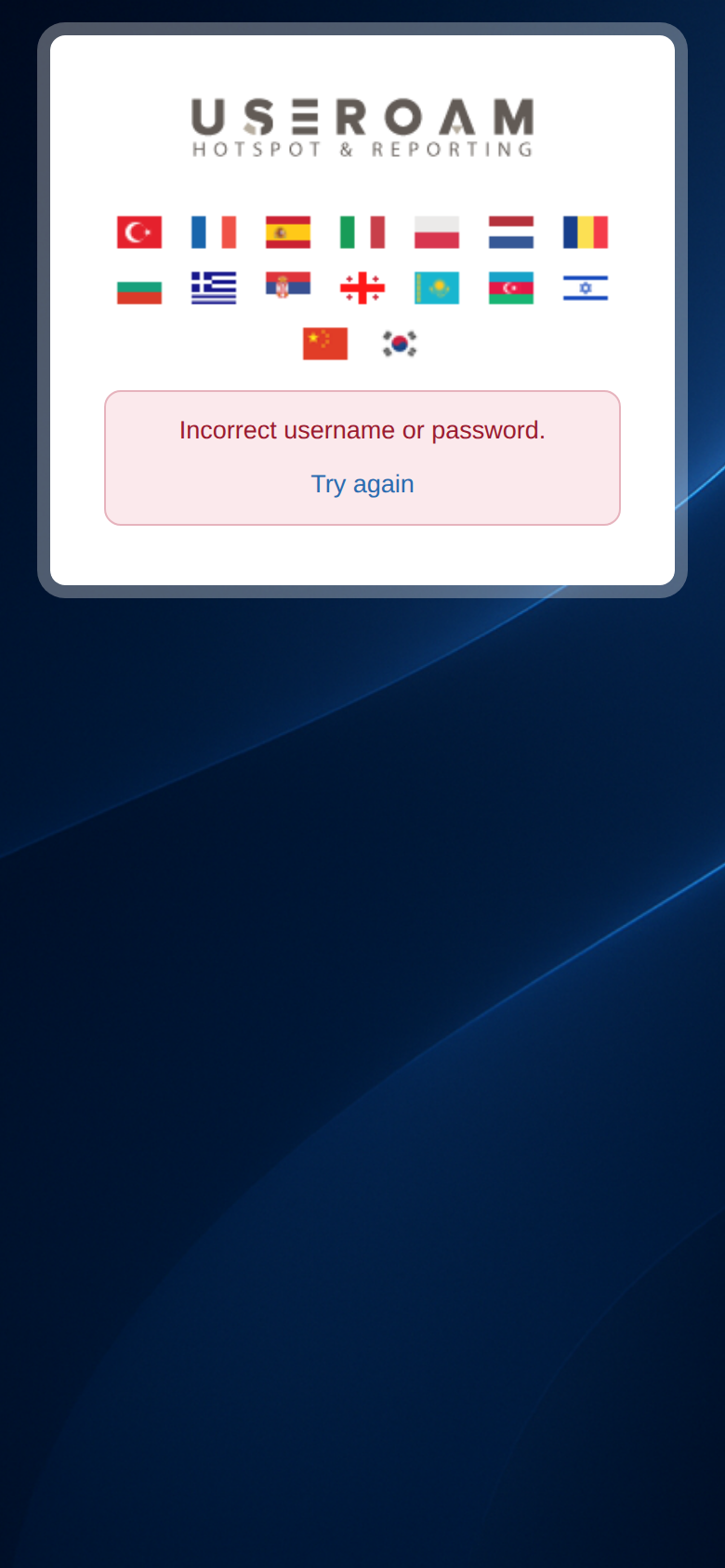
![Company network only page](https://help.useroam.com/uploads/images/gallery/2026-09/po-erisim.png)</td><td>The phone is on mobile data or a network outside the company.</td><td>Join the company Wi-Fi and open the link again.</td></tr><tr><td>**Incorrect username or password.** (with **Try again**)  
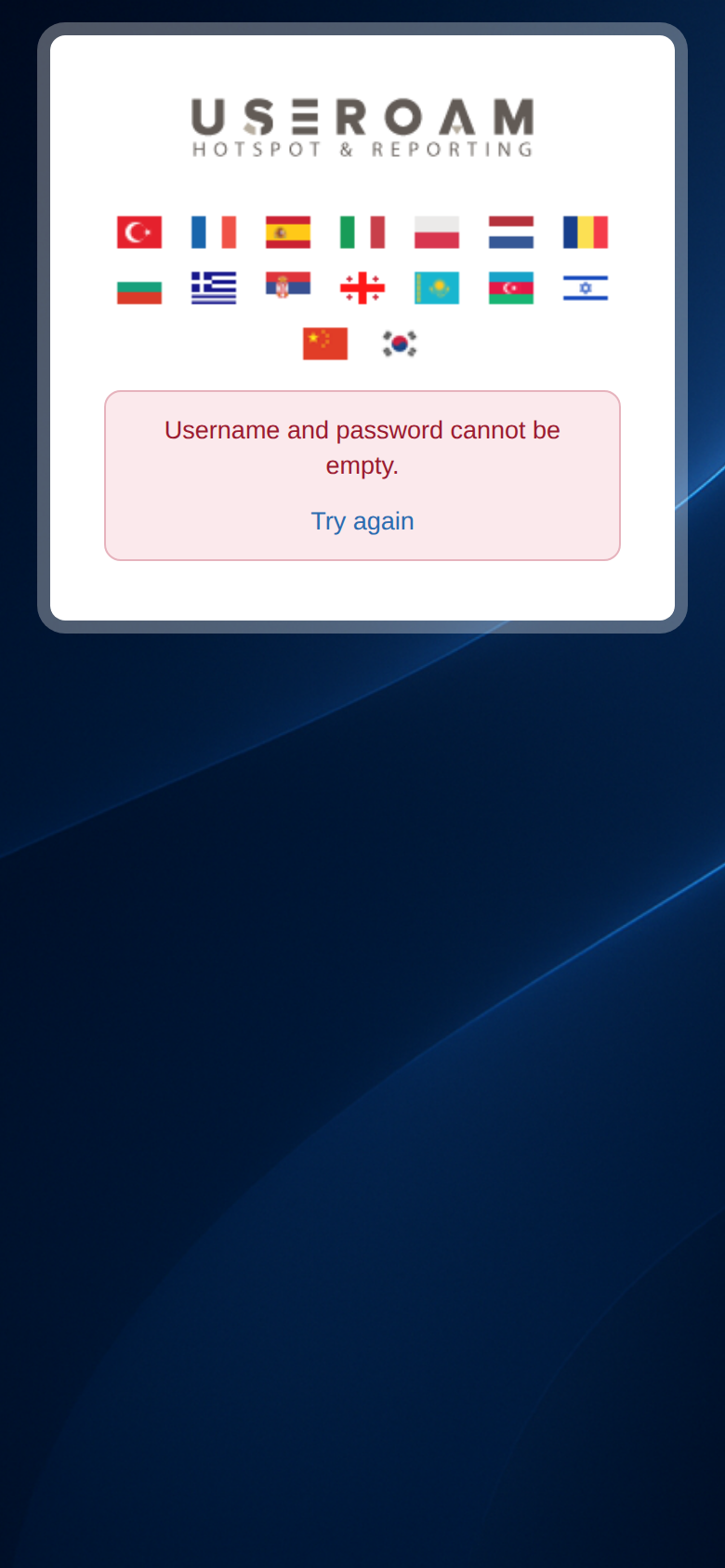
![Incorrect username or password](https://help.useroam.com/uploads/images/gallery/2026-09/po-hata-parola-en.png)</td><td>Wrong password. Local users must use the temporary password from the SMS.</td><td>Tap **Try again** and sign in with the right details.</td></tr><tr><td>**Username and password cannot be empty.**  
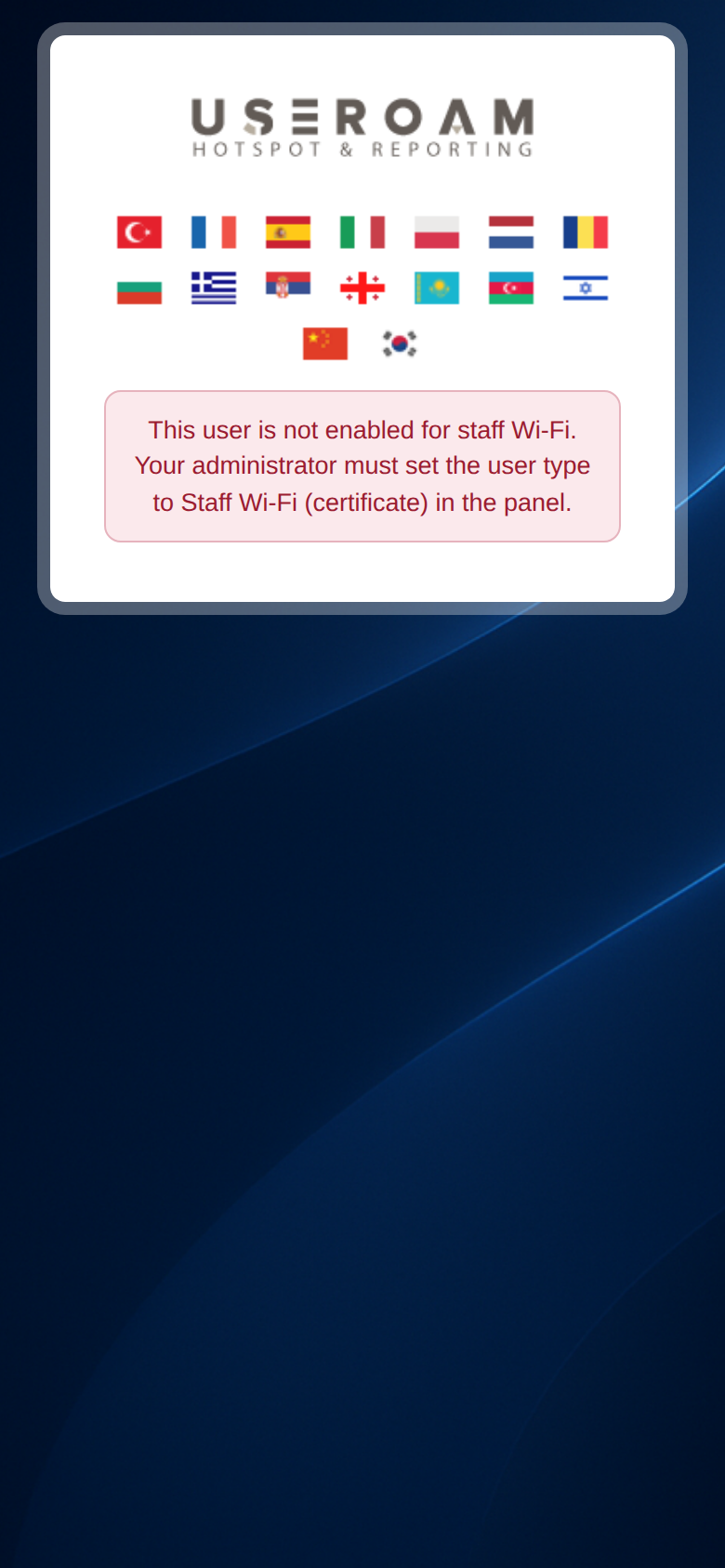
![Username and password cannot be empty](https://help.useroam.com/uploads/images/gallery/2026-09/po-hata-bos-en.png)</td><td>One of the boxes was empty.</td><td>Fill in both boxes.</td></tr><tr><td>**This user is not enabled for staff Wi-Fi. Your administrator must set the user type to Staff Wi-Fi (certificate) in the panel.**  
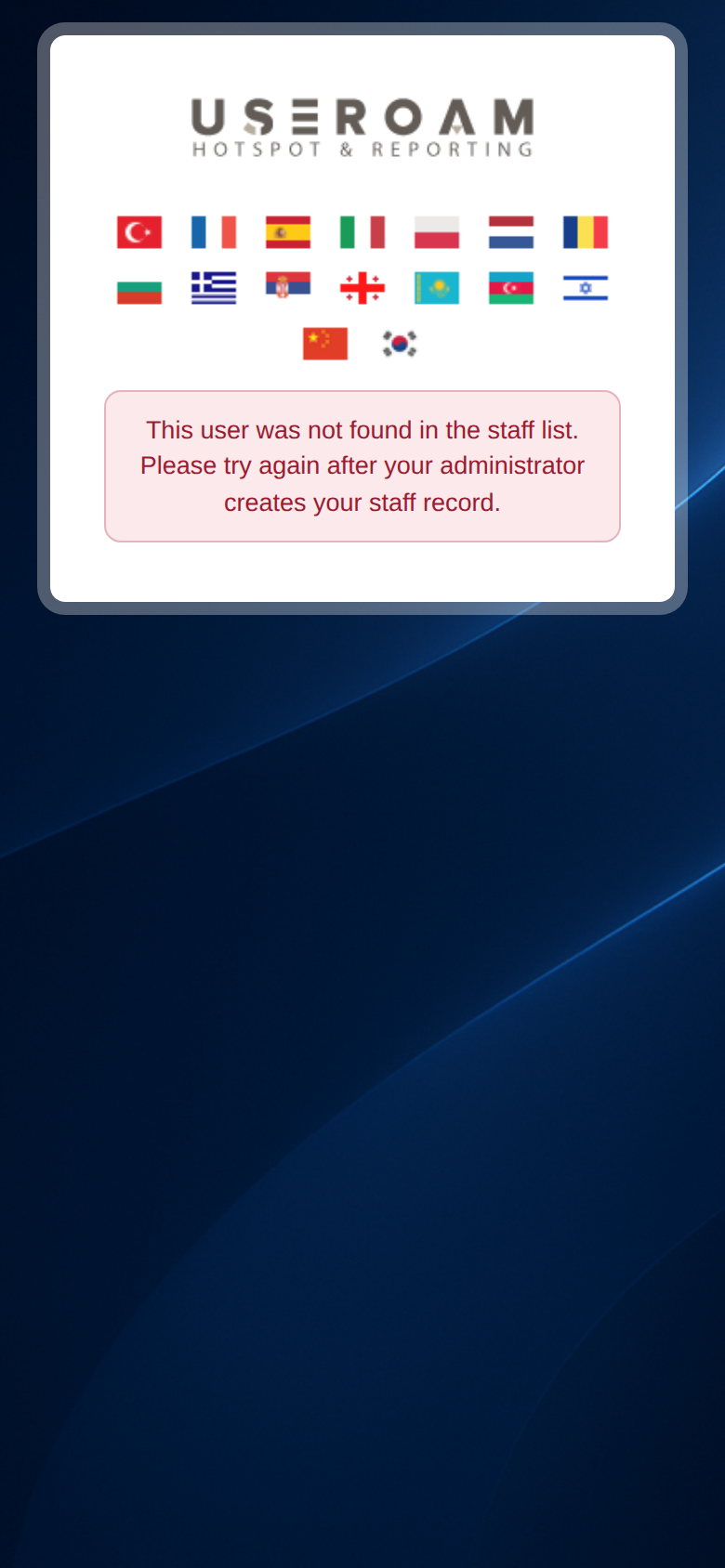
![User not enabled for staff Wi-Fi](https://help.useroam.com/uploads/images/gallery/2026-09/po-hata-tip-en.png)</td><td>The local user was created as **Hotspot user**. The panel list shows **Not permitted**.</td><td>Create the employee again with the type **Staff WiFi (certificate)**.</td></tr><tr><td>**This user was not found in the staff list. Please try again after your administrator creates your staff record.**  
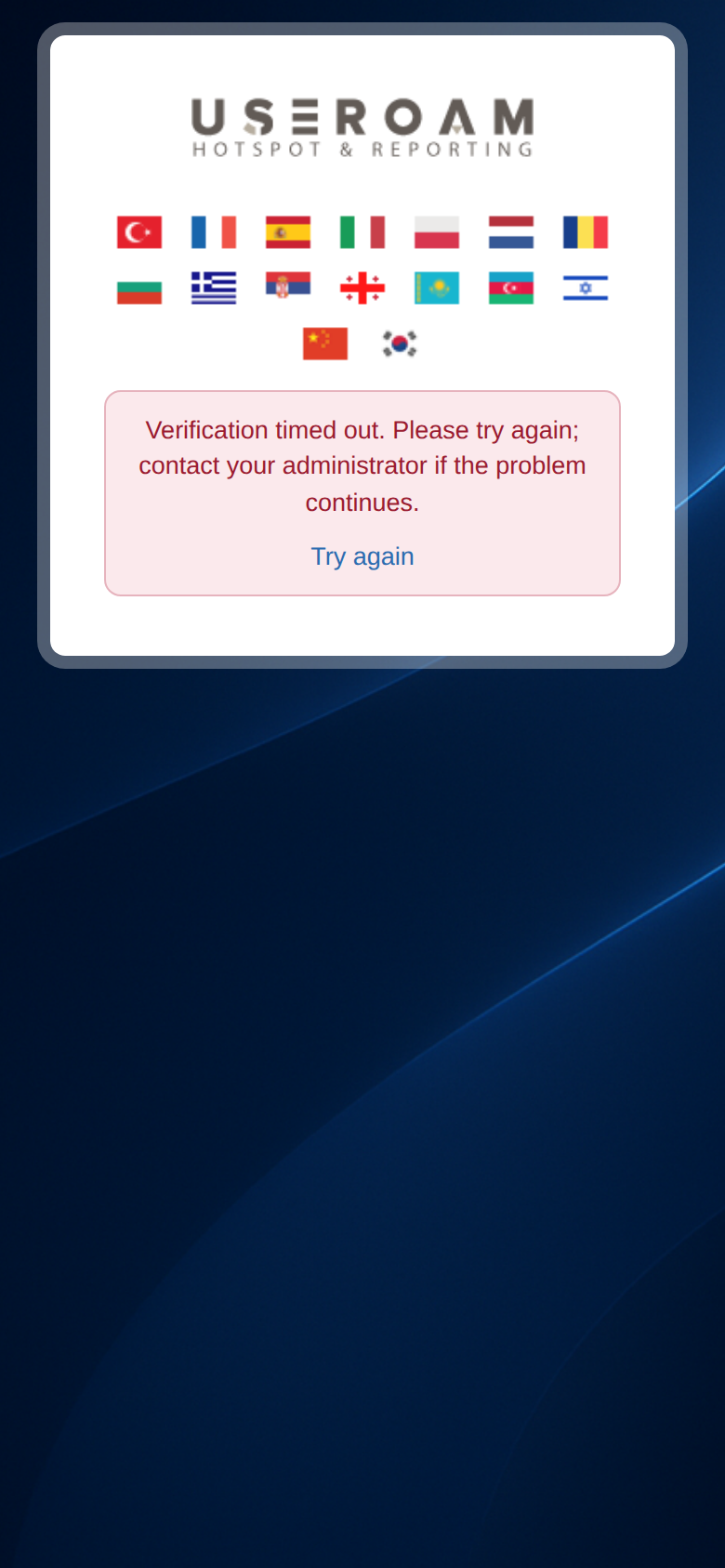
![User not found in the staff list](https://help.useroam.com/uploads/images/gallery/2026-09/po-hata-uye-en.png)</td><td>The Active Directory password is right, but the employee is not in this device's staff list.</td><td>Check that the Connector has brought the employee in.</td></tr><tr><td>**Verification timed out. Please try again; contact your administrator if the problem continues.**  
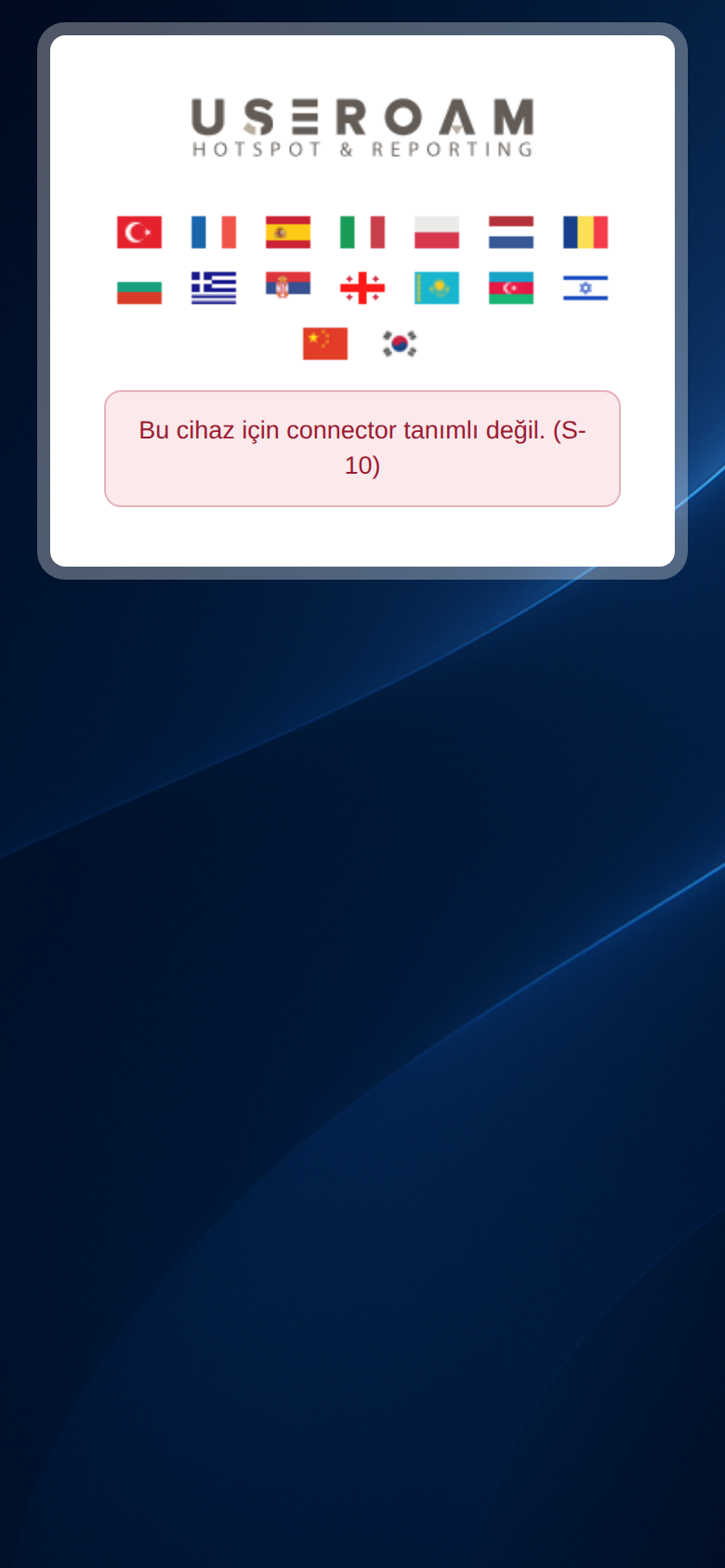
![Verification timed out](https://help.useroam.com/uploads/images/gallery/2026-09/po-hata-zaman-en.png)</td><td>The Connector did not answer within a few seconds.</td><td>Check in the panel that the Connector is **Online**.</td></tr><tr><td>**Bu cihaz için connector tanımlı değil. (S-10)** (no connector defined for this device; shown in Turkish only)  
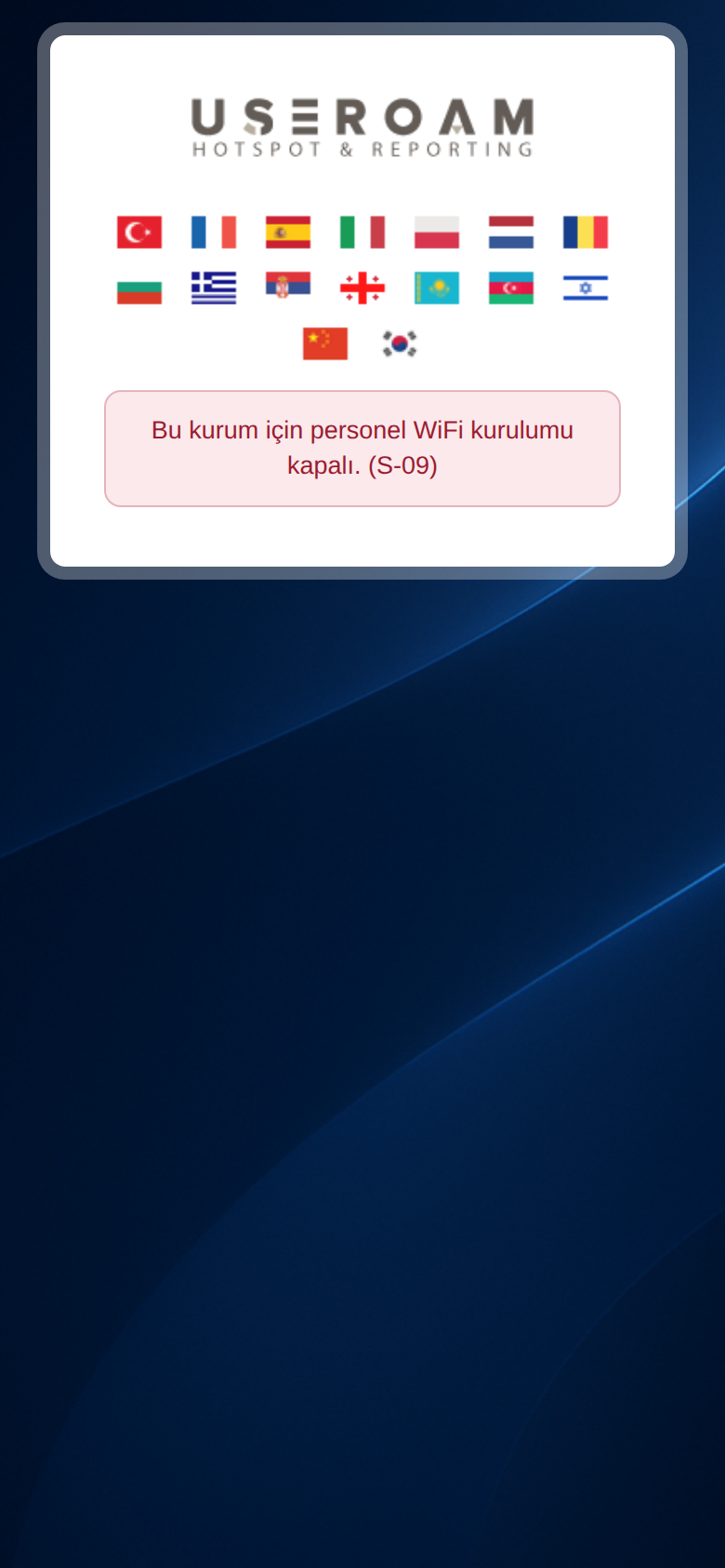
![No connector defined (S-10)](https://help.useroam.com/uploads/images/gallery/2026-09/po-s10.png)</td><td>The username is not a local user in the panel and no Connector is installed.</td><td>Check the spelling of the username; create the user in the panel if it is a local user, or install the Connector if you use Active Directory.</td></tr><tr><td>**Bu kurum için personel WiFi kurulumu kapalı. (S-09)** (staff Wi-Fi setup is closed for this organisation)  
![Staff WiFi setup closed (S-09)](https://help.useroam.com/uploads/images/gallery/2026-09/po-s09.png)</td><td>**Staff WiFi is on** is off.</td><td>Turn it on and save.</td></tr><tr><td>**Kurulum bağlantısı eksik. (S-01)** (setup link incomplete)  
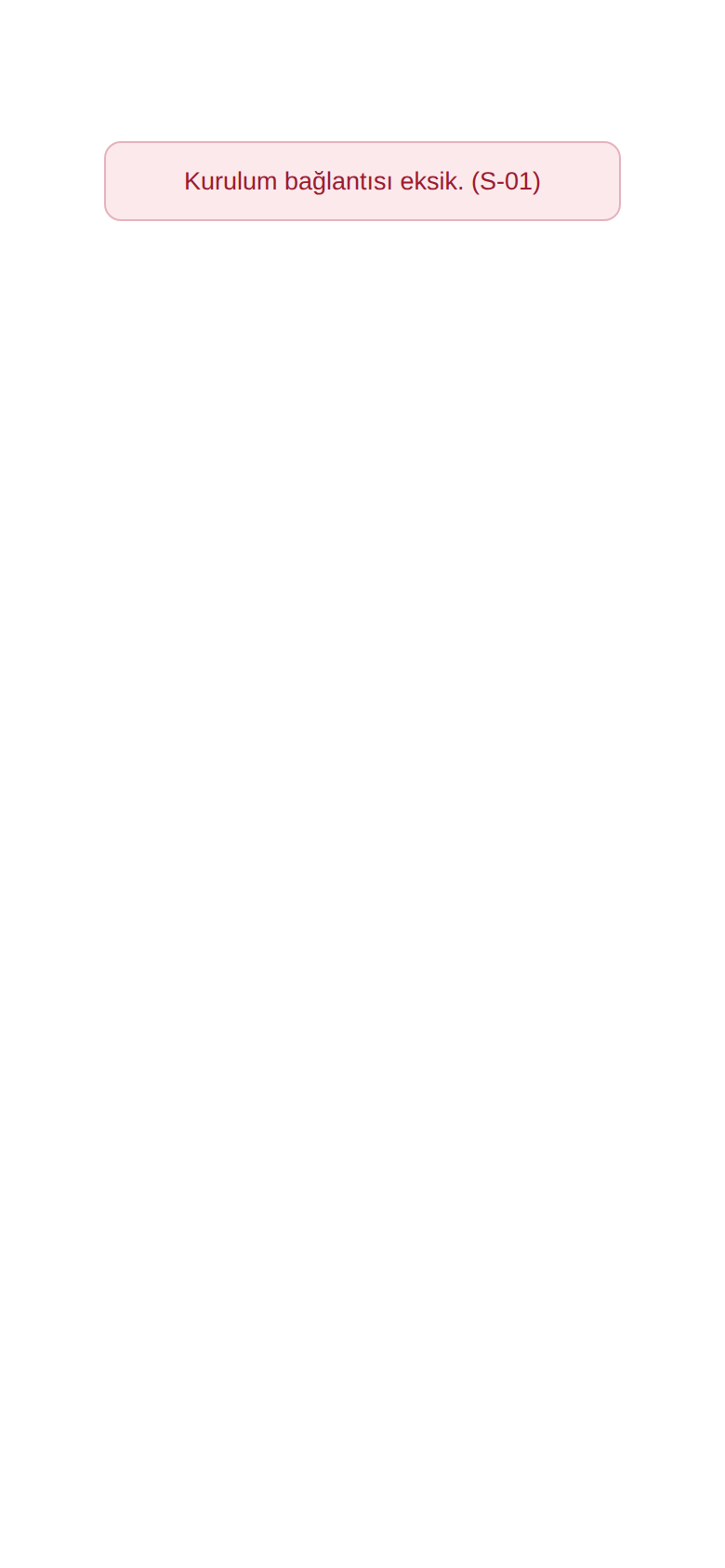
![Setup link incomplete (S-01)](https://help.useroam.com/uploads/images/gallery/2026-09/po-s01.png)</td><td>The end of the address was cut off when copying.</td><td>Copy the link again from the card and send it in full.</td></tr><tr><td>**Cihaz bulunamadı. (S-06)** (device not found) / **Bu cihaz pasif. (S-08)** (this device is inactive)</td><td>The link is broken or the device licence is inactive.</td><td>Copy the link again; if the device is inactive, contact your reseller.</td></tr><tr><td>**Profil bulunamadı veya süresi doldu (15 dk). Lütfen formu tekrar doldurun.** (profile not found or expired, 15 min)  
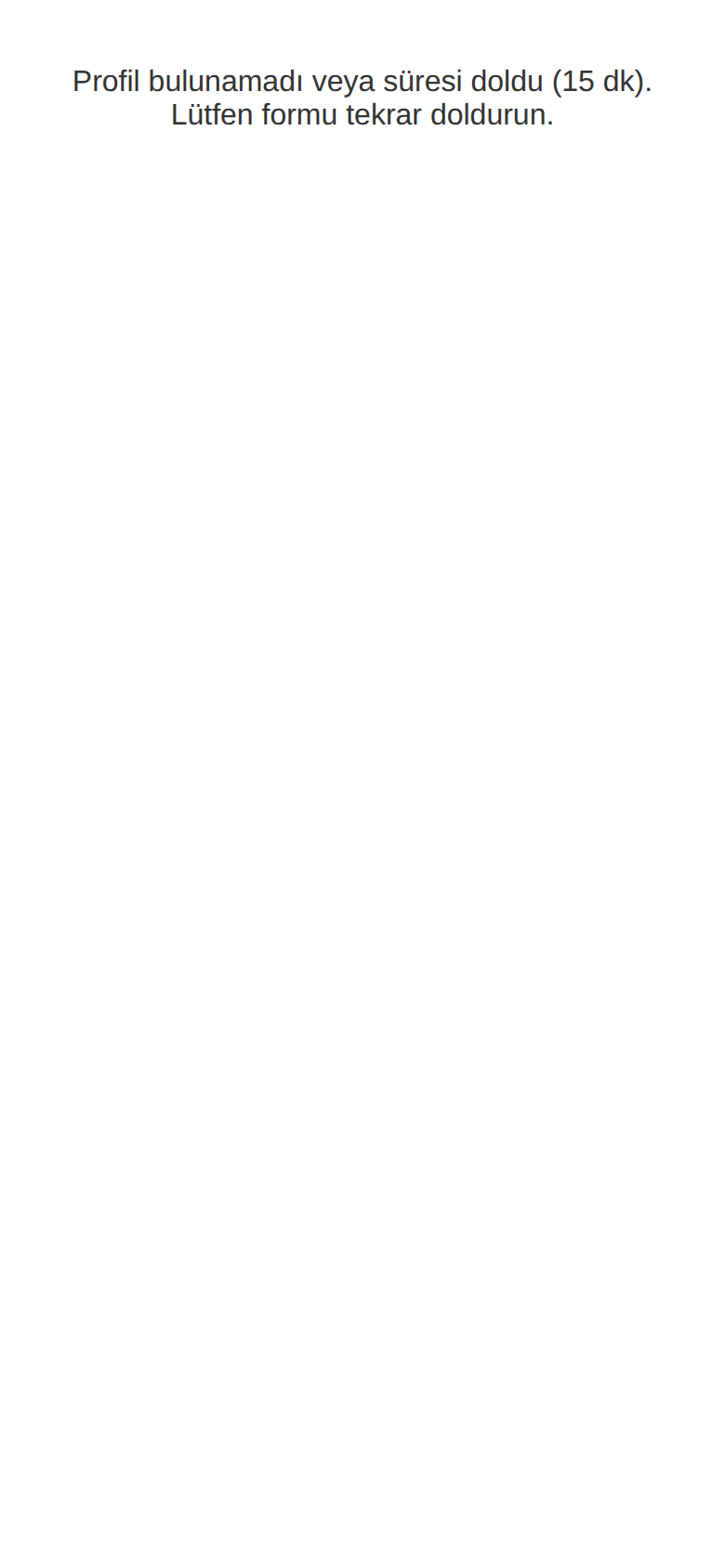
![Profile not found or expired](https://help.useroam.com/uploads/images/gallery/2026-09/po-profil-yok.png)</td><td>The download link was not used within 15 minutes, or the iPhone profile was already downloaded once.</td><td>Open the setup link and fill in the form again.</td></tr><tr><td>**Profili Safari ile yükleyin** (install the profile with Safari, with a **Bağlantıyı kopyala** / copy link button)</td><td>On iPhone the link was opened in Chrome or inside another app.</td><td>Copy the link shown and open it in Safari; no need to fill in the form again.</td></tr><tr><td>**Sertifika üretilemedi: ...** (certificate could not be created) / **Doğrulama başlatılamadı.** (verification could not start) / **Connector anahtarı geçersiz.** (connector key invalid)</td><td>A problem on the server side.</td><td>Try again in a few minutes; if it continues, contact Useroam support.</td></tr></tbody></table>

The flags at the top of the setup page change its language. You can change the texts on the page for your organisation: [Portal Texts](/books/staff-wi-fi-administration/page/portal-texts).

## Frequently asked questions

**Do I send a separate link to each employee?**  
No. The link is the same for everyone. Each employee signs in with their own username.

**The employee filled in the form but forgot to download.**  
The download is valid for 15 minutes. After that, they open the same link and fill in the form again; no new link is needed.

**The employee changed phone.**  
They run the setup again on the new phone. When a new certificate is issued, the same person's older certificates are revoked automatically.

**The SMS did not arrive.**  
Check the phone number in the [Local Users](/books/guests/page/local-users) list. If needed, copy the link from the card and send it yourself; you can set a new temporary password in the **Group and Password** tab of **Edit User** and give it to the employee.

## Related pages

- [Certificates and Staff](/books/staff-wi-fi-administration/page/certificates-and-staff)
- [Useroam Connector](/books/staff-wi-fi-administration/page/useroam-connector)
- [Guests &gt; New User](/books/guests/page/new-user)
- Employee guides: [iPhone and iPad](/books/staff-wi-fi/page/iphone-and-ipad-setup), [Android](/books/staff-wi-fi/page/android-setup), [Windows](/books/staff-wi-fi/page/windows-setup)

# Certificates and Staff

## What is it for?

The **Staff and certificate status** card lists the staff on this device one by one and shows each person's setup status. You close a departing employee's access here with the **Revoke** button.

## When do you use it?

- When an employee leaves or loses their phone.
- When you want to see who has run the setup and who has not.
- To keep track of certificates that are about to expire (a look once a month is enough).

## Before you start

- If the list is empty it says "No staff records on this device. Nobody can run the setup until staff are added." Add staff first: [Useroam Connector](/books/staff-wi-fi-administration/page/useroam-connector) for Active Directory, otherwise [New User](/books/guests/page/new-user) (type **Staff WiFi (certificate)**). ![Empty staff list warning](https://help.useroam.com/uploads/images/gallery/2026-09/pw-bos-en.png)

## Step by step: closing an employee's access

1. Open **Staff WiFi** in the left menu and scroll to the **Staff and certificate status** card at the bottom. The number next to the title is the total number of staff on the device. ![Staff and certificate status list, Status column badges](https://help.useroam.com/uploads/images/gallery/2026-09/pw-liste-en.png)
2. To find the employee, type part of the name in the **Staff name** box at the top right and press **Search**. ![Staff name search box and result](https://help.useroam.com/uploads/images/gallery/2026-09/pw-ara-en.png)
3. Press **Revoke** at the end of the row. The browser asks "Revoke this certificate? The device will not be able to connect again and the staff member must run the setup once more."; press **OK** (or **Cancel** to go back). ![Revoke button](https://help.useroam.com/uploads/images/gallery/2026-09/pw-iptal-en.png)
4. A green **Certificate revoked.** message appears at the top and the row shows the **Revoked** badge. ![Certificate revoked message](https://help.useroam.com/uploads/images/gallery/2026-09/pw-iptal-ok-en.png)
5. If the employee has left for good, close their account too: delete or disable it in [Local Users](/books/guests/page/local-users). If you use Active Directory, disable the account in the directory. ![Local Users list and row buttons](https://help.useroam.com/uploads/images/gallery/2026-09/mz-lu-liste-en.png)

## Status badges

<table id="bkmrk-badgewhat-it-meanswh"><thead><tr><th>Badge</th><th>What it means</th><th>What to do</th></tr></thead><tbody><tr><td>**Set up** (green)</td><td>Has a valid certificate; the device can join the network.</td><td>Nothing.</td></tr><tr><td>**Not set up yet** (grey)</td><td>Has a staff record but has not run the setup.</td><td>Send the setup link.</td></tr><tr><td>**Not permitted** (white)</td><td>The local user was created as **Hotspot user**. This person **cannot** get a certificate even with the link.</td><td>If they need one, create them with the type **Staff WiFi (certificate)**.</td></tr><tr><td>**Expires soon (26 days)** (yellow)</td><td>Less than 60 days left; the brackets show the days remaining.</td><td>Ask the employee to run the setup again. The new certificate replaces the old one.</td></tr><tr><td>**Expired** (red)</td><td>The certificate is no longer valid; the device cannot join.</td><td>Ask the employee to run the setup again.</td></tr><tr><td>**Revoked** (black)</td><td>The certificate has been revoked.</td><td>If the employee comes back, they run the setup again.</td></tr></tbody></table>

Certificates are valid for **825 days** and **do not renew themselves**. Staff who set up in the same period expire on the same days; do not wait when you see yellow badges.

## Every field and button on the screen

<table id="bkmrk-field-%2F-buttonwhat-i"><thead><tr><th>Field / Button</th><th>What it does</th></tr></thead><tbody><tr><td>**Staff name** box and **Search**</td><td>Searches usernames. With no result it says "No staff member matches your search." ![No staff member matches your search](https://help.useroam.com/uploads/images/gallery/2026-09/pw-bulunamadi-en.png)

</td></tr><tr><td>**Staff member**</td><td>Company username. A short name (`ahmet`) and a full name (`ahmet@firma.local`) count as the same person.</td></tr><tr><td>**Status**</td><td>One of the badges above. If the person has several certificates, the newest one decides.</td></tr><tr><td>**Issued**</td><td>When the newest certificate was issued. A dash if there is none.</td></tr><tr><td>**Action** / **Revoke**</td><td>Shown for valid or expired certificates; not shown for revoked ones.</td></tr><tr><td>"Showing %d of %d staff. Use the search box."</td><td>The list shows at most 100 people at a time. Example: "Showing 100 of 240 staff." Use the search box for the person you need.</td></tr><tr><td>Note at the bottom of the card</td><td>"Revocation takes effect at the next network authentication of the device. A device that is already connected may stay connected until its session ends."</td></tr></tbody></table>

## Certificates with no matching staff record

Below the list you may see a folding section called **Certificates with no matching staff record (1)**. When opened it shows the note "These were issued before the staff list check was added. Revoke them if they are not in use." and a table with **User** (with the start of the serial number below), **Issued**, **Status** (**Valid** or **Revoked**) and **Action**.

![Certificates with no matching staff record](https://help.useroam.com/uploads/images/gallery/2026-09/pw-oksuz-en.png)

The owners of these certificates are not in the staff list. **Revoke them if they are not in use:** a valid certificate with no known owner is a device that can join the network but cannot be tracked in the list.

## Frequently asked questions

**I revoked it but the employee is still connected.**  
Revocation takes effect at the device's next network authentication. A device connected right now can stay connected until its session ends. If you must cut it off immediately, drop the device on the firewall side as well.

**The same person set up with both a short name and a full name.**  
Revoke closes **all** valid certificates of that person on this device together.

**Does revoking delete the staff record?**  
No. The person stays in the list with the **Revoked** badge. To delete the record, use [Local Users](/books/guests/page/local-users).

**Should I revoke the old certificate of an employee who changed phone?**  
No need. When the new setup is done, the same person's older certificates are revoked automatically.

## Related pages

- [Inviting Staff](/books/staff-wi-fi-administration/page/inviting-staff)
- [Guests &gt; Local Users](/books/guests/page/local-users)
- [Analytics and Reports &gt; 5651 Logs](/books/analytics-and-reports/page/5651-logs)

# Portal Texts

## What is it for?

It lets you change the texts staff see on the setup page (welcome sentence, buttons, error messages, Android and Windows steps) to suit your organisation. Texts are **per language and per device**: you change the texts of the language row you opened, for the selected device.

## When do you use it?

- You want to add your organisation's name or a contact number to the welcome sentence.
- You want error messages to say something like "Call IT: extension 123".
- The Android steps do not match the menu names on your staff's phone brand.

## Before you start

- An administrator account is needed. Restricted users do not see this section.
- The right device must be selected in the top menu. If you open a language row that belongs to another device, the section is not shown.

## Step by step

1. In the left menu open **Captive Portal &gt; Portal Language Settings** and click a language in the list (example: Turkish). Details: [Portal Language Settings](/books/captive-portal/page/portal-language-settings). ![Opening a language in Portal Language Settings](https://help.useroam.com/uploads/images/gallery/2026-10/prt-dil-ac-en.png)
2. On the page that opens, scroll below the guest portal fields. Click the folding section **Staff Wi-Fi Texts**. The grey number next to the title is how many texts have been changed for this device in that language; no number means every text uses its ready-made version. ![Staff Wi-Fi Texts folding section](https://help.useroam.com/uploads/images/gallery/2026-09/ld-staff-kapali-en.png)
3. When the section opens you see five groups. Each box **comes filled with the ready-made text** of that language; the small label of the box tells you which text it is, in the panel's own language. Edit the boxes you want to change and leave the others as they are. ![Five text groups: Login form, Status and error messages, Setup result, Android steps, Windows steps](https://help.useroam.com/uploads/images/gallery/2026-09/ld-staff-acik-en.png)
4. Press **Save** at the bottom of the section. The note next to it: "Fields you leave empty fall back to the ready-made text." ![Save button and empty-field note](https://help.useroam.com/uploads/images/gallery/2026-09/ld-staff-kaydet-en.png)
5. The page reloads and a green **Texts saved.** appears above the section. Open the setup page and check the change. ![Texts saved message](https://help.useroam.com/uploads/images/gallery/2026-09/ld-staff-ok-en.png)

## Text groups

<table id="bkmrk-grouptexts-in-it-%28en"><thead><tr><th>Group</th><th>Texts in it (English ready-made text)</th></tr></thead><tbody><tr><td>**Login form**</td><td>Welcome sentence ("Sign in once with your corporate username and password; your Wi-Fi profile will be installed on your device automatically."), **Username**, **Password**, the **Install** button, the **Try again** link.</td></tr><tr><td>**Status and error messages**</td><td>Waiting note, **Installing...**, "Username and password cannot be empty.", "Incorrect username or password.", time-out, "not enabled for staff Wi-Fi", "not found in the staff list". When they appear: [Inviting Staff](/books/staff-wi-fi-administration/page/inviting-staff).</td></tr><tr><td>**Setup result**</td><td>"Your identity is verified, your certificate is ready.", **Download certificate**, **Certificate password**, "The password is shown only on this page and is asked once during installation.", "The download link is valid for 15 minutes. If it expires, please fill in the form again."</td></tr><tr><td>**Android steps**</td><td>Six parts: download, certificate install path, password, "From the Wi-Fi list, tap the network" + network name + the rest, "Fill in these two fields, then tap Connect:", and the field labels **Identity** and **Domain name**.</td></tr><tr><td>**Windows steps**</td><td>Six parts: download, Certificate Import Wizard, password, "From the Wi-Fi list, connect to the network" + network name + the rest, "If server validation is requested, use this name:".</td></tr></tbody></table>

The two boxes around the network name are separate; your staff network name is inserted between them in bold automatically. Spaces at the start and end of these boxes matter; do not remove them.

**Ready-made texts in the Android boxes:**

1. Download the certificate (button below).
2. Settings &gt; Security &gt; Encryption and credentials &gt; Install a certificate &gt; Wi-Fi certificate.
3. Enter the password below when prompted. Your phone may also ask for its own screen lock; that is your own PIN/pattern.
4. From the Wi-Fi list, tap the network
5. . Set the EAP method to TLS, then select the certificate you installed as both the CA certificate and the User certificate.
6. Fill in these two fields, then tap Connect:

**Ready-made texts in the Windows boxes:**

1. Download the certificate (button below).
2. Double-click the downloaded file; the Certificate Import Wizard opens. Choose Current User as the store location.
3. Enter the password below when prompted, then click Next through the remaining steps.
4. From the Wi-Fi list, connect to the network
5. . The Windows authentication method must be set to Smart card or other certificate; select your certificate while connecting.
6. If server validation is requested, use this name:

## Saving rules

- If you save a ready-made text without changing it, nothing is stored; that box keeps using the ready-made text, and if Useroam improves it your page is updated too.
- If you empty a box completely and save, that text goes back to the ready-made version.
- Each box takes up to 1000 characters.
- The **Save** of this section is separate from the guest portal form: saving staff texts does not affect the guest portal, and the other way round.
- If the page has been open for a very long time, saving may show a red "Session validation failed, please try again." Reload the page and save again.

## Things to watch

- **Do not type a server name.** The setup page creates and shows the *Identity* and *Domain name* values itself; a value typed into the text may be wrong.
- **Android CA certificate sentence:** the ready-made Android text may say to select "the certificate you installed as both the CA certificate and the User certificate". The correct choice for CA certificate is **Use system certificates** (see [Android setup](/books/staff-wi-fi/page/android-setup)). If your staff get confused, you can correct the box after the network name in **Android steps** like this: ". Set the EAP method to TLS. For CA certificate choose Use system certificates; for User certificate select the certificate you installed."
- **Edit the language your staff use first.** Other languages keep using the ready-made texts.

## Frequently asked questions

**I cannot see the Staff Wi-Fi Texts section.**  
Either your account is not an administrator, or the language row you opened belongs to a device that is not selected in the top menu.

**I changed it but the setup page shows the old text.**  
Staff see the text of the language they opened the page in. Check that you edited that language's row and chose it with the flag on the setup page.

## Related pages

- [Editing Portal Texts (incl. KVKK)](/books/captive-portal/page/editing-portal-texts-incl-kvkk): the guest portal texts on the same page
- [Inviting Staff](/books/staff-wi-fi-administration/page/inviting-staff)