| **Open this page on the company network** (Turkish and English, with the connection address)
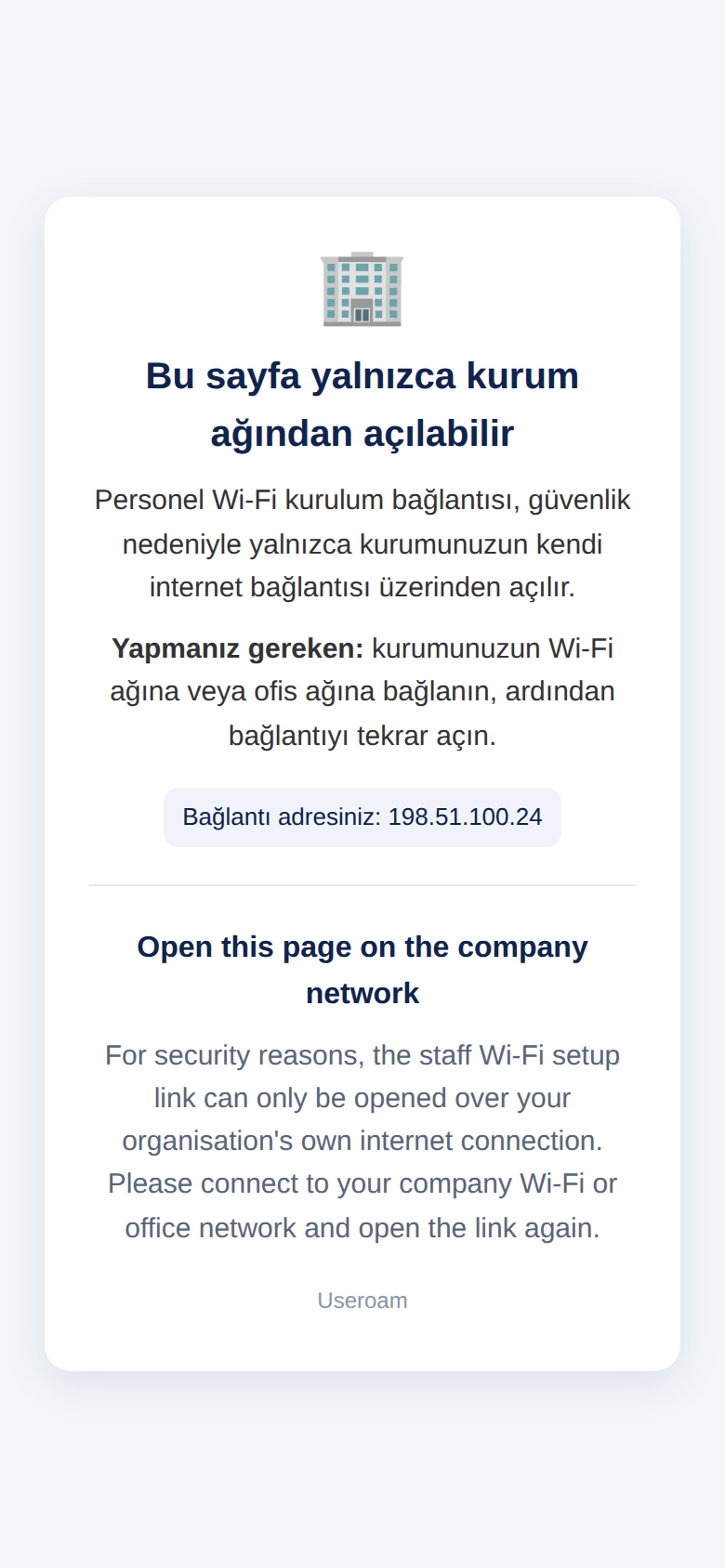 | The phone is on mobile data or a network outside the company. | Join the company Wi-Fi and open the link again. |
| **Incorrect username or password.** (with **Try again**)
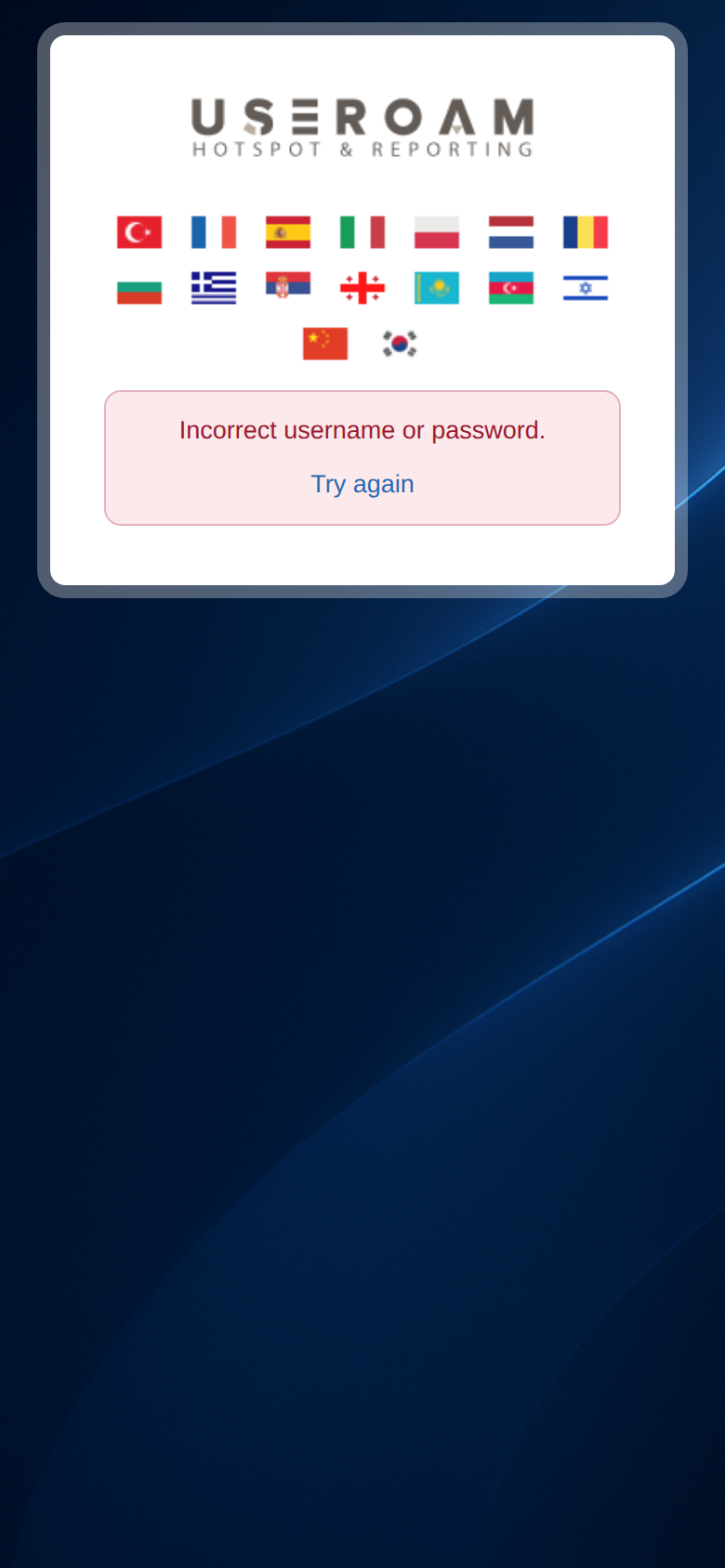 | Wrong password. Local users must use the temporary password from the SMS. | Tap **Try again** and sign in with the right details. |
| **Username and password cannot be empty.**
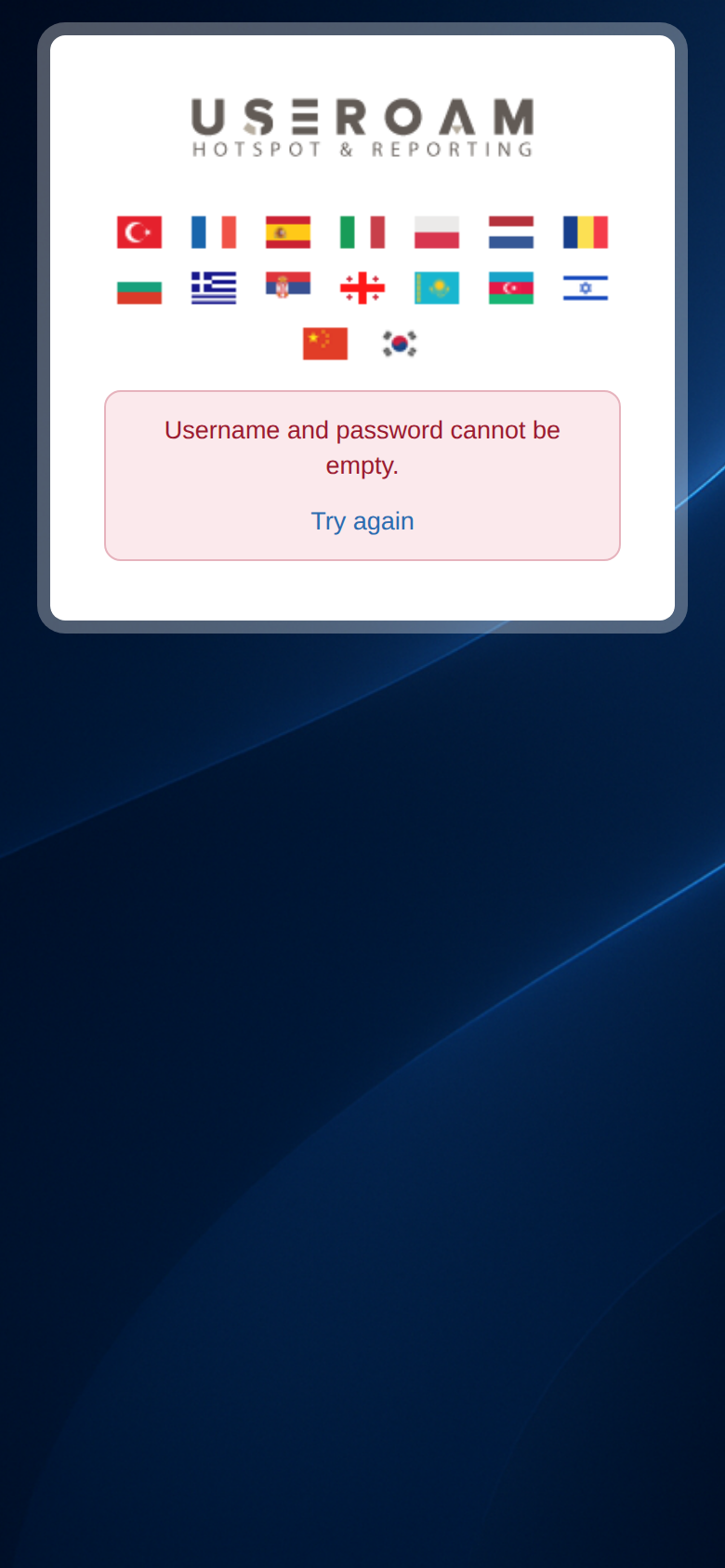 | One of the boxes was empty. | Fill in both boxes. |
| **This user is not enabled for staff Wi-Fi. Your administrator must set the user type to Staff Wi-Fi (certificate) in the panel.**
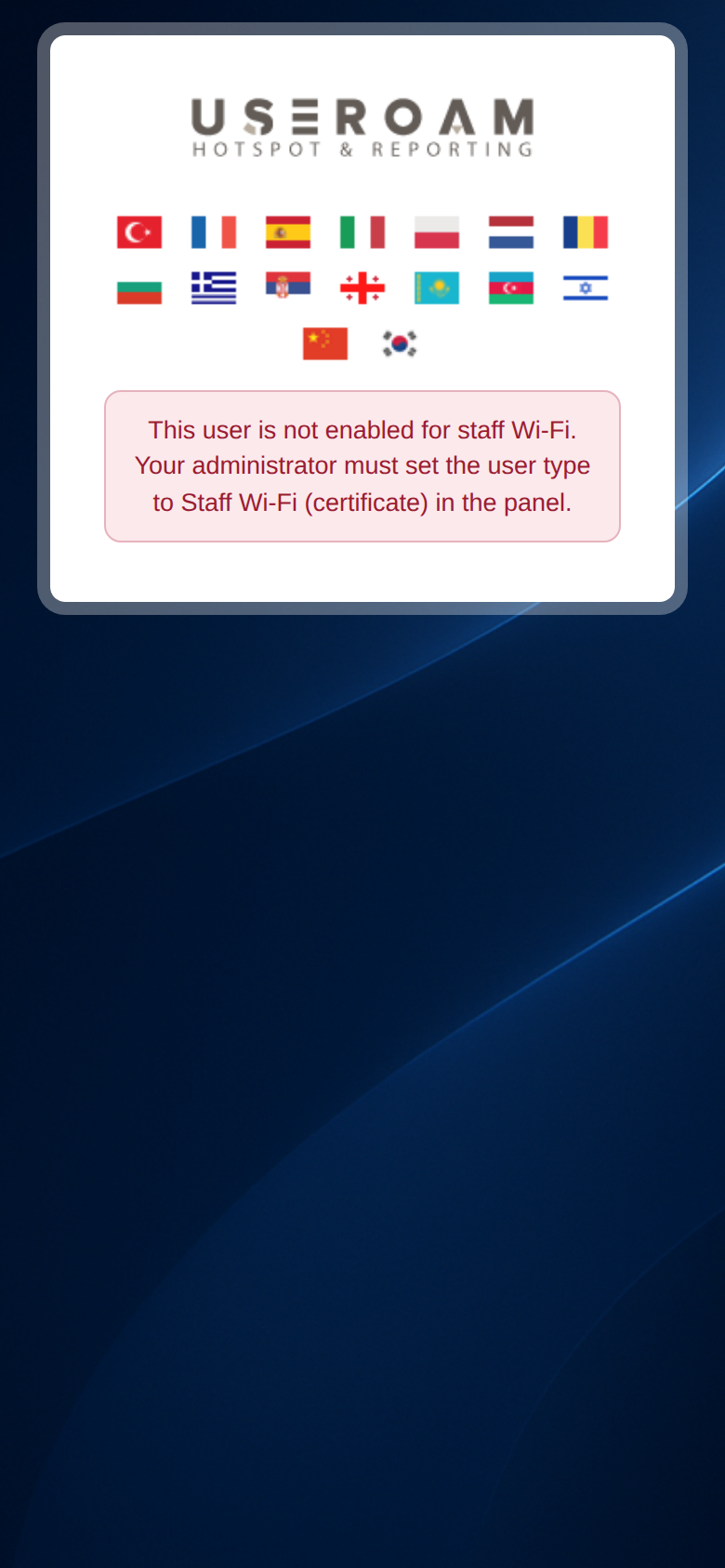 | The local user was created as **Hotspot user**. The panel list shows **Not permitted**. | Create the employee again with the type **Staff WiFi (certificate)**. |
| **This user was not found in the staff list. Please try again after your administrator creates your staff record.**
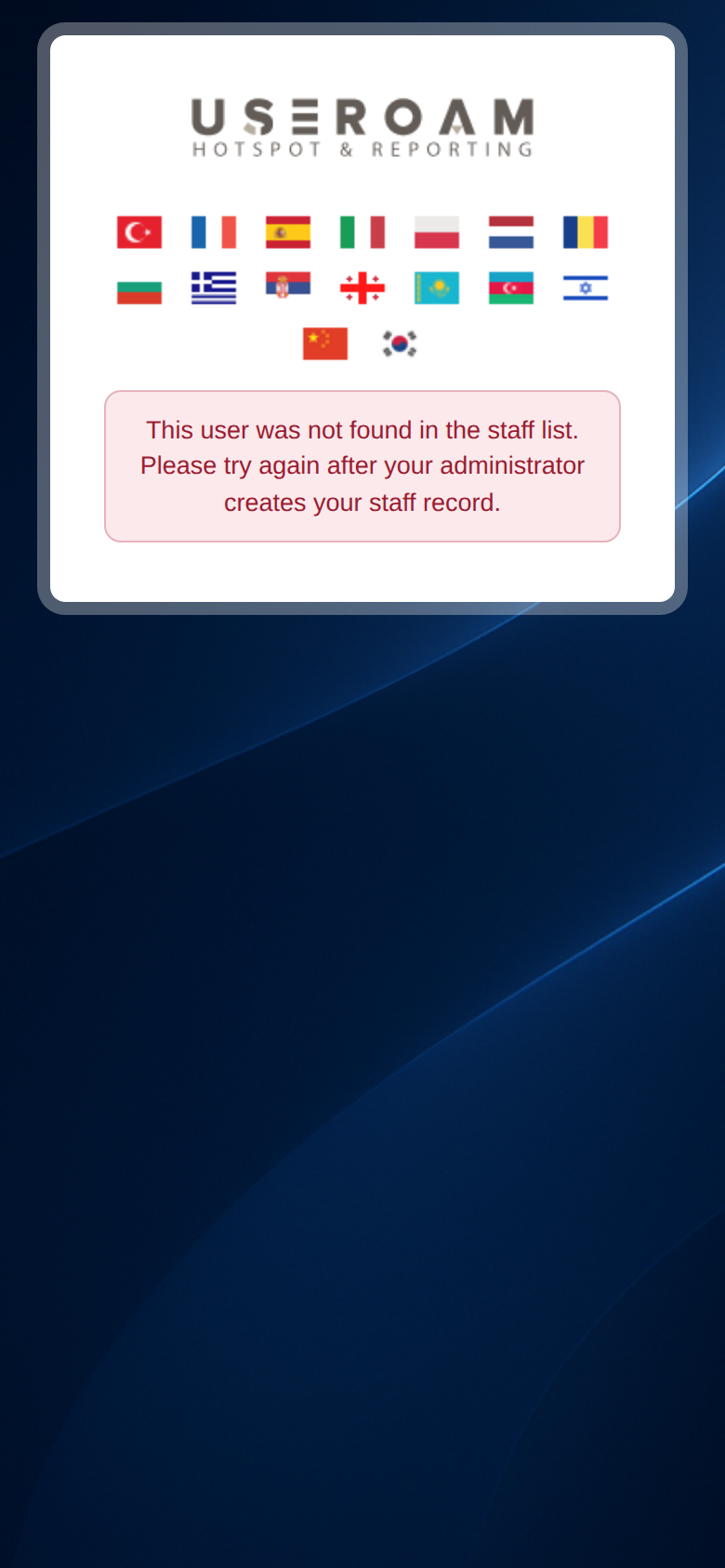 | The Active Directory password is right, but the employee is not in this device's staff list. | Check that the Connector has brought the employee in. |
| **Verification timed out. Please try again; contact your administrator if the problem continues.**
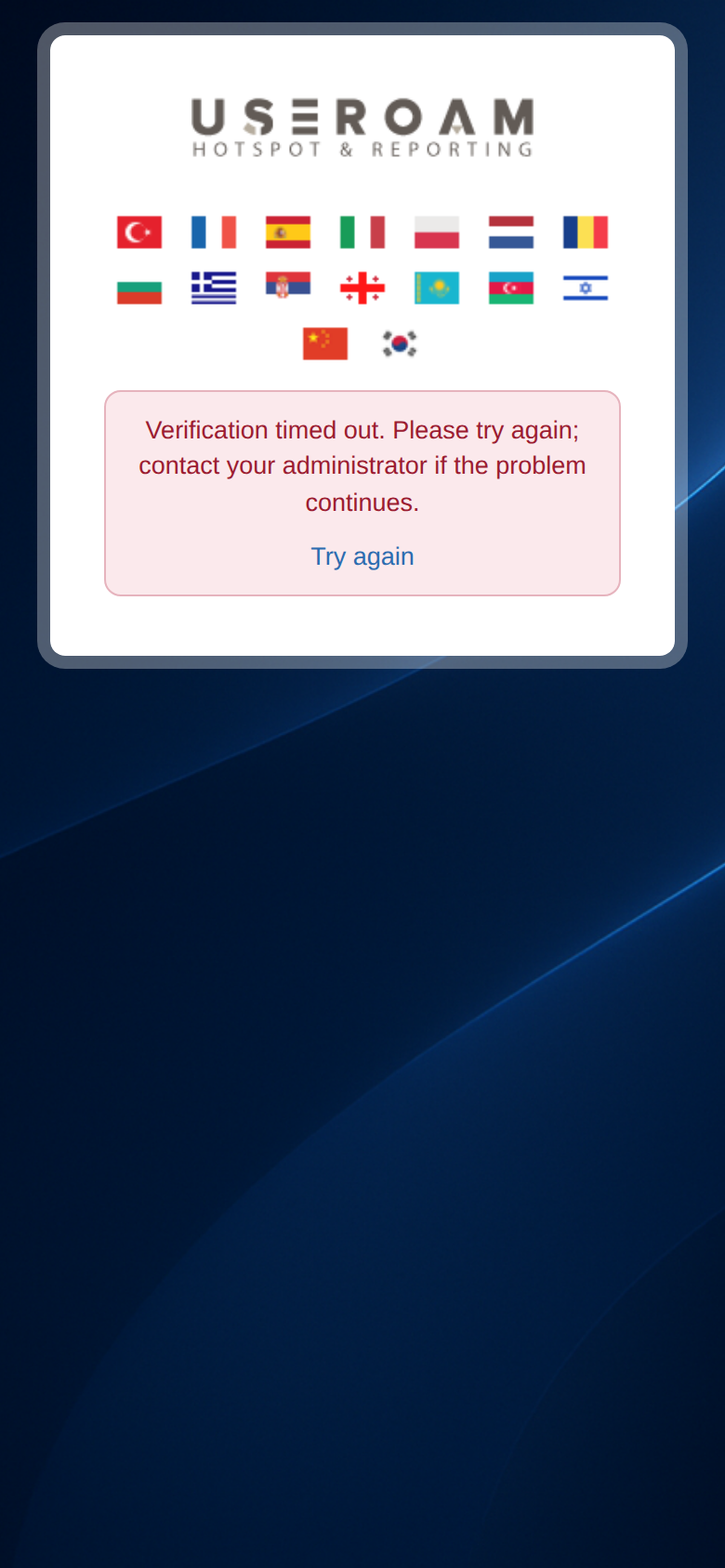 | The Connector did not answer within a few seconds. | Check in the panel that the Connector is **Online**. |
| **Bu cihaz için connector tanımlı değil. (S-10)** (no connector defined for this device; shown in Turkish only)
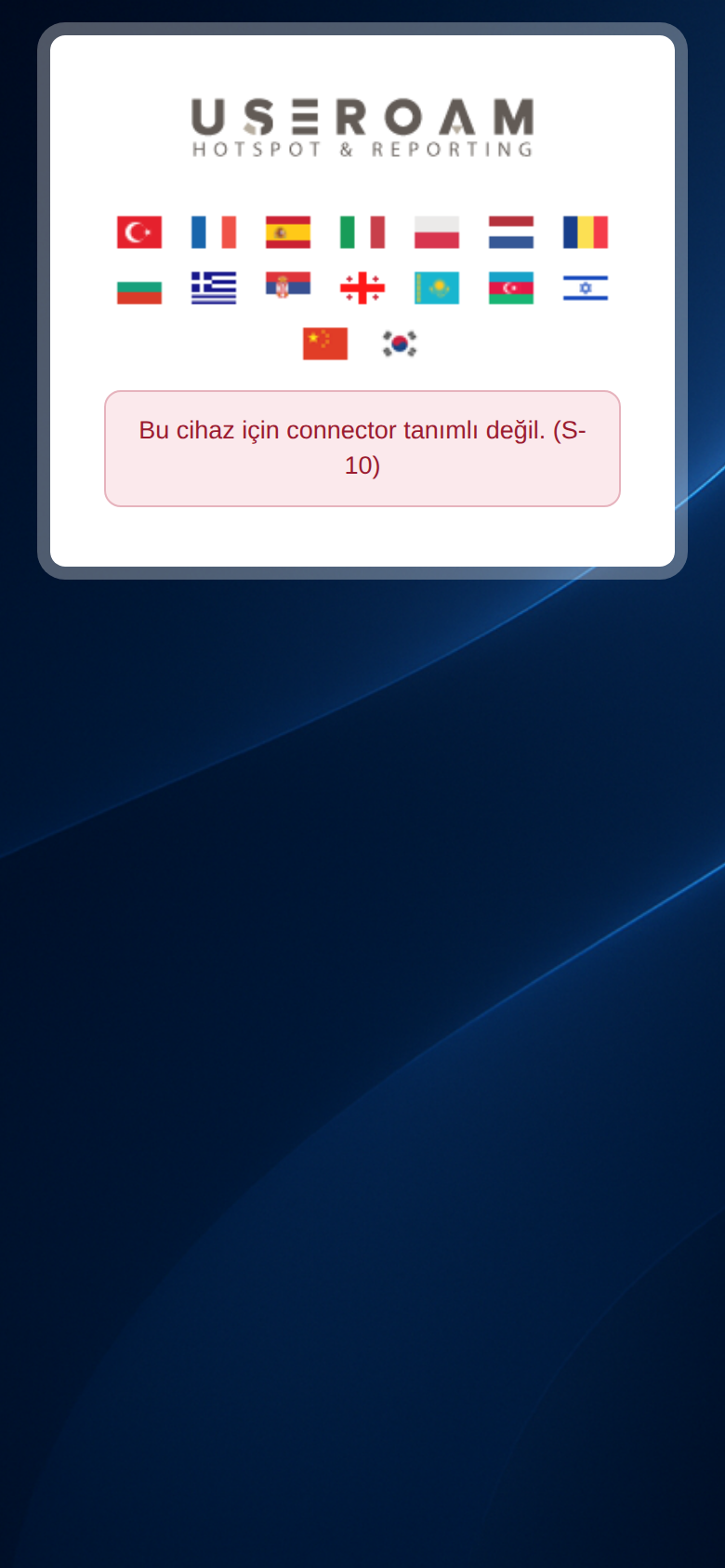 | The username is not a local user in the panel and no Connector is installed. | Check the spelling of the username; create the user in the panel if it is a local user, or install the Connector if you use Active Directory. |
| **Bu kurum için personel WiFi kurulumu kapalı. (S-09)** (staff Wi-Fi setup is closed for this organisation)
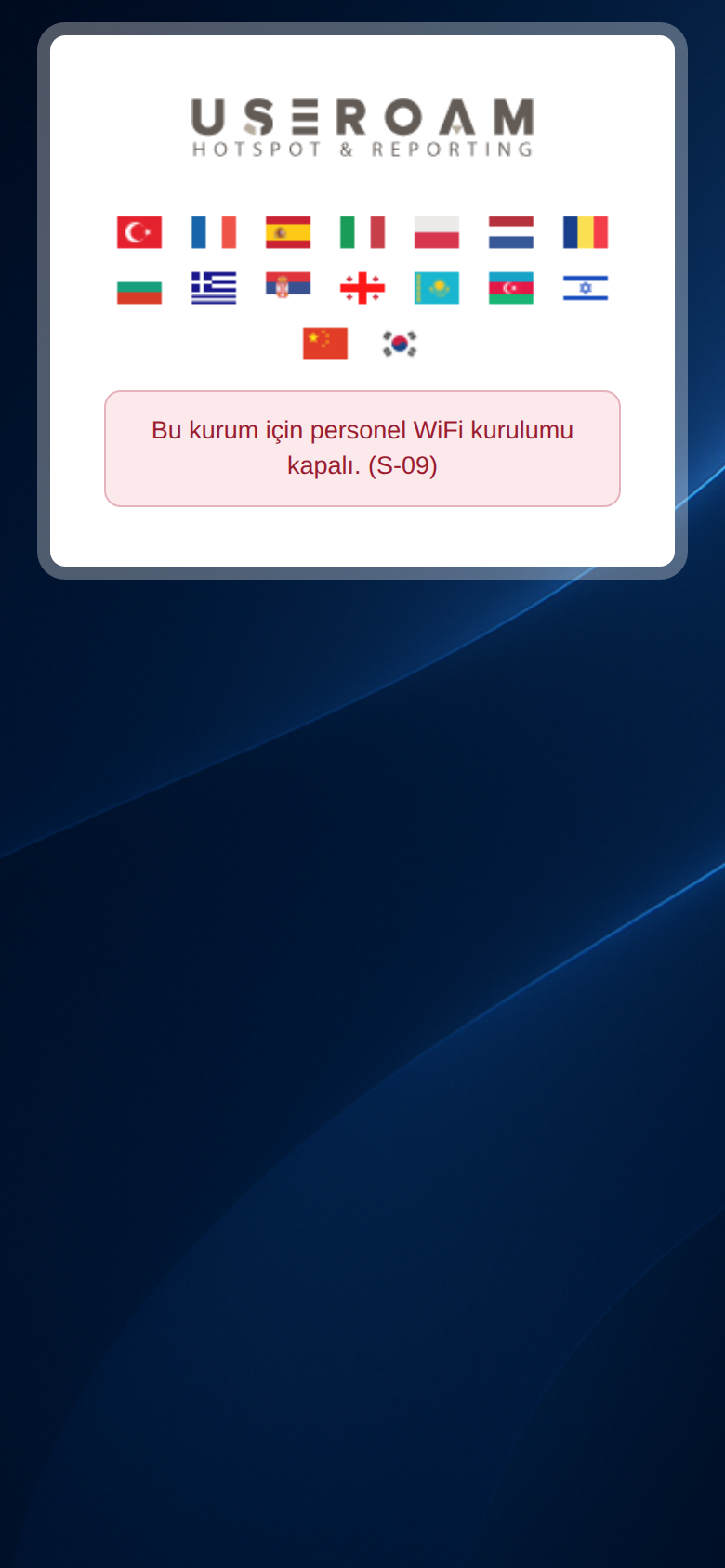 | **Staff WiFi is on** is off. | Turn it on and save. |
| **Kurulum bağlantısı eksik. (S-01)** (setup link incomplete)
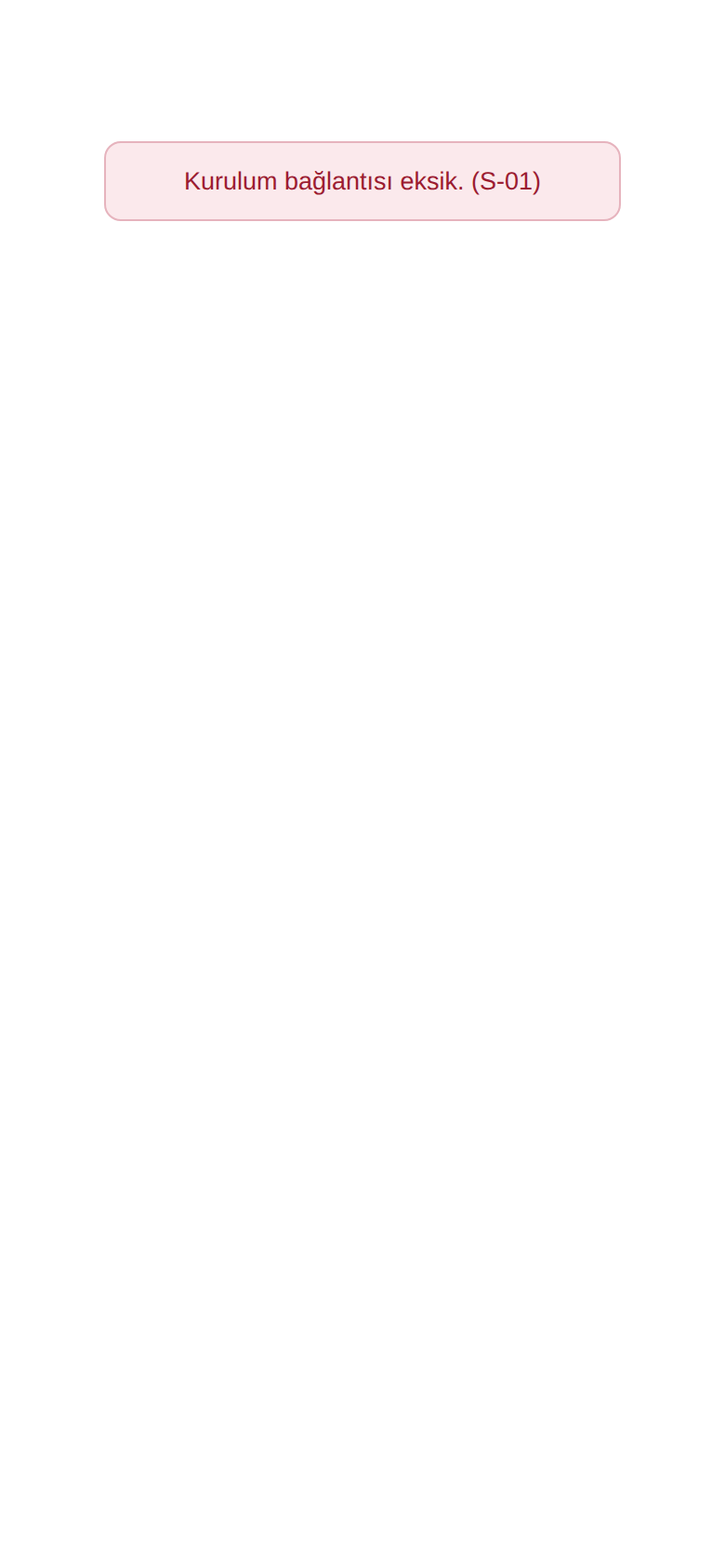 | The end of the address was cut off when copying. | Copy the link again from the card and send it in full. |
| **Cihaz bulunamadı. (S-06)** (device not found) / **Bu cihaz pasif. (S-08)** (this device is inactive) | The link is broken or the device licence is inactive. | Copy the link again; if the device is inactive, contact your reseller. |
| **Profil bulunamadı veya süresi doldu (15 dk). Lütfen formu tekrar doldurun.** (profile not found or expired, 15 min)
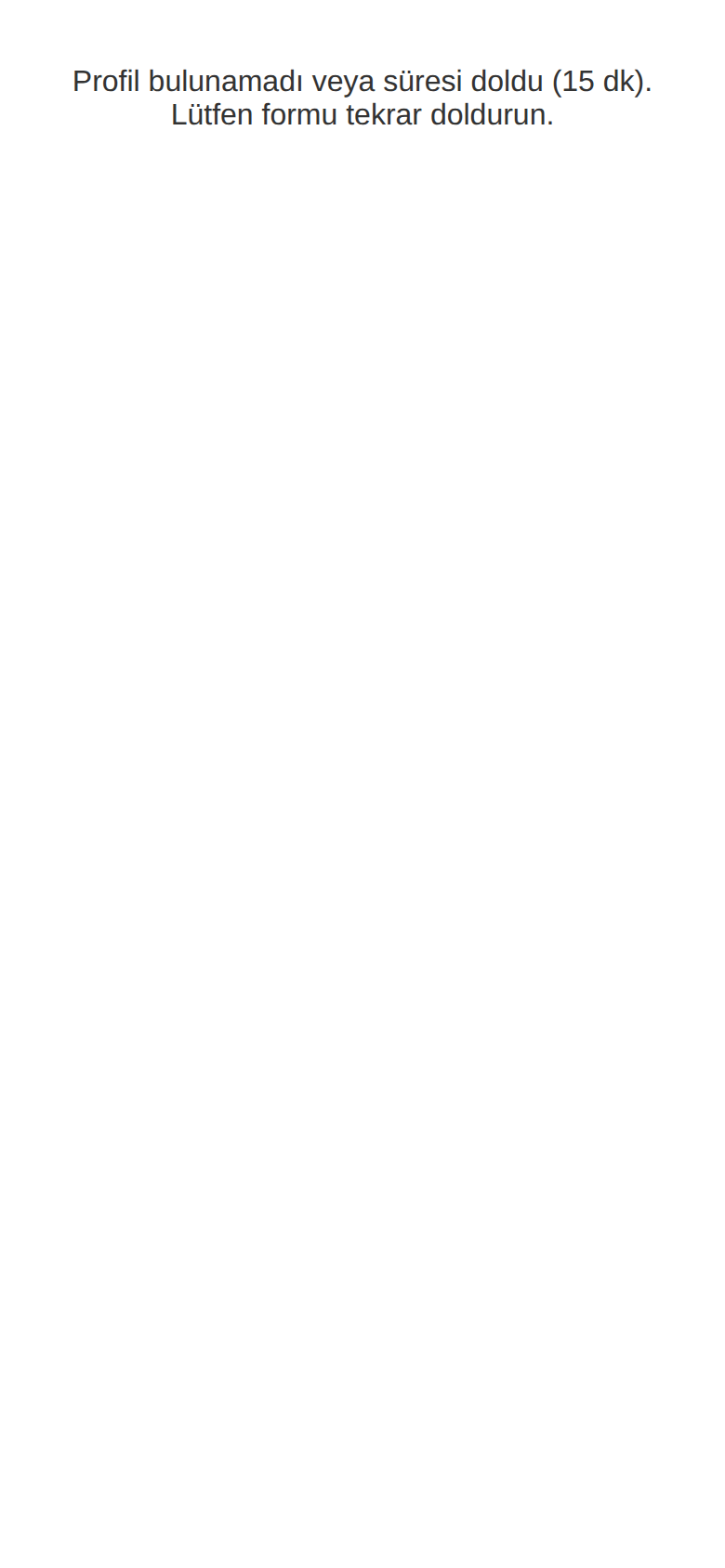 | The download link was not used within 15 minutes, or the iPhone profile was already downloaded once. | Open the setup link and fill in the form again. |
| **Profili Safari ile yükleyin** (install the profile with Safari, with a **Bağlantıyı kopyala** / copy link button) | On iPhone the link was opened in Chrome or inside another app. | Copy the link shown and open it in Safari; no need to fill in the form again. |
| **Sertifika üretilemedi: ...** (certificate could not be created) / **Doğrulama başlatılamadı.** (verification could not start) / **Connector anahtarı geçersiz.** (connector key invalid) | A problem on the server side. | Try again in a few minutes; if it continues, contact Useroam support. |