
Audit Log
The Audit Log shows who did what, and when in the panel. Use it to trace the source of a settings change, review coupon usage, or investigate a suspected unauthorised access.
How do I open this screen? From the left menu, go to Analytics and Reports → Audit Log.
Note: the filters and column headers on this screen are still shown in Turkish; the on-screen text is given in brackets.
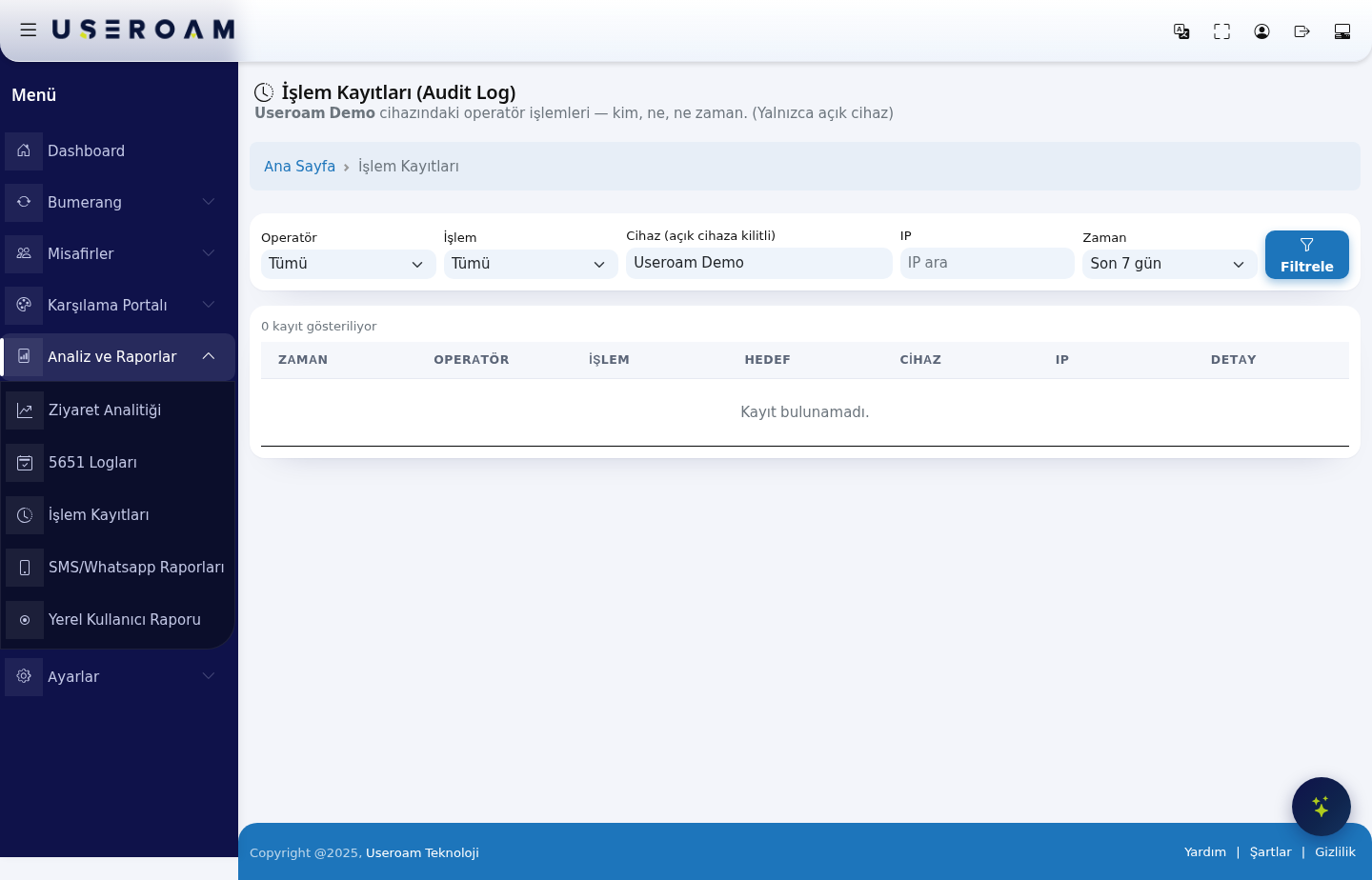
Filters
- Operator (Operatör): the panel user who performed the action. Choose Tümü (all) or one of the listed email addresses.
- Action (İşlem): filters by action type. Recorded types include:
captive_portal_update— captive portal settings updatedcoupon_check— coupon looked upcoupon_redeem— coupon marked as redeemeddevice_create— a new device addedlist_logs— the 5651 log list viewedmenu_report,otel_report,retail_report— module reports retrieved
- Device (Cihaz): locked to the open device and cannot be changed.
- IP: filters actions coming from a specific IP address — useful when you suspect a sign-in from an unexpected location.
- Time (Zaman): last 1 day, last 7 days, last 30 days, last 90 days or last year.
Once you have made your selection, press Filter (Filtrele). The result count appears above the table as "0 records shown".
Table columns
- TIME: the date and time of the action.
- OPERATOR: the user who performed it.
- ACTION: the type of action.
- TARGET: the record it was applied to (for example a coupon code or a portal setting).
- DEVICE: the device the action was performed on.
- IP: the originating IP address.
- DETAIL: additional information about the action.
If nothing matches the filter, the page shows "No records found."
In practice: to answer "why did the portal design change?", set Action to
captive_portal_updateand Time to last 7 days — the operator and the timestamp appear straight away.
Related pages: Settings → Administrators (last login and IP), Settings → Administrator Profiles (narrowing permissions).