
Local User Report
The Local User Report lists the local users you create manually in the panel — not the guests who register through the portal. Accounts opened for staff, employees and long-stay guests appear in this report.
How do I open this screen? From the left menu, go to Analytics and Reports → Local User Report.
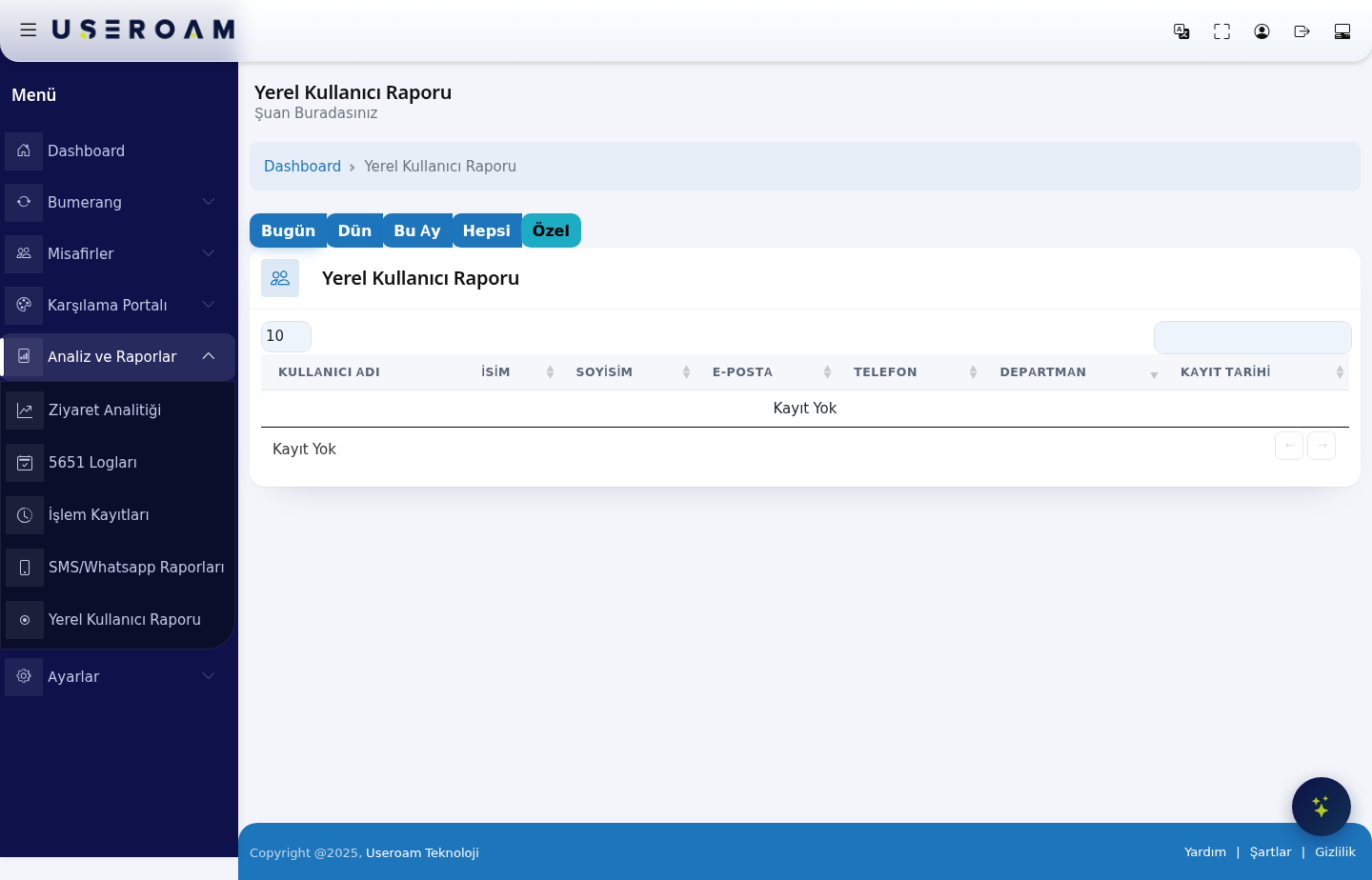
Choosing the period
Selecting Custom opens the Custom Report section:
- Start Date / End Date: pick the range from the calendar.
- Filter Type: Registration Date (when the account was created) or Last Login (when the user last connected).
- Save: generates the report.
Tip: to clean up dormant accounts, choose a wide range with the Last Login type — that is how you spot users who have not signed in for a long time.
Table columns
- USERNAME: the account's login name.
- FIRST NAME / LAST NAME: the user's name.
- E-MAIL: the email address on the account.
- PHONE: the user's phone number.
- DEPARTMENT: the unit the user belongs to. In corporate deployments, use it to break the report down by department.
- REGISTRATION DATE: the date the account was created.
When there are no records, the table reads "No Record".
Navigating the list
Use the 10 / 25 / 50 / 100 / All selector to set records per page, and the search box to filter instantly across all columns.
Related pages: Guests → Local Users (managing accounts), Guests → New User, Guests → Bulk Users, Guests → Groups.