
Advertisements
Advertisements manages the adverts and announcements shown on the captive login screen and after login. You use the screen the guest is already looking at while connecting to Wi-Fi to promote your own campaign.
How do I open this screen? From the left menu, go to Bumerang → ENGAGEMENT → Advertisements.
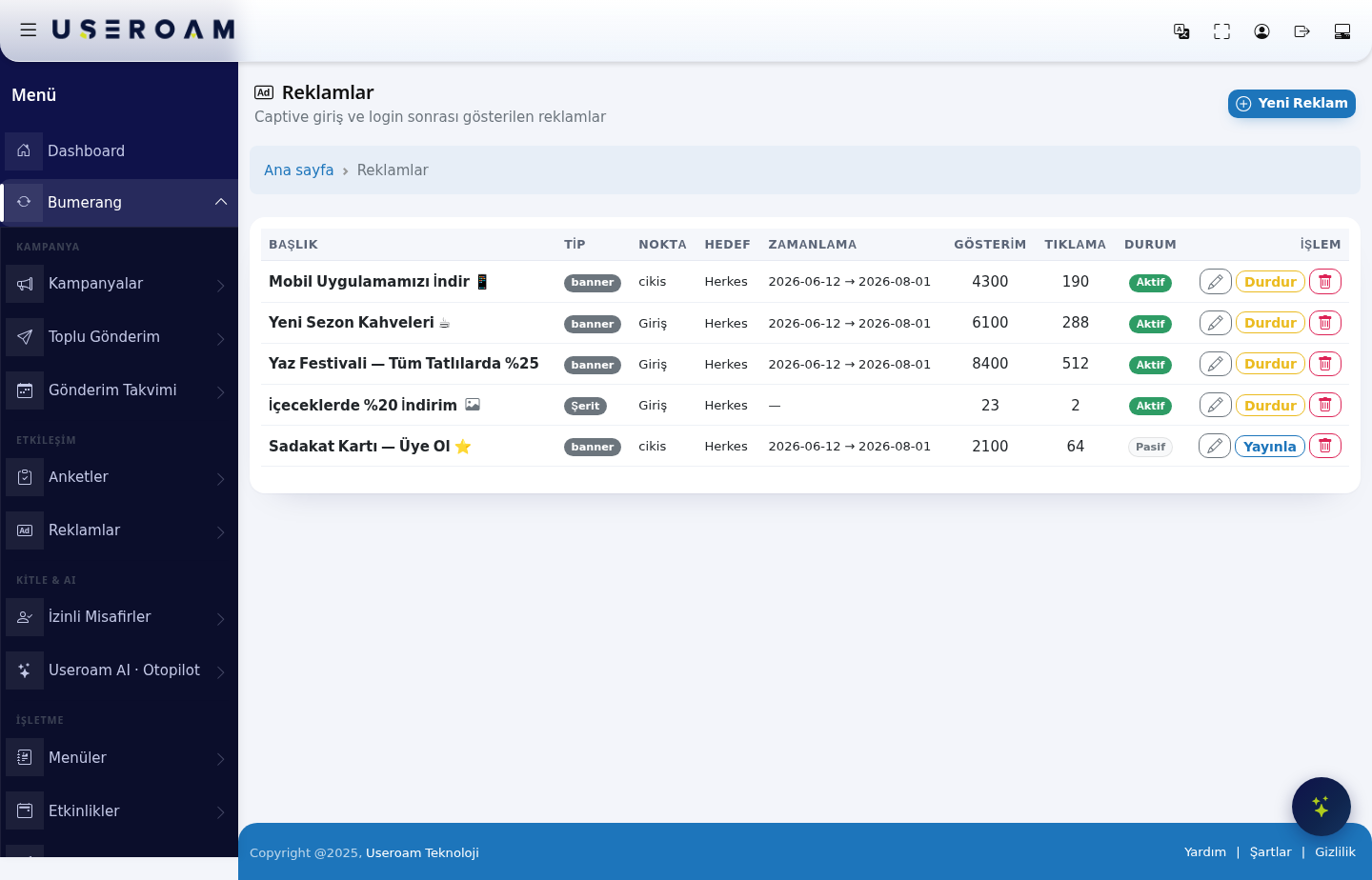
Table columns
- TITLE: the advert's name.
- TYPE: how it is displayed — banner (image) or strip (thin bar).
- POINT: where it appears — login (before the guest connects) or exit (on the page after connecting).
- TARGET: who sees it (for example Everyone).
- SCHEDULE: the publication date range (for example 2026-06-12 → 2026-08-01). With no dates, it runs indefinitely.
- IMPRESSIONS: how many times it was shown.
- CLICKS: how many times it was clicked.
- STATUS: Active or Passive.
- ACTION: a Stop button on active adverts and Publish on passive ones.
How to read performance: the click-to-impression ratio is the advert's real effect. For example 8,400 impressions and 512 clicks ≈ 6%; 4,300 impressions and 190 clicks ≈ 4.4%. A low ratio means the image or the offer is weak — change the headline and the visual, then measure again.
Login or exit?
- Login point: the guest sees it while waiting to get online. Attention is highest here, but the guest may be in a hurry — keep the message short and clear.
- Exit point: the guest sees it after connecting. Adverts that ask for an action — menu, loyalty card, app download — work better here.
New Advertisement
The New Advertisement button opens a new record where you enter the title, type, display point, target audience, date range and the image/content.
Note: you can also manage portal adverts from the Captive Portal → Portal Settings → Advertisements tab.
Related pages: Captive Portal → Portal Settings, Bumerang → Campaigns, Bumerang → Menus.