
Connecting your WhatsApp number
What is it for?
Bumerang campaign, survey and announcement messages normally go out from Useroam's WhatsApp number. With this guide you connect your own business number, so guests see messages from your number and your name. You keep using the WhatsApp Business app on your phone as before.
The whole process takes about 10 minutes. Keep your computer and your phone at hand.
Before you start
- The WhatsApp Business app must be installed on your phone and your number must be active in it. Regular (personal) WhatsApp is not enough. If your number is on personal WhatsApp, download the WhatsApp Business app and move your number to it first; the app offers this during setup and also moves your chats.
- The WhatsApp Business app must be up to date (2.24.17 or later). Update it from the App Store or Google Play.
- Your phone's camera must work; you will scan a QR code shown on the computer screen.
- A Facebook account (of the person who manages the business).
- A credit card for message fees. Meta charges you directly; card details never reach Useroam.
Step by step
- Open the WhatsApp card in the panel. In the left menu, open Settings > Device Settings and click the Integrations tab at the top. The WhatsApp Business Account card is at the bottom. Click Connect WhatsApp account.
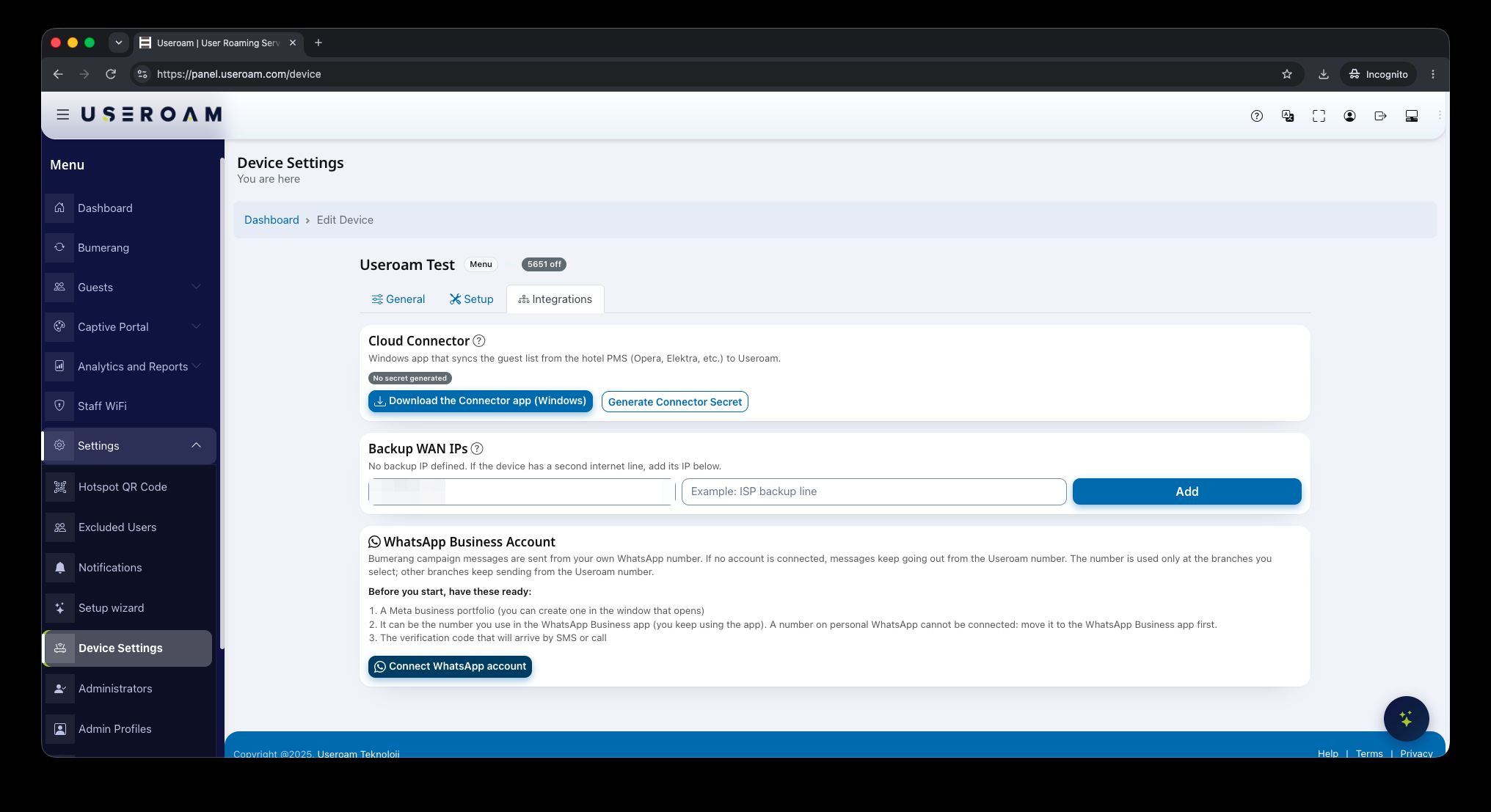
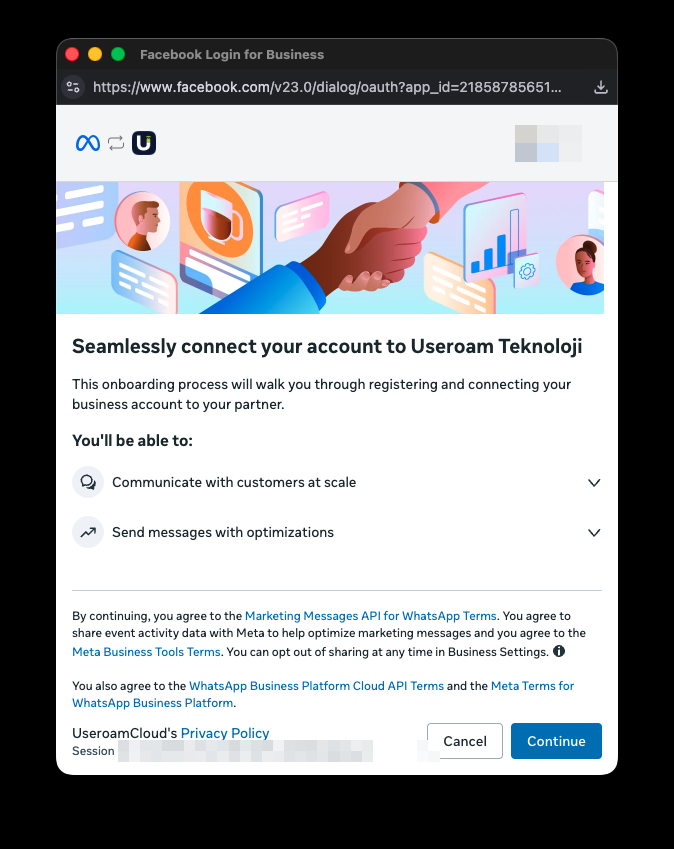
- A Facebook window opens. Log in with your Facebook account if asked. On the welcome screen click Continue.
If no window opens, your browser is blocking pop-ups; allow them from the warning in the address bar and click the button again.
- Enter your phone number. On "Add your WhatsApp phone number", choose the country code and type the number you use in the WhatsApp Business app. Click Next.
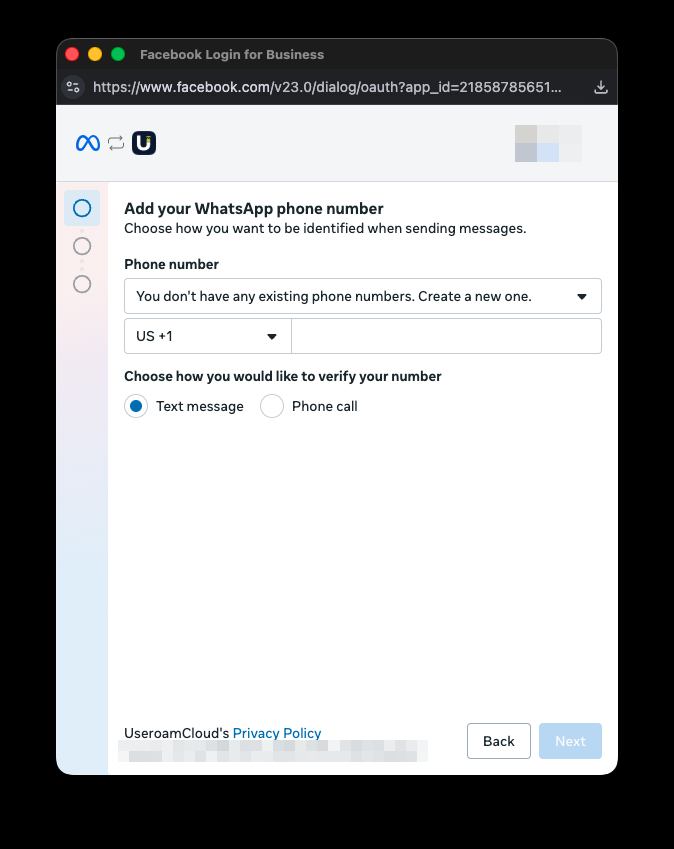
If you see "This number is already registered on WhatsApp… move it to the WhatsApp Business app", your number is on personal WhatsApp. Do the first item under Before you start and try again.
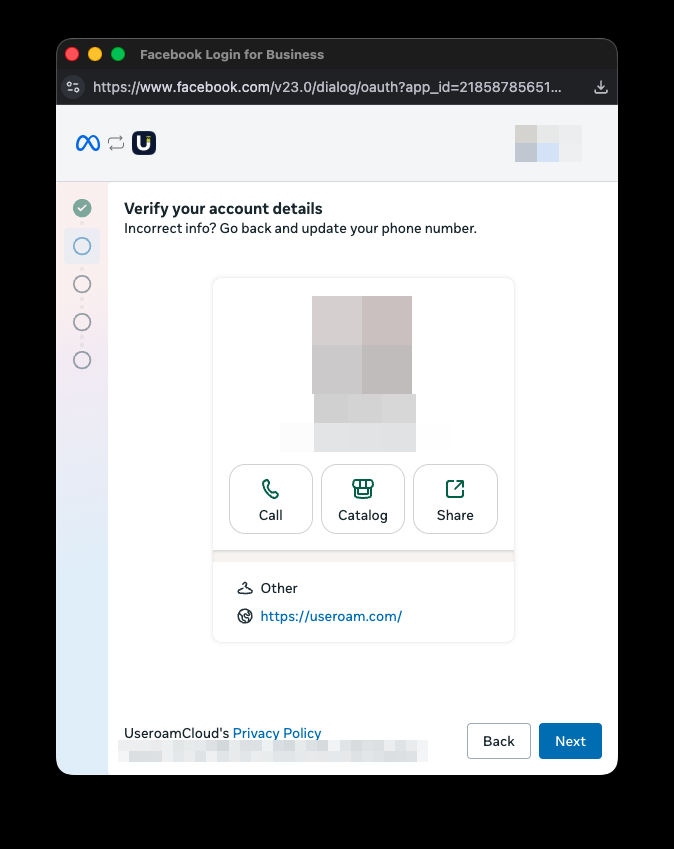
- Check your details. Your WhatsApp Business profile name, photo and number are shown. If they are correct, click Next.
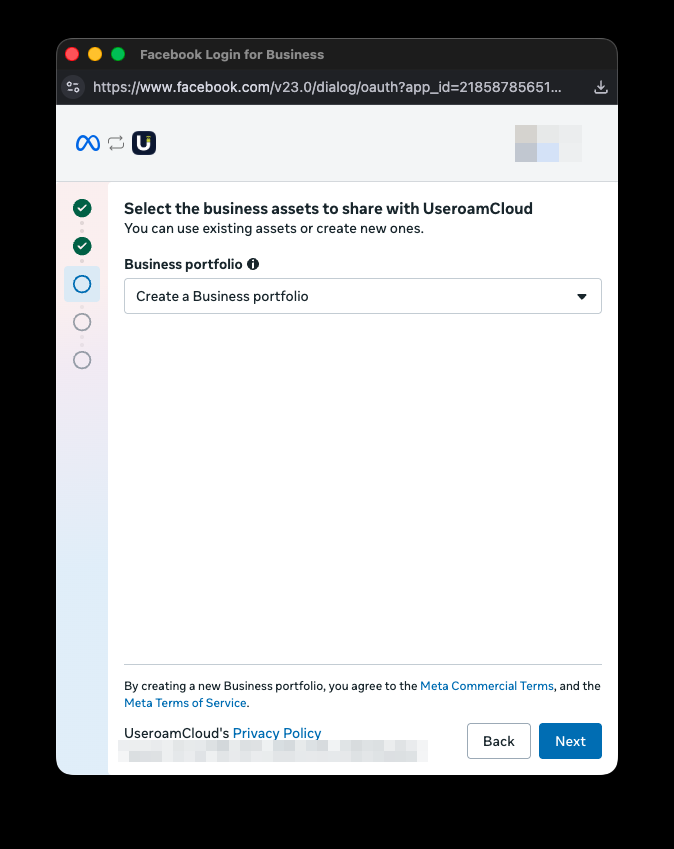
- Choose the business portfolio. If you already have a Meta business account, select it. Otherwise leave Create a Business portfolio selected. Click Next.
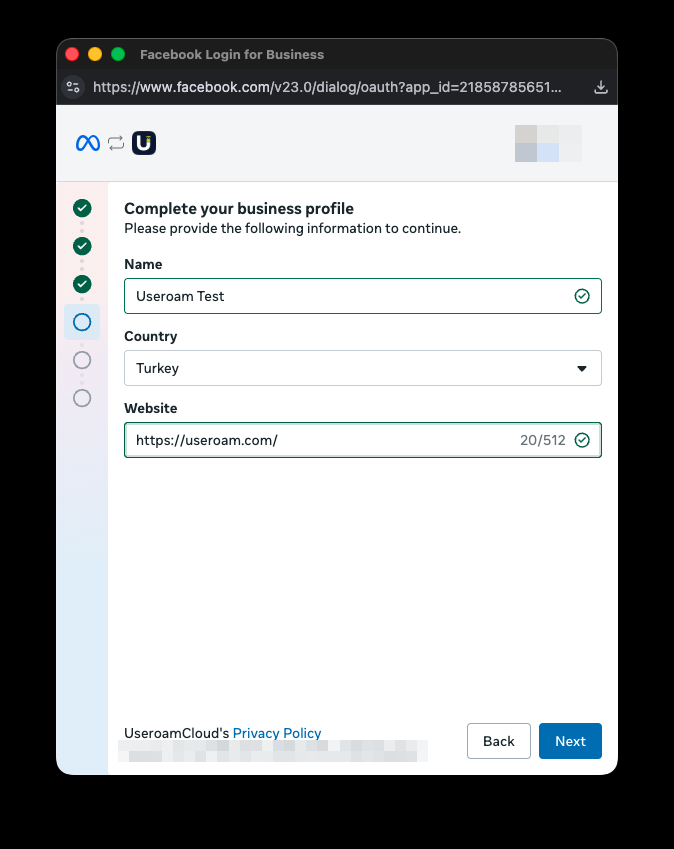
- Fill in the business details. Enter your business name, country and website (your Instagram page is fine if you have no website). Click Next.
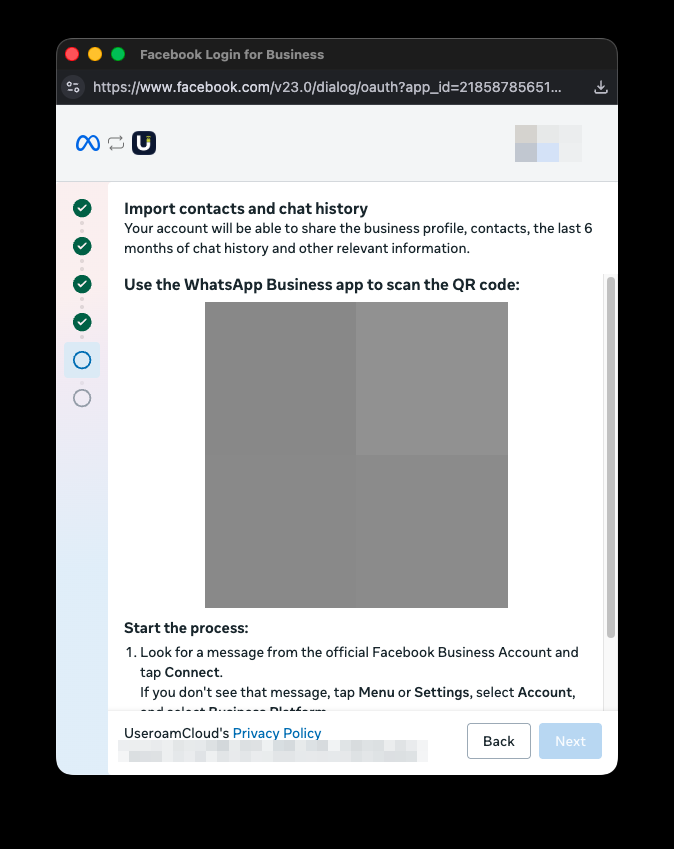
- Scan the QR code with your phone. A QR code appears on the computer. Now take your phone:
- Open the WhatsApp Business app.
- Open the message from the official Facebook Business account and tap Connect, then Connect to the Business Platform.
- If you don't see the message: on iPhone go to Settings > Account > Business Platform; on Android open the ⋮ menu > Business Platform (on some versions under Settings > Account).
- The camera opens; scan the QR code on the computer screen.
- The app asks whether to share your chat history. If you confirm, one-to-one chats from the last 6 months are imported; group chats are not. You can continue without sharing. This choice cannot be changed later.
The grey box in the image is where the QR code appears.
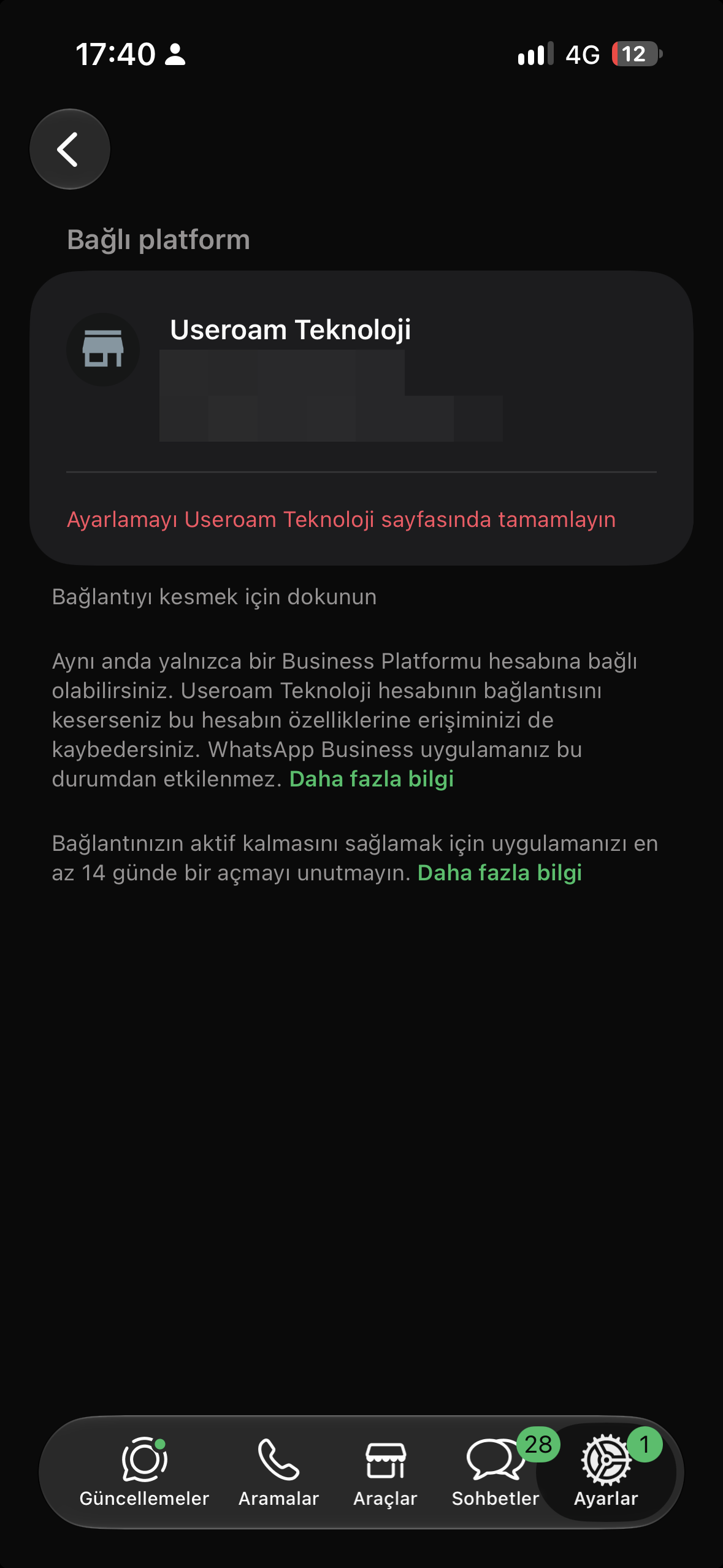
- The connection shows on your phone. The app's Connected platform screen shows Useroam Teknoloji. The red "Complete setup on Useroam Teknoloji" text is normal and disappears once you finish on the computer. Go back to the computer.
- Confirm the account name and time zone. For Turkey the time zone is
(GMT+03:00) Europe/Istanbul. Click Next.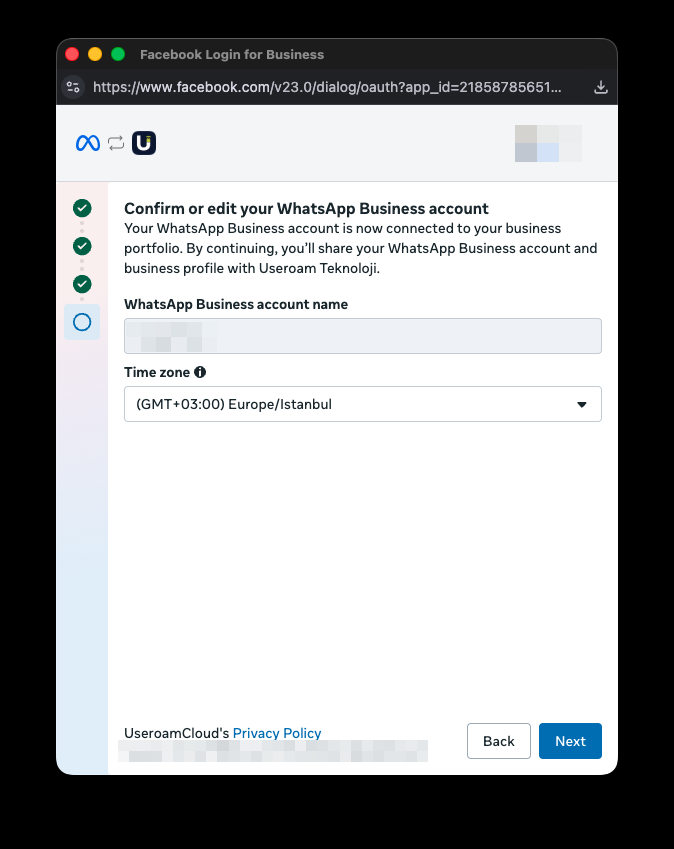
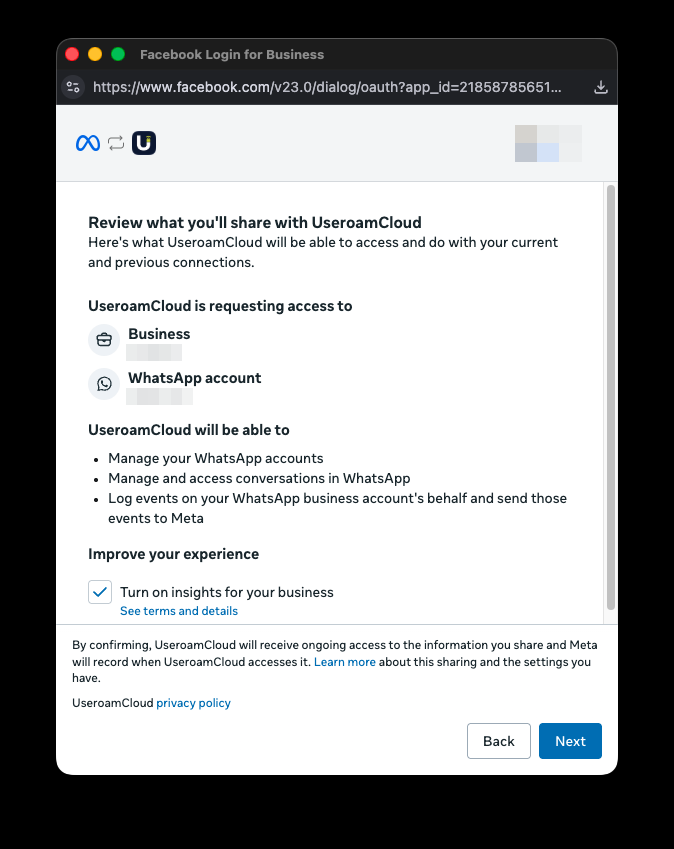
- Approve the permissions. The screen shows that Useroam can send messages on your behalf. Click Next.
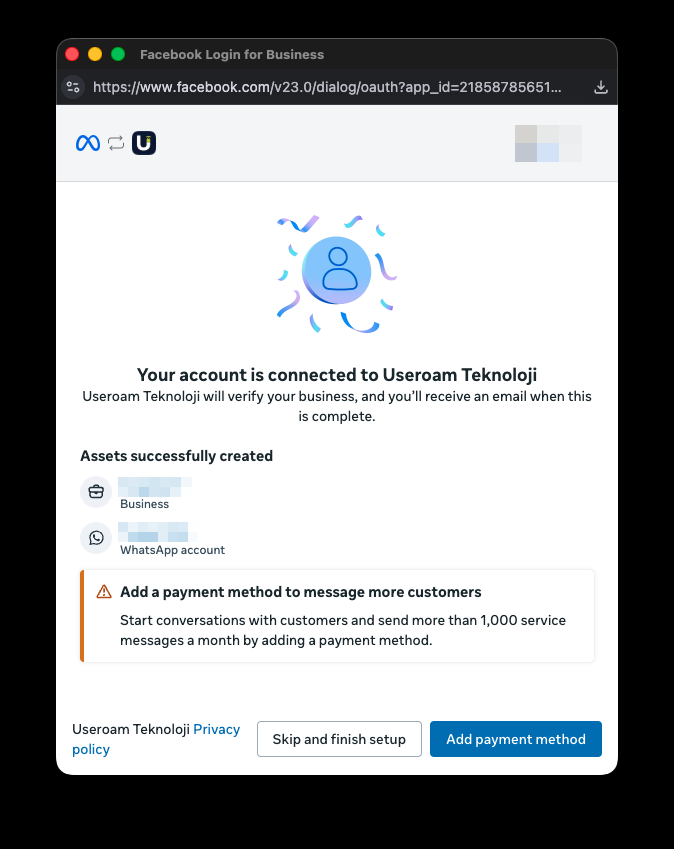
- Your account is connected. You will see "Your account is connected to Useroam Teknoloji". Click Add payment method to add your card now. (You can click Skip and finish setup and add it later, but campaign messages are not sent without a payment method.)
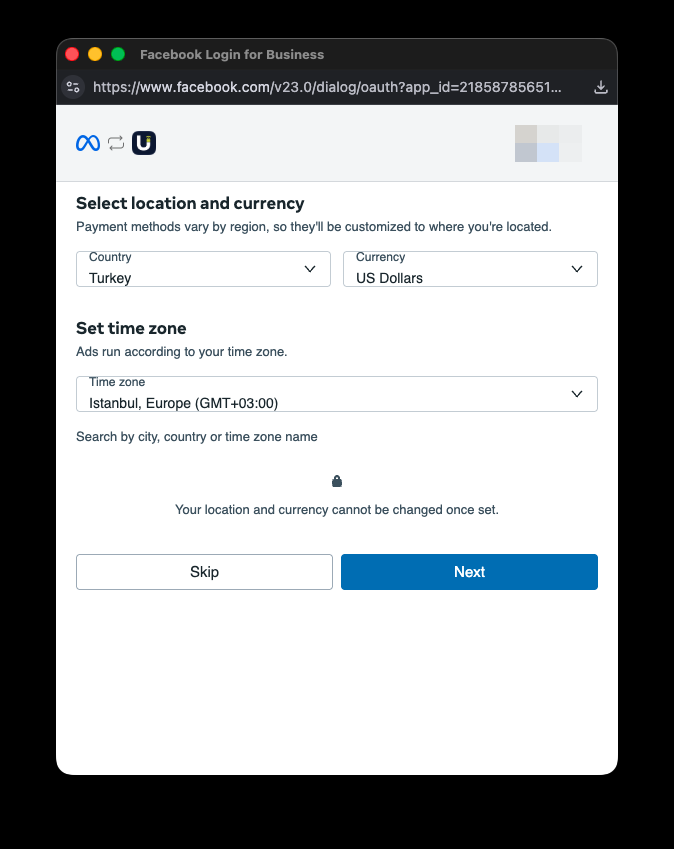
- Choose country and currency. Note: this cannot be changed later. Click Next.
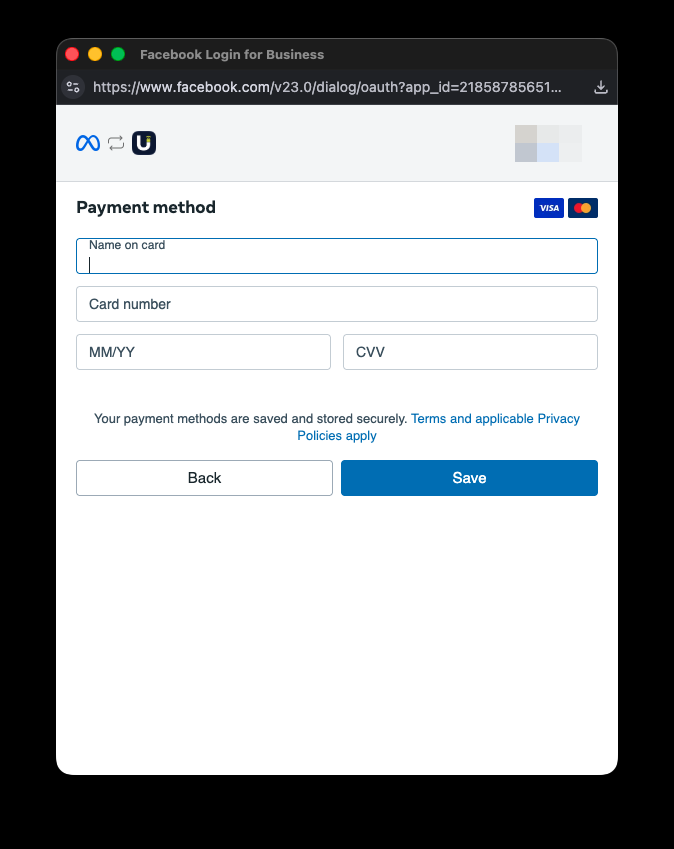
- Enter your card. Name on card, card number, expiry date and security code (CVV). Click Save.
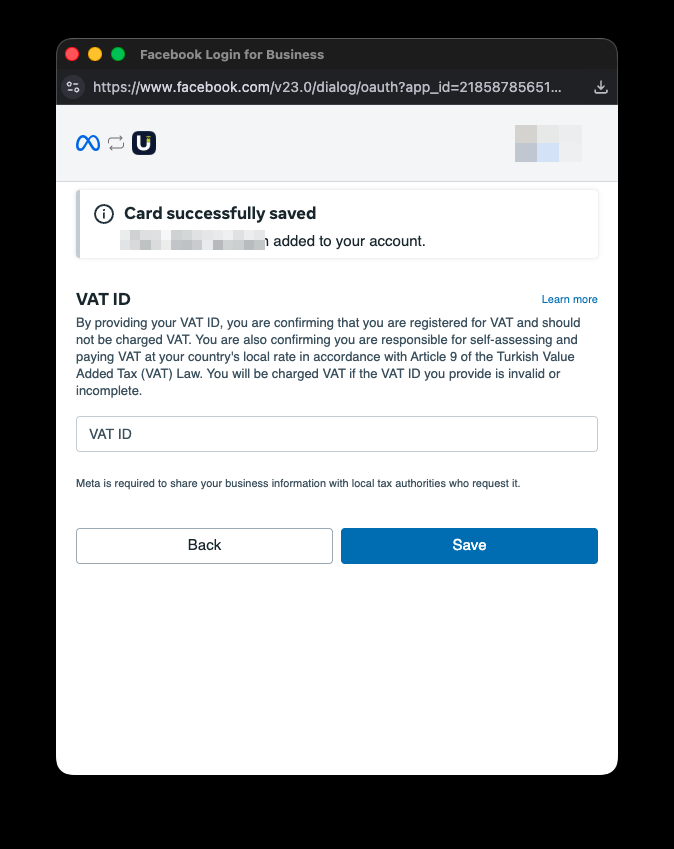
- Tax ID (optional). If your company is VAT registered, enter your tax number in VAT ID; otherwise Meta adds VAT to the invoice. Click Save.
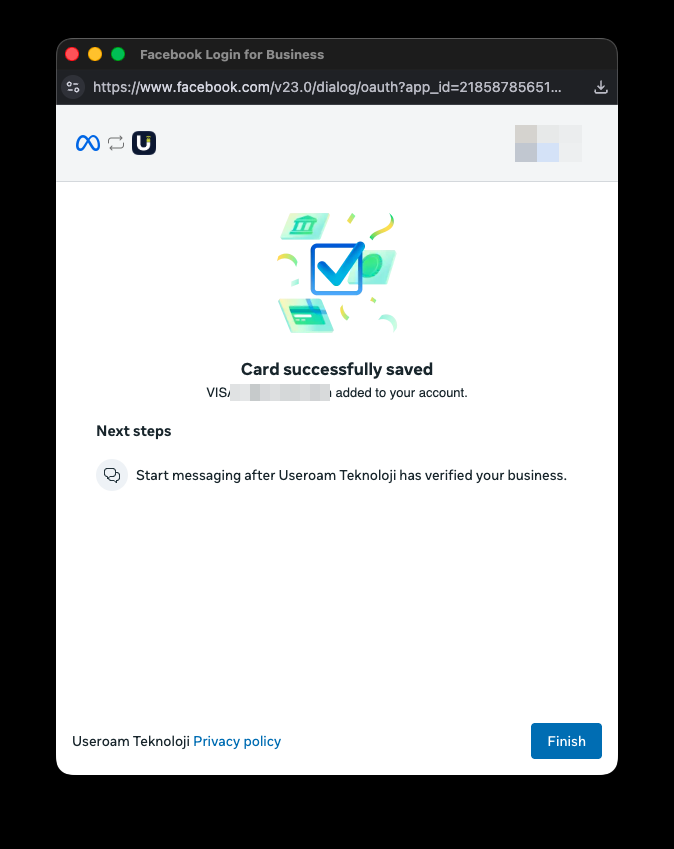
- Finish. On "Card successfully saved" click Finish. The window closes.
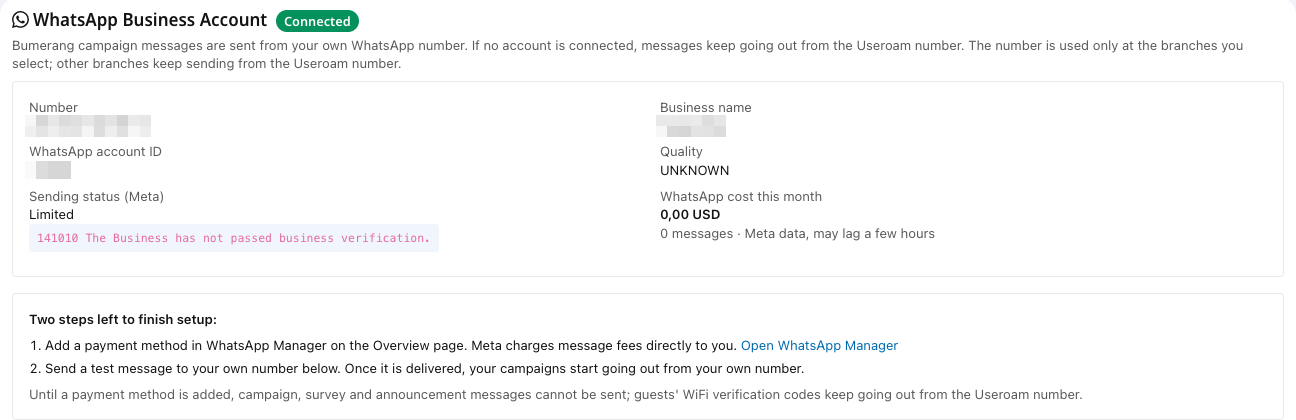
- Back in the panel. The card shows "Connecting, please wait..." for a few seconds, then the page refreshes and the card shows Connected with your number and business name.
After connecting
- Template approval: The panel submits the message templates to Meta automatically. The card shows how many are awaiting approval; approval takes a few minutes to a few hours. If a template could not be submitted, a Retry the ones that failed button appears.
- Business verification: Meta verifies your business and emails you when done. Until then the card shows Sending status: Limited and "The Business has not passed business verification"; this is normal.
- Test message: Once templates are approved, type your own number in the test field at the bottom of the card and click Send test message. If it arrives, setup is complete.
- Branches: The number is used only at the device (branch) where you connected it. If you have other branches, the card shows Which branches should use this number?; tick the ones you want and click Save branches. Unticked branches keep sending from the Useroam number.
How much does it cost?
Meta charges per delivered message, based on the country of the recipient's phone number. Approximate prices from Meta's rate card effective 1 October 2026 (US dollars):
| Recipient country | Campaign, consent request | Survey, announcement, WiFi code |
|---|---|---|
| Turkey | $0.011 | $0.0009 |
| Azerbaijan | $0.086 | $0.021 |
Meta may change its prices; see the current list at Meta pricing. The same table is shown on the WhatsApp card in the panel.
To stay connected
- Open the WhatsApp Business app at least once every 14 days; otherwise the connection may drop.
- Do not uninstall the app; that disconnects it.
- Turn off the app's greeting message and away message; otherwise guests may get two automatic replies.
What changes in the WhatsApp Business app
| Feature | What happens |
|---|---|
| One-to-one chats | Work as before. |
| Group chats, voice and video calls | Work as before in the app. |
| Broadcast lists | Turned off; existing lists become read-only. |
| Disappearing messages, view once, live location | Turned off in one-to-one chats. |
| WhatsApp Web and other linked devices | Unlinked once; up to 4 can be linked again. The Windows app is not supported. |
Common problems
| What you see | What to do |
|---|---|
| "This number is already registered on WhatsApp… move it to the WhatsApp Business app" | The number is on personal WhatsApp. Install the WhatsApp Business app, move the number to it and try again. |
| No Facebook Business message on the phone | iPhone: Settings > Account > Business Platform. Android: ⋮ menu > Business Platform. |
| The window closed but the card does not show as connected | Refresh the page, click Connect WhatsApp account again and finish the steps. |
| Test message says templates are awaiting Meta approval | Wait for approval and try again. |
| Card shows "Sending status: Limited" | Meta business verification is in progress; wait for the email. |
Disconnecting
Click Disconnect on the card in the panel; the confirmation shows which branches the number will be removed from. To also disconnect on the phone, tap Tap to disconnect on the app's Connected platform screen. Your number keeps working in the WhatsApp Business app.