
Opted-in Guests
Opted-in Guests shows the pool of guests who gave marketing consent on the captive portal. This is the audience your Bumerang campaigns can reach — if this pool does not grow, neither do your campaigns.
How do I open this screen? From the left menu, go to Bumerang → AUDIENCE & AI → Opted-in Guests. (It is the same as the Opted-in Guests tab on the Reports screen.)
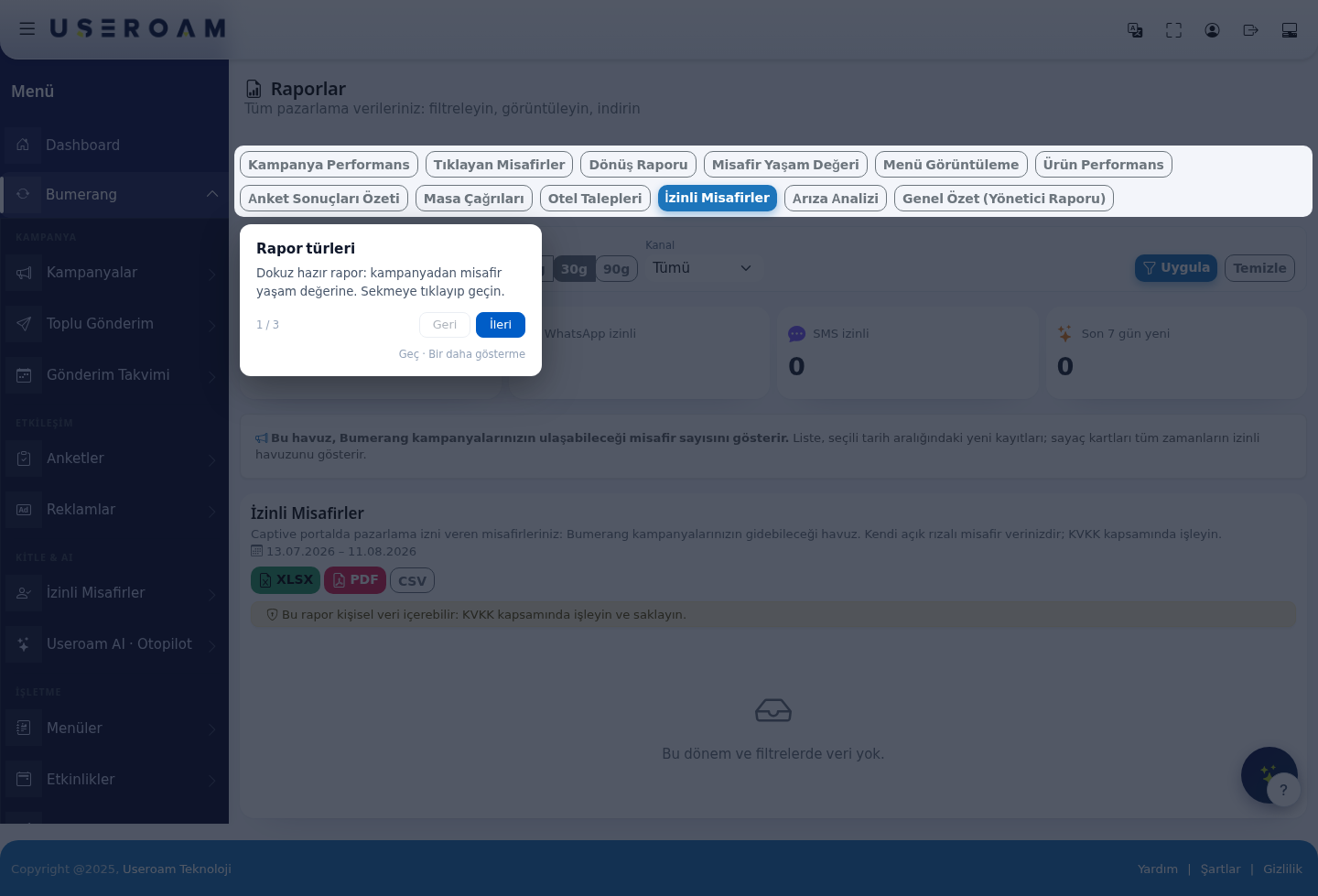
1. Filters
- Start / End: the date range, also selectable with the 7d, 30d, 90d shortcuts.
- Channel: All, WhatsApp or SMS.
- Apply runs the filter; Clear resets it.
2. Counter cards
- Total opted-in guests
- WhatsApp opted in
- SMS opted in
- New in the last 7 days — how fast the pool is growing.
3. Growing the pool
The pool only grows if the consent box is shown on the portal. The relevant settings are:
- Captive Portal → SMS Portal Settings and WhatsApp Portal → Email permission.
- Retail → Store & QR Registration → Show the commercial-message consent box.
If your WhatsApp opt-in count is higher than SMS, sending over WhatsApp is both cheaper and gets better open rates.
4. Export
You can download the list as XLSX, PDF or CSV.
The other report tabs
The same screen lets you switch to the other report types: Campaign Performance, Guests Who Clicked, Return Report, Guest Lifetime Value, Menu Views, Product Performance, Survey Results Summary, Table Calls, Hotel Requests, Fault Analysis and General Summary (Manager Report).
Related pages: Bumerang → Bumerang Reports, Campaigns, Bulk Sending.