
Staff
Business Staff manages the team working in your hotel and restaurant operation: add staff, assign roles and give them access to the mobile app (/m/). Request assignment and departmental permissions are set from this screen.
How do I open this screen? From the left menu, go to Bumerang → Staff.
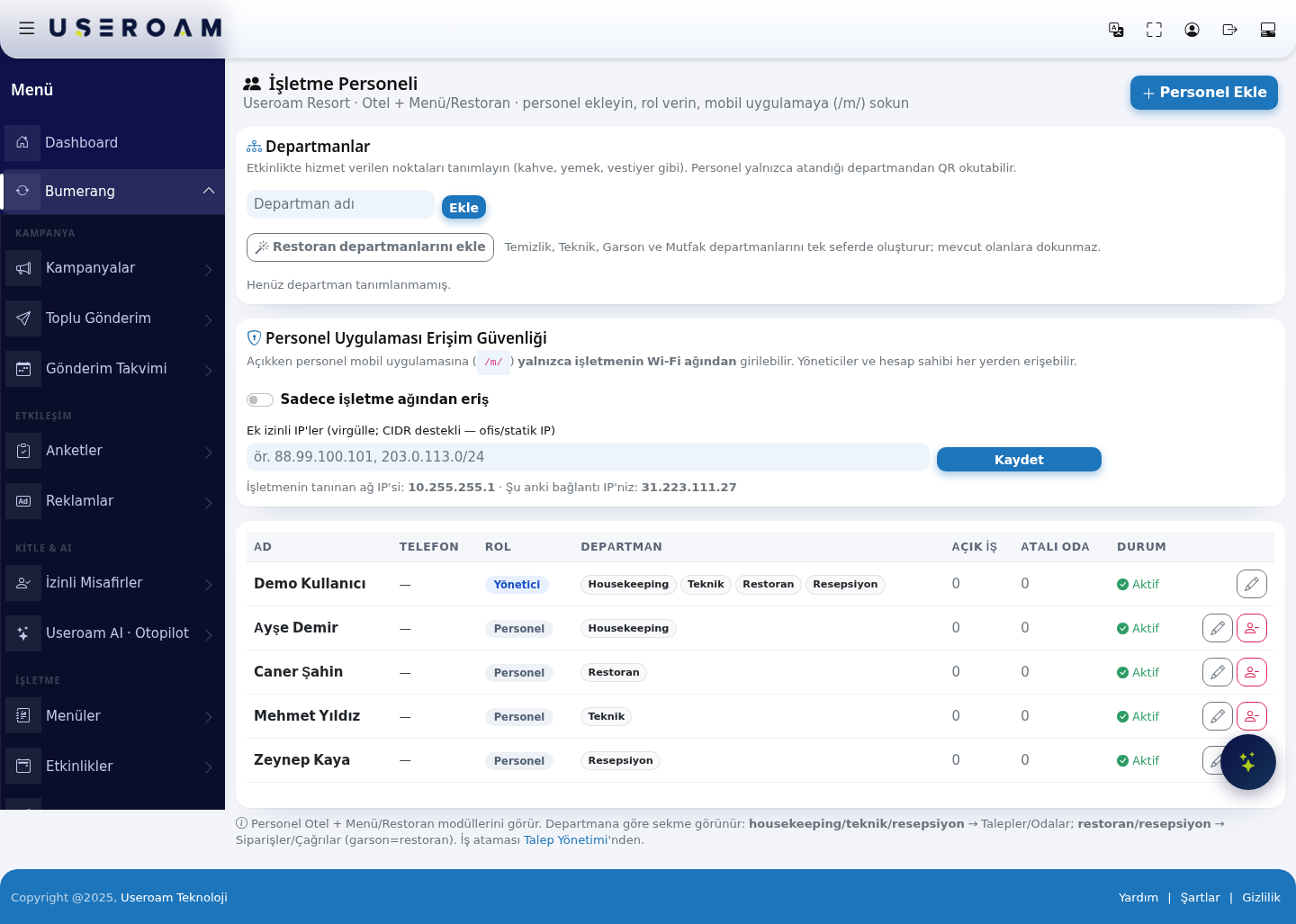
1. Departments
Define the service points used at an event (coffee, food, cloakroom and so on). Staff can only scan QR codes for the department they are assigned to — the department is the permission boundary.
- Type a department name and press Add.
- Add restaurant departments: creates Cleaning, Technical, Waiter and Kitchen in one go, leaving existing ones untouched.
With none defined, it reads "No departments defined yet."
2. Staff App Access Security
- Access only from the business network: when on, the staff mobile app (
/m/) can only be opened from the business's own Wi-Fi. Managers and the account owner can access it from anywhere. - Additional allowed IPs: a comma-separated list with CIDR support (for your office or static IPs).
The bottom of the screen shows the business's recognised network IP and your current connection IP — so you can check the right address before writing the rule.
Why turn it on? Even if a staff password leaks, the app cannot be opened from outside. If you do not want staff closing requests from home, this setting is exactly that control.
Confirm your changes with Save.
3. New Staff Member
- First name and Last name
- Mobile phone (login identity): the staff member signs in to the app with this number.
- Password: the login password.
- Role: two options:
- Staff — handles requests and orders.
- Manager — also manages staff and assignments.
- Departments: tick the departments they work in (Housekeeping, Technical, Restaurant, Reception). More than one can be selected.
4. The staff table
- NAME: the staff member's name.
- PHONE: their login identity.
- ROLE: Staff or Manager.
- DEPARTMENT: the departments they are assigned to.
- OPEN JOBS: how many requests are pending on them. Use this column to balance the workload.
- ASSIGNED ROOMS: the number of rooms assigned to them.
- STATUS: whether the account is active.
Opening a row lets you edit the phone, role and departments; typing into New password changes the password (leave it empty and the password stays as it is).
5. What staff see in the app
Staff only see the Hotel + Menu/Restaurant modules. The tabs depend on their department:
- housekeeping / technical / reception → Requests and Rooms
- restaurant / reception → Orders and Calls (waiter = restaurant)
Jobs are assigned from the Request Management screen.
Related pages: Hotel Solution → Request Management, Room Board, Retail → Request Monitor, Settings → Administrators.