
Treasure Hunt Approval Board
What is it for?
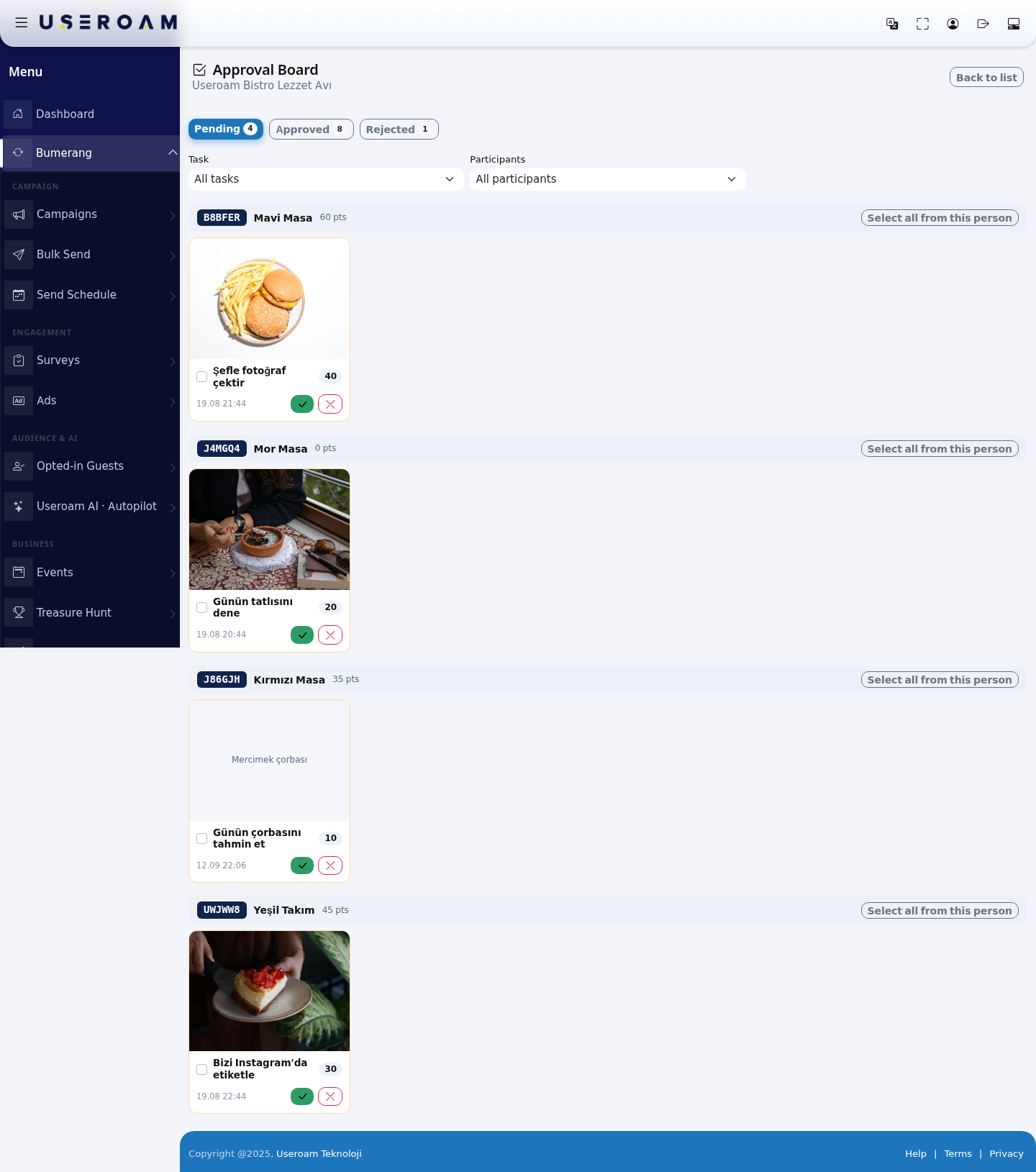
The Approval Board is where you see the tasks participants submitted (photo, video, text) and approve or reject them. Points are only added when you approve here. Point threshold rewards are also won automatically at the moment of approval.
How do I open this screen? On Bumerang → Business → Treasure Hunt, press the blue Approval Board button on the card. The Approval Board (4) button in the report also brings you here.
When to use it
- When you see a yellow pending badge on the treasure hunt card.
- During an event, to approve submissions regularly (guests want to see their points right away).
- To reject a wrong or inappropriate submission and tell the guest why.
- To undo a submission you approved earlier.
Step by step: approving a submission
- Make sure the Pending tab is open (its number is the count of pending submissions). Submissions are grouped by participant: each group starts with the code in a navy box, the participant name and their current points (pts).
- Look at the proof on the card. Click a photo to open it full size; a video plays on the card; text proof is shown at the top of the card. For a task without proof the card says "Task without proof."
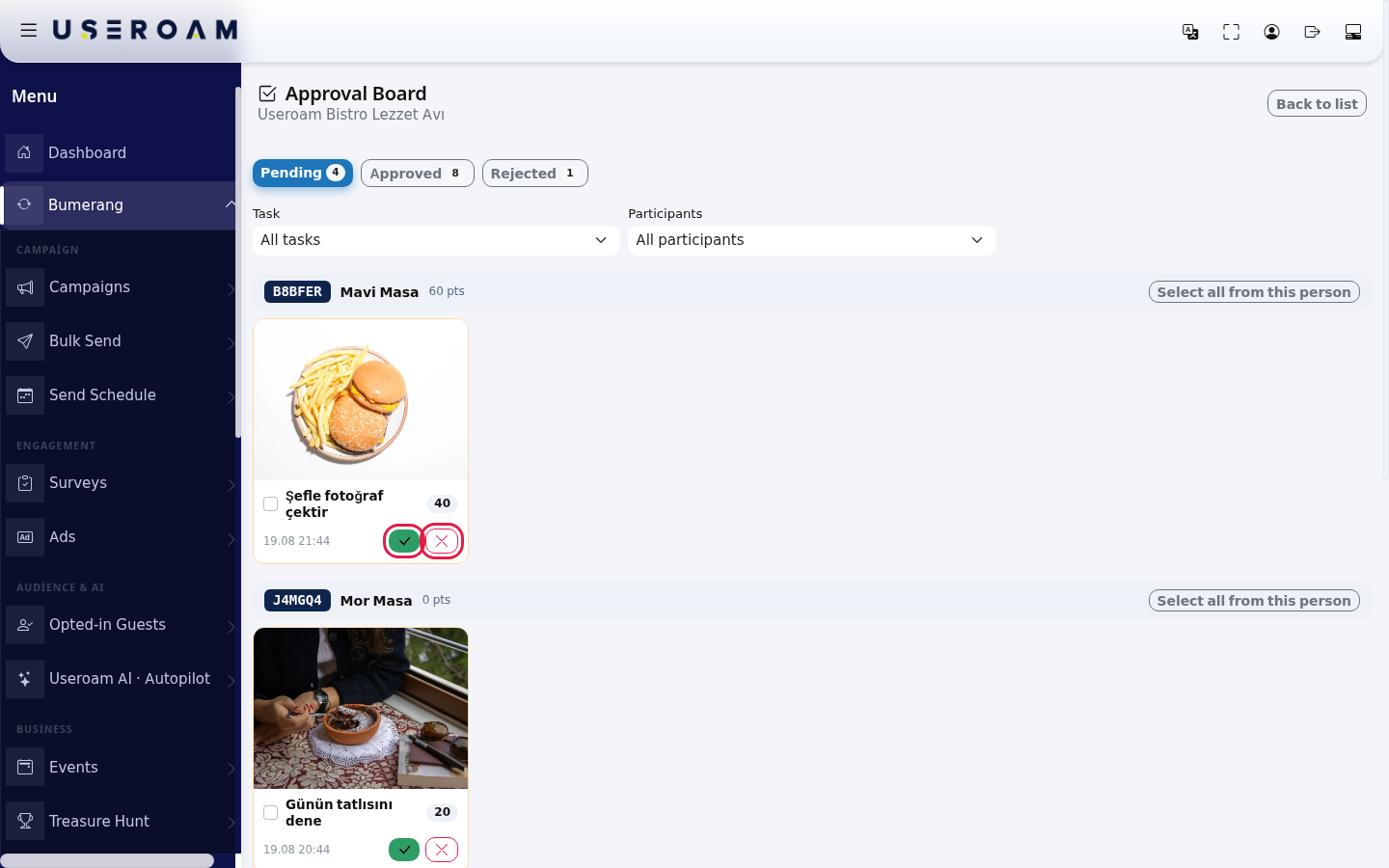
- If it is fine, press the green tick (✓, Approve) at the bottom of the card. A message such as "Approved, 40 points granted." appears and the card moves to the Approved tab.
- If not, press the red cross (✗, Reject). Answer the question "Reason for rejection (participant will see it):" (example:
The photo is blurry, please send it again.) and press OK. "Rejected." appears. The participant sees the reason on their page and can submit the task again.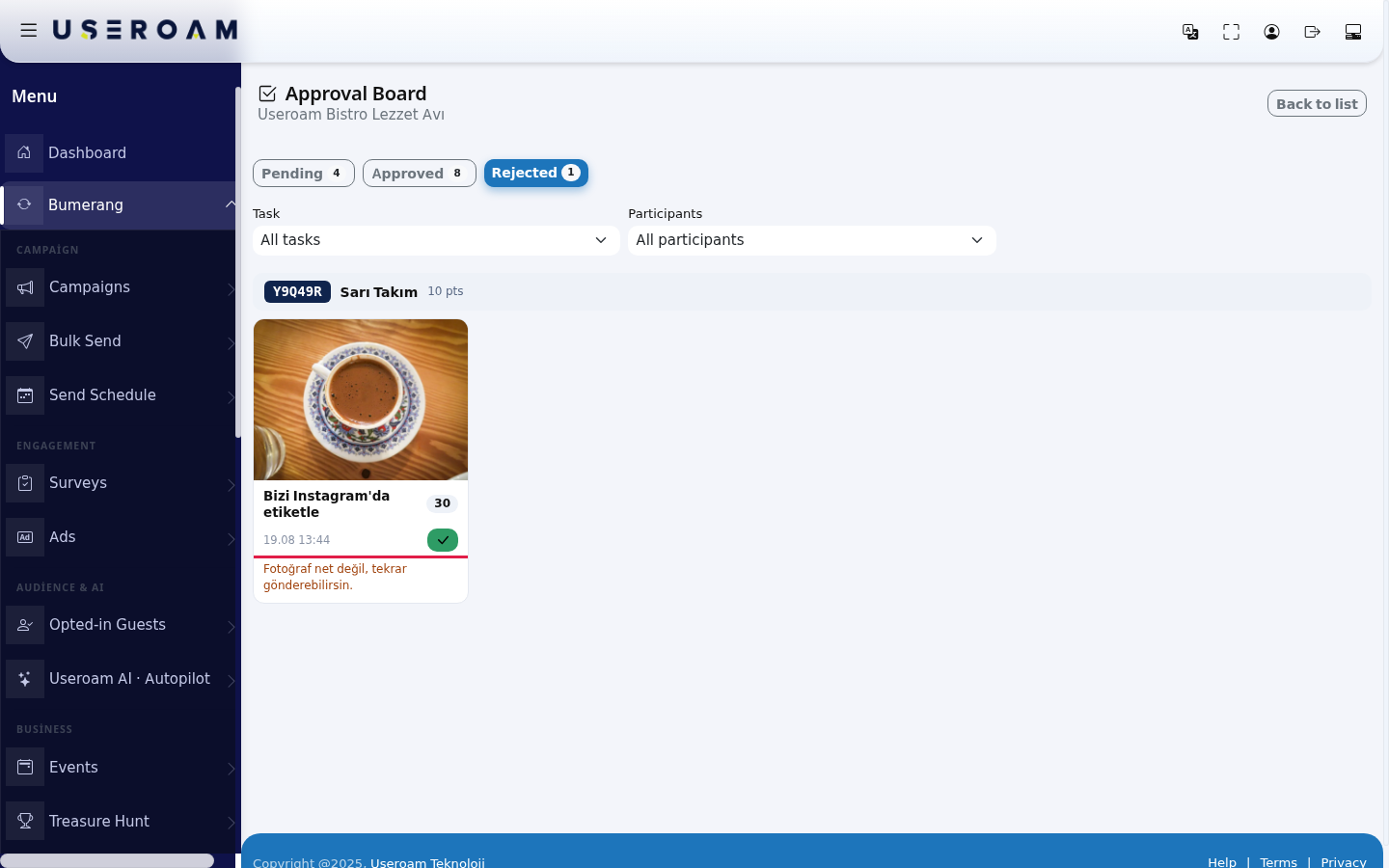
Step by step: bulk approval
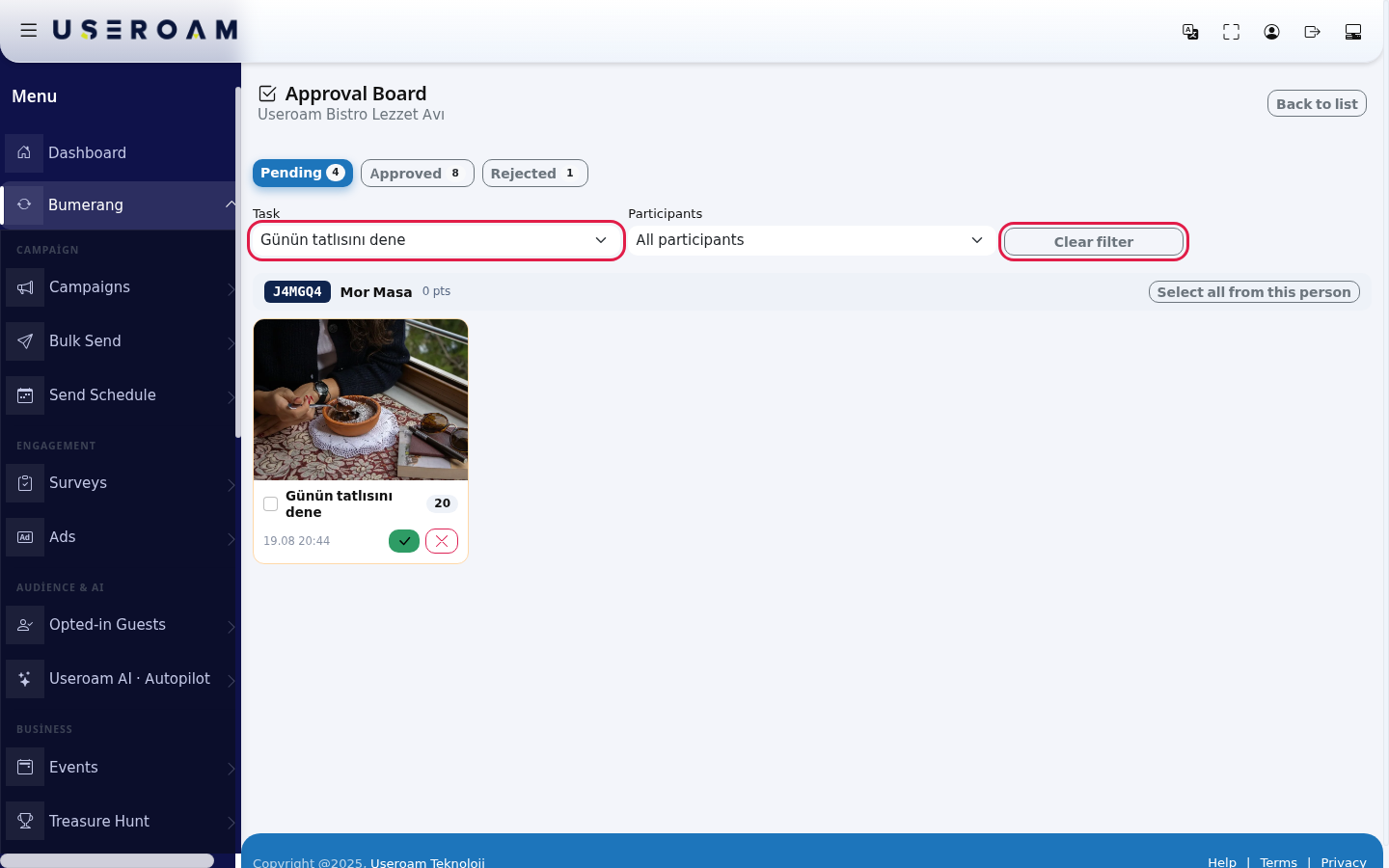
- Tick the boxes on the cards you want to approve. To select all submissions of one participant, press Select all from this person in the group header (press again to clear).
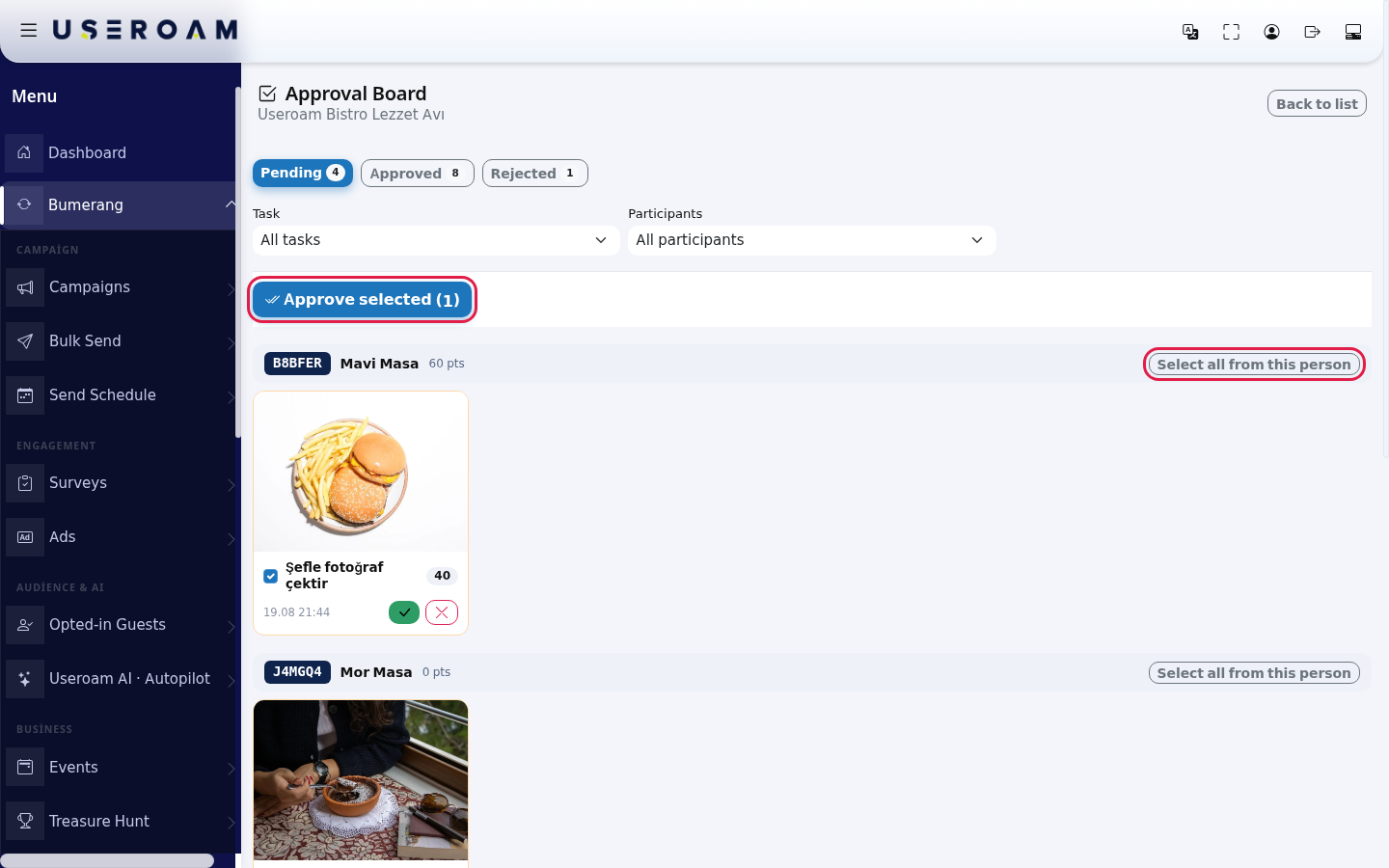
- Once something is selected, the Approve selected (1) button appears at the top; the number in brackets is the count of selected cards. Press it.
- A message tells you how many submissions were approved. Submissions that could not be approved (for example, approved by someone else a moment ago) are not counted.
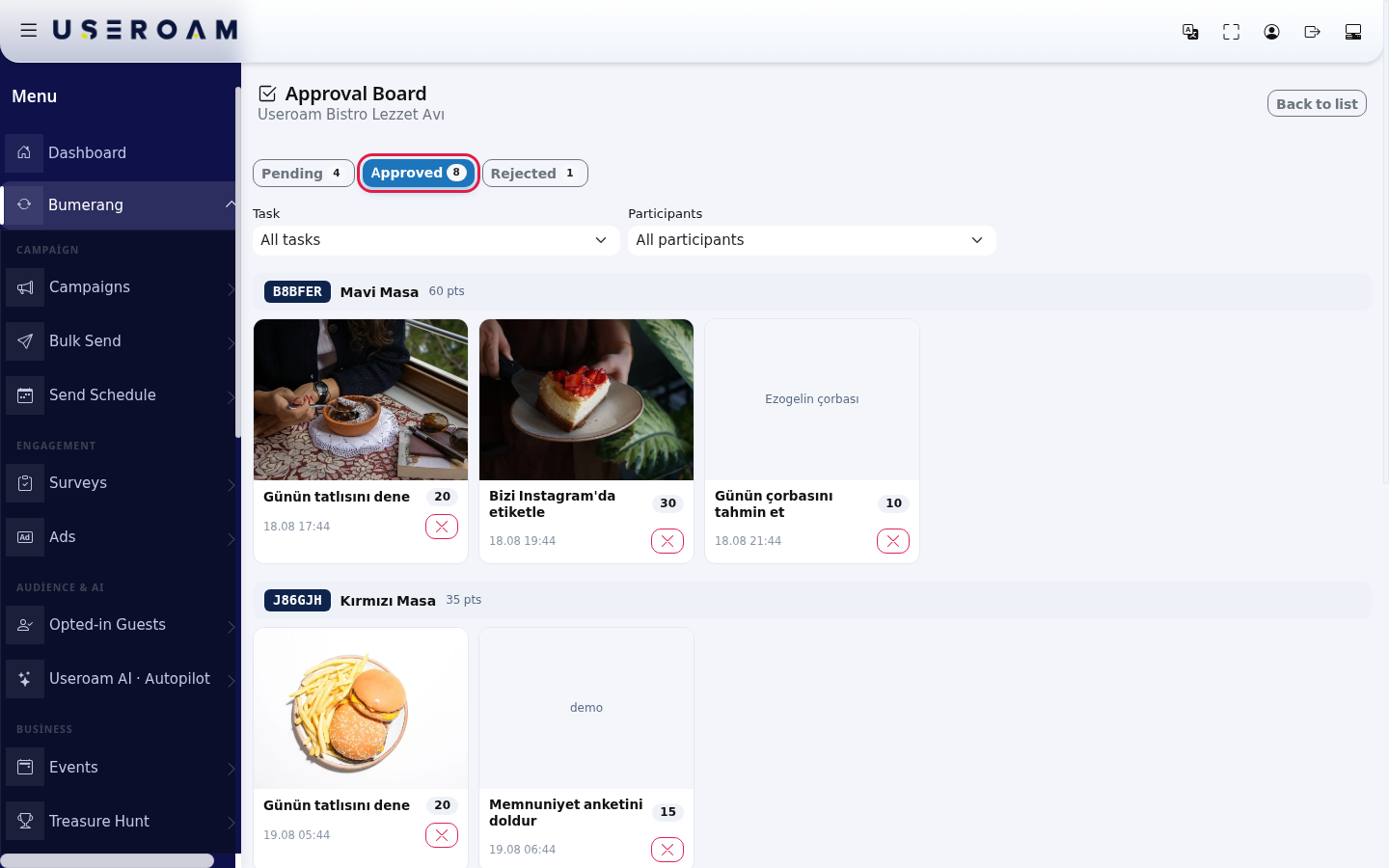
Every field and button on the screen
| Field / button | What it does |
|---|---|
| Pending / Approved / Rejected | Tabs that show submissions by status; each has a count badge. |
| Task box | Shows only the selected task's submissions. All tasks shows everything. The list refreshes as soon as you choose. |
| Participants box | Shows only the selected participant's submissions. Only participants with pending submissions are listed, with their pending count in brackets. All participants shows everyone. |
| Clear filter | Appears when a task or participant is selected; removes the filter. |
| Group header | The participant's code, name and total points. |
| Card | Proof, task name, the task's points (grey round badge), submission time (day.month time). Pending cards have an orange border. |
| Green tick (✓) | Approves and adds the points. Not shown on the Approved tab. |
| Red cross (✗) | Rejects and asks for a reason. Not shown on the Rejected tab. |
| Back to list | Returns to the Treasure Hunt list. |
Approved and Rejected tabs
- A card on the Approved tab only has the red cross. If you reject an approved submission, its points are taken back. (A reward already won is not taken back, though; the guest may already have received it.)
- On the Rejected tab the reason you wrote appears in orange under the card. The green tick there lets you change your mind and approve.
Filter
Messages you may see
| Message | Meaning / what to do |
|---|---|
| Approved, 20 points granted. | Points were added. If a point threshold was reached, the reward was granted automatically (visible in the Rewards panel). |
| Rejected. | The participant sees the reason. |
| This submission is already approved; points were not added again. | Another manager approved it at the same time. Points are never added twice; nothing to do. |
| Could not complete the action. | Refresh the page and try again. |
| No submissions in this list. | Nothing in this tab or filter. Check another tab or press Clear filter. |
Frequently asked questions
If I approve the same submission twice by mistake, are the points added twice?
No. An approval is processed only once.
I changed a task's points; what happens to earlier approvals?
Approved submissions keep the points from the moment of approval. The new value applies to later approvals.
Can a guest resubmit a rejected task?
Yes. A rejected submission can be done again and lands on the board again.
There are hundreds of submissions; how do I go faster?
Pick a person in the Participants box, tick them with Select all from this person and press Approve selected. At most 500 submissions are listed at a time.
Related pages
- Treasure Hunt: tasks, participants, rewards and report.
- Treasure Hunt Studio: guest page design.