
Useroam AI · Autopilot
Useroam AI · Autopilot is the AI layer that watches your data continuously and does marketing work on your behalf. It reads survey responses, notices dormant guests, drafts the win-back message and puts it to you for approval.
How do I open this screen? From the left menu, go to Bumerang → AUDIENCE & AI → Useroam AI · Autopilot. The Review suggestions button on the Dashboard brings you here too.
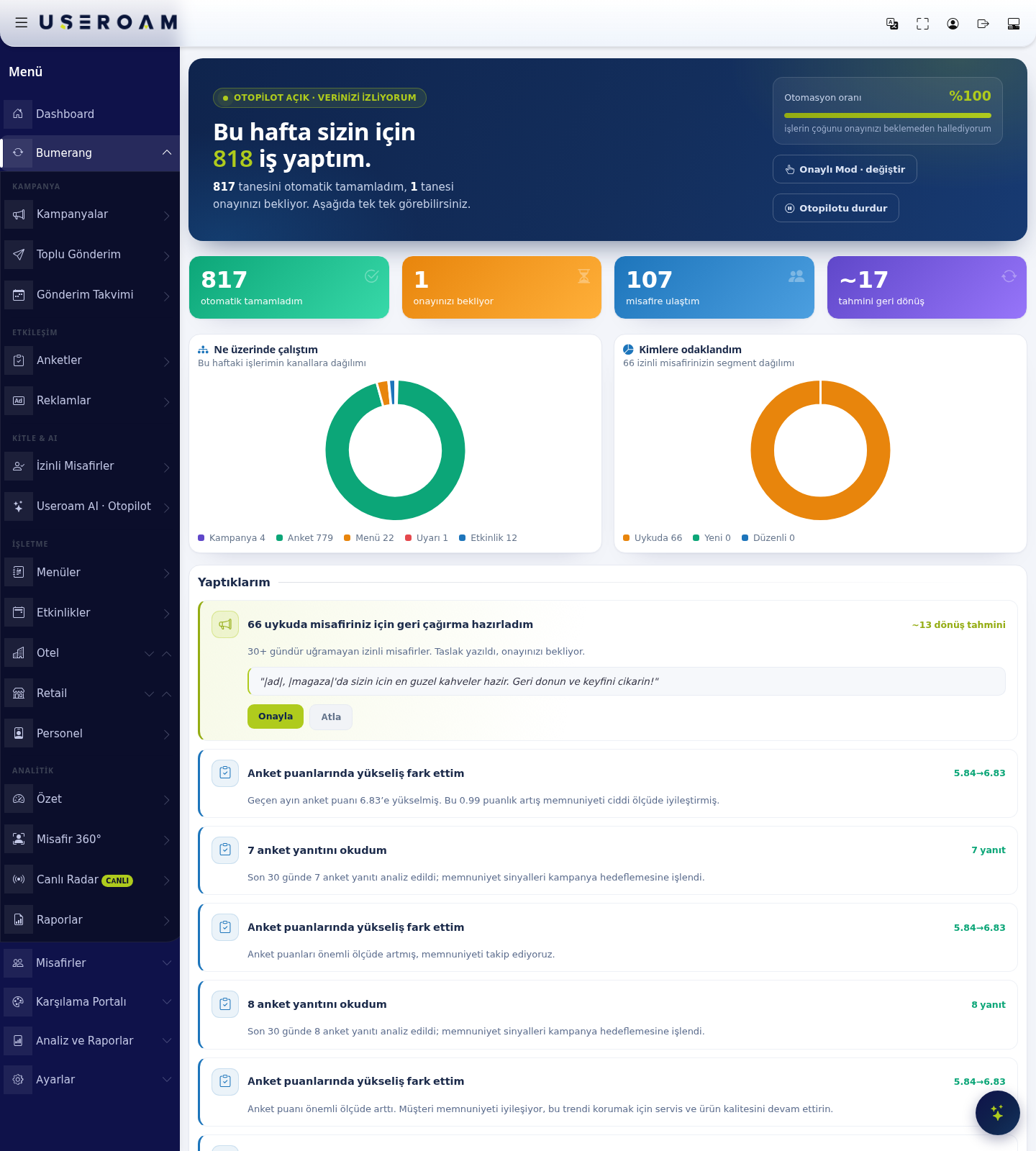
1. Weekly summary
The top of the screen shows the status and the week's work: "AUTOPILOT ON · WATCHING YOUR DATA" and "I did X jobs for you this week. I completed Y automatically, Z are waiting for your approval."
- Automation rate: how much of the work it handles without waiting for approval.
- Completed automatically / awaiting your approval counts.
- Guests reached: how many guests were touched.
- Estimated returns: how many guests this work is expected to bring back.
2. Operating mode
- Approved Mode · change: sets how freely Autopilot operates. In approved mode, anything going to a guest waits for your sign-off.
- Stop Autopilot: halts the layer entirely.
Recommendation: if you are just starting, stay in Approved Mode. Read the suggestions for a few weeks, judge their quality, and only then increase automation.
3. What I worked on
Shows how the week's work splits across channels: Campaign, Survey, Menu, Alert and Event.
4. Who I focused on
The segment split of your opted-in guests: Dormant, New, Regular. This is where you see which audience Autopilot is aiming at.
5. What I did
A list of Autopilot's individual jobs. Each row states what was done, what data it rests on, and its estimated impact. Examples:
- "I prepared a win-back for 66 dormant guests" — an estimated ~13 returns. A draft was written for opted-in guests who have not visited in 30+ days and is awaiting approval. The message text is shown inline (for example
"|name|, the finest coffee is waiting for you at |store|..."). - "I noticed a rise in survey scores" — with the change shown (for example 5.84→6.83).
- "I read 8 survey responses" — the number analysed; satisfaction signals are fed into campaign targeting.
Approval buttons
- Approve: runs the prepared job (for example sends the win-back message).
- Skip: rejects the suggestion.
Related pages: Bumerang → Campaigns, Surveys, Opted-in Guests, Guest 360°.