
SMS Portal Settings
SMS Portal Settings
SMS login lets guests enter their phone number and connect to Wi-Fi using a code sent by SMS. This page configures the SMS login screen.
How do I open it? From the left menu, go to Captive Portal → SMS Portal Settings.
Use the switch (SMS Module) at the top to turn this login method on or off. When off, guests don't see the SMS option. The page has two tabs: General Settings and Theme Settings.
General Settings
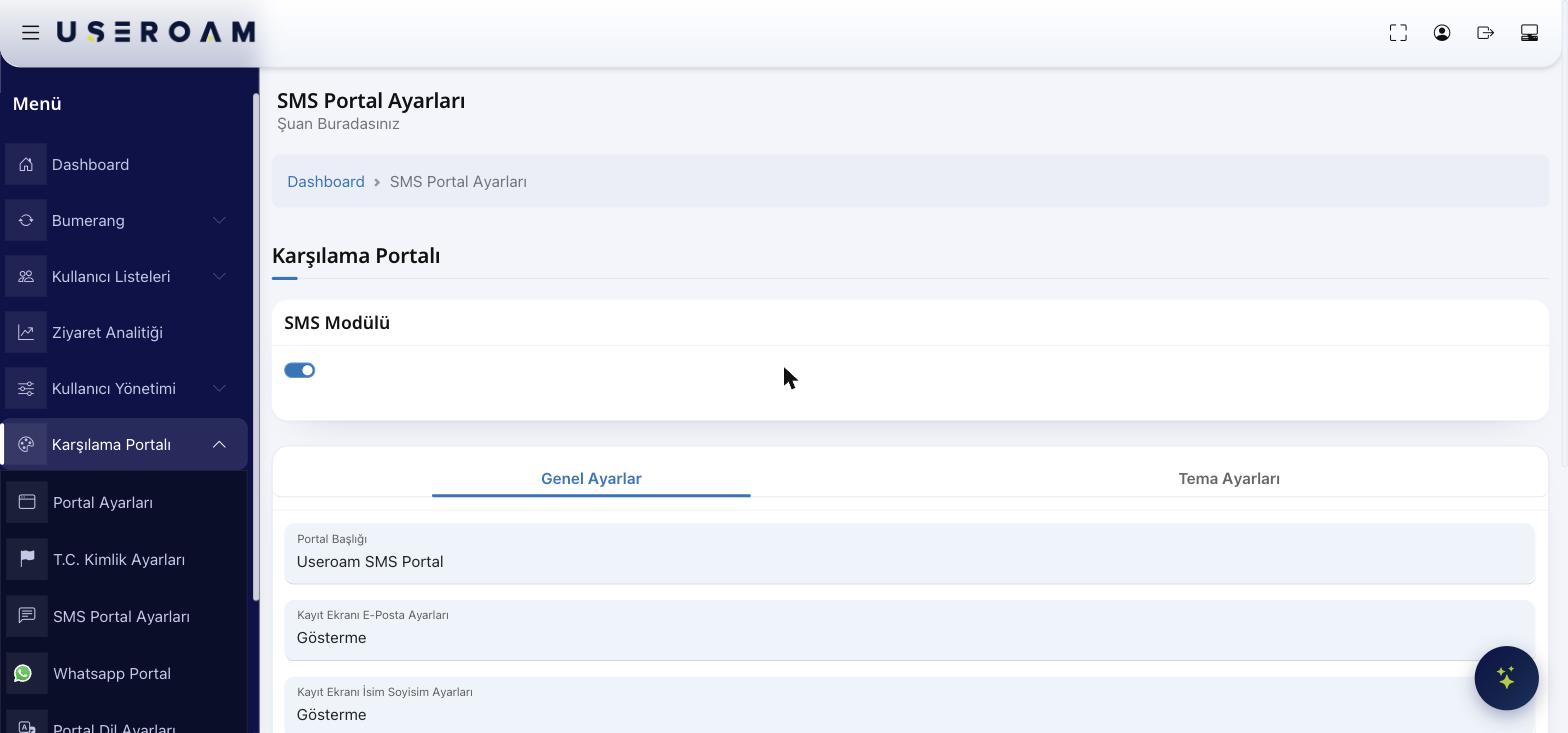
- Portal Title: The text shown at the top of the SMS login screen.
- Registration E-mail Setting: Whether to ask the guest for an e-mail. Show = optional, Show and Required = must be entered, Hide = never asked.
- Registration Name/Surname Setting: Same three options for name & surname.
- Register with Coupon: Turn on if guests should log in with a coupon code.
- City/District/Neighborhood: Turn on to collect location details from the guest.
- Status: The portal's overall status — Active, Passive or Pending Approval.
Press Save after making changes.
Theme Settings
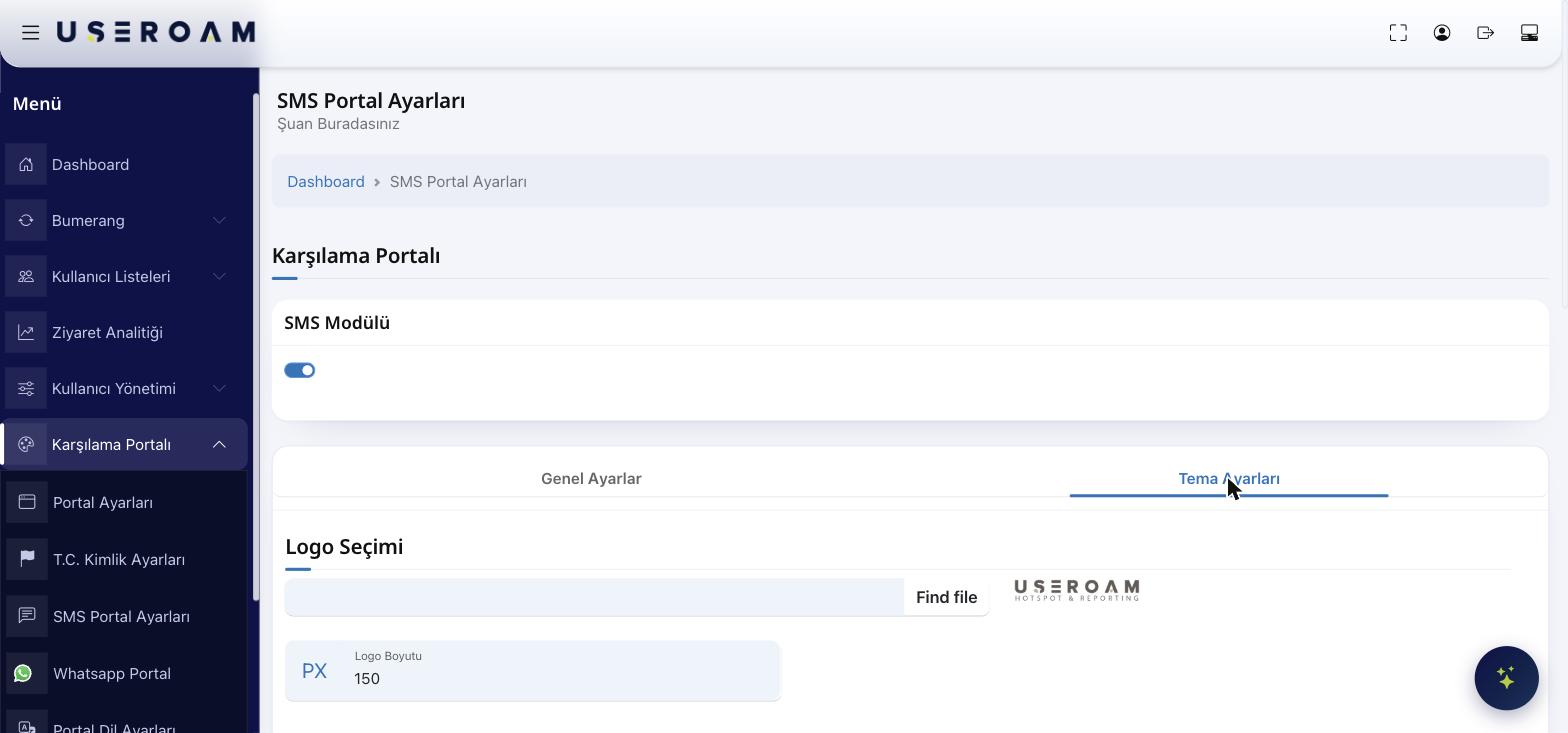
Match the look to your brand: Logo, Logo Size (PX), Background, and colors — Login Box Color, Button Color, Button Hover, Button Text Color, Link Color, Text Color. Use Reset Colors to return to defaults.
Tips & FAQ
- Asking for e-mail/name slows down login; only make it Required if truly necessary.
- If the SMS module is off, guests never see this option.
- What does "Pending Approval" mean? The guest can log in but stays offline until an administrator approves them.