
SMS Portal Settings
SMS Portal Settings manage the flow in which guests register on the welcome screen with their mobile phone number. The guest enters their number, is verified by the confirmation SMS the system sends, and then gets internet access.
How do I open this screen? From the left menu, go to Captive Portal → SMS Portal Settings.
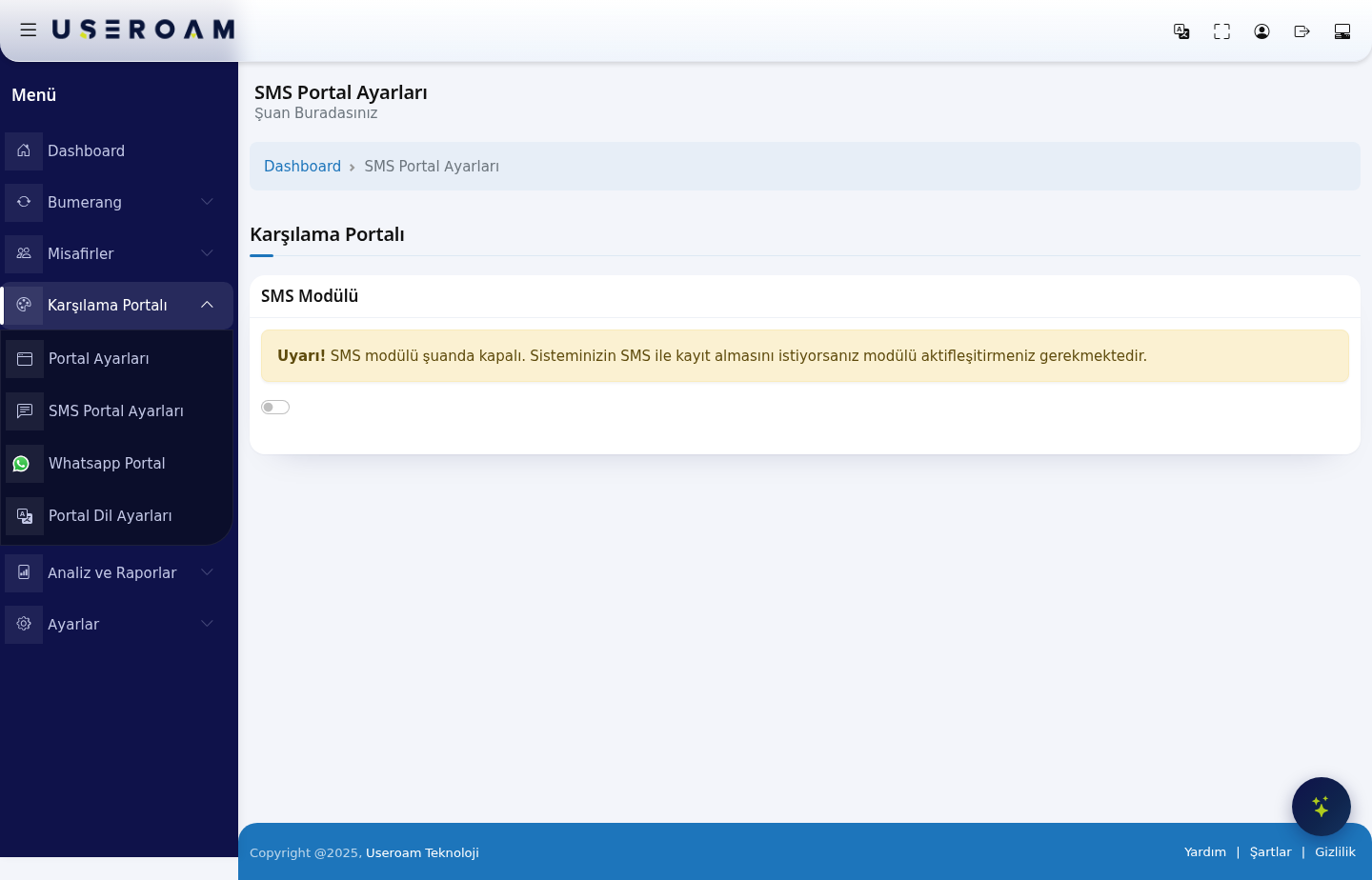
SMS Module
The SMS Module switch sits at the top of the page. While the module is off, the screen shows only this warning:
Warning! SMS module is currently turned off. If you want your system to accept registration via SMS, you must activate the module.
Turning the switch on reveals the General Settings and Theme Settings tabs and the fields below.
Important: for the module to actually send messages, your provider details must also be configured under Settings → SMS Settings. If the module is on but the SMS settings are missing, the guest never receives the verification code.
1. General Settings
- Portal Title: the text shown at the top of the SMS registration screen.
- Email settings on the registration screen: controls whether the guest is asked for an email address. Three options: Show (field visible, not mandatory), Show and require (cannot be left empty), Hide (field never appears).
- Name and surname settings on the registration screen: the same three options apply to the name field.
- Registration with coupon: when enabled, guests can register by entering a coupon code you issued. Codes are generated on the Guests → Coupon Codes page.
- Email permission: shows a marketing-email consent checkbox on the registration screen. Guests who consent are marked as opted in for Bumerang campaigns.
- Province / district / neighbourhood selection: when enabled, the guest is asked for location details. This data is used in reports and segmentation.
- Status: determines whether the SMS portal is live.
Confirm your changes with Save.
2. Theme Settings
The appearance of the SMS registration screen follows the same logic as Portal Settings and is configured independently:
- Logo Selection and Logo Size
- Background Selection
- Colour Settings: Login Box Colour, Button Colour, Button Hover, Button Text Colour, Link Colour, Text Colour
- Reset Colours returns everything to the defaults.
Related pages: Settings → SMS Settings (provider configuration), Guests → SMS / WhatsApp Users (registered guests), Analytics and Reports → SMS / WhatsApp Reports (delivery report).