
My Profile (Account Info)
The My Profile (Profilim) screen is where the signed-in userperson manages their own account: personalname, and company details,e-mail, panel language, mobile number, password, two-factor authentication and API keys. To add or edit other administrators use Administrators.
Note: in the English panel the page title (Profilim), the Bilgilerim (My Details) tab and some field labels are still Turkish; they are given with their meaning in parentheses.
What is it for?
It makes sure notifications reach the right address, lets you choose your own password and two-factorset authentication.up Tosign-in manageagain otherwhen users,you usechange Settings → Administrators.phones.
HowWhen do I
openusethisit?screen?
- After your first sign-in, to check your name, e-mail and mobile number.
- To replace the password you received by e-mail with your own.
- To reset 2FA when you change phones.
- When you decide to use the panel in English.
Before you start
Click the person
TheChooseicon in the top bar (hover text My Profile).(Profilim)fromsubtitle says "Manage your account details, password and 2FA settings here."; theaccountDashboardmenulinkatreturns to thetophomeright.screen. There are four tabs: Bilgilerim (My Details), Change Password, 2FA Management, API Keys.
Step
step
1.Step 1: Fill in My detailsDetails (Bilgilerim)
and - save
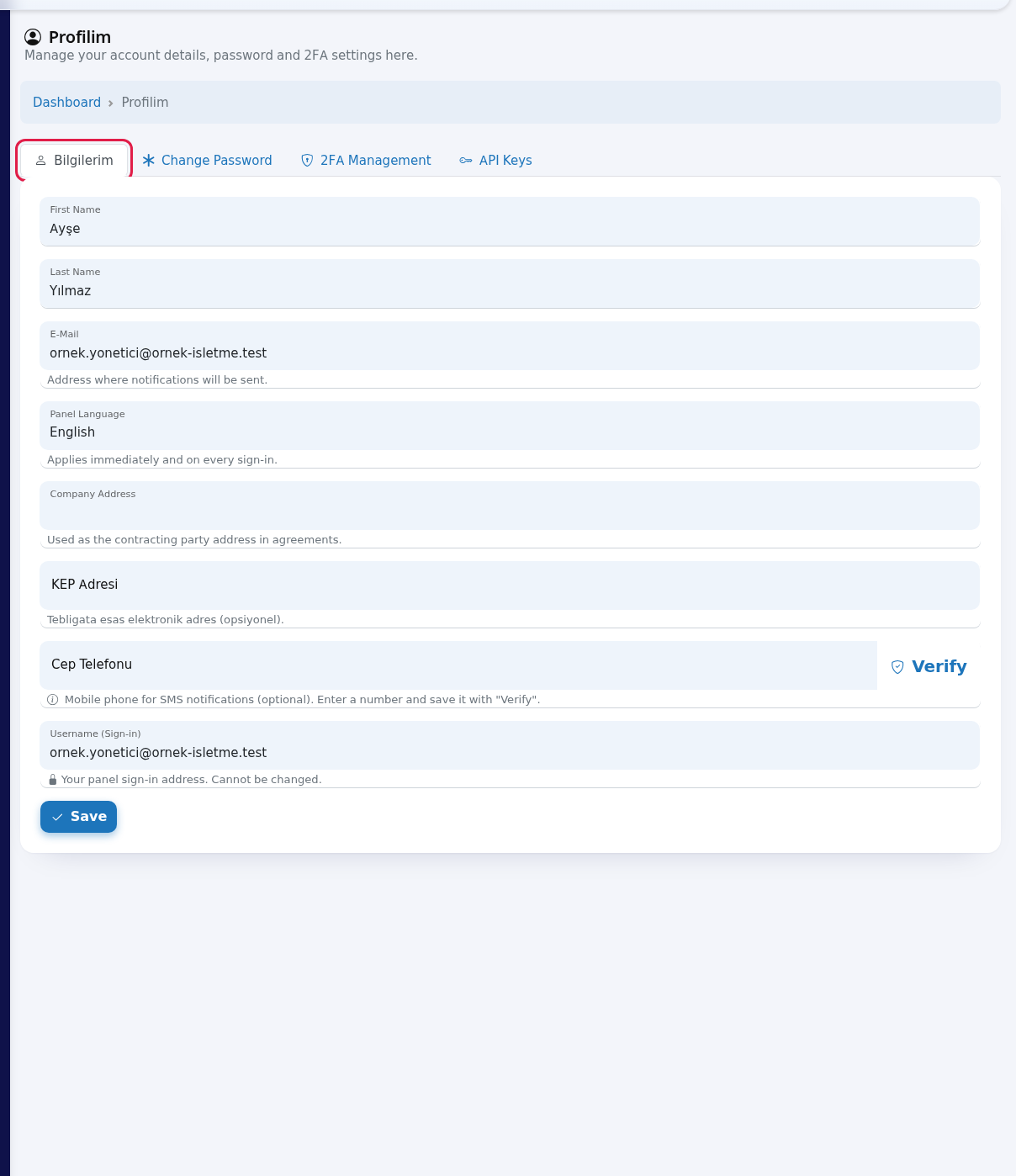
The Bilgilerim tab is open. First
name (Ad)Name andsurnameLast(Soyad)Name.- are required. E-
mail (E-Posta):MailTheisaddressthe "Address where notificationsarewillsentbeto.sent." - Choose Türkçe or English in Panel
Language:LanguageTürkçeorEnglish.("Applies immediately and on every sign-in. "). - Username (Sign-in) is grey and locked: "Your panel sign-in address. Cannot be changed." Save with Save; a green "Account details updated." appears.
Company
addressAddress (Firma Adresi):onincontracts.agreements.") - and KEP
addressAdresi (KEPregisteredAdresi):e-mail address, optional) show your account's agreement details. Important:Registeredtheseelectronictwo fields are currently not saved from My Profile (known issue). For an addressfororlegalKEPnoticeschange, contact Useroam support or your dealer. Details entered on the agreement screen at first sign-in are saved.Step 2: Verify your mobile number
Type your number in
Türkiye.CepOptional.Telefonu - (Mobile Phone), e.g.
0532 123 45 67, and press Verify next to it. The number is used for SMS notifications from the panel and is optional. Under the box you see "Mobile phone for SMS notifications (Cepoptional).Telefonu):Enter a number and save it with "Verify"." or, when verified, a green tick with "Verified number: ...".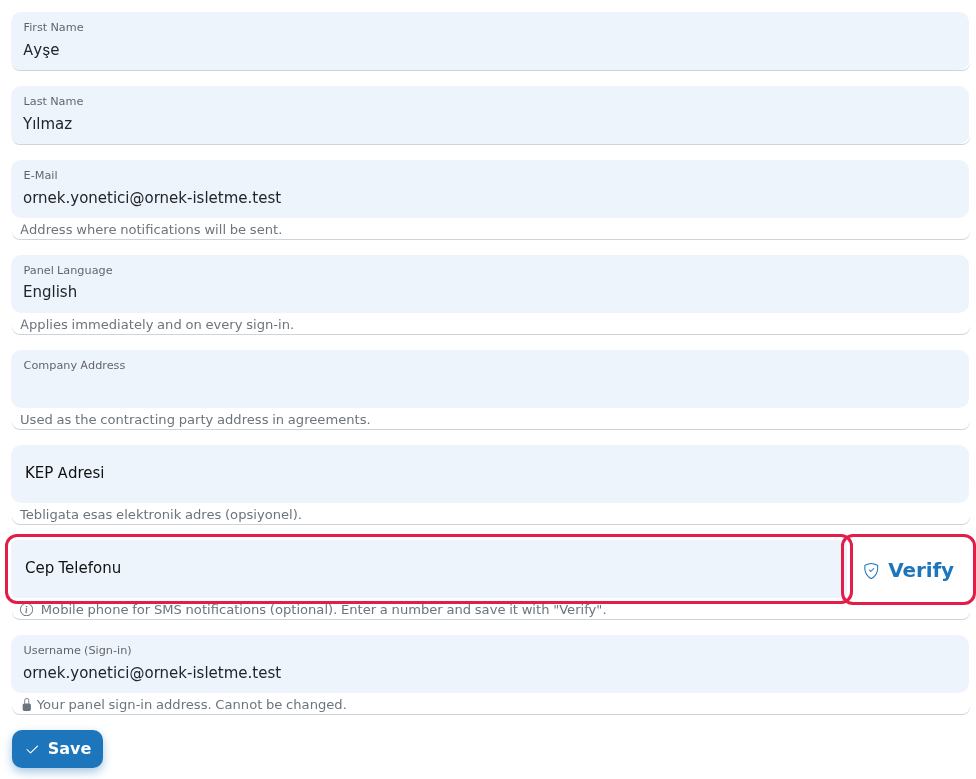
Step 3: Type the code from the SMS
The
VerifyCep Telefonu Doğrulama (Doğrula)MobilebuttonPhonesendsVerification) window opens, saying aconfirmation6-digit code was sent to thenumber.number, and "ThescreenSMSstatesmaywhichtake 1-2 minutes to arrive." Type the code in Verification Code and press Verify and Save (or Enter). After "Doğrulandı. Sayfa yenileniyor..." (Verified, reloading) the number iscurrentlysaved.verified;IftonochangeSMSit,comes,enterpress Resend (you must wait 60 seconds before thenewnextnumbertry).and press Verify again. Username (Kullanıcı Adı):CancelYourclosessign-intheidentity.windowItwithoutcannot be changed.
Changes are written with Save (Kaydet).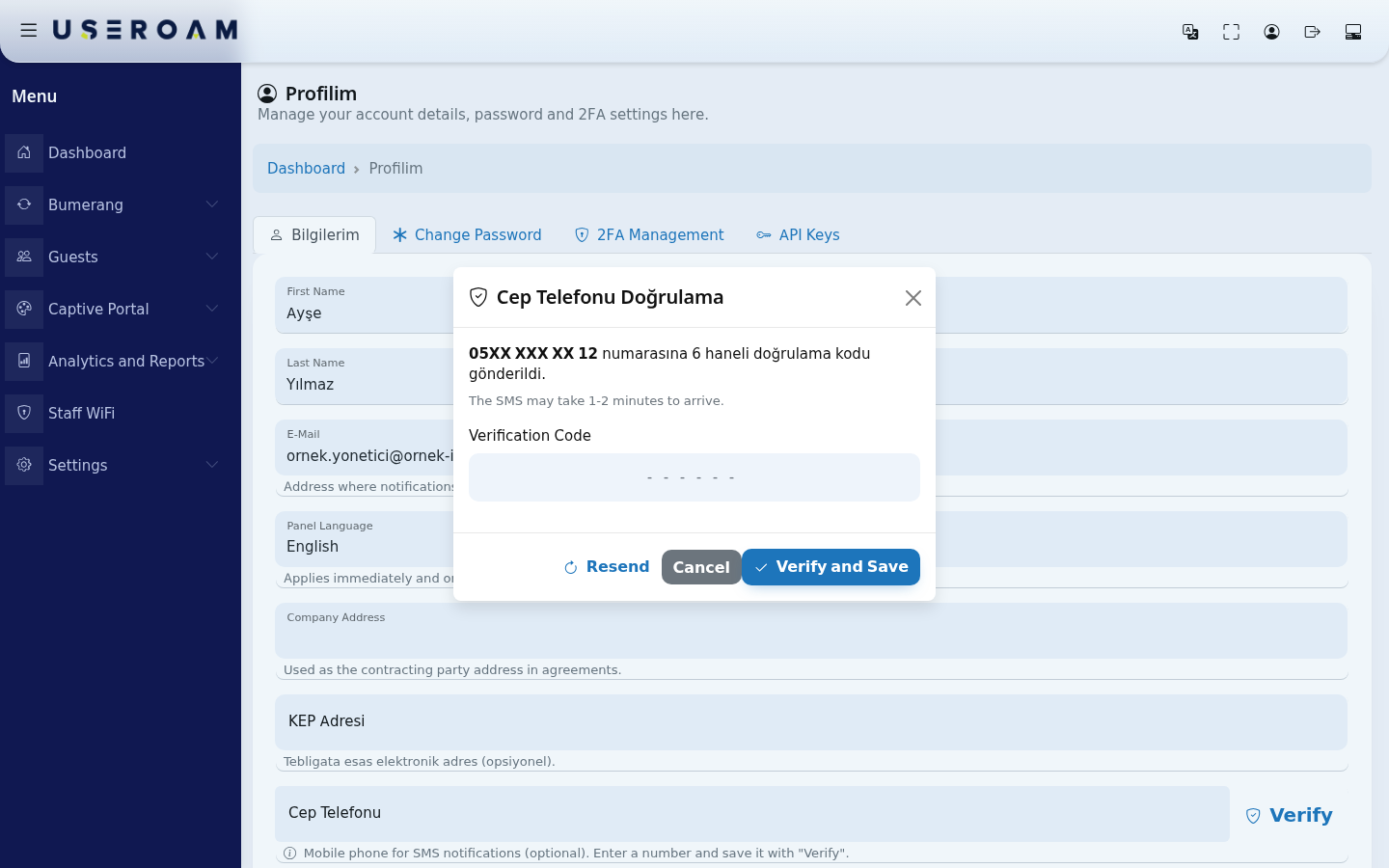
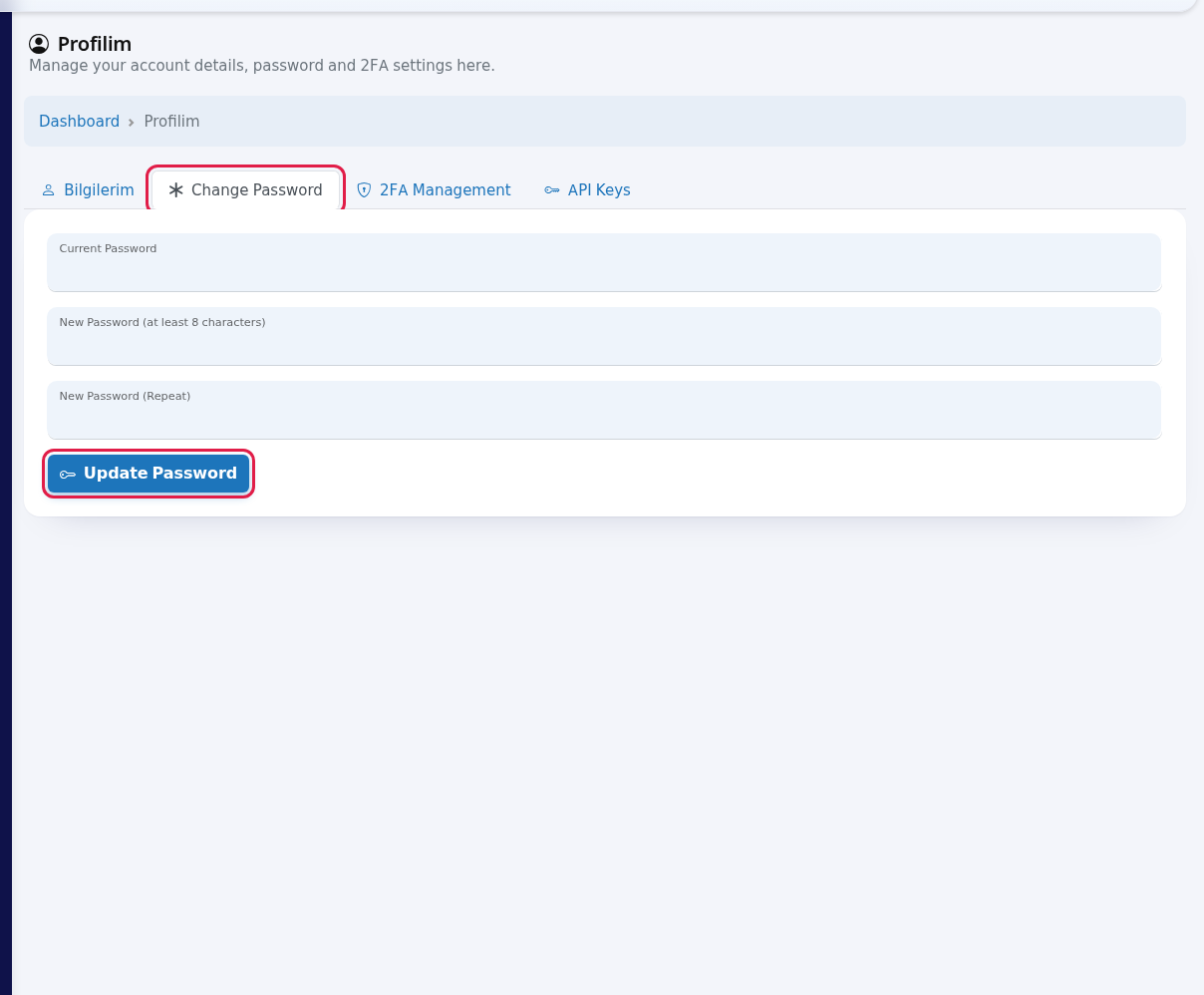
Step 2.4: Change your password (Şifre Değiştir)
Three fields:Open currentChange passwordPassword. Type Current Password, newNew passwordPassword (at least 8 characters) and New Password (Repeat), then press Update Password. On success: "Your password has been updated." You stay signed in; use the new password again.next time.
Step 5: Reset 2FA if needed
Update2FA passwordManagement appliesshows the change.
3. 2FA management
status. Two-factor authentication (an Authenticator app) hardens your account. The tab states whether it is currently active.
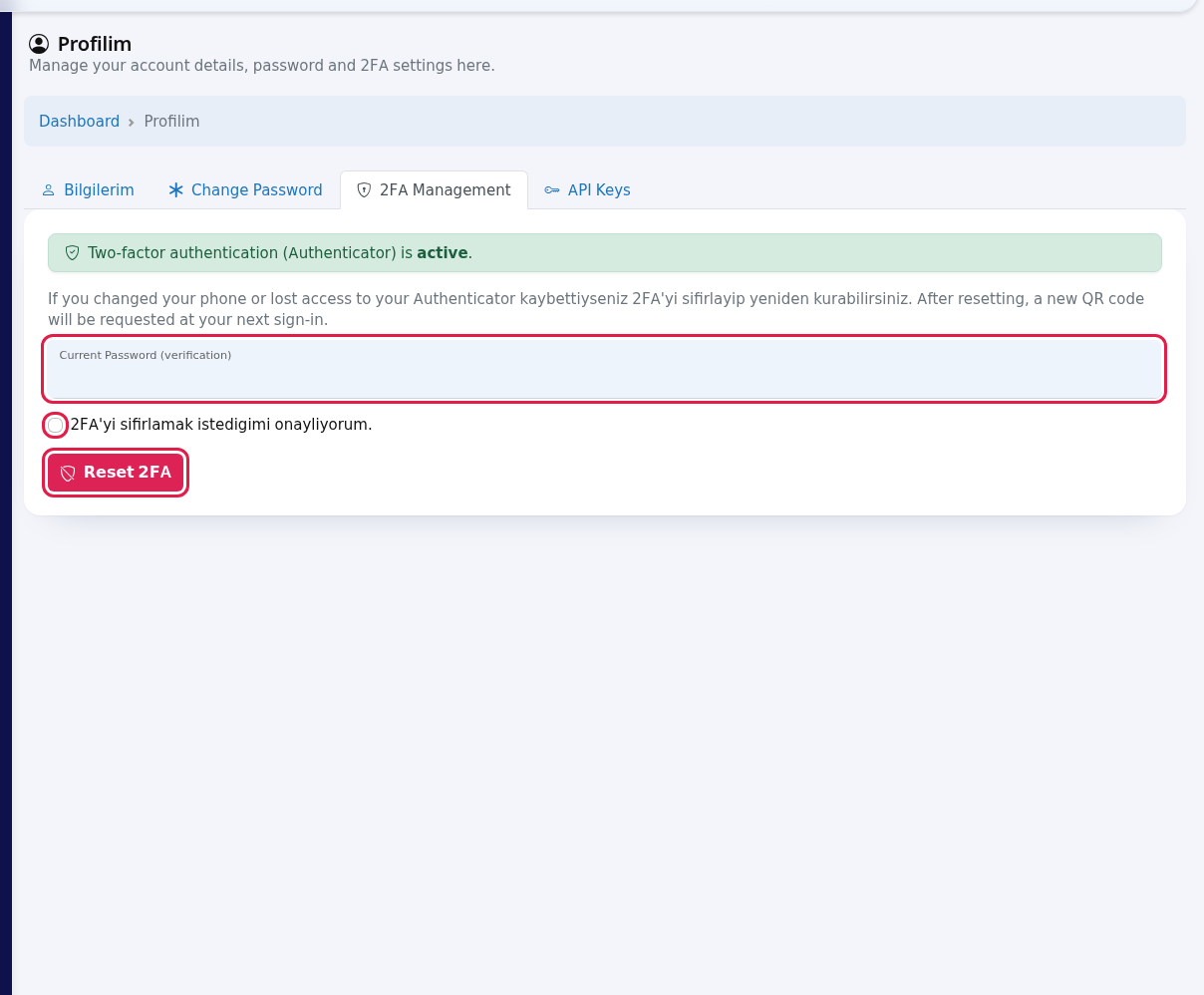
If you have changed phonephones, or lost access to your Authenticator, you can reset and set it up again:
Enter your password in thetypecurrentCurrentpasswordPassword (verification),field.Ticktick theIconfirmationconfirmboxIandwant to reset 2FAbox.Presspress Reset 2FA.;
After a reset you are asked for a new QRsetup codescreen opens at youronce. nextFull sign-in,details: whichTwo-Factor youAuthentication scan into the Authenticator app again.(2FA).
4.Step 6: API keys
(only for integrations)
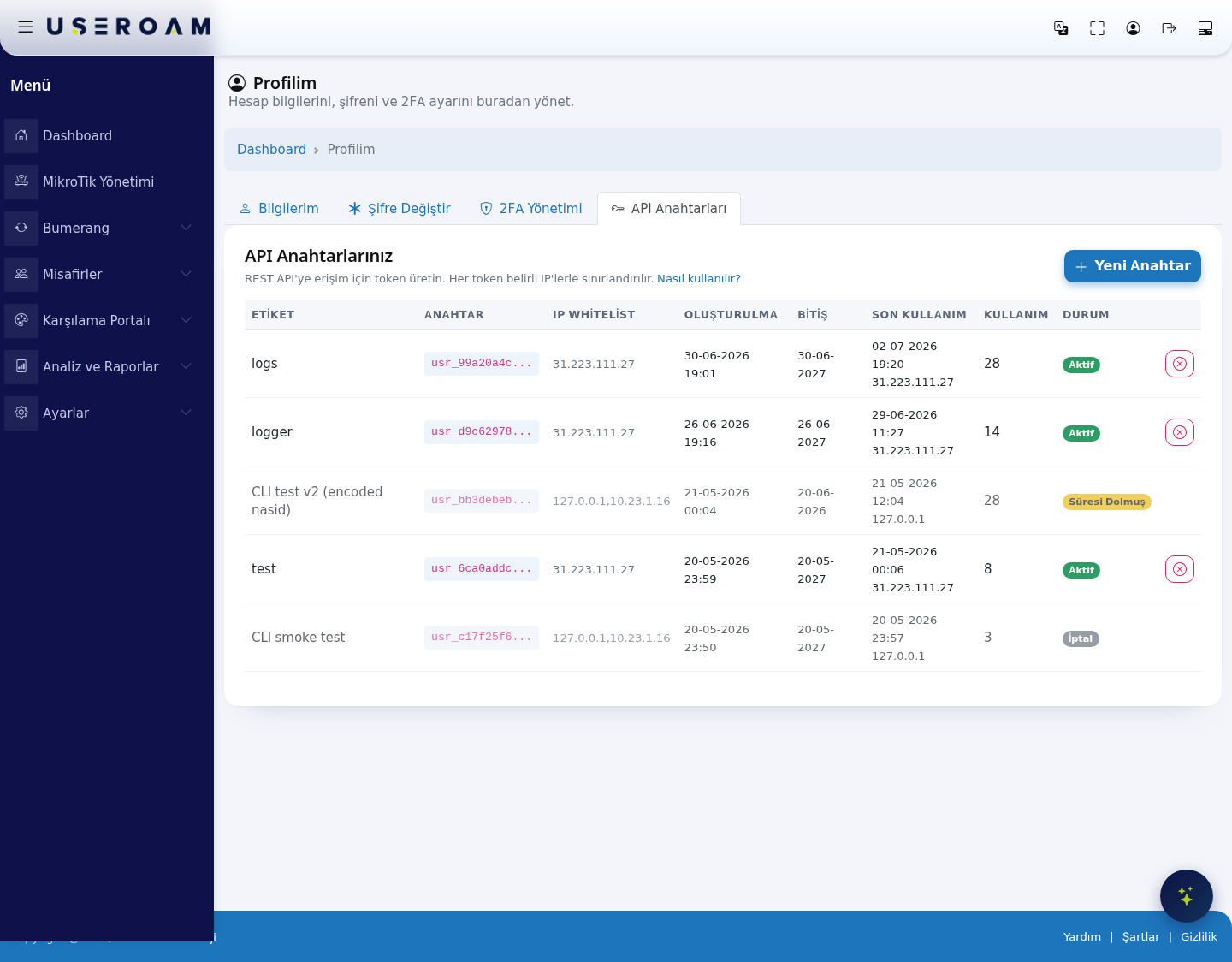
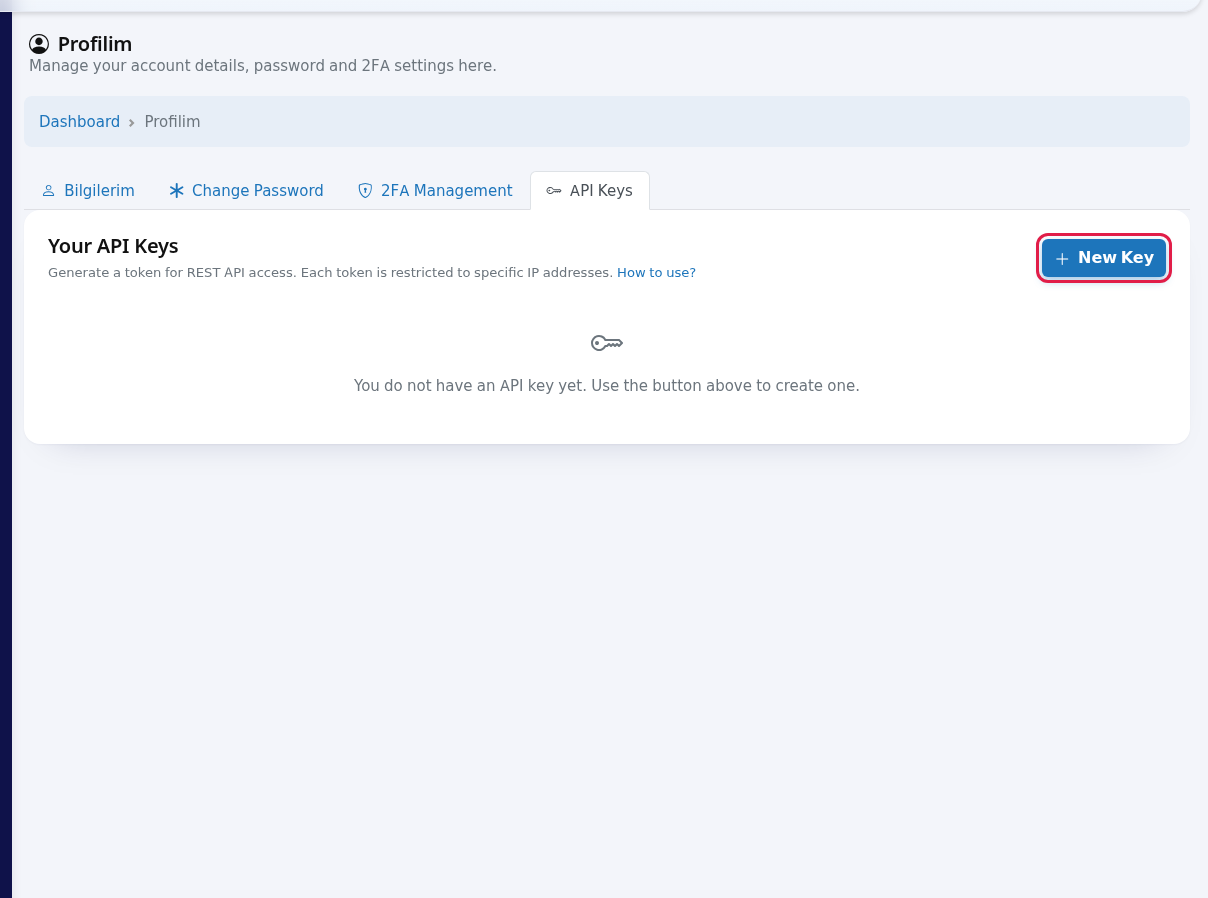
The tab where tokens for REST API access are generated — documented on its own page.
Related pages:Getting Started →API Keys;tab creates keys so other software can connect to your panel data. Most businesses do not need it. Details: API Keys.
Every field and button
Field / Button What it does Example SettingsFirst→ AdministratorsName,AdministratorLastProfilesNameYour name in the panel and records. Required. Ayşe, Yılmaz Notification address. May be empty; if filled, must be valid. ayse@mybusiness.comPanel Language Panel language; applies right after saving. Türkçe / English Company Address, KEP Adresi Show the company details in your agreement (not saved from here at the moment). Cep Telefonu (Mobile Phone) + Verify Verifies and saves your number with an SMS code. 0532 123 45 67Username (Sign-in) Your sign-in name. Cannot be changed. Save Saves the My Details tab. Verification Code, Resend, Cancel, Verify and Save Fields and buttons of the phone verification window. 482913Current Password, New Password (at least 8 characters), New Password (Repeat), Update Password Password change. Current Password (verification), confirmation box, Reset 2FA, Set Up 2FA 2FA management. Warnings and errors
Message What to do Account details updated. Saved. Ad zorunludur. / Soyad zorunludur. (First/last name is required.) Fill in both names. Enter a valid e-mail address. Use the name@domain.comform.An error occurred while updating. Try again. Önce cep telefonu girin. (Enter a mobile number first.) Type the number, then press Verify. Bu numara zaten doğrulanmış... (This number is already verified.) No need to verify the same number again. Geçerli bir cep telefonu girin. (Enter a valid mobile number.) Use only digits, spaces, +, - and brackets. 6 haneli kodu girin. / Doğrulama kodu 6 haneli olmalıdır. (Enter the 6-digit code.) Type the 6 digits from the SMS. Doğrulama kodu hatalı. (Wrong code.) Use the code from the latest SMS. Doğrulama kodu bulunamadı. Lütfen yeni kod isteyin. (No code found, request a new one.) Press Resend. Yeni kod gönderildi. / Yeniden gönderilemedi. (New code sent / could not resend.) Wait for the SMS / try again later. Kod gönderilemedi. / SMS gönderimi kuyruğa alınamadı. / OTP kaydedilemedi. (Code could not be sent.) Try again in a few minutes; contact support if it continues. Güncelleme başarısız. / Doğrulama başarısız. / Bağlantı hatası (Update failed / Verification failed / Connection error) Check your connection and try again. Your current password is incorrect. Type your current panel password correctly. New password and confirmation do not match. Type the same password in both boxes. New password cannot be the same as the current one. Choose a different password. Yeni sifre en az 8 karakter olmali. (At least 8 characters.) Choose a password of 8 characters or more. Your password has been updated. / Password could not be updated. Done / try again. Session validation failed. Refresh the page and try again. Refresh the page. Frequently asked questions
Can I change my username (sign-in e-mail)? Not here. The main administrator can create a new user (Administrators).
I changed E-Mail; did my sign-in change? No. E-Mail is only the notification address; you always sign in with Username (Sign-in).
The verification SMS did not arrive. Wait 1-2 minutes, check the number, then press Resend.
I cannot change my company address. Correct; these fields are not saved from My Profile at the moment. Contact support.
Can I change another administrator's password here? No. My Profile is only for your own account.