
Automatic Assignment
Automatic Assignment (the Assignment tab on Request Management, screen title Automatic Assignment / Routing) decides which department each new request goes to and who in that department gets it.
What is it for?
- When a guest reports a malfunction from the portal, the request goes straight to the Technical team and a room service order to Restaurant; nobody has to hand them out.
- If you like, it assigns the request to the least busy person in the department.
When do you use it?
- When you first set up the hotel module (it is the same setting as the wizard's assignment step).
- When your team changes; for example if housekeeping, not the front desk, should follow late check-out requests.
Before you start
- Staff must be linked to hotel departments: Housekeeping, Technical, Restaurant, Front Desk (Staff). If a department has nobody, the request still lands in its pool but is not assigned to a person.
Step by step
- Open the tab. Press Hotel → Request Management and open the Assignment tab.
- Choose person assignment. With Automatic person assignment off (recommended) the request lands in the department pool; everyone there sees it and whoever takes it first gets it. With it on, the request is assigned to the staff member with the fewest open jobs in that department and a notification goes to their phone. The switch saves as soon as you change it.
- Pick a department for each type. In the Request Type → Department list, pick the department on each row, leave Active ticked and press that row's Save. Each row is saved separately.
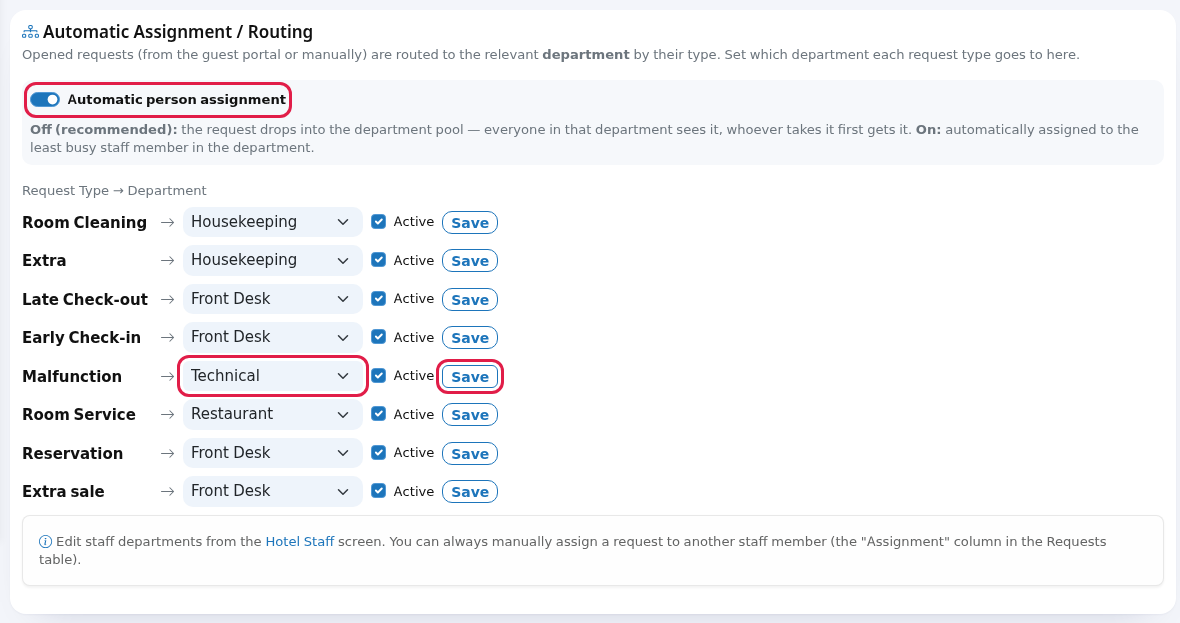
Every field and button on the screen
| Field / button | What it does | Example |
|---|---|---|
| Explanation: Opened requests (from the guest portal or manually) are routed to the relevant department by their type. Set which department each request type goes to here. | - | - |
| Automatic person assignment | Off (recommended): the request drops into the department pool, everyone in that department sees it, whoever takes it first gets it. On: automatically assigned to the least busy staff member in the department. | Off |
| Rows: Room Cleaning, Extra, Late Check-out, Early Check-in, Malfunction, Room Service, Reservation, Extra sale | Request types. | - |
| Department list | Housekeeping, Technical, Restaurant, Front Desk. | Malfunction → Technical |
| Active | If you save it unticked, this row's choice is not used and the default below applies. | ticked |
| Save | Saves that row only. | - |
| Footer: Edit staff departments from the Hotel Staff screen. You can always manually assign a request to another staff member (the "Assignment" column in the Requests table). | The Hotel Staff link opens the Staff screen. | - |
What if you never save anything?
Without saved rows, requests are routed with these defaults: Malfunction → Technical, Room Service → Restaurant, Room Cleaning and Extra → Housekeeping, Late Check-out and Early Check-in → Front Desk. Reservation and Extra sale have no default and stay without a department. Note: on unsaved rows the list shows the first option, Housekeeping; that does not mean it is the default. Save every row once to avoid confusion.
Frequently asked questions
I turned the switch on but requests are not assigned to anyone.
If the department has no active staff, the request stays in the pool. Link staff to the department.
Will the system reassign a request I assigned by hand?
No. If a person was assigned manually, automatic assignment only fills in the department and leaves the person alone.
What if I don't pick anyone when opening a request at reception?
The same rules apply: it goes to the department and, if the switch is on, to a person.
Related pages
- Request Management · Staff · Venue Setup Wizard (hotel mode, assignment step)