
Guest Portal
The Hotel Guest Portal is where you configure the single-QR digital guest page you offer to staying guests: housekeeping and room-service requests, hotel information, events and the menu all run from it.
How do I open this screen? From the left menu, go to Bumerang → BUSINESS → Hotel Guest Portal.
The top bar holds five quick links: Guest page (opens the page as the guest sees it), Management, Requests (with the pending count beside it), Room QR and Studio.
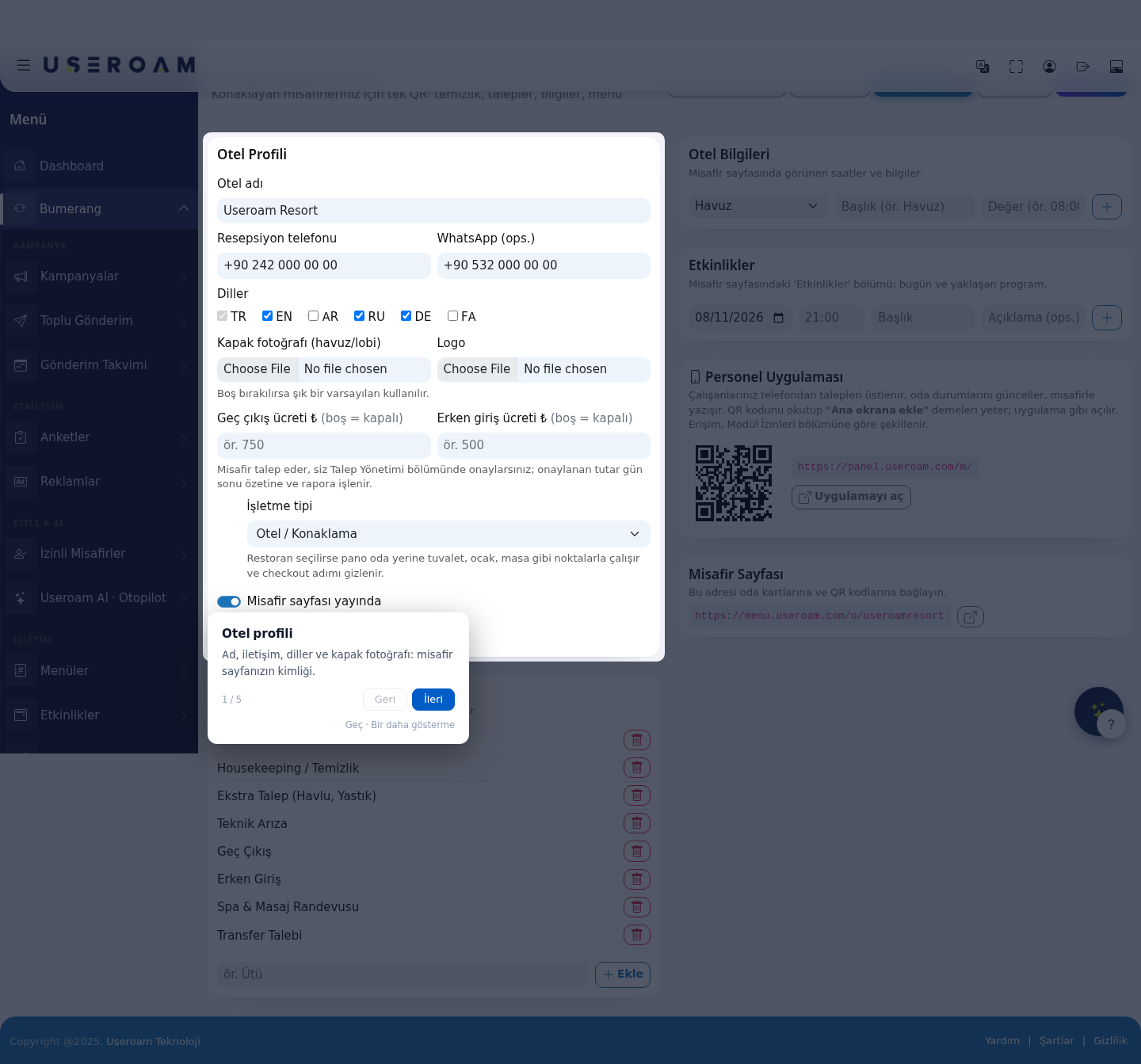
1. Hotel Profile
- Hotel name: appears in the heading of the guest page.
- Reception phone: the number the guest can call in one tap.
- WhatsApp (optional): your WhatsApp line, if you have one, so guests can message you instead.
- Languages: the languages the guest page is offered in — TR, EN, AR, RU, DE, FA. Tick the ones that match your guest profile.
- Cover photo (pool/lobby): the large image at the top of the page. If left empty, an elegant default is used.
- Logo: your hotel logo.
- Late checkout fee ₺ / Early check-in fee ₺: the price of these services. Leaving a field empty disables the service and hides it from the guest page. The guest requests it, you approve it under Request Management, and the approved amount is written into the end-of-day summary and the report.
- Venue type: Hotel / Accommodation or Restaurant / Café. If Restaurant is selected, the board works with points such as restrooms, stations and tables instead of rooms, and the checkout step is hidden.
- Guest page live: publishes or takes down the page.
2. Request Types
The list of needs the guest can choose on their "Requests" screen. The built-in types are: Room Service, Housekeeping / Cleaning, Extra Request (towel, pillow), Technical Fault, Late Checkout, Early Check-in, Spa & Massage Appointment, Transfer Request.
Use Add to define your own: a name (for example Iron) and an icon (Pool, Spa, Breakfast, Café, Wi-Fi, Clock, Parking, Laundry, Activity, General).
3. Hotel Information
The opening-hours and information cards shown on the guest page. Each row is a Title (for example Pool) and a Value (for example 08:00-20:00). Putting your most-asked details here — breakfast times, pool hours, Wi-Fi information — takes load off reception.
4. Events
Fills the "Events" section of the guest page. For each entry you set a date, a time (for example 21:00), a title and an optional description.
5. Staff Application
The Open application button opens the screen where staff can follow and close requests from their phone. Housekeeping and the technical team use this screen.
6. Room QR Codes
Generates the QR codes you place in the rooms, in bulk:
- Room range: enter the first and last room number (for example 101–120).
- Generate: creates a separate QR for every room in the range. Each QR takes the guest to the page already opened with their room number — so the guest never has to type it.
- Print: sends the codes to the printer.
Tip: if you also want scanning the QR to connect the guest to Wi-Fi, enable Embed Wi-Fi in QR codes on the Captive Portal → Portal Settings page.
Related pages: Hotel Solution → Request Management, Request Monitor, Room Board, Hotel Studio.