
Request Management
Request Management is the control screen of your hotel operation: filter every incoming request, assign it to staff, close it and read the end-of-day summary. Use the Request Monitor at reception for fast operation and this screen for oversight and reporting.
How do I open this screen? From the left menu, go to Bumerang → BUSINESS → Request Management.
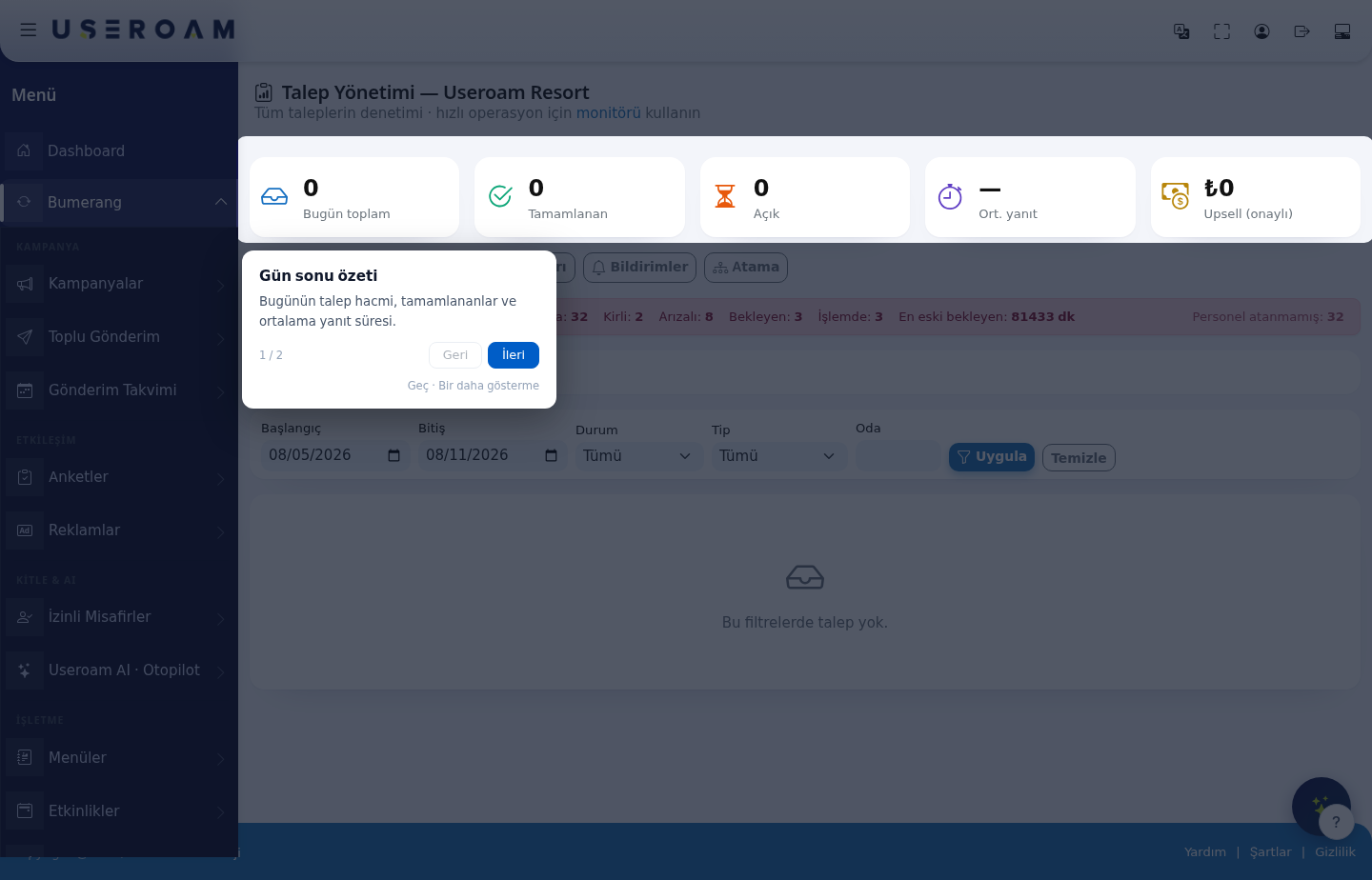
1. Headline figures
- Total today: requests opened during the day.
- Completed: requests that have been closed.
- Open: requests still waiting.
- Avg. response: the average time taken to fulfil requests — the most direct measure of your operational quality.
- Upsell (approved): the revenue from approved paid services such as late checkout and early check-in.
Status strip
The strip beneath summarises the live operation: Rooms (total), Dirty, Faulty, Pending, In progress, Oldest pending (minutes) and Unassigned staff. When something needs priority, a warning appears above (for example "There is a faulty point, give it priority").
2. Tabs
The screen is divided into five tabs: Requests, Rooms, SLA Rules, Notifications and Assignment. Rooms, SLA Rules and Notifications are described on their own pages.
3. Open New Request (reception)
When a guest phones or comes to reception, you open the request yourself:
- Room: the room the request came from.
- Type: Room Cleaning, Extra, Late Checkout, Early Check-in, Fault or Room Service.
- Description: the details (for example "2x Club Sandwich, 1 Cola").
- Time (optional): As soon as possible, 10:00–12:00, 12:00–14:00 or 14:00–16:00 — the guest's preferred slot.
- Assign to staff (optional): assigns the request directly to an employee. Left as — automatic —, it is distributed by the assignment rules.
4. Filters
- Start / End: the date range.
- Status: All, Pending, In progress, Completed, Cancelled.
- Type: filter by request type.
- Room: shows the requests for one room.
Apply runs the filter and Clear resets it. With no matches, the page reads "There are no requests for these filters."
5. Closing a request
Close a request with the Close as completed button. For fault requests, the Close fault dialog lets you select or take a resolution photo — attaching a record of the work done to the request.
6. End-of-day summary
The End-of-day summary card shows the day's request volume, completions and average response time. It is the summary to read at shift handover.
Related pages: Hotel Solution → Request Monitor, Room Board, SLA Rules, Hotel Notifications.