
Room Board
The Room Board shows the live status of every room in the hotel on one screen: which rooms are clean, which are dirty, which have a fault, and who they are assigned to. It is the operational map for the floor supervisor and reception.
How do I open this screen? From the left menu, go to Bumerang → BUSINESS → Room Board. (It is the same screen as the Rooms tab in Request Management.)
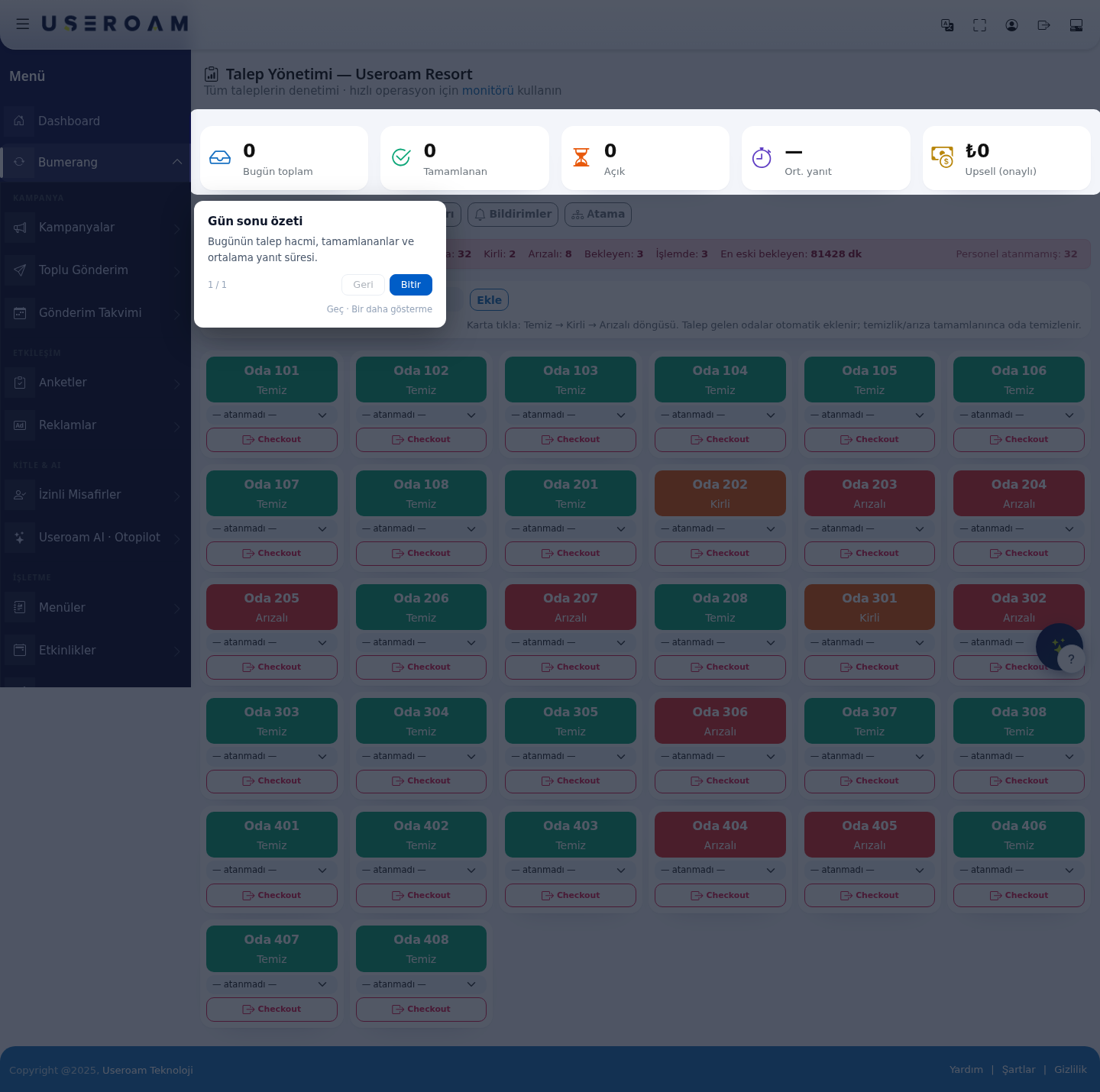
1. Building the room list
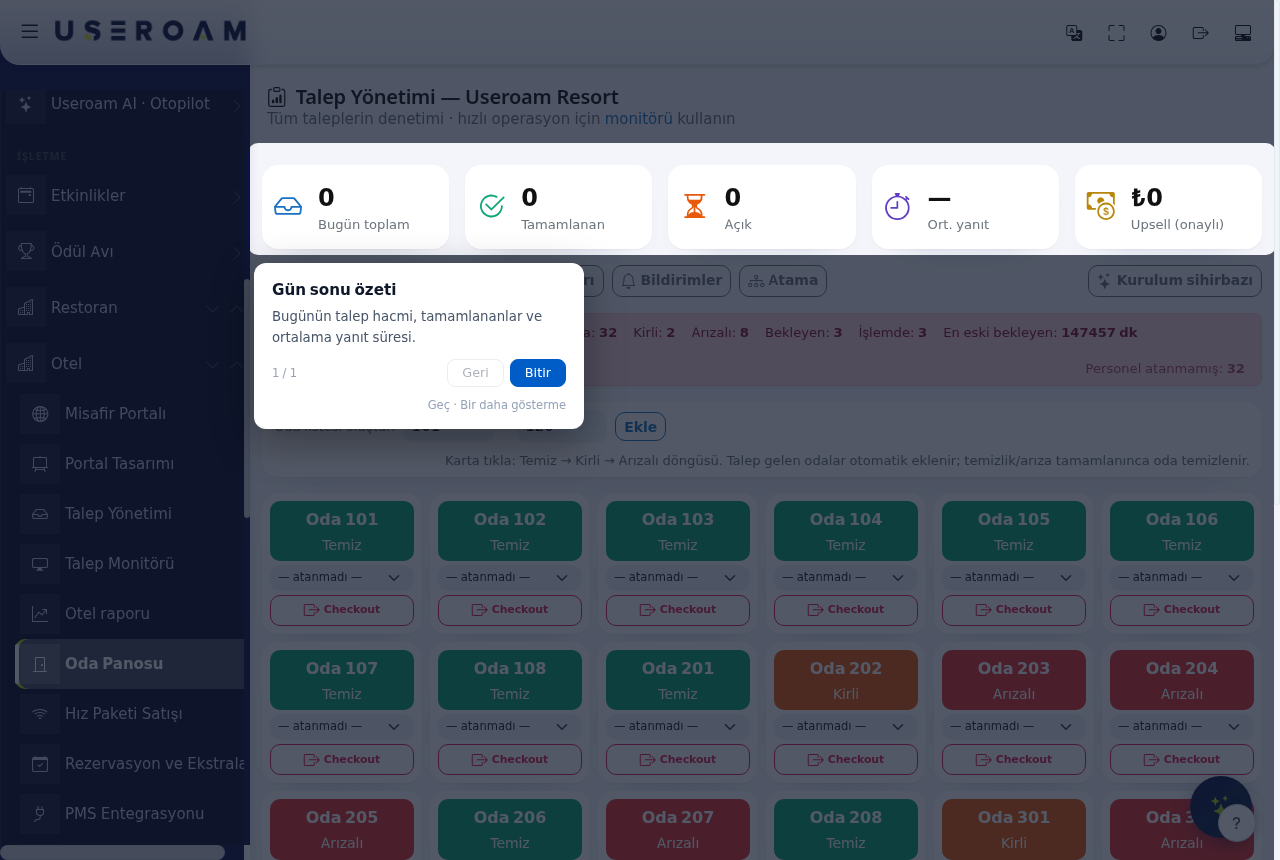
At the top of the board is the Create room list field. Enter the first and last room number and press Add; every room in between is added to the board.
Note: rooms that raise a request are added automatically. When the cleaning or fault record is completed, the room returns to clean.
2. Room states
Each room appears as a card. Clicking the card cycles its state:
Clean → Dirty → Faulty → Clean
- Clean: the room is ready and can take a guest.
- Dirty: awaiting housekeeping.
- Faulty: needs technical attention. The warning in the top strip ("There is a faulty point, give it priority") is triggered by rooms in this state.
3. Assigning staff
Every room card has a staff selector. You can leave it as — unassigned — or choose an employee from the list. The number of unassigned rooms is totalled in the Unassigned staff figure in the top strip.
4. Checkout
Each card carries a Checkout button. Marking a guest's departure puts the room into the cleaning cycle.
For restaurant / café use: if Hotel Guest Portal → Venue type is set to Restaurant / Café, the board works with points such as restrooms, stations and tables instead of rooms, and the checkout step is hidden.
5. Headline figures
Live counts sit above the board: Rooms (total), Dirty, Faulty, Pending, In progress, Oldest pending (minutes) and Unassigned staff. This is the first thing to check at the start of a shift.
6. New: clean lock and rooms in progress
- In the staff app, tapping a room opens a menu: Clean, Dirty, Faulty. Only Faulty opens a request.
- Staff cannot set a room with an open cleaning or fault request to Clean. When the request is closed, the room returns to clean by itself.
- If someone has taken the room's job, the box turns blue and shows In progress · Name. On a dirty room, staff use ▶ Start cleaning to take the job.
- Managers can give a room to a staff member with Assign room owner in the app.
- Shared areas such as the lobby, pool or boiler room are managed under Operations → Points; in the app they appear under the Areas button.
The Operations and Automation screens are described in the Restaurant Solution book; they work the same way for hotels.
Related pages: Hotel Solution → Request Management, Request Monitor, SLA Rules.