
Operations
Operations (Operasyon) is where you run the daily routine of your venue from one place: which job is done at which time (Daily Tasks), the places where the work happens (Points), and a record of everything that was and was not done (Report). The screen is shared by the restaurant and hotel modules; if you have both, they appear in one list.
How do I open it? In the left menu, go to Venue → Operations (İşletme → Operasyon). The Operations link on the Restaurant Management screen also leads here.
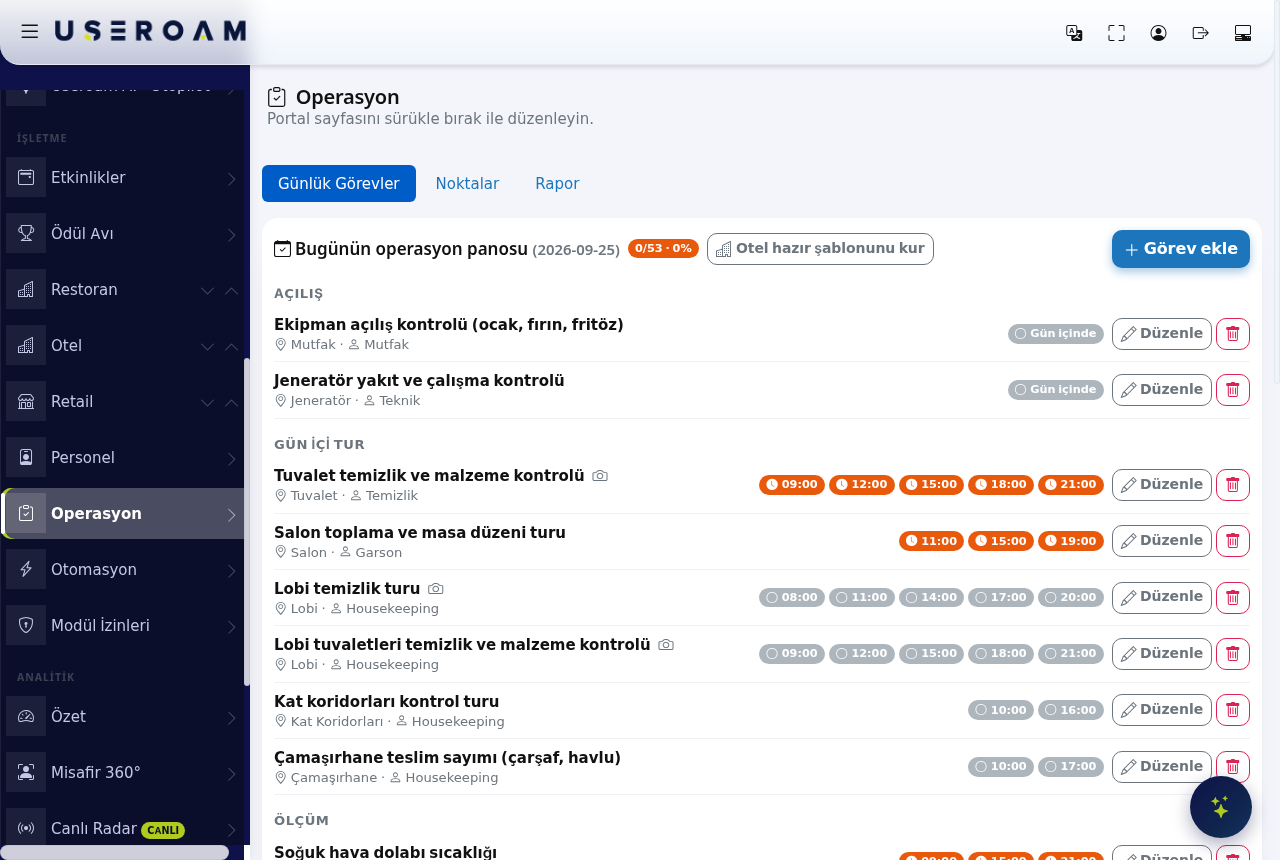
1. Daily Tasks
Today's task board groups tasks by type: Opening, Daytime round, Measurement, Security, Closing. Each row shows the task name, the place, who does it and the hours. Hours that have passed without the task being done turn orange.
To add a task:
- Press + Add task.
- Type the task name (e.g. Toilet check).
- Pick a point under Where?. This is optional.
- Under Who does it?, pick a department or a single person. If you pick a person, only that person sees the task.
- Tap the hours to select them. If you select none, the task is done once during the day.
- Tick Photo required if needed.
- For a measurement task (temperature, chlorine etc.), open Advanced and enter the type, unit and lower/upper limits.
- Press Save.
Edit on a row opens the same window; the bin icon removes the task. Past records stay in the report.
Hotel template
Venues with the hotel module see an Install hotel template button. One press adds 12 areas and 11 tasks: pool chlorine and pH, pool water and boiler temperature, lobby and toilet rounds, corridor and laundry checks, fire extinguisher check, night security round and more. The template is not installed by default; it is installed only when you press the button. Pressing it twice does not add the tasks twice.
2. Points
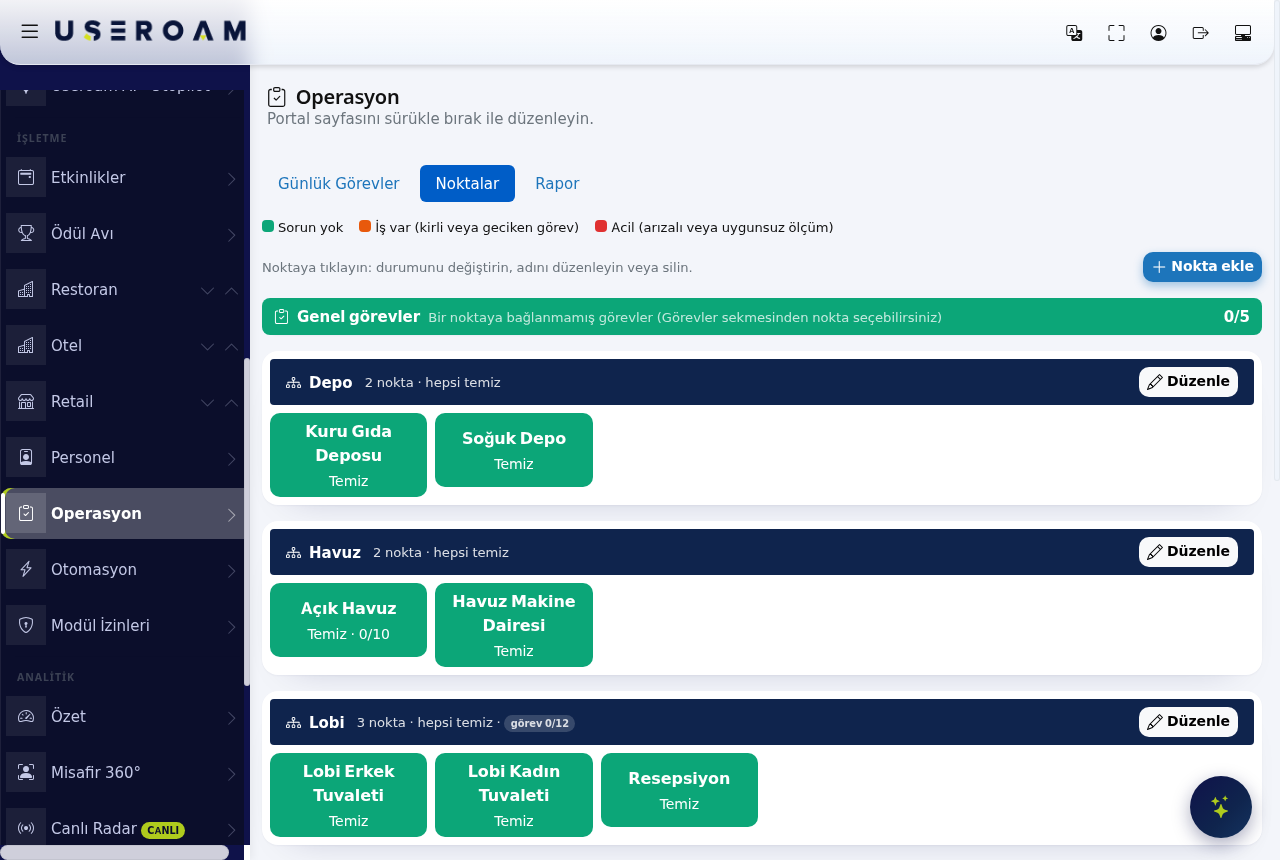
A point is a place where work happens: a table, a toilet, a stove, the pool, the lobby. Points can be nested: Stove and Oven under Kitchen, Men's and Women's under Toilet. A parent point is shown as a navy header; the colour of the boxes below it shows the state of each place:
- Green: No issue.
- Orange: Work pending (dirty, or a task is late).
- Red: Urgent (faulty, or a measurement is out of range).
Click a point to change its state, rename it or delete it. Use + Add point for a new one.
Who is responsible for a point
Each point can have a responsible department, a person, or both.
- Staff see only the points they are responsible for in the app.
- Points with no one responsible are visible only to managers.
- If a child point has no one responsible, the parent point's setting applies. For example, if Kitchen belongs to the Kitchen department, the Fryer under it goes to that team too.
Requests opened automatically
When a point is set to Dirty or Faulty, or a measurement is out of range, the system opens a request by itself: a cleaning request for dirty, a fault request for faulty. If you have the restaurant module the request goes to restaurant requests; if you only have the hotel module it goes to hotel requests. If the same place already has an open request, a second one is not opened. When the job is closed, the point returns to Clean by itself.
3. Report
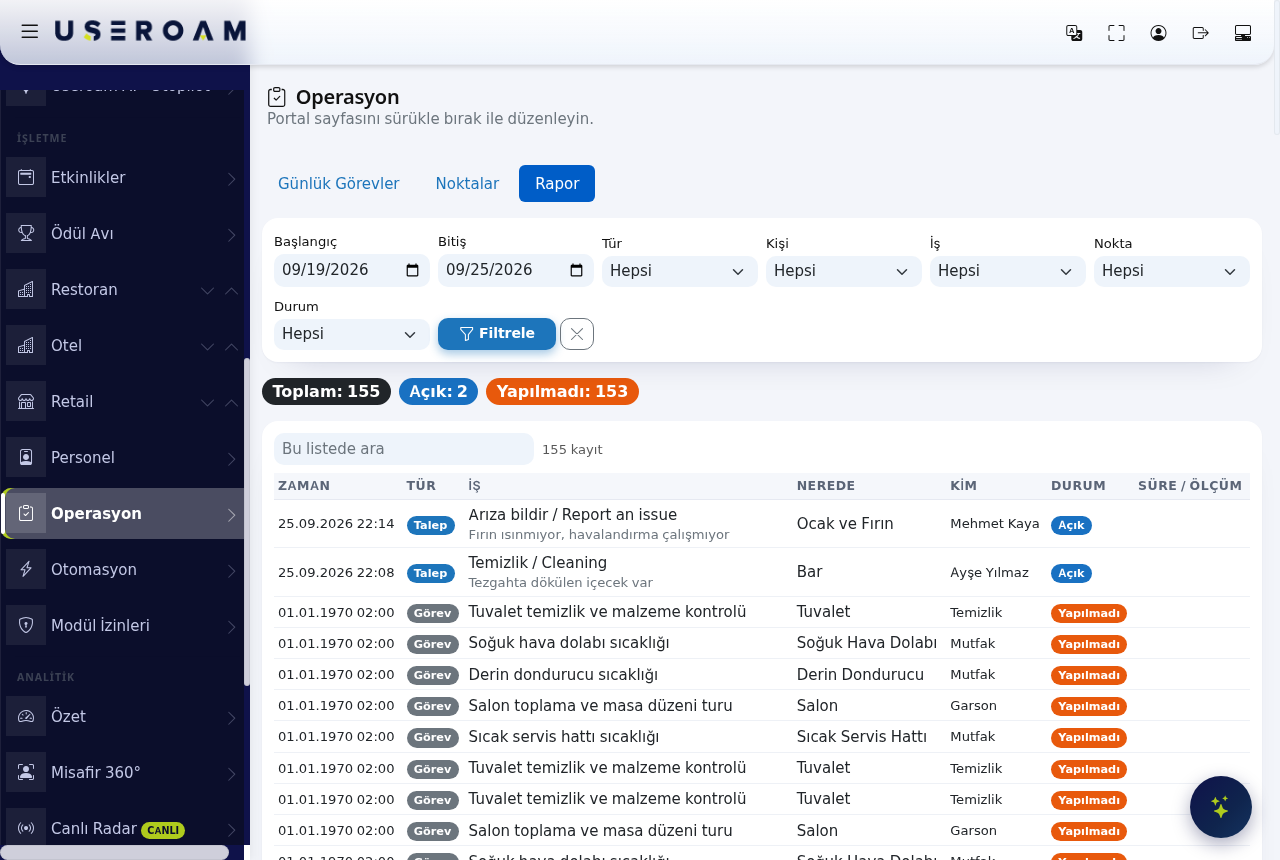
The report shows requests and tasks in one table. Tasks that were not done also appear as rows, so you can see what was missed. You can filter by date range, type, person, job, point and status. Selecting a parent point includes the points under it.
Related pages: Restaurant Solution → Requests, Automation; Useroam Go → Manager tools and tasks.