
Points
TheThis Pointsscreen tabhas — listed as Board (Pano) in the left menu — is the map of your venue. Every table, restroom, kitchen appliance and store room appears as a tile, and its colour tells you the state of the floor at a glance.
How do I open this screen?In the left menu gomoved toBumerangOperations.→PointsBUSINESSnow(İŞLETME)live→ Restaurant (Restoran) → Board (Pano), or switch toon the Points tabinside the module.
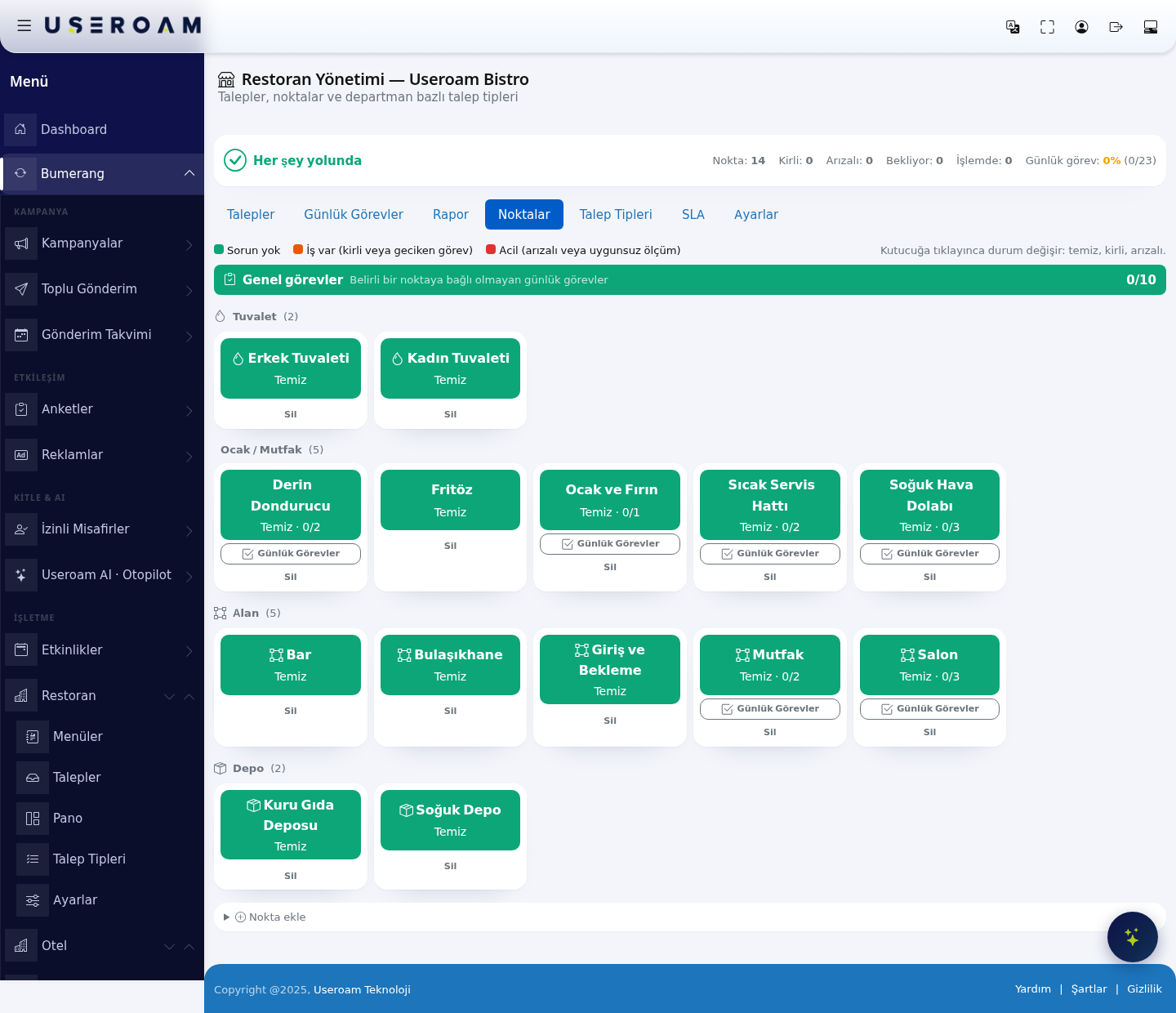
1. Status colours
The three captions at the top explain what the tiles mean:
All good:The point is clean with nothing pending.Needs work:The point is dirty or one of its daily tasks is overdue.Urgent:The point is out of order, or a measurement came back outside its limits (for example a fridge reading above the accepted range).
Clicking a tile cycles its status: clean → dirty → out of order. Staff can make the same change from their phone; the board shows both.
2. General tasks
A General tasks card sits at the top of the board.Venue Daily→ tasksOperations thatscreen arein not tied to a specific point (the closingleft cashmenu, count, for instance) collect here with their completion ratio (e.g. 0/10).
3. Point groups
Points are groupedshared by type,the withrestaurant and hotel modules. Restaurant Management now keeps only Requests and Settings; its Operations link takes you there.
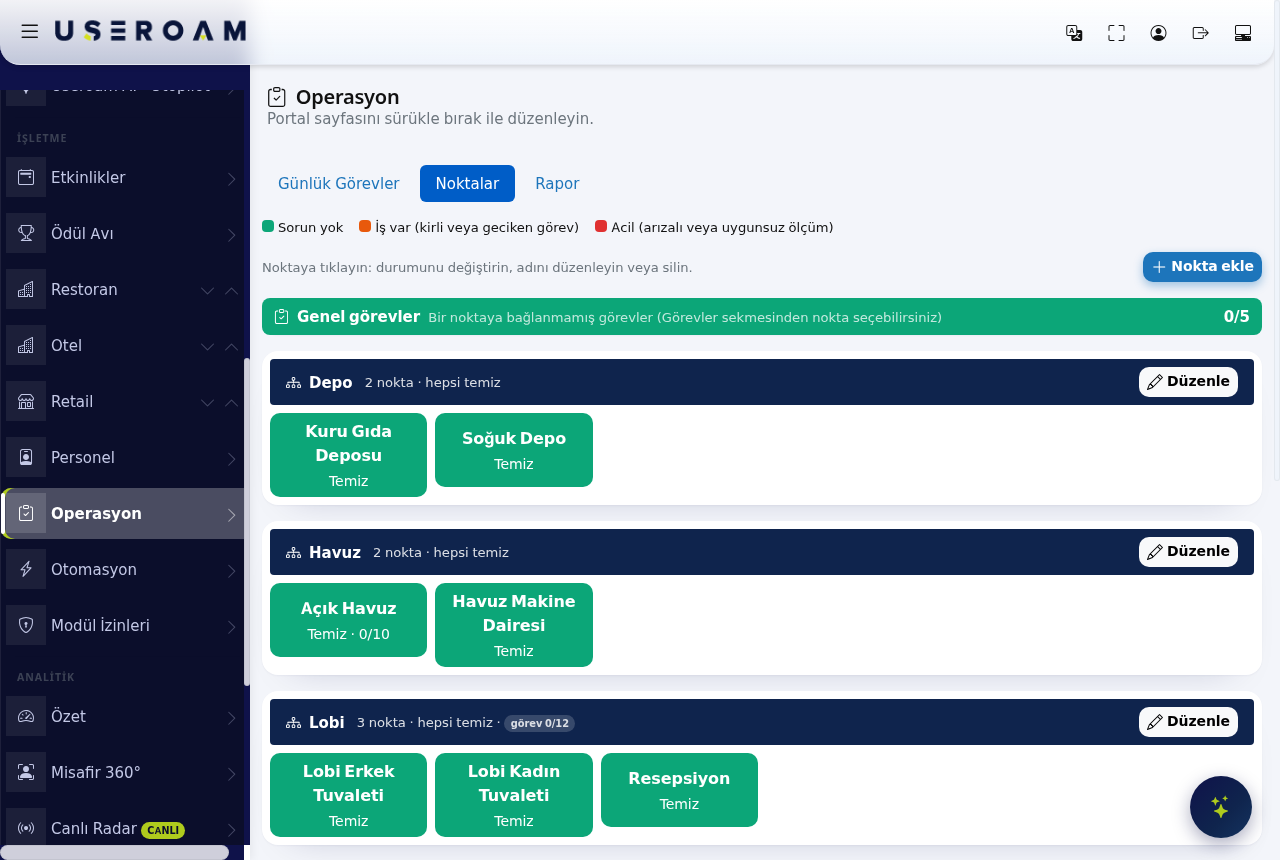
For the countfull nextguide, to each group. In the demo business:
Restroom (2):Erkek Tuvaleti (men's), Kadın Tuvaleti (women's)Kitchen (5):Derin Dondurucu (deep freezer), Fritöz (fryer), Ocak ve Fırın (hob and oven), Sıcak Servis Hattı (hot service line), Soğuk Hava Dolabı (chiller)Area (5):Bar, Bulaşıkhane (dishwashing), Giriş ve Bekleme (entrance and waiting), Mutfak (kitchen), Salon (dining room)Storage (2):Kuru Gıda Deposu (dry goods store), Soğuk Depo (cold store)
When a point has daily tasks attached, the tile shows a ratio (e.g. Clean · 0/3) and asee DailyRestaurant TasksSolution → Operations button that opens the tasks for that point.
4. Adding and removing points
The Add point area at the bottom has two fields:
Name:The label shown on the tile (e.g.Ground Floor Restroom).Type:Table,Restroom,Kitchen,Area,StorageorOther. The type only controls grouping.
Related pages:
Restaurant Solution → Daily TasksOperations, Requests,Report.