
Requests
Restaurant Management brings floor and kitchen operations together on one screen: requests raised by guests or staff, points that carry the cleaning and fault status of every physical unit, and request types that decide which department answers. The Requests tab is the module's entry screen — it shows the current workload and lets you raise a request manually.
How do I open this screen? In the left menu go to Bumerang → BUSINESS (İŞLETME) → Restaurant (Restoran) → Requests.
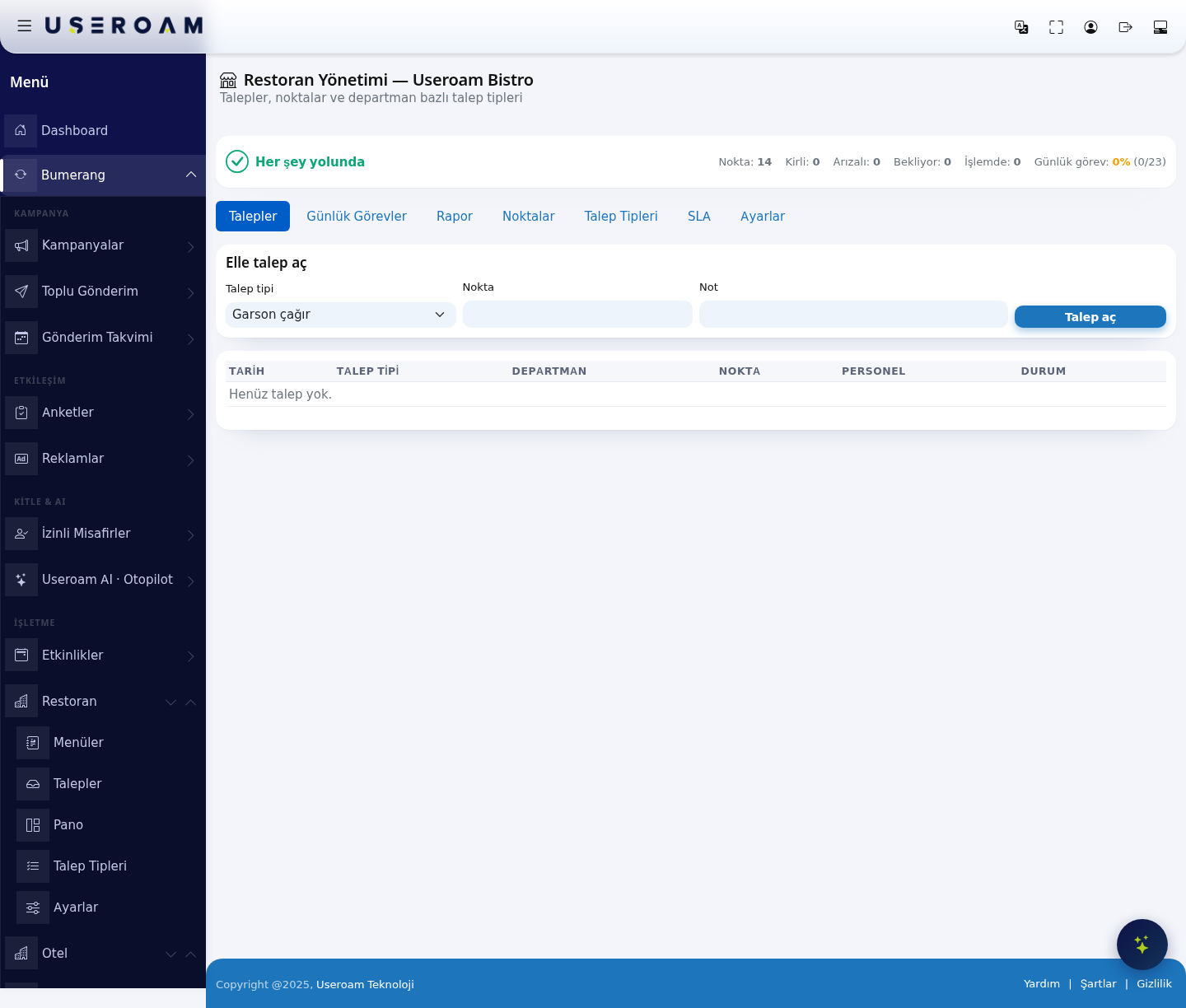
1. Status strip
The screen opens with the business name (e.g. Useroam Bistro) and a one-line verdict on the current state — "All good" when nothing needs attention, a warning line when work is piling up.
- Points: Total number of defined points (tables, restrooms, kitchen equipment and so on).
- Dirty: Points waiting to be cleaned.
- Out of order: Points marked as faulty.
- Waiting: Requests nobody has picked up yet.
- In progress: Requests a staff member has taken on.
- Daily tasks: Completion rate of today's task list (e.g. 0% (0/23)).
2. Tabs
The module has seven tabs: Requests, Daily Tasks, Report, Points, Request Types, SLA and Settings. Each is documented on its own page. The left menu keeps shortcuts to Requests, Board (Pano — the Points view), Request Types and Settings; the remaining tabs are reached from the tab bar inside the screen.
3. Create a request manually
When a guest calls you over or a staff member reports something missing, you raise the request here:
- Request type: One of the defined types. In the demo business these are Garson çağır (call waiter), Hesap iste (ask for the bill), Temizlik (cleaning) and Arıza bildir (report a fault). You manage the list on the Request Types tab.
- Point: Where the request comes from (a table or an area).
- Note: Free-text detail.
Create raises the request. It goes to the staff of the department linked to that request type; if auto-assignment is enabled on the Settings tab, it is handed to a specific person straight away.
4. Request list
The table below lists open requests with the columns Date, Request type, Department, Point, Staff and Status. When there is nothing to show it reads "No requests yet."
Tip: Guests can also raise requests by scanning a QR code. Whatever the channel, every request lands on this screen.
Related pages: Restaurant Solution → Request Types, Points, SLA, Settings.