
Requests
Restaurant Management brings floor and kitchen operations together on one screen: requests raised by guests or staff, points that carry the cleaning and fault status of every physical unit, and request types that decide which department answers. The Requests tab is the module's entry screen — it shows the current workload and lets you raise a request manually.
How do I open this screen? In the left menu go to Bumerang → BUSINESS (İŞLETME) → Restaurant (Restoran) → Requests.
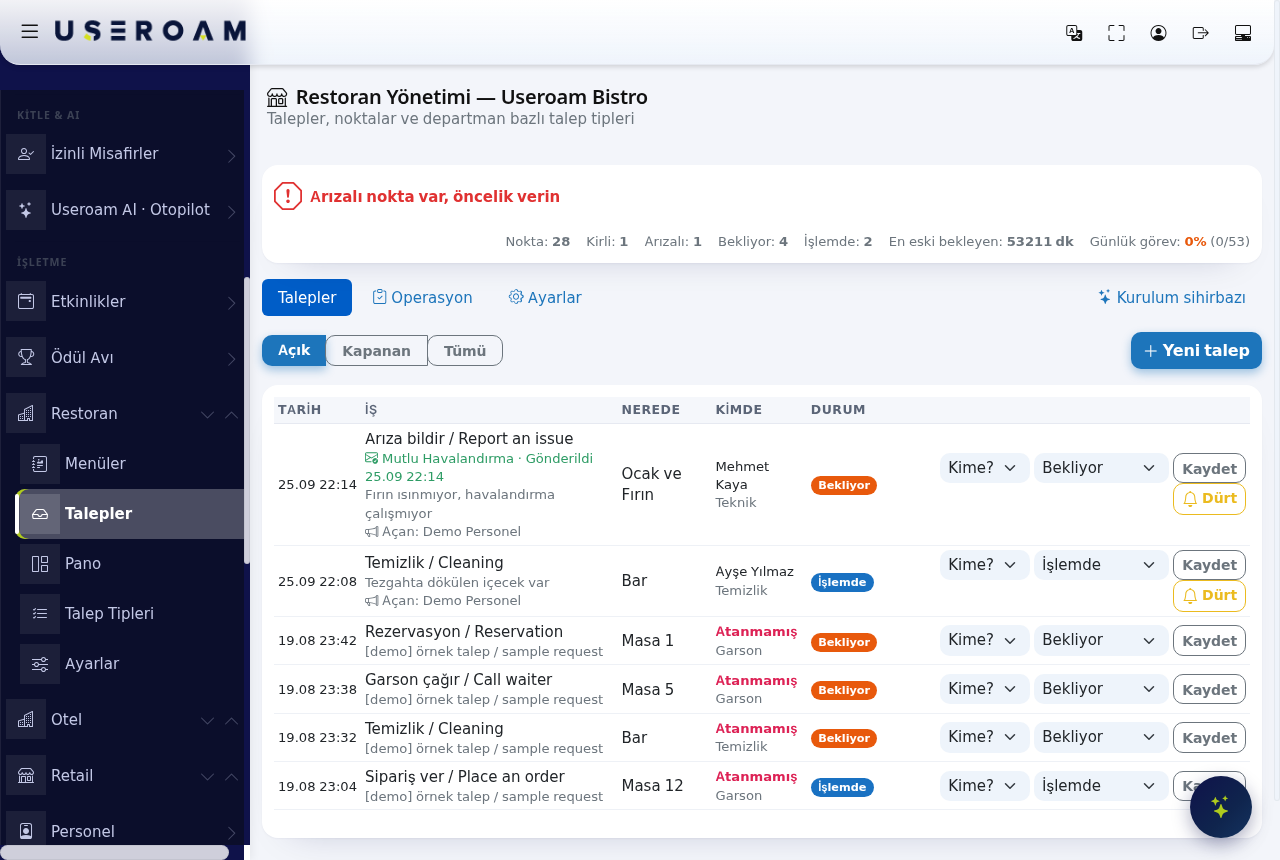
1. Status strip
The screen opens with the business name (e.g. Useroam Bistro) and a one-line verdict on the current state — "All good" when nothing needs attention, a warning line when work is piling up.
- Points: Total number of defined points (tables, restrooms, kitchen equipment and so on).
- Dirty: Points waiting to be cleaned.
- Out of order: Points marked as faulty.
- Waiting: Requests nobody has picked up yet.
- In progress: Requests a staff member has taken on.
- Daily tasks: Completion rate of today's task list (e.g. 0% (0/23)).
2. Tabs
Restaurant Management now has two tabs: Requests and Settings (containing Request Types, SLA and General). Daily tasks, points and the report moved to the Venue → Operations screen in the left menu; the Operations link on the screen takes you there.
3. Create a request manually
- Press + New request.
- Pick the request type (e.g. Cleaning, Report an issue).
- Pick or type the place.
- Optionally pick a person. If you don't, the job goes automatically to the least busy staff member of the department; a manager gets it only if no one else is in the department.
- Press Open request. The chosen person gets a notification.
4. Request list
Filter the list with Open, Closed and All at the top. Columns: Date, Job, Where, Assignee, Status.
- To whom? (Kime?) gives the job to someone else. The previous owner gets a "Job moved to someone else" notification.
- 🔔 Nudge (Dürt) sends a reminder to the person holding the job. It can be used once every 5 minutes for the same job.
- When a staff member taps Take in the app, the job becomes theirs and their name appears in the Assignee column.
- A job no one holds is shown with a red Unassigned label.
- A job reported to a service company shows ✉ Company name · Sent. Use Notify company to send one manually (see Automation).
Related pages: Restaurant Solution → Operations, Automation, Request Types, SLA, Settings.