
Retail Request Monitor
The Retail Request Monitor shows live customer requests raised inside the store. When a customer scans the code in a fitting room or an aisle and asks "do you have this in a 42?", the request lands here.
How do I open this screen? From the left menu, go to Bumerang → Retail → Request Monitor.
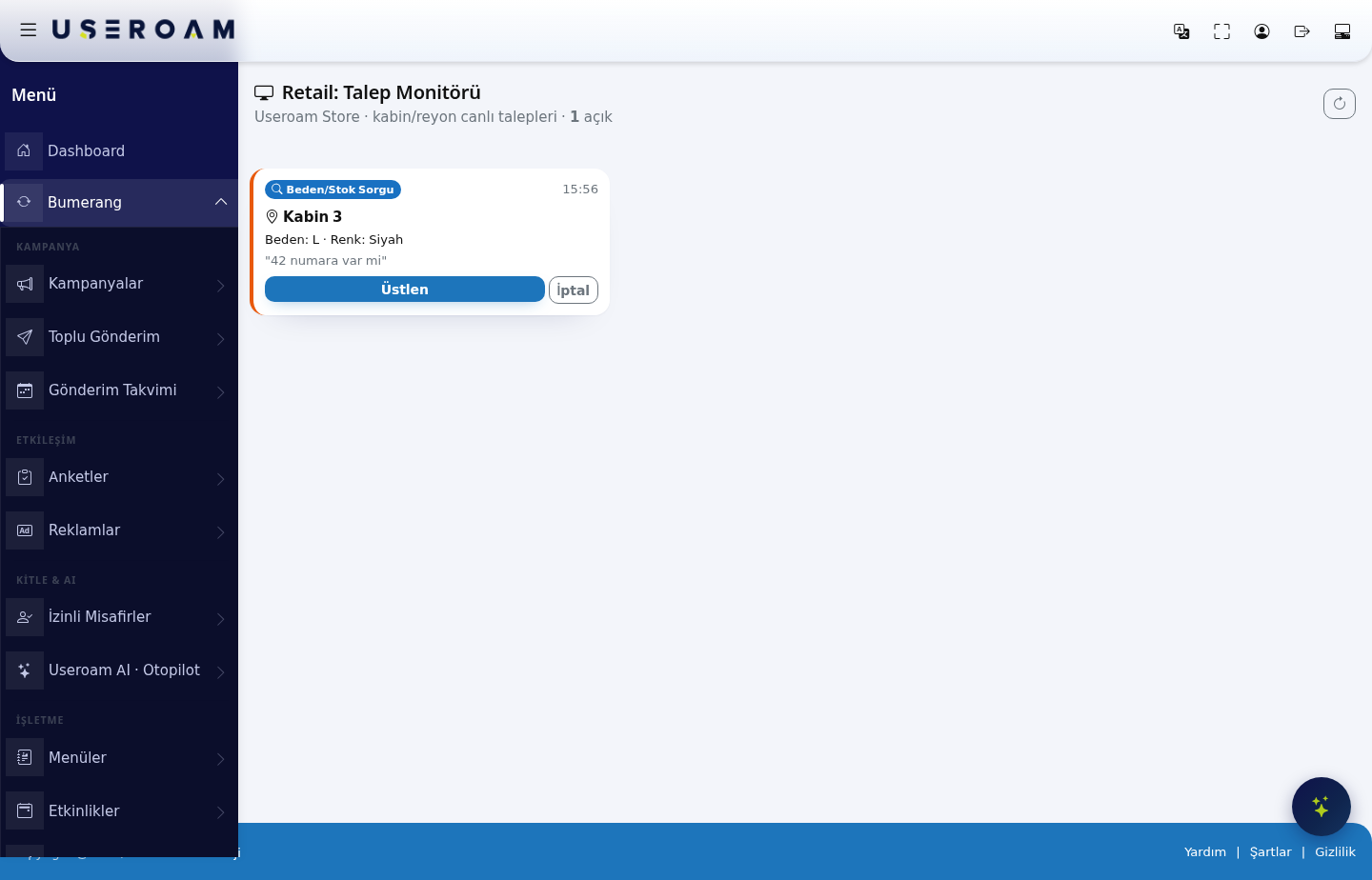
The heading shows the store name and the number of open requests (for example "1 open").
What a request card shows
- Request type — for example Size/Stock Enquiry.
- Time — when the request arrived.
- Point — the QR point it came from (for example Cabin 3). This line tells staff where to go.
- Product detail — for example Size: L · Colour: Black.
- Customer note — the free text the customer wrote (for example "do you have a 42").
Action buttons
- Take: claims the request, so two people do not run for the same one.
- Cancel: closes the request — used when the customer has moved on or the request is a duplicate.
Keep the screen open: requests land here in real time. Leaving it open on the floor supervisor's tablet or the till computer is what stops a customer waiting in a fitting room for several minutes.
Defining request points: which cabins and aisles can raise a request is set in the QR Points section of the Retail → Store & QR Registration screen.
Related pages: Retail → Store & QR Registration, Retail → Automation, Bumerang → Staff.