
Store Texts
What is it for?
On Store Texts is where you editchange everythe piecetexts customers see on the store page, separately for each language: welcome heading, form labels, consent text, Sign up button, thank-you text, wheel and coupon texts, fitting room/aisle buttons.
When to use it
- When you want to adapt the default text to your tone or brand (example: "Get offers" instead of
text"Signtheup"). - When
sees,youper language. From the form labelswant tothefixwheelEnglishmessages,or other language texts.
Before you start
- The tabs come from the
thank-languages ticked on Store & QR Registration. Tick a new language there first. - If Welcome heading or Thank-you message is filled in the store settings, that text
towins over thefitting-roomtextcallherepromptsin—everyitlanguage. For per-language text, empty those two boxes in the store settings. - The KVKK privacy notice is
allnothere.changedhere
but on Editing Portal Texts.
Step by step
- Open
HowRetaildo>IStoreopen this screen?TextsFromin the leftmenu,menu.goChoosetoBumerang → Retail → Store Texts.
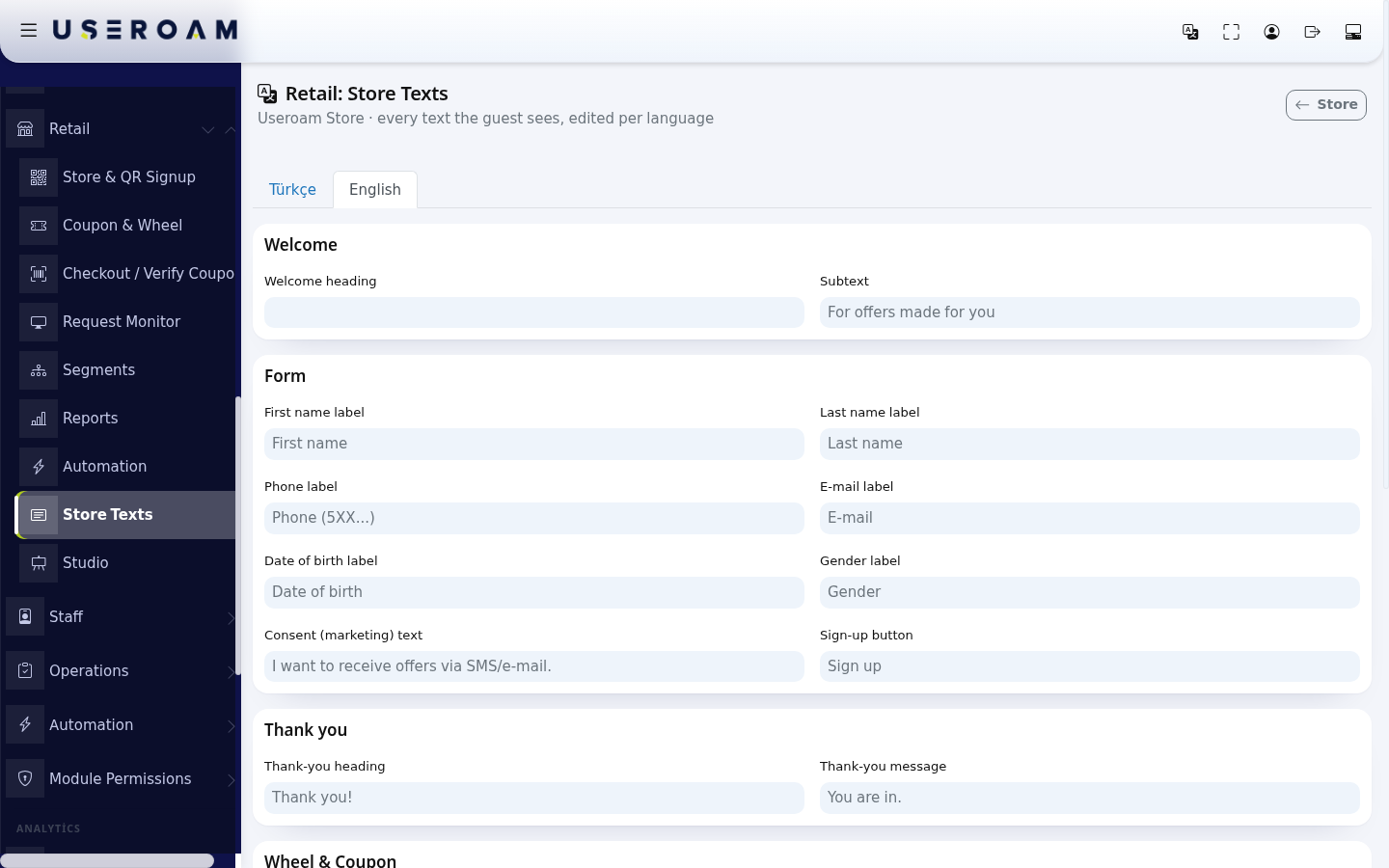
Switcha languagewith theTürkçe / Englishtabstab at the topand(example:writeTürkçe). The grey text in each box is thetextsdefaultseparatelyusedforifeach.youWhichleave it empty. Type your own text in the box you want to change.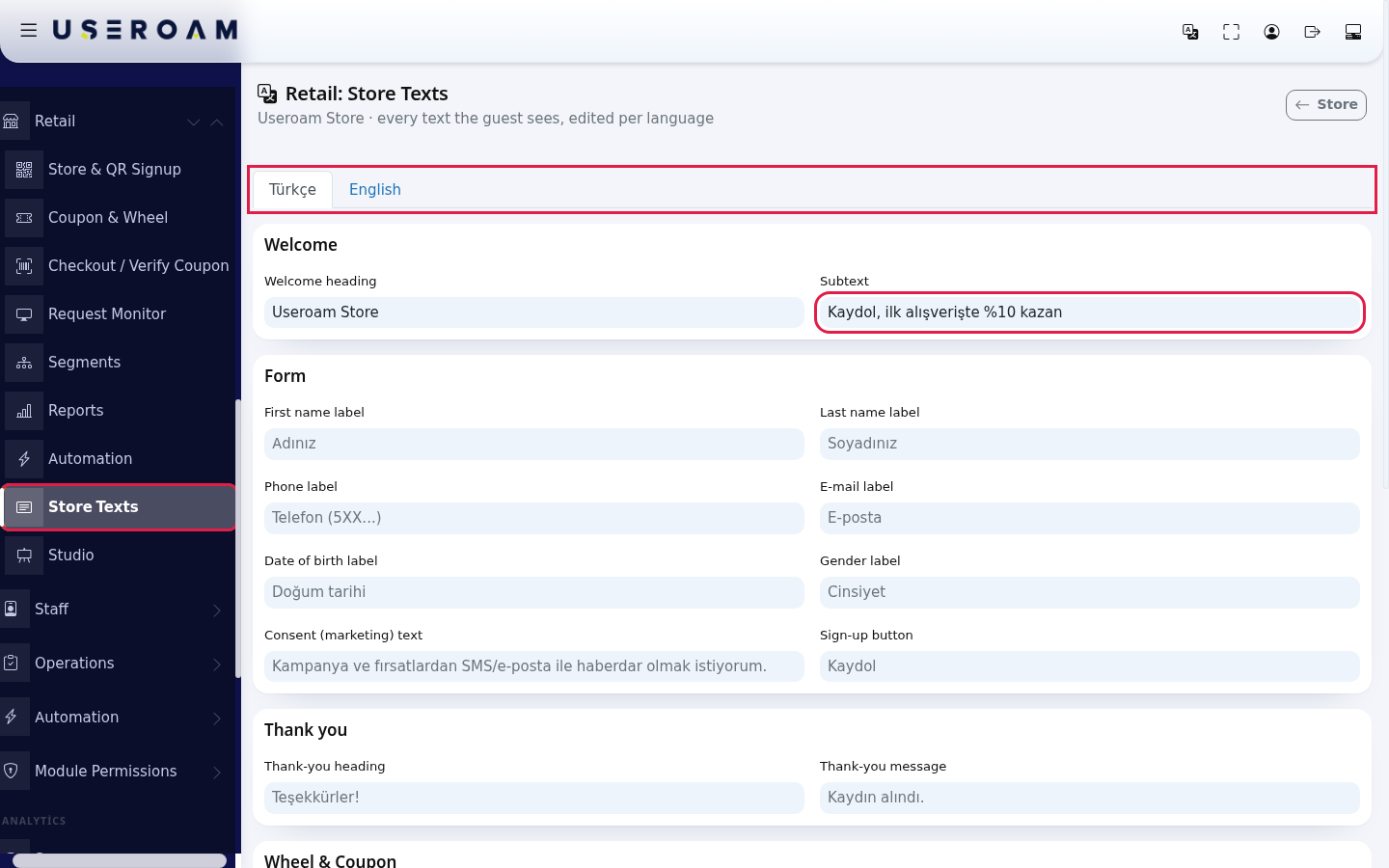
- For another language switch to its tab and fill it in the same way.
- At the bottom press Save Texts. All languages
appeararedependssavedontogethertheandLanguages"Textsselectionsaved."onappears.theTheStorenote&nextQRtoRegistrationit:screen."Afield
"Anleft emptyfieldfalls back to the grey default text.So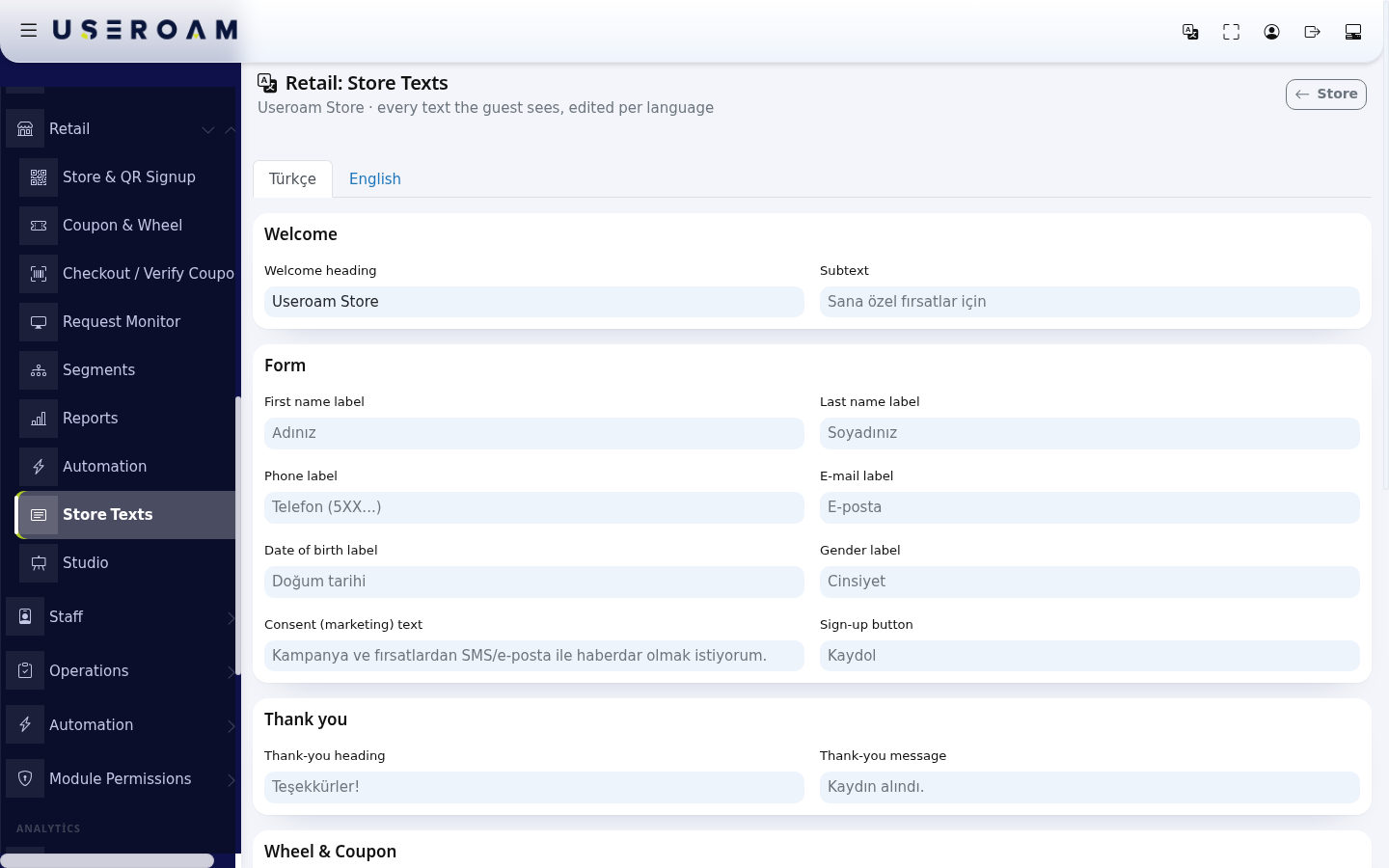
1.Every Welcomefield
Group Field Where the customer sees it Default (EN) Welcome Welcome heading:headingLarge text above the form (empty; the store setting is used) Subtext Small text under the heading For atoffersthemadetopforofyouthe page.Subtext:Formthe description beneath the heading.2. FormThe field labels on the registration form:First name label ,Above the first name box First name Last name label ,Last name box Last name Phone label ,Phone box Phone (5XX...) EmailE-mail label,E-mail box E-mail Date of birth label ,Date of birth box Date of birth Gender label .Gender - box
Gender Consent ( campaign) text:themarketing) textCommercial shown beside the commercial-messagecheckbox.Write it clearly— the customer knowing what theyconsent checkboxI want to isreceivebothoffersavialegalSMS/e-mail.requirement and the thing that prevents complaints later.Sign-up button:buttonButton that sends the labelformSign onupthe submit button.3.Thank you Thank-you heading Large andtext after sign-upThank you! Thank-you message:messageText theundertextsitYou onarethein.screen shown after the form is submitted.4.Wheel & Coupon Spin button:buttonButton under the labelwheelSpin on the button that spins the wheel."You won" heading:headingCoupon thescreenheadingtitleYou shownwon!when a prize comes up."Your coupon code" :Above the labelcodeYour abovecouponthecodecode."Show at the till":cashier"Under the textQRShow tellingthis code at thecustomercashierwhereLosing message Heading when the wheel does not win Not this time Download coupon button Button that downloads the coupon image Download coupon Aisle / Fitting room Call button Main button on the fitting room/aisle screen Call Staff Call subtext Text under the heading Let us help you Called heading Heading after the call Staff called Called message Text under it Our team will be with you shortly. Ask stock button Second button Ask Size / Stock Losingtextmessage:is English; fill theconsolationboxestextwithshownyourwhenownnotranslationprizeforcomestheseup.languages.AMessages
sentenceyouthatmaykeepsseeMessage Meaning / what to do Texts saved. All languages were saved. Records could not be created for some languages. One language's texts could not be saved. Try again; if it persists, contact our support team. Frequently asked questions
I changed the
customerwelcome heading but the page shows the old text.
The Welcome heading in the storeearnssettingsitstakesplacepriority.here.Empty Downloadthatcoupon button:the labelbox onthe save-coupon button.
Each box takes up to use400 characters. Tabs: Türkçe, English, Deutsch, Русский, العربية, فارسی. For German, Russian, Arabic and Farsi the code.default
5. Aisle / Fitting room
Confirm your changes with Save Texts.
Registration
Related pages:Retail →Store & QR Registration(languagesand save.Some texts are missing (example: the privacy notice sentence, error warnings).
The consent sentence, "Select", gender options, error warnings and the Size, Color, Product code and Note labels on the fitting room formfields),cannotRetailbeStudiochanged(visualhere.design),FullCouponslist: The Store Page Your Customers See.Related pages