
Store Texts
What is it for?
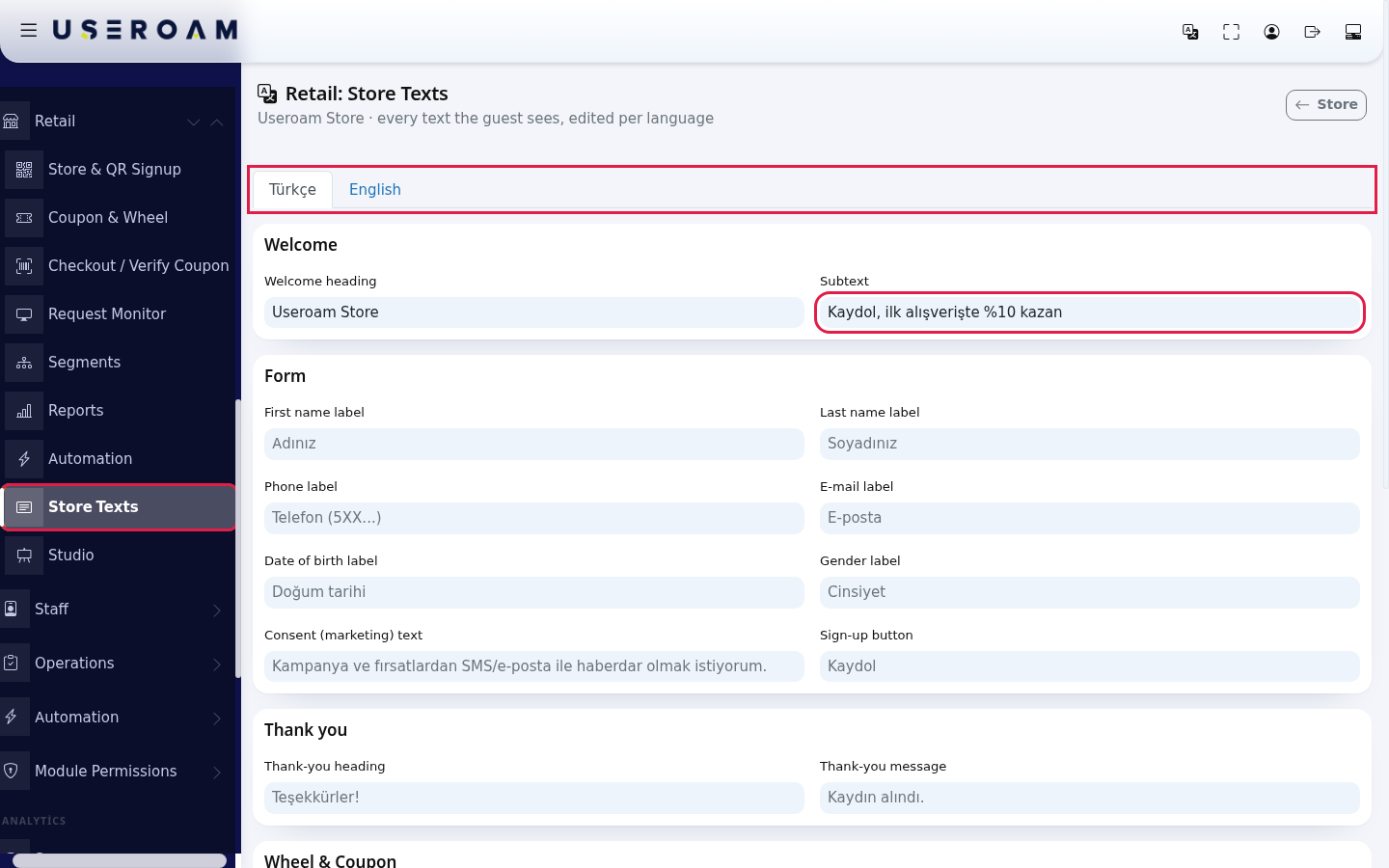
On Store Texts you change the texts customers see on the store page, separately for each language: welcome heading, form labels, consent text, Sign up button, thank-you text, wheel and coupon texts, fitting room/aisle buttons.
The subtitle under the screen title reads "Store name · every text the guest sees, edited per language".
When to use it
- When you want to adapt the default text to your tone or brand (example: "Get offers" instead of "Sign up").
- When you want to fix English or other language texts.
Before you start
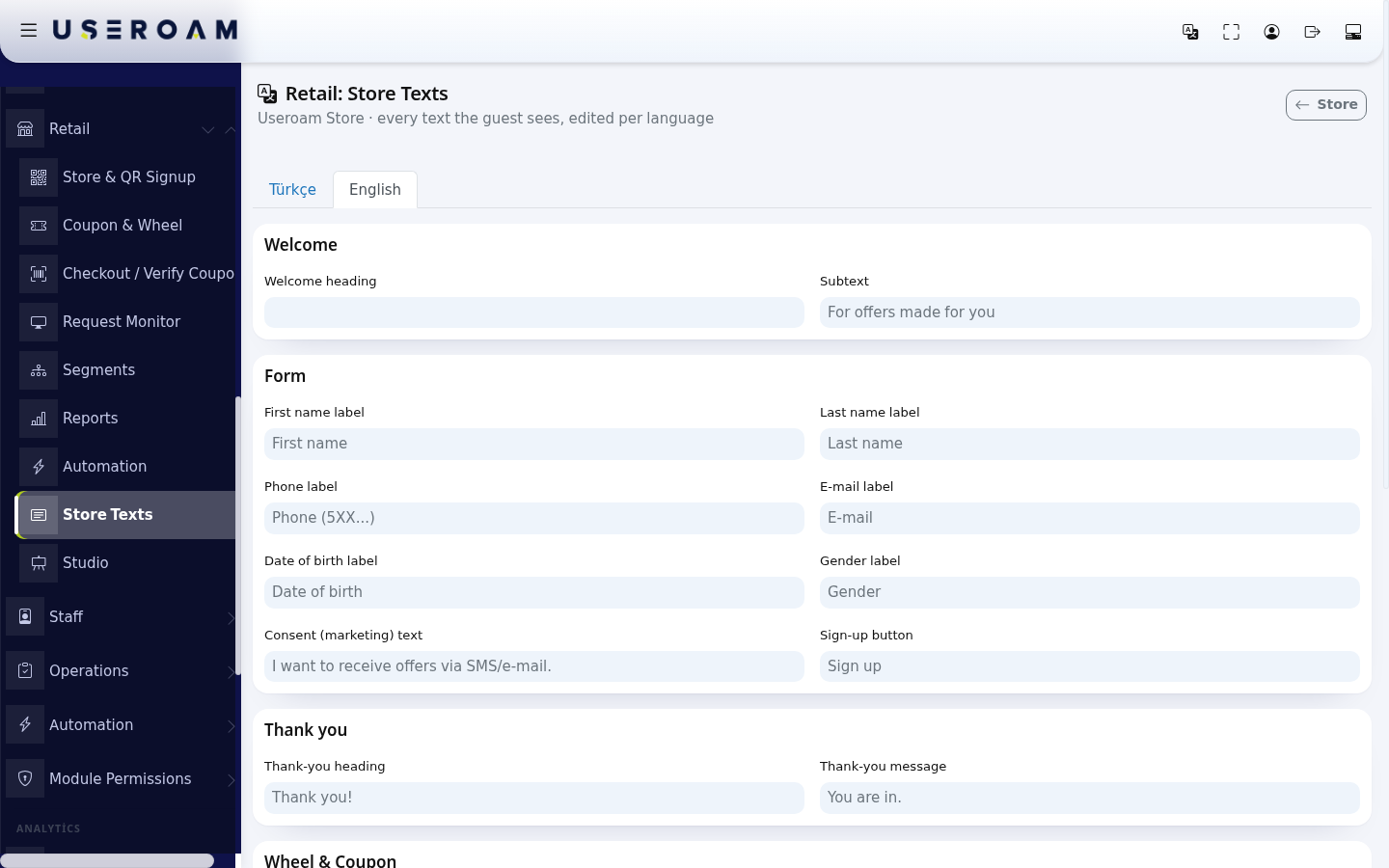
- The tabs come from the languages ticked on Store & QR Registration. Tick a new language there first.
IfA Welcome heading or Thank-you messageiswrittenfilledhereinfor a language comes before thestoreboxessettings, that text wins overof thetextsamehere in every language. For per-language text, empty those two boxesname in the store settings. If you leave it empty for a language, the store setting text is shown in that language. When the Türkçe tab opens, these two boxes may already contain the store setting text.- The KVKK privacy notice is not changed here but on Editing Portal Texts.
Step by step
- Open Retail > Store Texts in the left menu. Choose a language tab at the top (example: Türkçe). The grey text in each box is the default used if you leave it empty. Type your own text in the box you want to change.
- For another language switch to its tab and fill it in the same way.
- At the bottom press Save Texts. All languages are saved together and "Texts saved." appears. The note next to it: "A field left empty falls back to the grey default text."
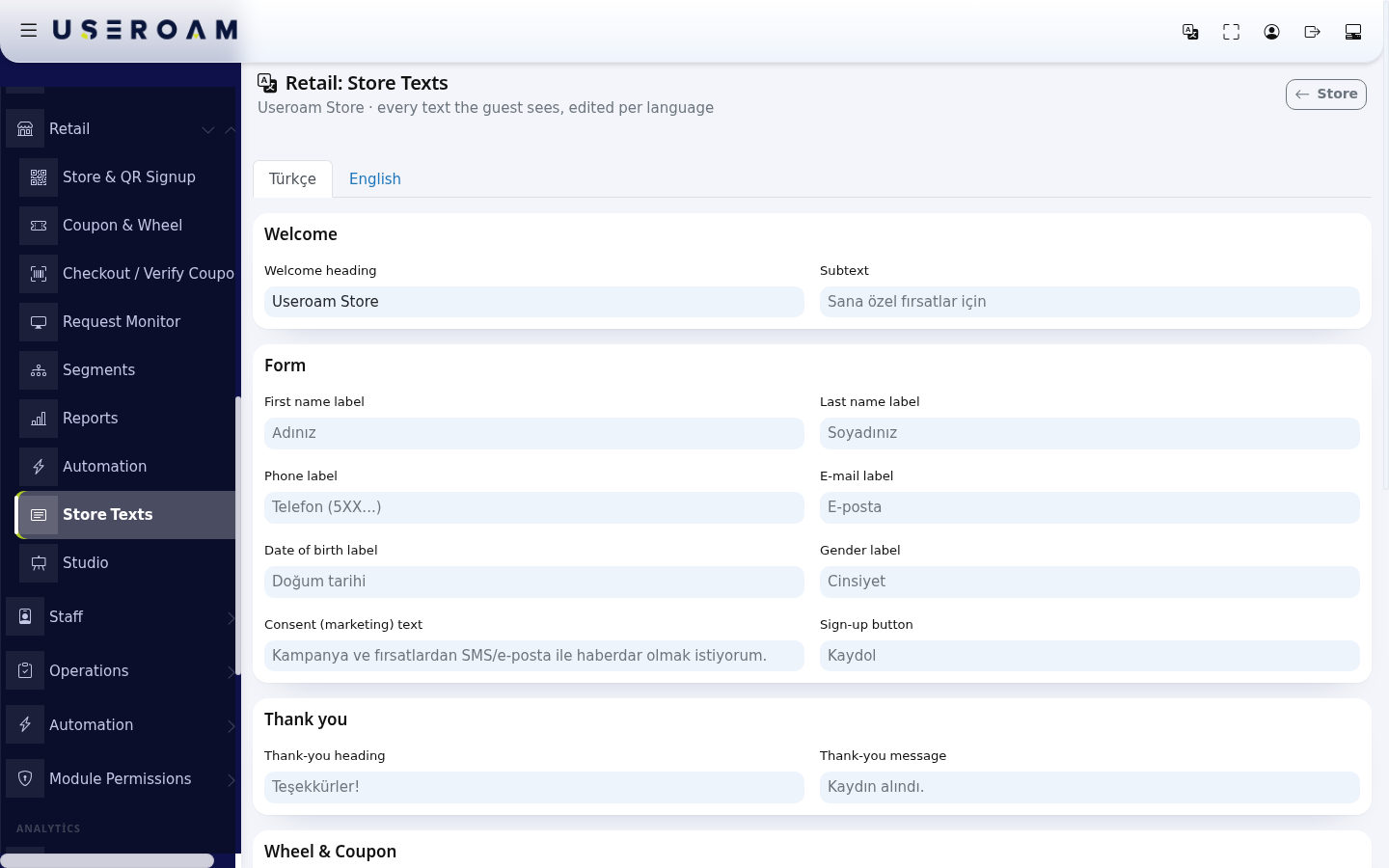
Every field
| Group | Field | Where the customer sees it | Default (EN) |
|---|---|---|---|
| Welcome | Welcome heading | Large text above the form | (empty; the store |
| Subtext | Small text under the heading | For offers made for you | |
| Form | First name label | Above the first name box | First name |
| Last name label | Last name box | Last name | |
| Phone label | Phone box | Phone (5XX...) | |
| E-mail label | E-mail box | ||
| Date of birth label | Date of birth box | Date of birth | |
| Gender label | Gender box | Gender | |
| Consent (marketing) text | Commercial message consent checkbox | I want to receive offers via SMS/e-mail. | |
| Sign-up button | Button that sends the form | Sign up | |
| Thank you | Thank-you heading | Large text after sign-up | Thank you! |
| Thank-you message | Text under it | You are in. | |
| Wheel & Coupon | Spin button | Button under the wheel | Spin |
| "You won" heading | Coupon screen title | You won! | |
| "Your coupon code" | Above the code | Your coupon code | |
| "Show at the cashier" | Under the QR | Show this code at the cashier | |
| Losing message | Heading when the wheel does not win | Not this time | |
| Download coupon button | Button that downloads the coupon image | Download coupon | |
| Aisle / Fitting room | Call button | Main button on the fitting room/aisle screen | Call Staff |
| Call subtext | Text under the heading | Let us help you | |
| Called heading | Heading after the call | Staff called | |
| Called message | Text under it | Our team will be with you shortly. | |
| Ask stock button | Second button | Ask Size / Stock |
Each box takes up to 400 characters. Tabs: Türkçe, English, Deutsch, Русский, العربية, فارسی. For German, Russian, Arabic and Farsi the default text is English; fill the boxes with your own translation for these languages.
Messages you may see
| Message | Meaning / what to do |
|---|---|
| Texts saved. | All languages were saved. |
| Records could not be created for some languages. | One language's texts could not be saved. Try again; if it persists, contact our support team. |
Frequently asked questions
I changed the welcome heading but the page shows the old text.TheCheck Welcomewhich heading inlanguage the storepage settingsopens takesin: priority.the Emptytext thatonly boxapplies onto Storethe &tab QRyou Registrationsaved it in. Reload the page after the change; the customer's phone remembers the chosen language for 30 days, and save.the language codes at the bottom switch it.
Some texts are missing (example: the privacy notice sentence, error warnings).
The consent sentence, "Select", gender options, error warnings and the Size, Color, Product code and Note labels on the fitting room form cannot be changed here. Full list: The Store Page Your Customers See.