
Manager Tools and Tasks
This page is for people who useusing the app with the manager role. AManagers manager seessee everything; staff only see onlyjobs the work offor their own departments and theirthe ownpoints points.they are responsible for. Managers also get the tools below.
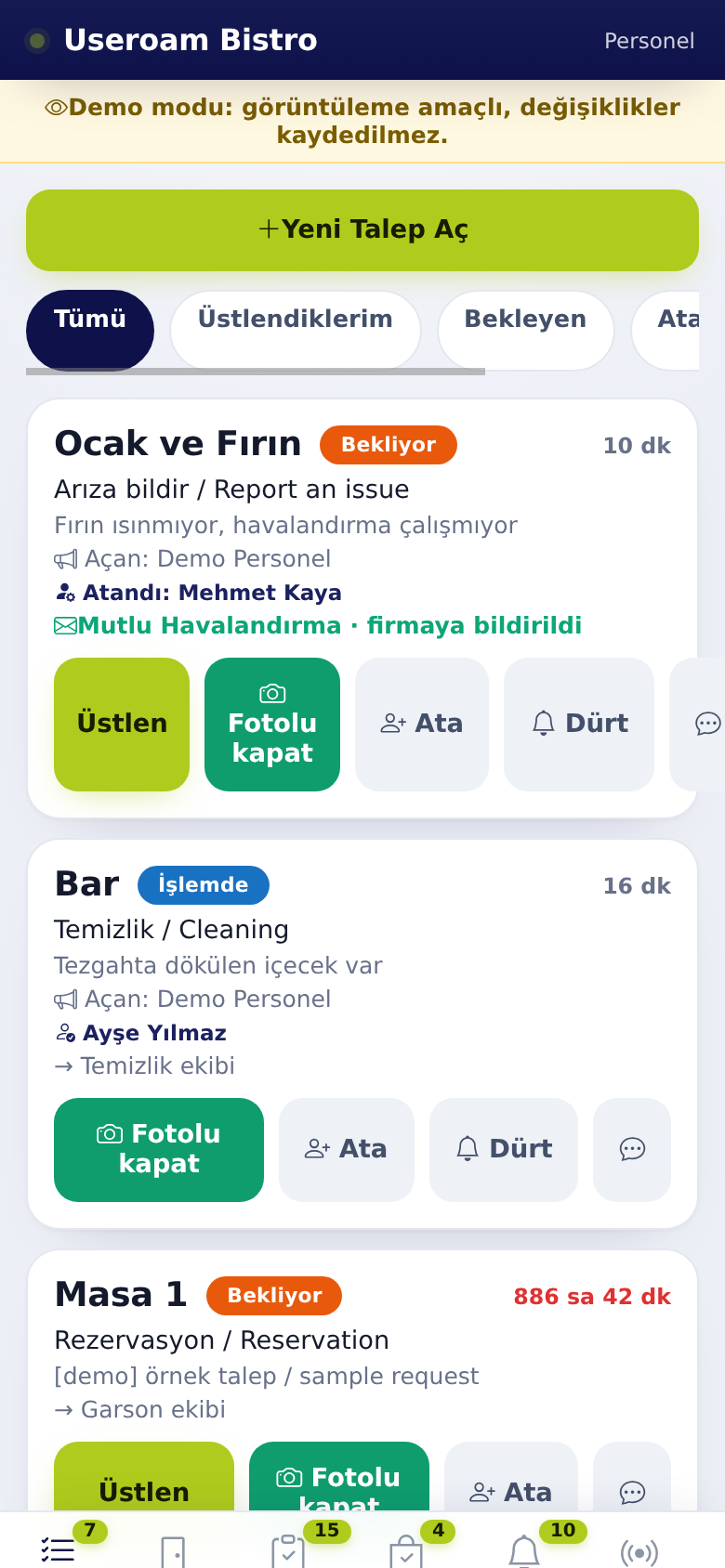
1. Giving a job to someone: Assign
- Tap Assign on a request card (
Ata)or ontheanrequestopencard.job in a point's menu). - Pick the person from Assign to whom?. Starred people belong to the
list.request's department and are listed first. - The screen shows Assigned, the person was notified.
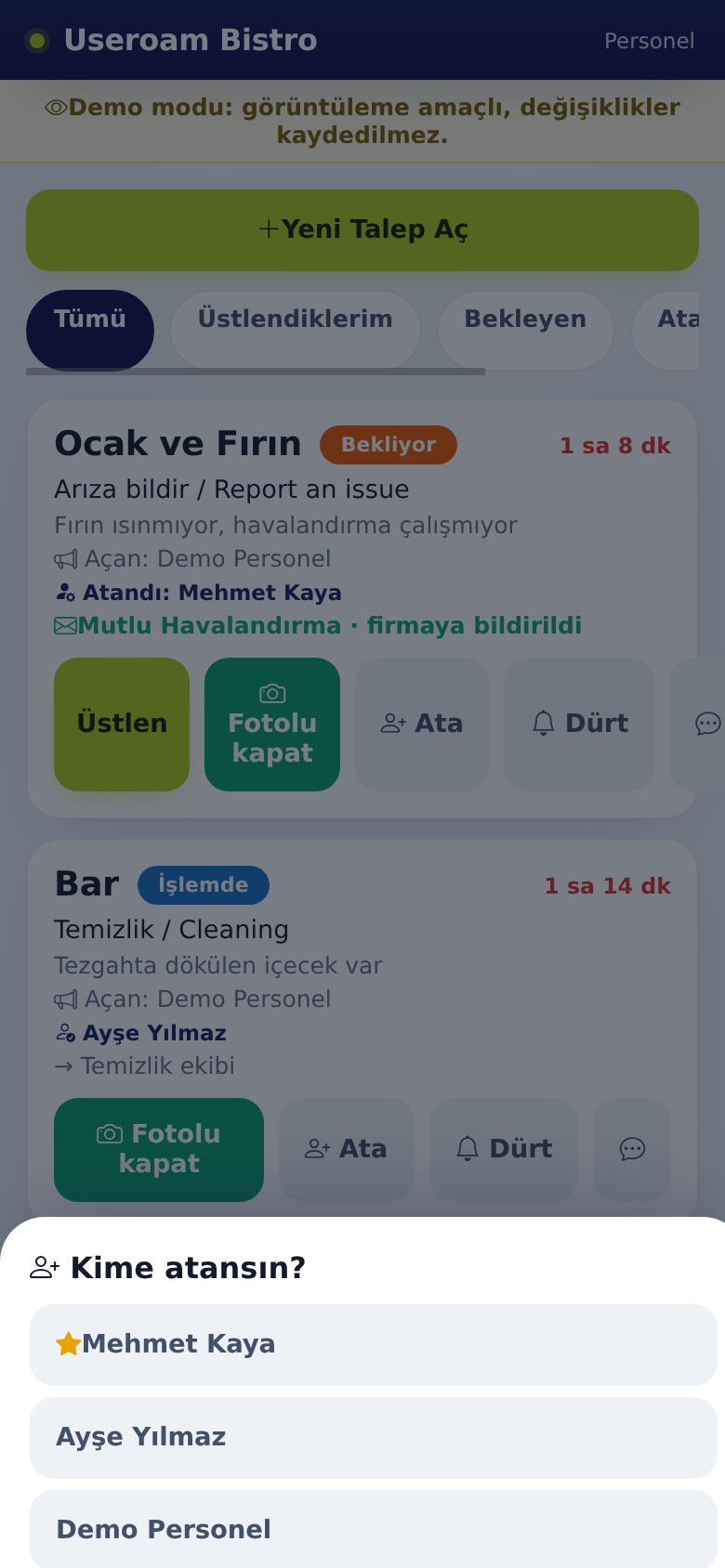
The chosen person gets a notification. If theA job was withassigned to you. If someone else before,held the previousjob, ownerthey getsget a notification that the job hasJob moved to someone else.else. If the list is empty you see "No active staff at this venue".
If no onenobody is picked,chosen, the system assigns the job itself: first to the least busy staff member ofin the request's department. A manager gets the job only if no one else is in the department.
2. Reminding: Nudge
- Tap Nudge
(Dürt)onsendsthe request card. - The job holder gets a
reminderReminder notificationto("…theispersonwaiting").holdingThethescreenjob.showsItRemindercansent.
Possible oncemessages:
- "Reminded a moment ago, try again in 5 minutes": one nudge per job every 5
minutesminutes. - "Nobody is assigned to this job": give it to someone with Assign first.
- "Request is closed": the
samejobjob.wasThe request listfinished in thepanelmeantime.
The panel's request list also has a 🔔 Nudge button.
3. Quick filters
OnManagers get two extra chips on the Requests tab, managers see two extra chips:tab: Unassigned (jobs no onenobody holds) and Overdue (jobs past their time).
4. Adding anda editing taskstask
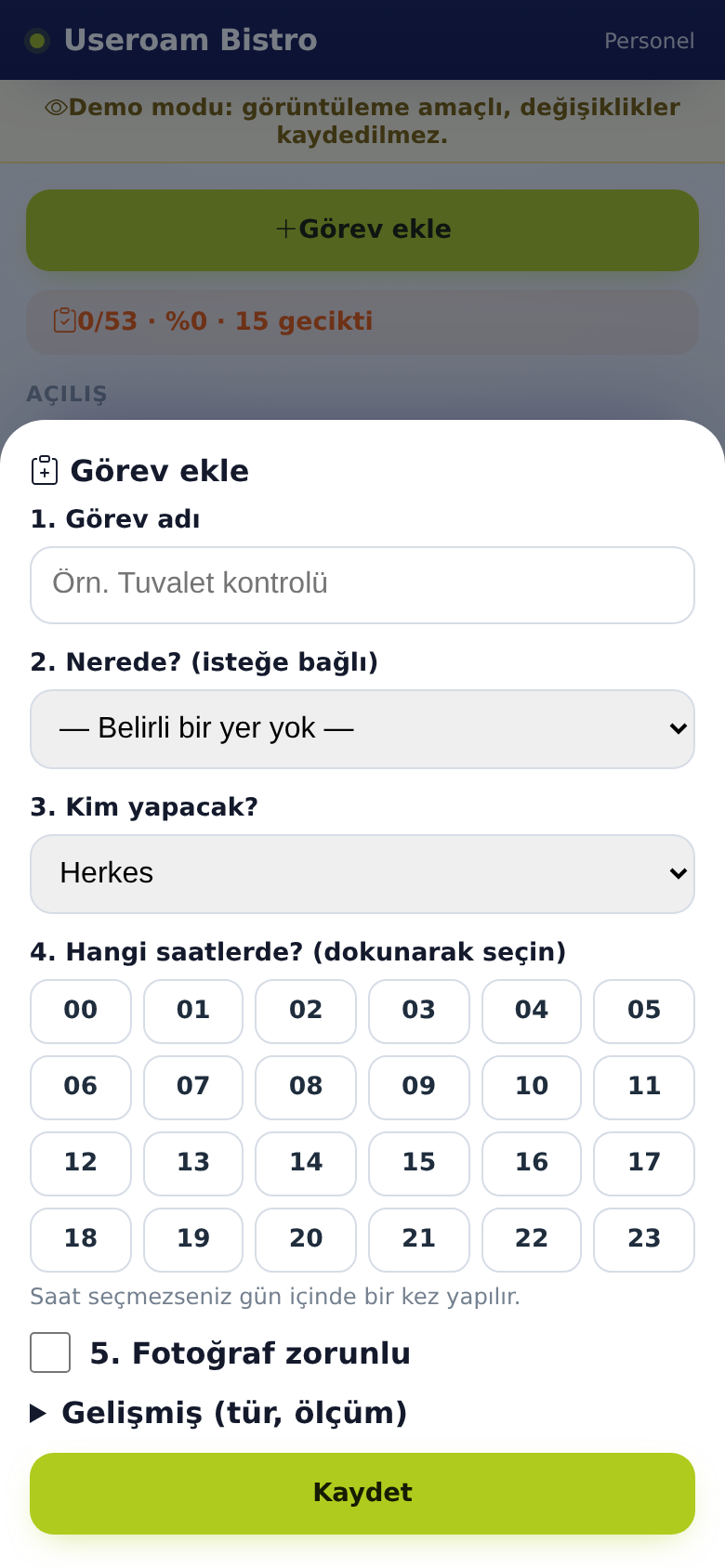
- On the Tasks
tab,tab tap + Add task. - Type the task
name.in Task name (e.g. Restroom check). PickChoose the placeunderfrom Where? (optional). Leave "No specific place" if none. For a place not in the list, tap + Add new spot and type the New spot name.Pick a department or a person underUnder Who does it? choose Everyone, People or Departments. A task given to a person is visible only to that person.Tap thePick hours under At which hours? (tap toselect them.select). If youselectpicknone,nothehour,taskit is done once during the day.- Tick Photo required if
needed.you want proof. - For measurement
tasks,tasksenteropentheAdvanced (type, measurement): Task type (Opening, Closing, Round, Measurement, Security), Measurement unit (optional), Min andlimits underAdvancedMax. An out-of-range reading opens a work order automatically. - Tap Save. The screen shows Saved. If the name is empty you see "Enter the task name".
5. Editing, deleting and nudging a task
- Tap Edit next to
anaexistingtask. The Edit taskopenswindow opens; change the fields and tap Save. - To delete, tap Delete task in the same
window,windowwhereandyouconfirmcan"Deletealsothisdeletetask?it.Past records are kept.". The screen shows Task deleted. - On
aanlateoverdue task, Nudgeremindssends "Task waiting: …" to theresponsiblepersonteam.or team responsible.
When staff finish a task you get Task completed; for an out-of-range reading the title flags the failed measurement.
5.6. Room ownerand (hotel)point owners
On
- Assign room owner
to(hotel): tap a room on the Rooms tab and give it to a staff member.CleaningItsjobscleaningforjob goes to thatroomperson. - Point owner: set on the panel's Operations screen. Points without an owner are visible only to
thismanagers. - Managers are not stopped by the Clean lock; they can mark a place with an open job as Clean if needed.
6.7. Alerts and Summary
- In
thearestaurant module,restaurant, requests that break an SLA rule(run past their time)reach managers as an app notificationinasadditionwelltoasSMS.SMS; the Requests tab shows the strip "N request(s) exceeded SLA, please check.". - Requests reported to a
servicesupport company showaan envelope badge: company notified,badgenotificationonawaitingtheapprovalcard.(panel) or could not notify company. - The Summary tab is open to managers only (see Summary).
Related pages: Useroam Go → Requests, Rooms, Tasks, Summary; Operations, Automation.