
Profile
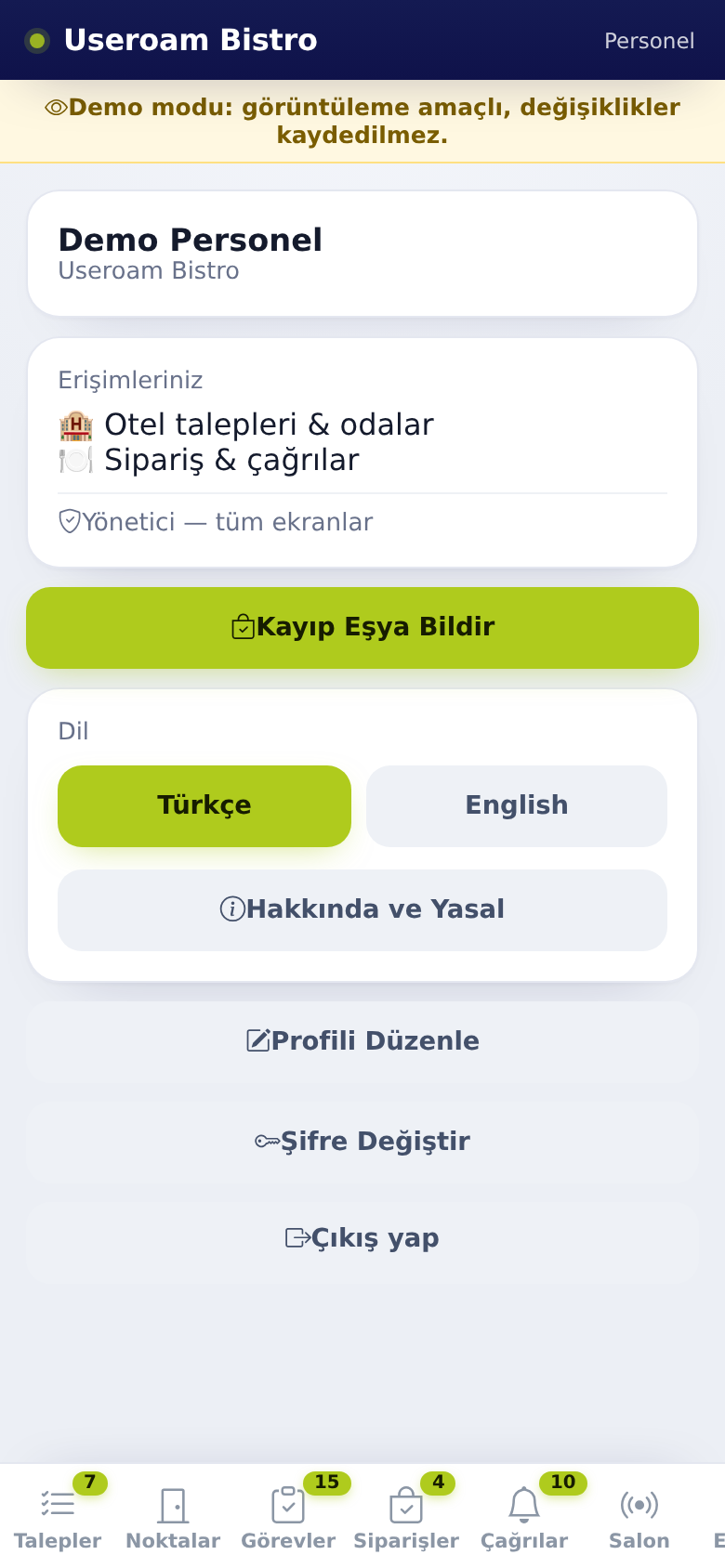
The Profile tab holds your account, language and notification settings and the sign-out button. Staff without a department only see this tab.
How do I open it? The Profile tab in the bottom bar.
1. Account and access
Your name and venue sit at the top. The Your access section lists which screens your account can open:
- 🏨 Hotel requests & rooms
- 🍽️ Orders & calls
Your role is shown at the bottom: Manager and "all screens" for managers; Department with the department names, or All screens, for staff.
If a screen is missing, the reason is your department or a module switched off at the venue; your manager changes this in the panel.
2. Report Lost Item (hotel)
- Tap Report Lost Item.
- Enter the room number.
- Describe the item in Item (e.g. black wallet).
- Optionally add a Note (opt.) and a photo.
- Save. The screen shows Lost item saved.
If the room or the item is empty you see Room required or Item description required.
3. App Settings (store app)
In the app installed from the App Store or Google Play an App Settings card appears:
- Sign in with Face ID / fingerprint: when on, your face or fingerprint replaces the password next time. The screen shows Face ID on or Face ID off.
- Notifications: turns job notifications on or off (Notifications on / Notifications off). If off, you will not hear about jobs assigned to you.
4. Language
Use Türkçe and English to switch the app language. The choice is saved to your account; notifications also arrive in this language.
5. Account actions
Edit Profile
- Tap Edit Profile.
- Correct First name, Last name and Mobile phone. If you change the phone, you sign in with the new number from then on. It must have 10 digits and must not belong to another staff member.
- Tap Save. The screen shows Profile updated. If the name is empty you see Name required.
Change Password
- Tap Change Password.
- Enter your password in Current password.
- Enter the new one in New password (min 4) and New password (repeat).
- Tap Change Password. The screen shows Password changed.
Possible messages: Fill in the fields, New password min 4 characters, New passwords do not match, Failed (wrong current password or connection problem).
About & Legal
Shows the Useroam Staff description ("A request, order and call management app for hotel and restaurant staff."), the Version, and links to the Privacy Policy and Terms of Use.
Sign out
Ends the session. On a shared phone always sign out at the end of the shift.
Forgot password: the Forgot password link on the sign-in screen asks for your mobile number and sends a new password by SMS. Details: What is Useroam Go?
6. If you only see Profile
If your account has no department, only the Profile tab opens with the warning "No work area has been given to you yet": "To see requests and spots, your manager needs to add you to a department. Please tell your manager."
Related pages: Useroam Go → What is Useroam Go?, Staff Accounts and Departments, App Screens by Department.