
Profile
The Profile tab is where you reachholds your accountaccount, language and notification settings and the app'ssign-out settings.button. TwoStaff shortcutswithout fora loggingdepartment thingsonly quicklysee fromthis the floor also live here.tab.
How do I open it? The Profile
itemtab in the bottom bar.
1. Account and access
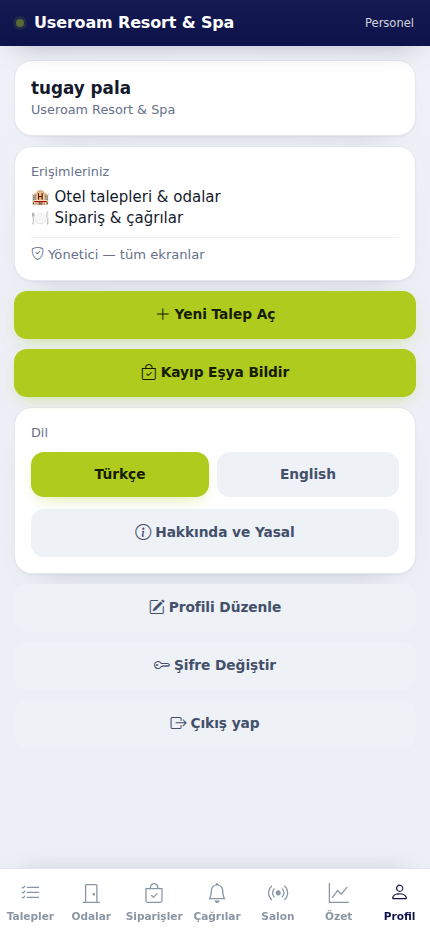
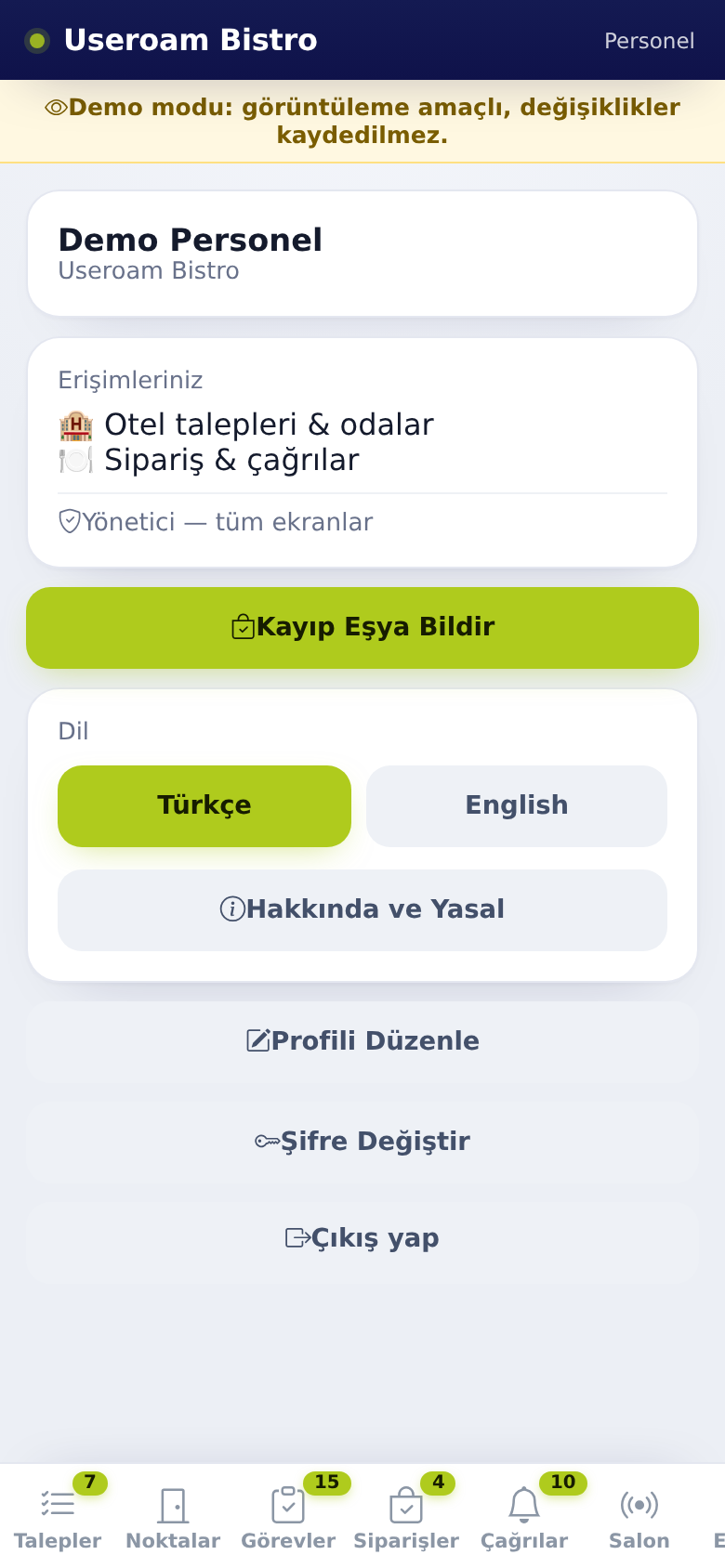
Your name and the business you work forvenue sit at the top. The Your access section below lists which screens your account can open. For example:open:
- 🏨 Hotel requests & rooms
- 🍽️ Orders & calls
Your role is shown at the bottom: Manager —and "all screensscreens" (for staffmanagers; Department with the managerdepartment role)names, or All screens, for staff.
If a screen you expect is missing, the reason is either your department or a module switched off at the business has switched off;venue; your manager changes thatthis fromin the panel.
2. QuickReport shortcutsLost Item (hotel)
- Tap Report Lost
Item:Item. - Enter
anthe room number. - Describe the item
youinhaveItemfound(e.g.intoblack wallet). - Optionally add a Note (opt.) and a photo.
- Save. The screen shows Lost item saved.
If the lostroom propertyor record.the
3. App Settings (store app)
In the app installed from the App Store or Google Play an App Settings card appears:
- Sign in with Face ID / fingerprint: when on, your face or fingerprint replaces the password next time. The screen shows Face ID on or Face ID off.
- Notifications: turns job notifications on or off (Notifications on / Notifications off). If off, you will not hear about jobs assigned to you.
4. Language
TheUse Türkçe and English buttonsto switch the app'sapp language. The choice is saved to your account,account; sonotifications thealso nextarrive sign-in uses the samethis language.
4.5. Account actions
- Tap Edit
Profile:Profile. - Correct First name, Last name
Updateand Mobile phone. If you change the phone, you sign in with the new number from then on. It must have 10 digits and must not belong to another staff member. - Tap Save. The screen shows Profile updated. If the name is empty you see Name required.
- Tap Change Password.
- Enter your
namepassword in Current password. - Enter the new one in New password (min 4) and
contactNewdetails.password (repeat). - Tap Change
Password:Password. The screen shows Password changed. - connection problem).
About &
Legal:LegalShows the Useroam Staff
Versiondescriptioninformation,("Aprivacyrequest,policyorder andaccountcalldeletionmanagementpages.app - for hotel and restaurant staff."), the Version, and links to the Privacy Policy and Terms of Use.
Sign
out:outEnds the session. On a shared
phone,phone always sign out at the end ofathe shift.
Edit Profile
Change Password
Possible messages: Fill in the fields, New password min 4 characters, New passwords do not match, Failed Change(wrong yourcurrent sign-inpassword password.or
ForgottenForgot password:Thethe Forgotmypassword link on the sign-in screen asks for your mobile number and sends a new password bySMSSMS. Details: What is Useroam Go?. Your manager can also reset it from the panel.
5.6. If you only see Profile
If your account ishas not in anyno department, the app opens only the Profile tab andopens showswith the warning "No work area has been given to you yet".: Ask"To see requests and spots, your venuemanager managerneeds to add you to a departmentdepartment. onPlease thetell Staffyour page of the panel.manager."
Related pages: Useroam Go → What is Useroam Go?, Staff Accounts and Departments, App Screens by Department.