
Role Guide: Restaurant Staff
This page is for restaurant staff doing cleaning, technical or kitchen work. It walks through your day step by step.
1. What this role sees
- Requests: requests for your department and requests you opened.
- Points: only the places you are responsible for (e.g. Oven and Stove under Kitchen).
- Tasks: daily tasks given to you or your department.
- Profile.
If your department also has Orders, calls, floor ticked, you see those tabs too. The Summary tab and the Assign and Nudge buttons are for managers.
2. Starting the day
- Open the app and sign in with your mobile number and password.
- On Requests, tap the Assigned to me chip to see what you hold.
- On Tasks, check today's timed tasks.
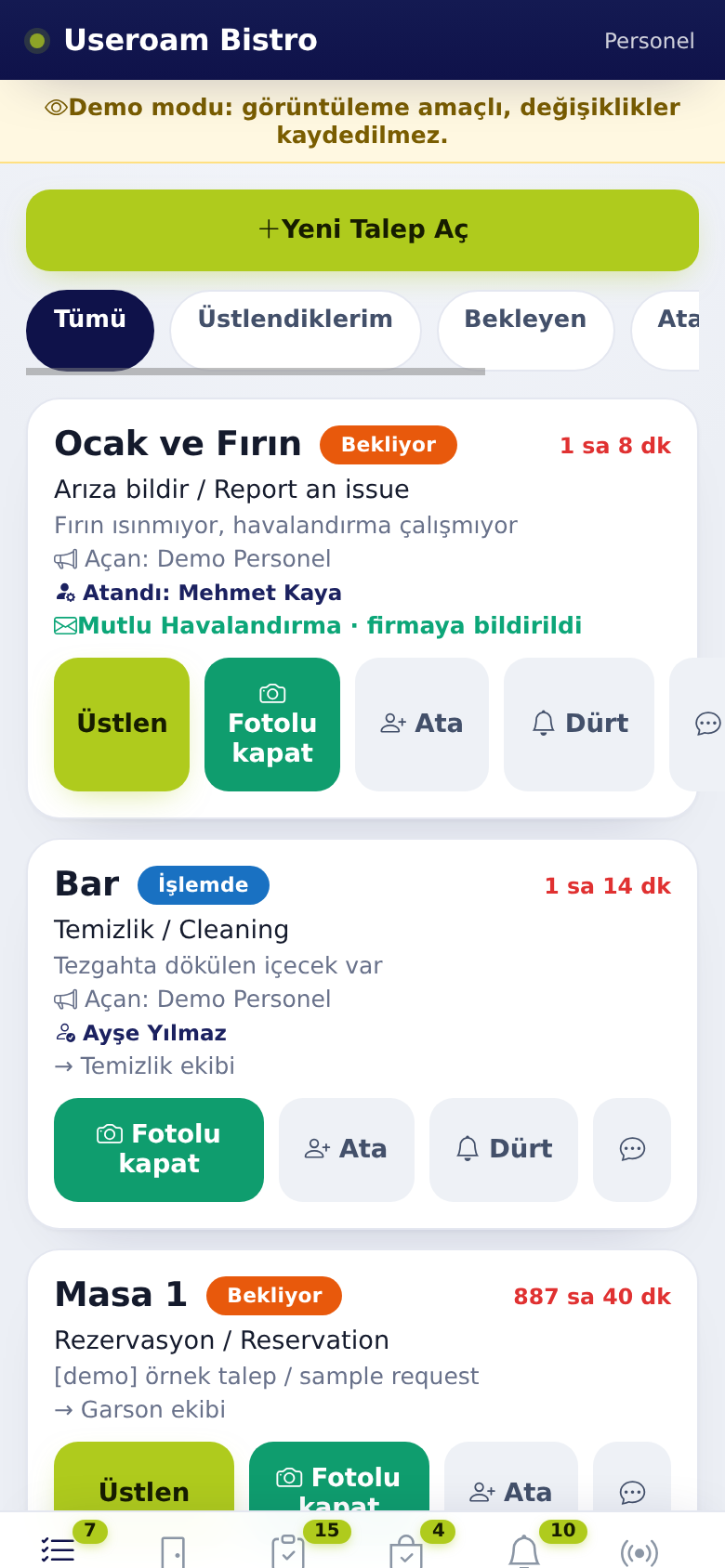
3. Doing a request
- Tap Take on the request card. The job is yours.
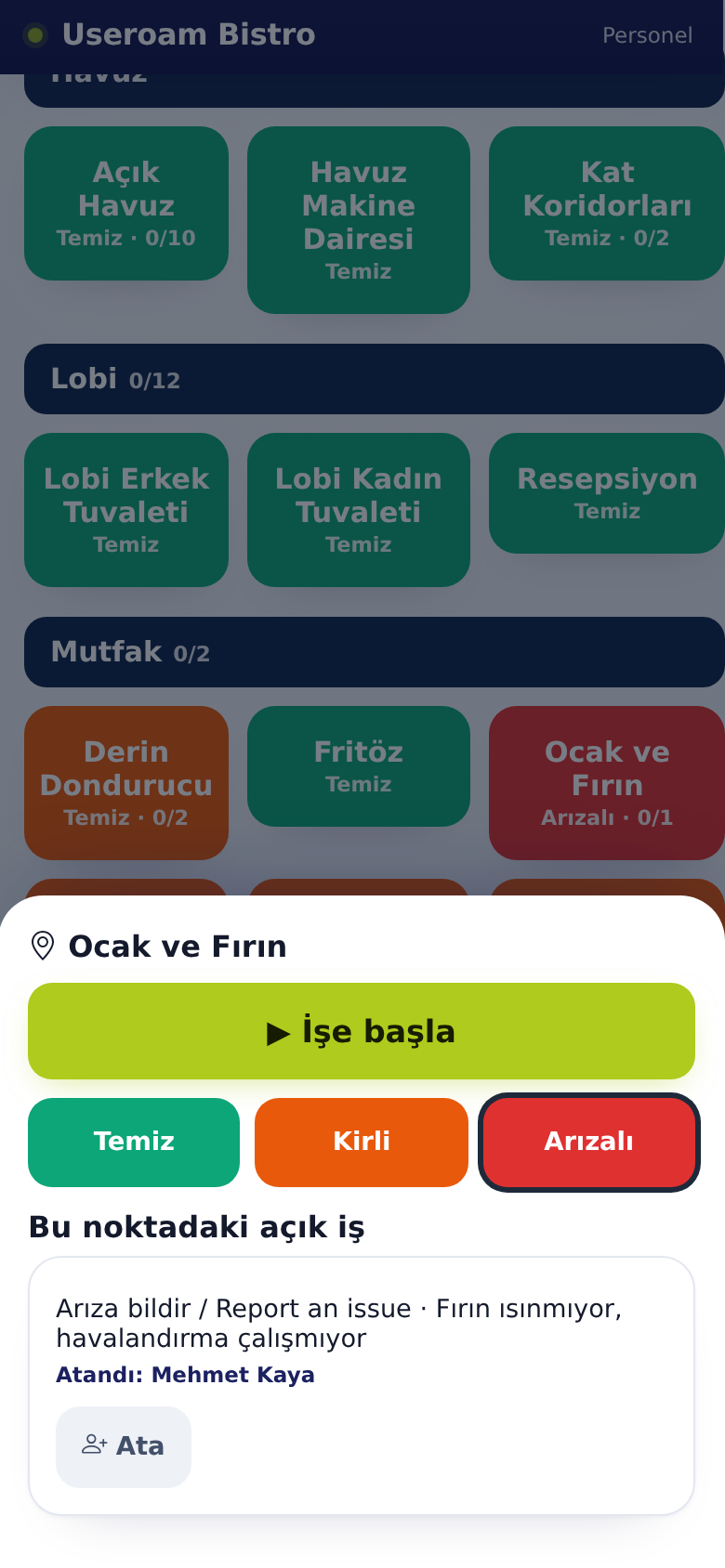
- Go to the place. On Points, tap it and choose ▶ Start job. The tile turns blue and shows In progress · Your name.
- Do the work.
- On the request card tap Fotolu kapat (close with photo), take a photo of the finished job and close.
- The place turns Clean (green) by itself.
4. Reporting a problem you see
- On Points, tap the place.
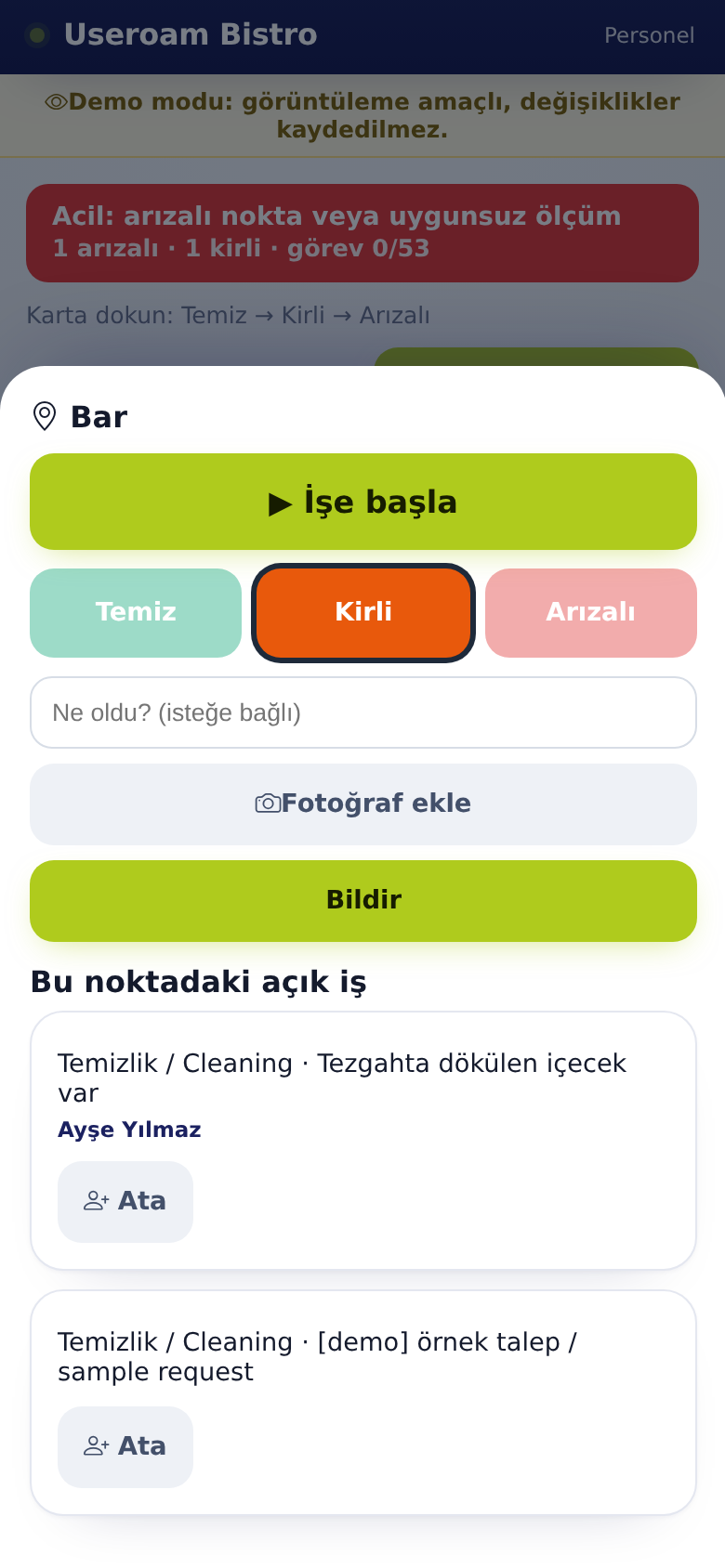
- Choose Dirty (needs cleaning) or Faulty (something is broken).
- Write a short note in What happened? (optional) and tap Add photo if you like.
- Tap Report. A request opens and goes to the least busy person.
5. Doing a task
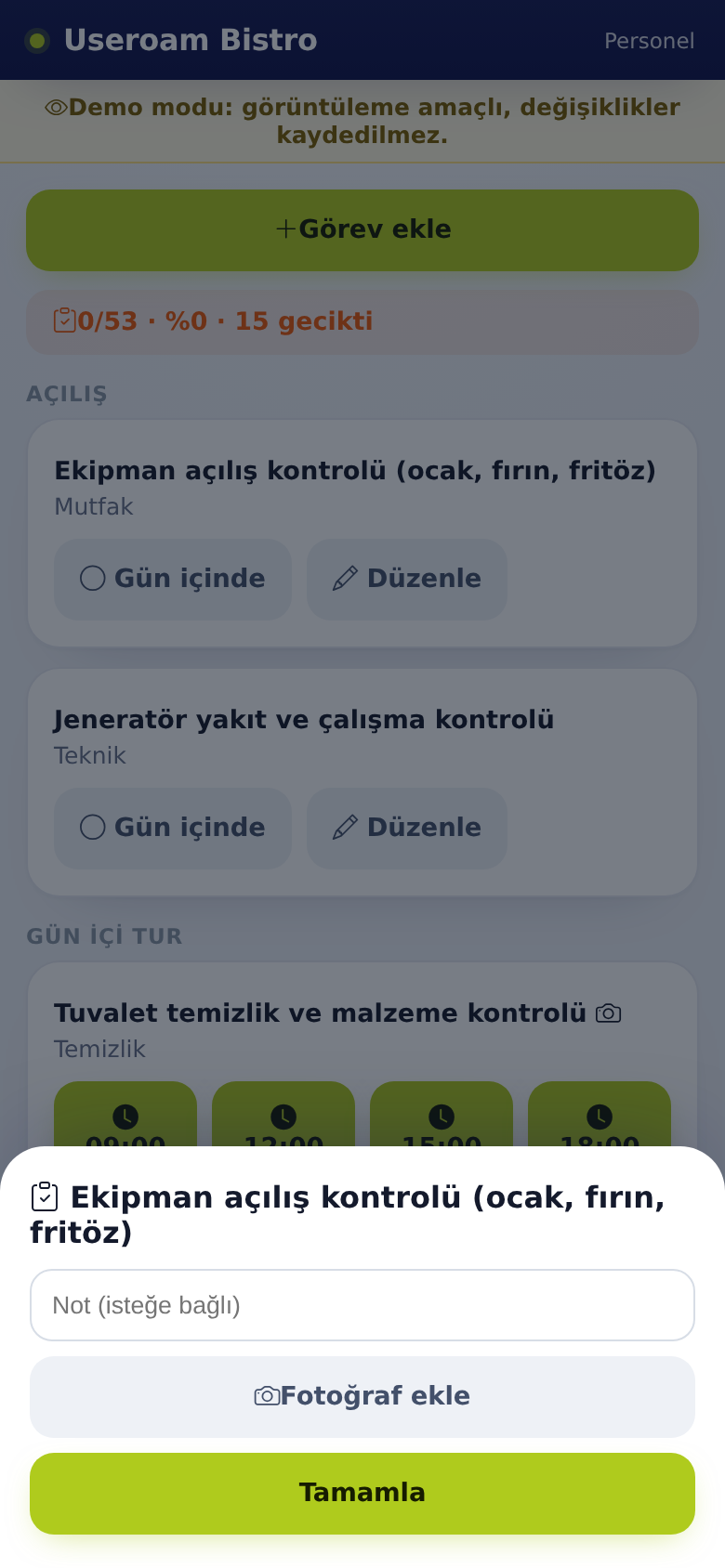
- On Tasks, tap the task's hour.
- For a measurement task, enter the value (e.g. fridge temperature).
- If it says Photo required, take a photo.
- Tap Complete.
6. FAQ
A point is missing from my list. You only see places you are responsible for. Ask your manager to make you responsible for it.
I only see the Profile tab. You have not been added to a department yet; tell your manager.
It asks for photos when closing. The venue requires photos for this request type; add the required number.
I got a "Nudge" notification. Your manager is reminding you of a job; do it and close it.
Can I open a request myself? If the venue allows it, + New Request appears at the top of Requests.
Related pages: Useroam Go → Requests, Rooms, Tasks, Messages and Errors.