
Hotspot QR Code
The Hotspot QR Poster builds the QR poster you place on tables, walls or menus so guests can join your Wi-Fi in a single tap. Scanning the code connects the device to the network and opens the captive portal.
How do I open this screen? From the left menu, go to Analytics and Reports → Hotspot QR Code.
Note: the field labels on this screen are still shown in Turkish; the on-screen text is given in brackets.
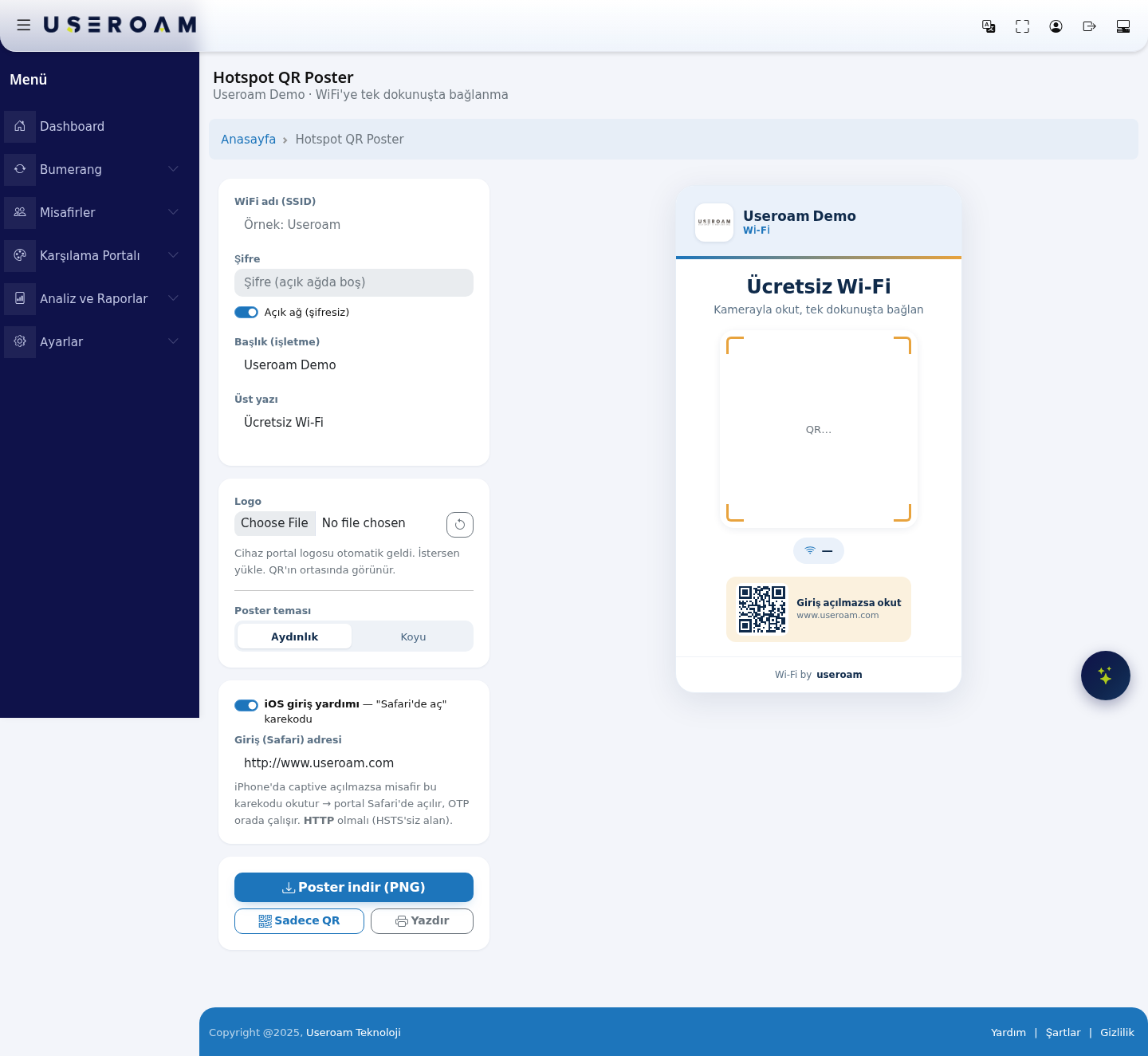
The page has two halves: the settings on the left and a live poster preview on the right. Every change appears in the preview instantly.
1. Network details
- Wi-Fi name (SSID) (WiFi adı (SSID)): the name of your guest network. The QR code is generated from this name — if it is wrong, the connection will not work.
- Password (Şifre): your network password.
- Open network (no password) (Açık ağ (şifresiz)): tick this if your network has no password; the password field is then disabled.
2. Poster content
- Title (business) (Başlık (işletme)): your business name, shown in large type on the poster.
- Top line (Üst yazı): the short text above the title (for example "Free Wi-Fi").
- Logo: the device's portal logo is pulled in automatically; you can upload a different image if you prefer. The logo appears in the centre of the QR code.
- Poster theme: Light (Aydınlık) or Dark (Koyu). Choose according to where the poster will hang — dark works better in dim spaces, light prints better.
3. iOS login helper
The iOS login helper — "open in Safari" QR code option adds a second QR code for the cases where the captive screen does not open on iPhones.
- Login (Safari) address: when the guest scans this code, the portal opens directly in Safari and the one-time code (OTP) works there.
4. Output
- Download poster (PNG): downloads the whole design as an image, ready for print or a digital screen.
- QR only: downloads just the QR code, for placing into your own menu or poster design.
- Print: sends the poster straight to the printer.
Embedding Wi-Fi in QR codes: if you want menu and hotel QR codes to connect the device automatically when scanned, enable Embed Wi-Fi in QR codes on the Captive Portal → Portal Settings page.
Related pages: Captive Portal → Portal Settings (SSID/password and QR embedding), Bumerang → Menus.