
Hotspot QR Code
What is it for?
The Hotspot QR Code screen creates a QR poster that guests scan with their phone camera to join your Wi-Fi with one tap. You put the poster on tables, walls or menus. Every change you make is reflected instantly in the poster preview on the right.
When do I use it?
- You want guests to connect without asking for the network name and password.
- You need a Wi-Fi QR code for a table card, wall poster or menu.
- Your Wi-Fi name or password changed and the poster must be renewed.
Before you start
- The screen is in the left menu under Settings (Hotspot QR Code).
- You need your guest network's name (SSID) and password. If they are saved in the captive portal, the boxes come filled in.
- This screen saves nothing; you download or print the poster. When you close and reopen the page, your changes are reset.
Step by step: creating a poster
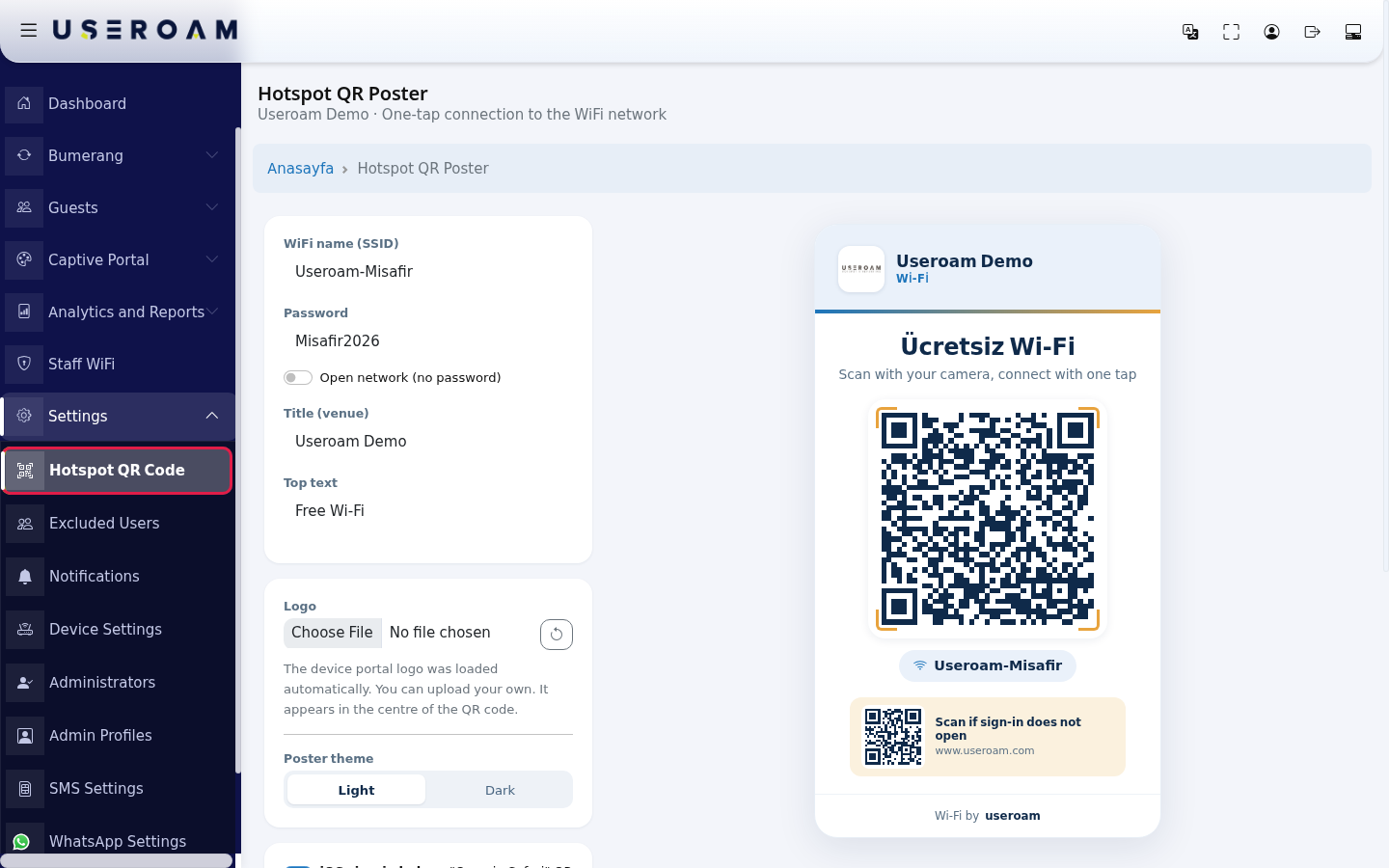
- In the left menu open Settings and click Hotspot QR Code. The settings open on the left and the poster preview on the right.
- Type your guest network name exactly in WiFi name (SSID) (example:
Useroam-Misafir); if one letter or its case is wrong, the connection fails. If your network has a password, turn off Open network (no password) and type the password in Password. For an open network, leave the switch on; the password box is locked. The QR code on the right updates as you type.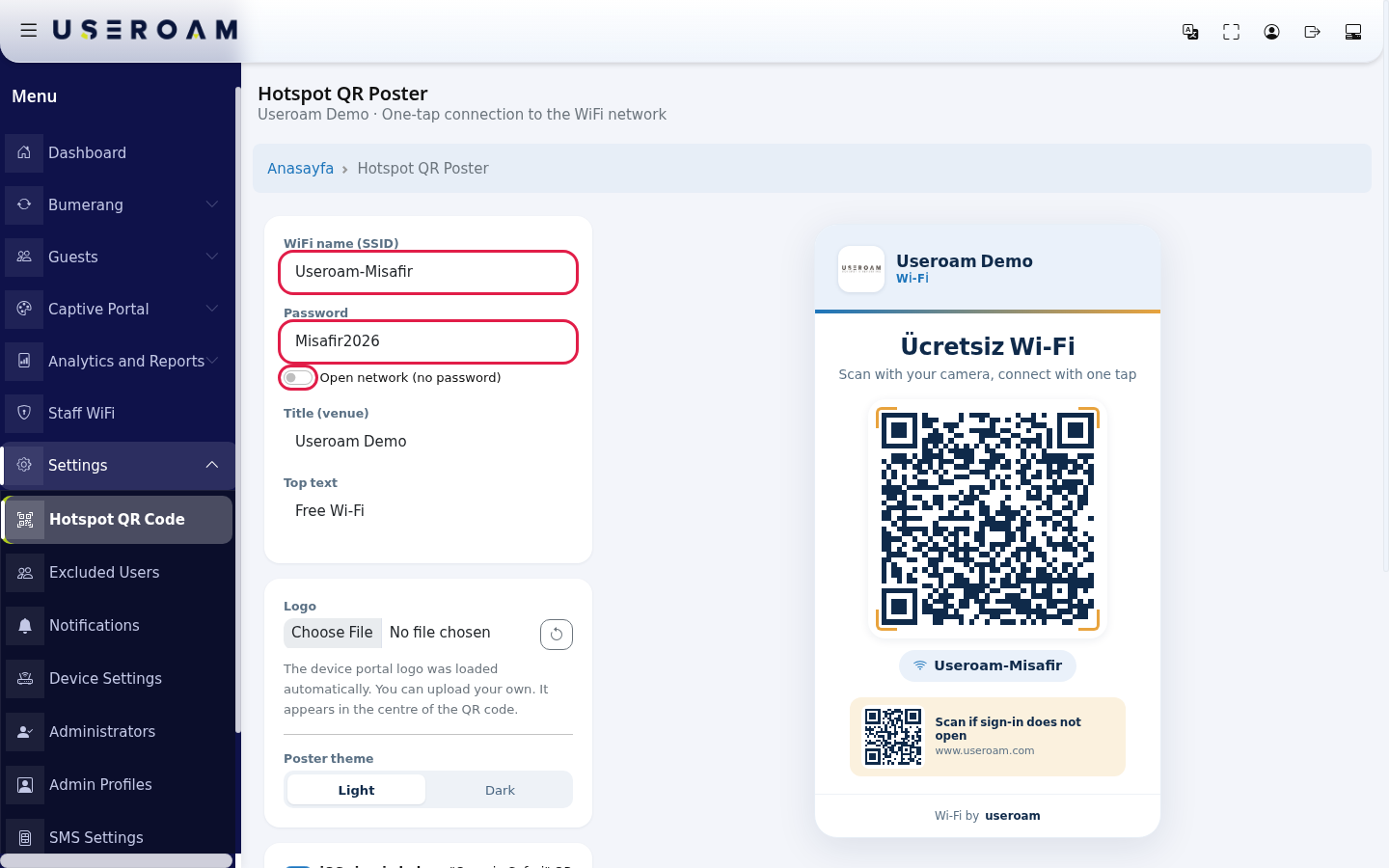
- Type the venue name to print large on the poster in Title (venue) (example:
Useroam Cafe) and the short text above the QR code in Top text (Free Wi-Fiby default). Your portal logo appears in Logo automatically; choose a file for another image. The circular arrow next to it goes back to the device logo.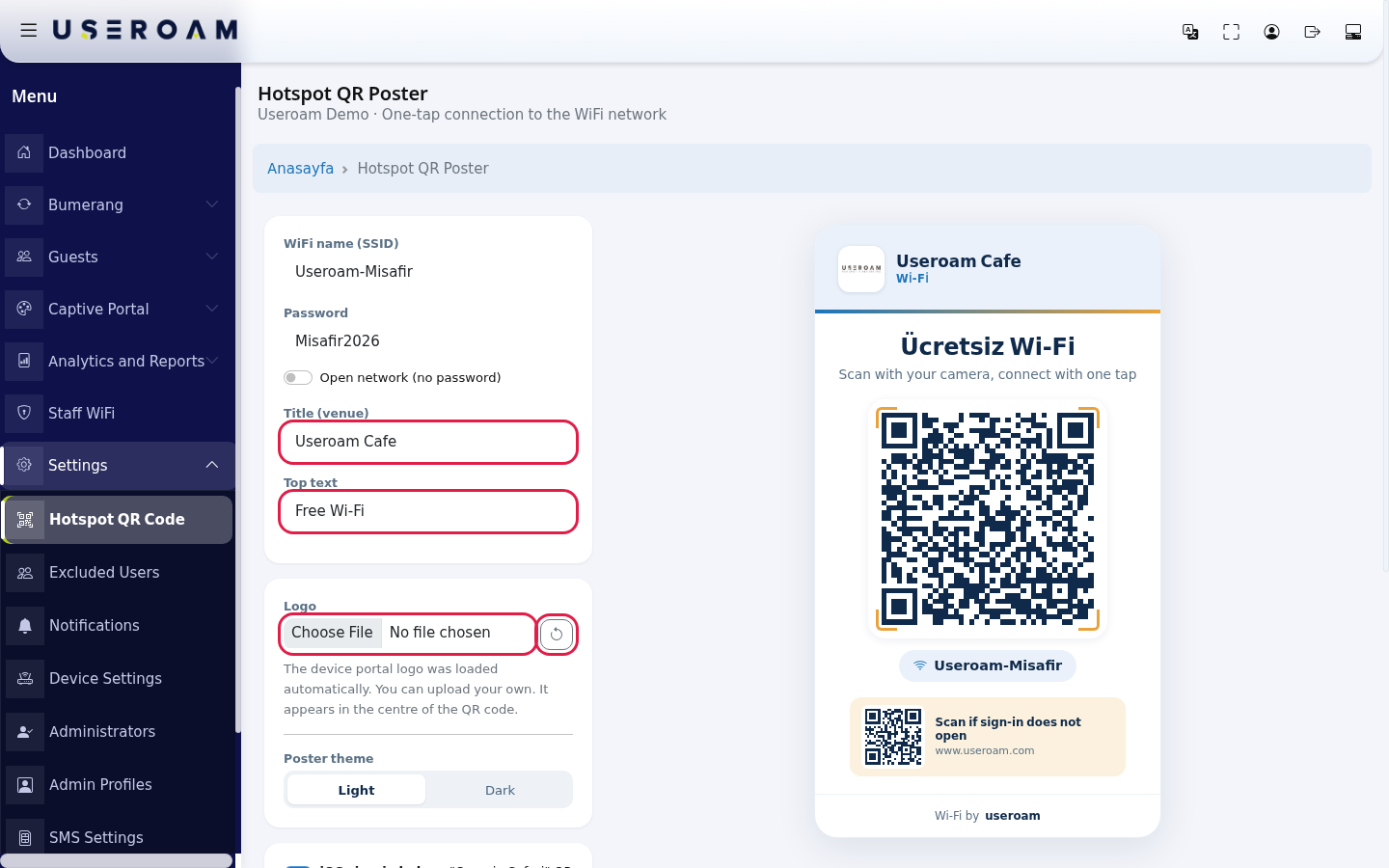
- Choose Light or Dark in Poster theme. Light prints better, dark looks better in dim places. Note: until you edit Top text, the preview may still show the Turkish default "Ücretsiz Wi-Fi"; type your text in Top text to be sure.
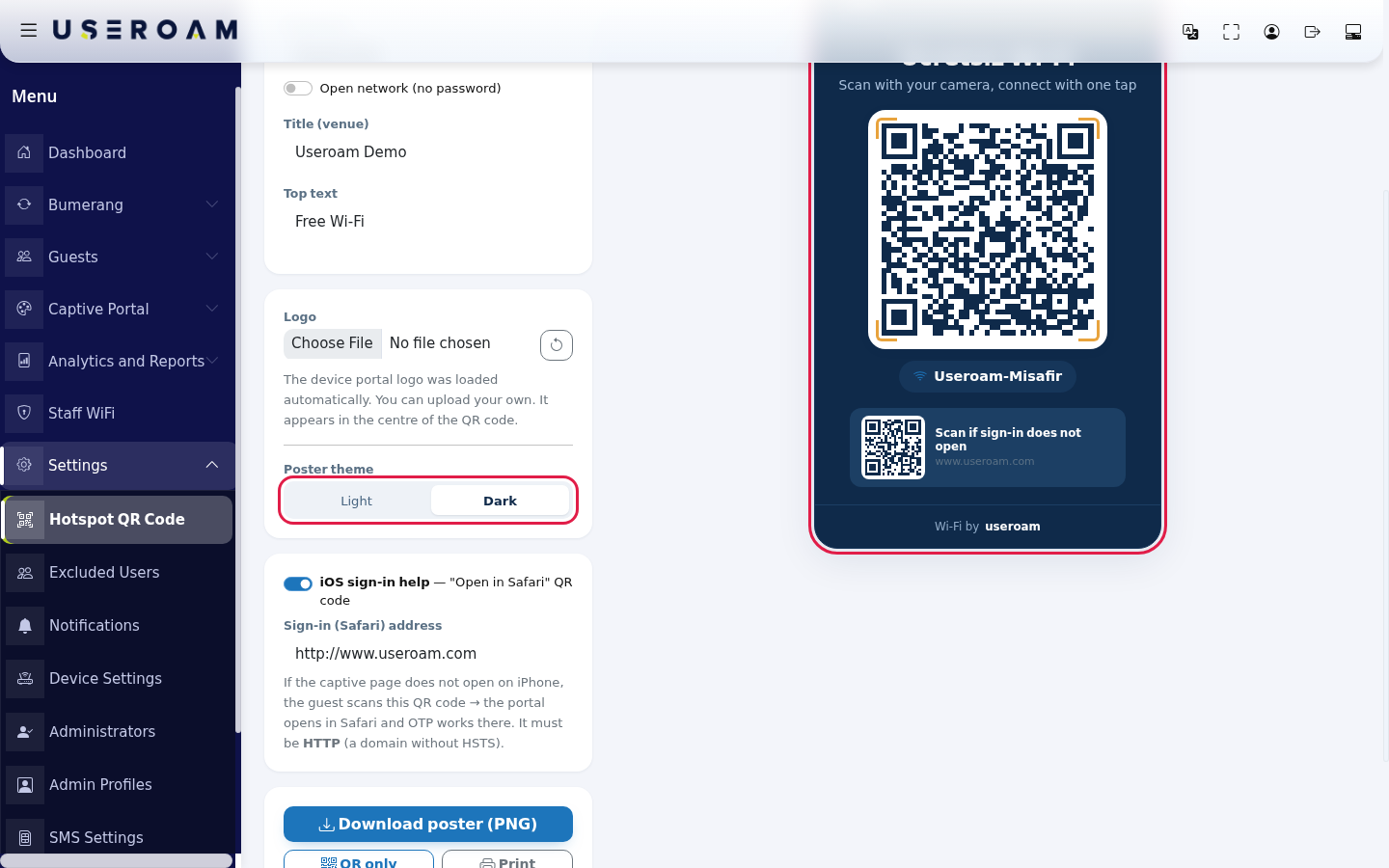
- On iPhones the sign-in page sometimes does not open by itself. For this, while iOS sign-in help is on, a second small QR code ("Scan if sign-in does not open") is added at the bottom of the poster. In Sign-in (Safari) address, type the address to open when the guest scans it; it must start with
http://(the redirect does not work with anhttps://address). Turn the switch off if you do not want it.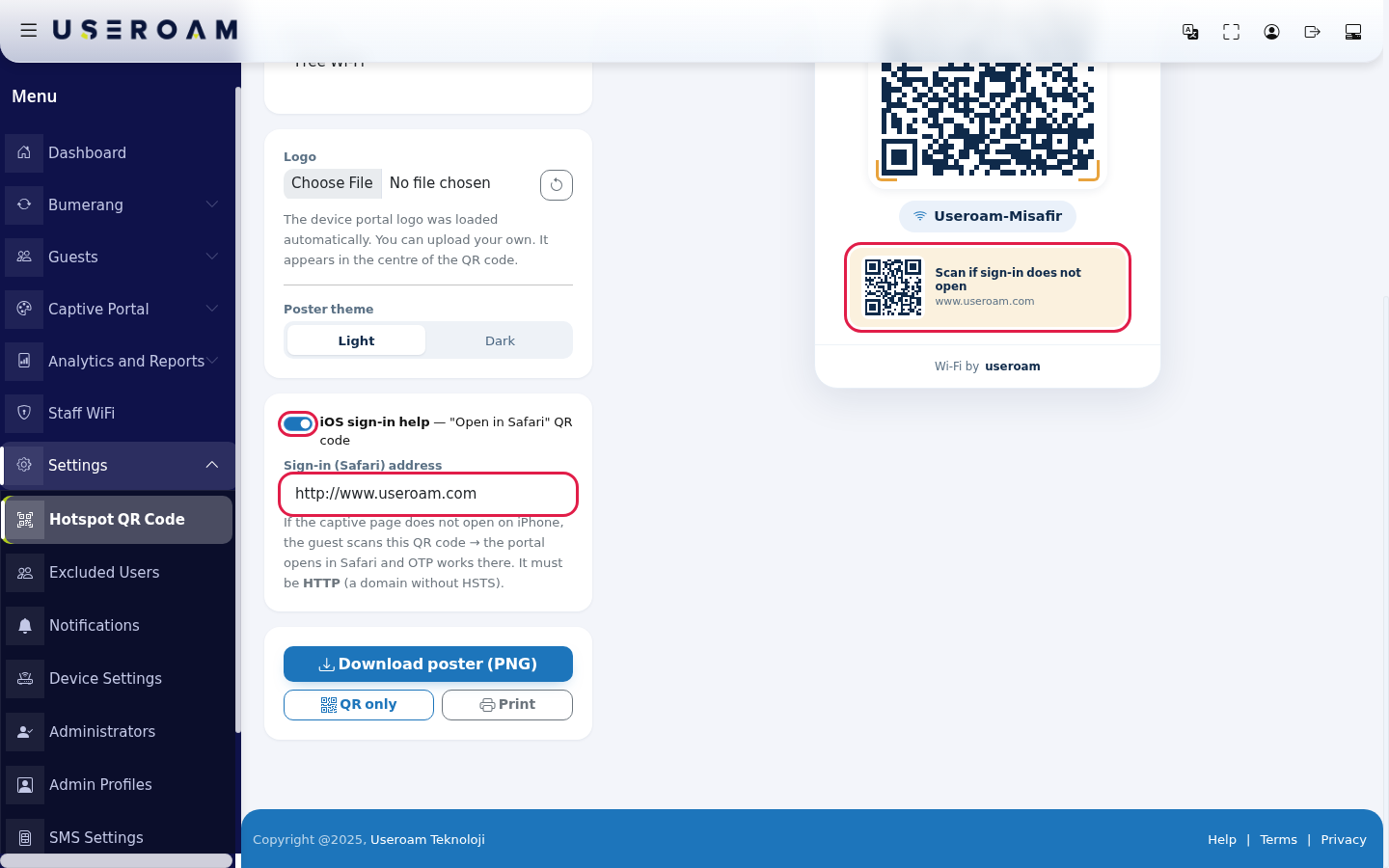
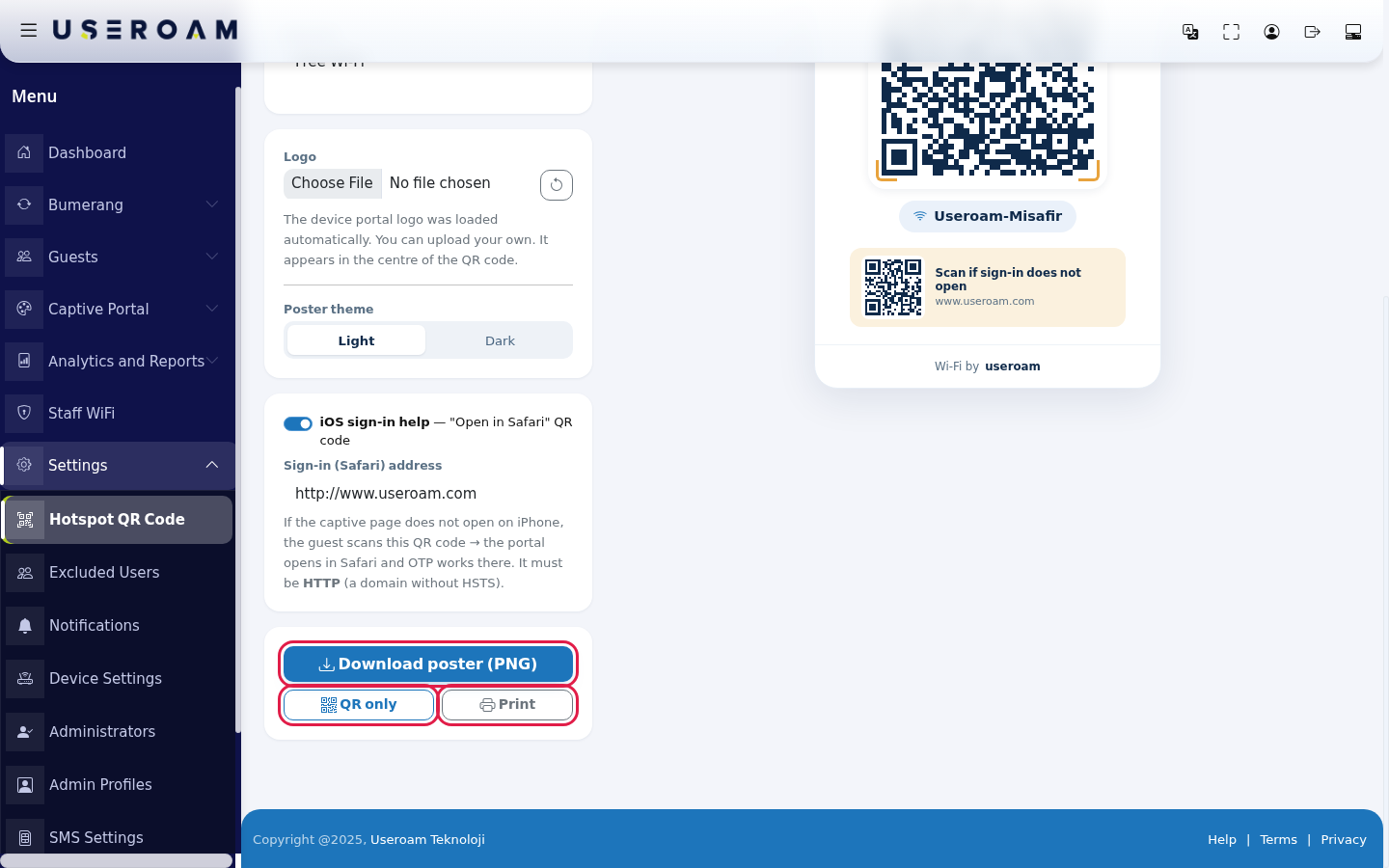
- To get the poster press Download poster (PNG). Use QR only if you will place just the QR code in your own design, or Print to send it straight to a printer.
Every field and button on the screen
| Field / Button | What it does |
|---|---|
| Top of the page and hints | Under the heading: "Useroam Demo · One-tap connection to the WiFi network". Empty boxes show example text: "Example: Useroam", "Password (empty for open network)", "Venue name". Top text is "Free Wi-Fi" by default. Logo note: "The device portal logo was loaded automatically. You can upload your own. It appears in the centre of the QR code." The circular arrow is named "Revert to device logo". Theme buttons Light and Dark. The iOS sign-in help line adds the "Open in Safari" QR code, with the note that it must be HTTP (a domain without HSTS). |
| WiFi name (SSID) | The network the QR code joins. At most 64 characters. |
| Password | Network password. Empty for an open network. At most 128 characters. |
| Open network (no password) | When on, the QR code is made for an open network and the password box is locked. |
| Title (venue) | The venue name at the top of the poster. The device name by default. At most 40 characters. |
| Top text | The large text above the QR code. At most 32 characters. |
| Logo and circular arrow | Logo shown on the poster and in the middle of the QR code; the arrow goes back to the device logo. |
| Poster theme | Light or Dark. |
| iOS sign-in help | Adds the "Scan if sign-in does not open" QR code at the bottom of the poster. |
| Sign-in (Safari) address | The address the second QR code opens. Must be HTTP. |
| Download poster (PNG) | Downloads the whole poster as an image. |
| QR only | Downloads only the Wi-Fi QR code in large size. |
| Opens the poster in the print window. | |
| Poster preview | Shows the venue name, "Scan with your camera, connect with one tap", the QR code and the network name under it. |
Frequently asked questions
I scanned the QR code but it does not connect.
Check the network name and password, including upper and lower case. If your network has no password, Open network (no password) must be on.
"QR could not be loaded" appears instead of the QR code.
The page could not load the QR tool. Check your internet connection and reload the page.
I changed the password. What about the poster?
The old QR code no longer works. Download and print the poster again with the new password.
Does the guest see the sign-in screen after scanning?
Once the phone joins the network, the captive portal opens and the guest signs in as usual.