
Bulk Sending
What is it for?
Bulk SendingDelivery (Bulk Send in the menu) lets you send a one-off announcement to your guests by SMS or WhatsApp to(for yourexample guests.a power outage, pool maintenance, a new menu). The difference from campaigns: a campaign runs automaticallyby itself off a condition, whilecondition; a bulk send goes to everyoneonce, at the moment you choose, to the audience you choose. The delivery report after sending is in the same menu.
HowWhen do
Iyouopenusethisit?screen?
- When you must tell the guests at your venue about something urgent (outage, maintenance, evacuation drill).
- When you want to announce an event or opening to all your registered guests.
- When you check how many people an announcement reached.
Before you start
- Marketing
Frommessages (discounts, promotions) may only go to guests who gave explicit consent (IYS and KVKK). Service announcements (outage, maintenance) can go to everyone.- A bulk send cannot be undone. Before starting, use Test send to send the message to your own phone and check it.
Step by step: send an announcement
- In the left menu,
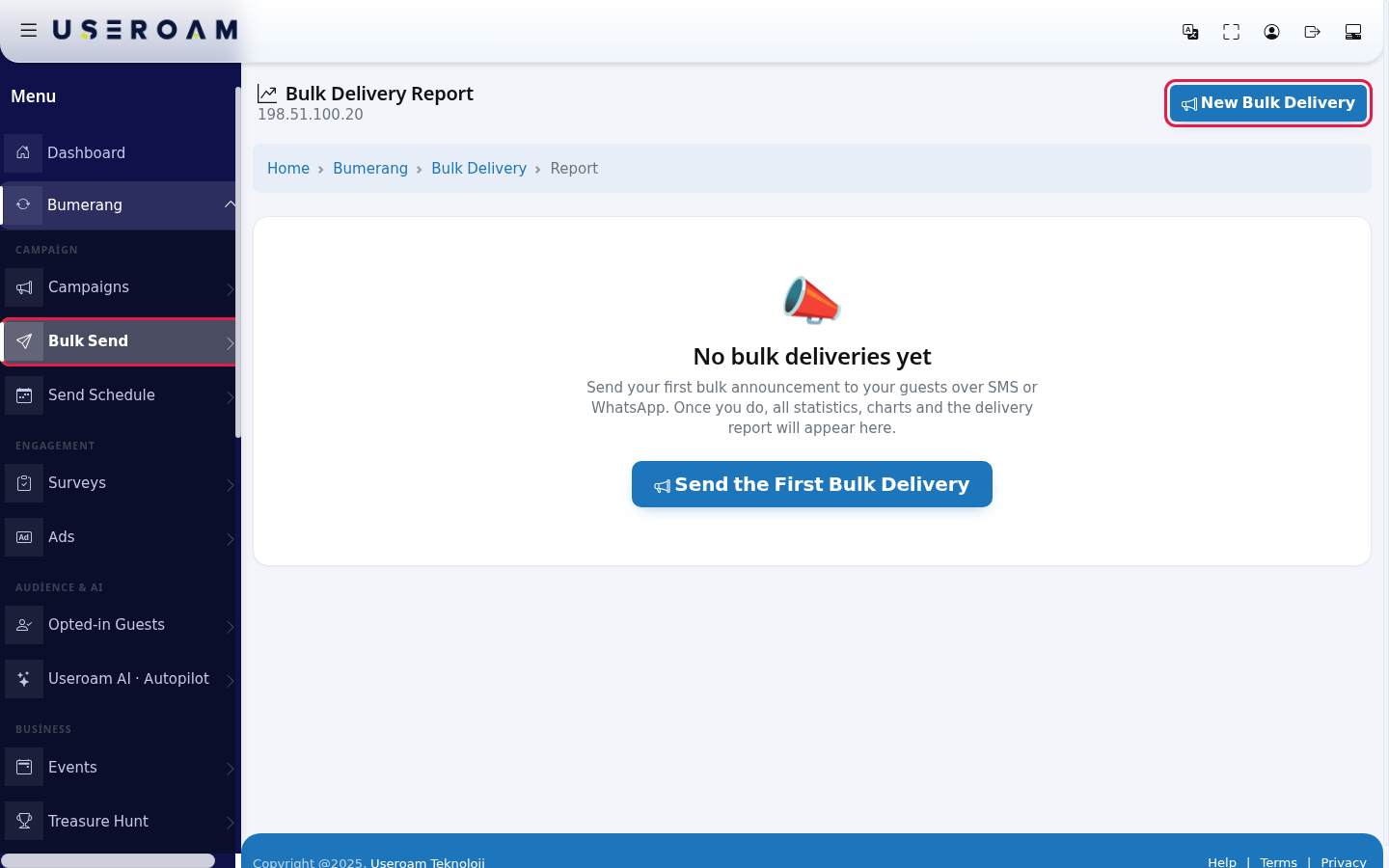
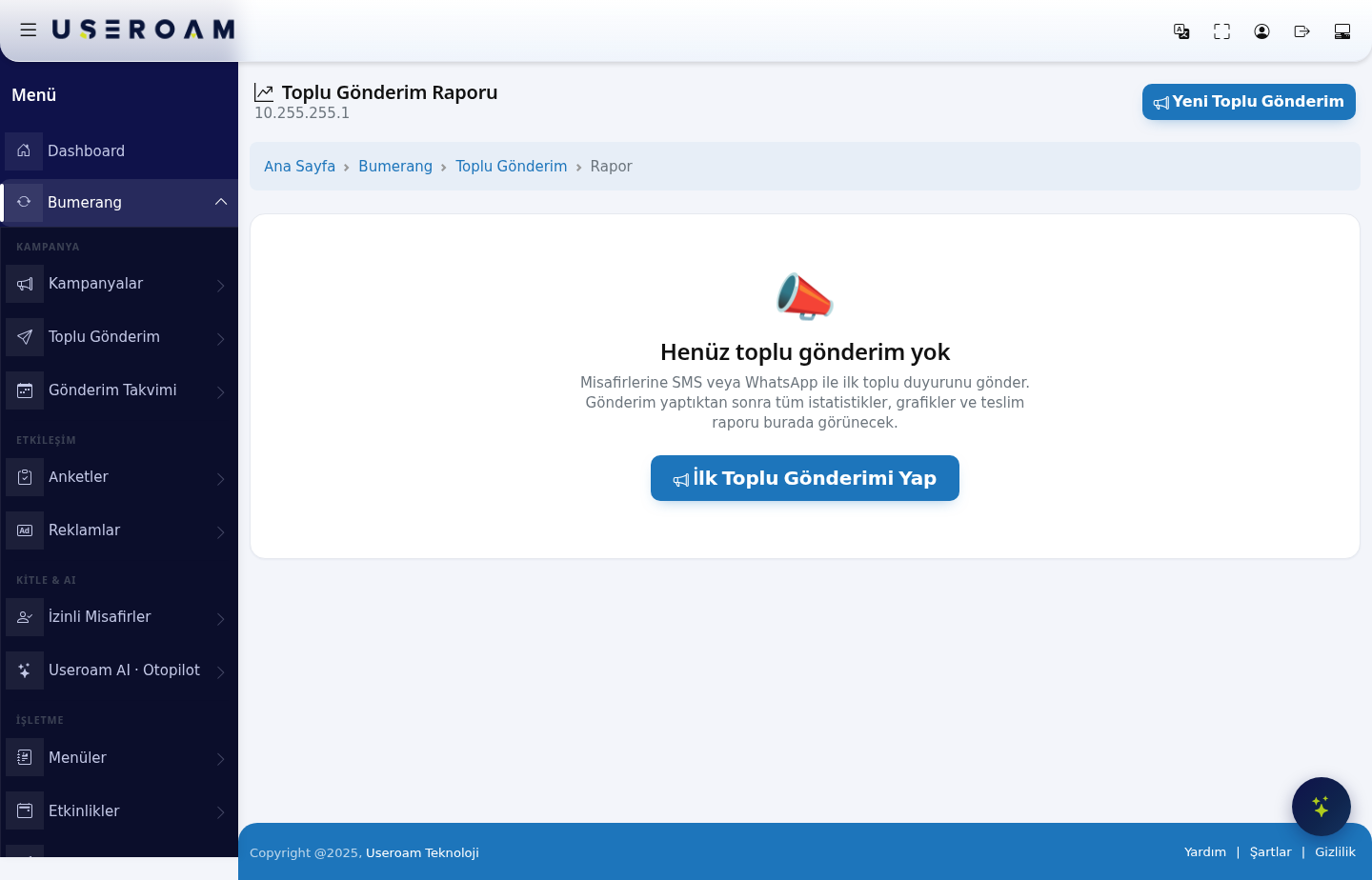
gounder Bumerang, open the CAMPAIGN heading and click Bulk Send. The Bulk Delivery Report opens. If there are no sends yet it says "No bulk deliveries yet". Press New Bulk Delivery at the top right (or Send the First Bulk Delivery in the middle).
- Type a name for the announcement in Title (optional) (example:
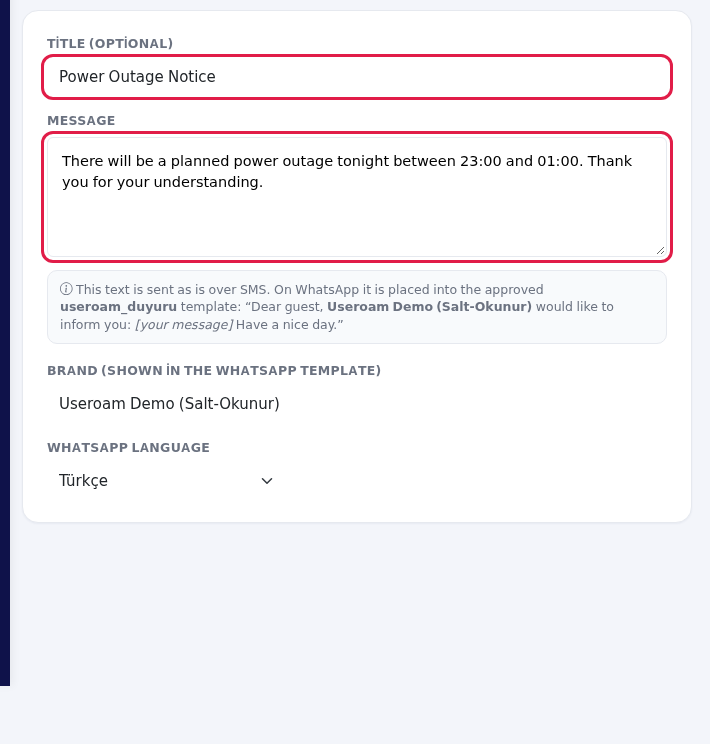
Power Outage Notice); it only shows in the report. Type the text for guests in Message (up to 600 characters).
- Check that your business name is right in
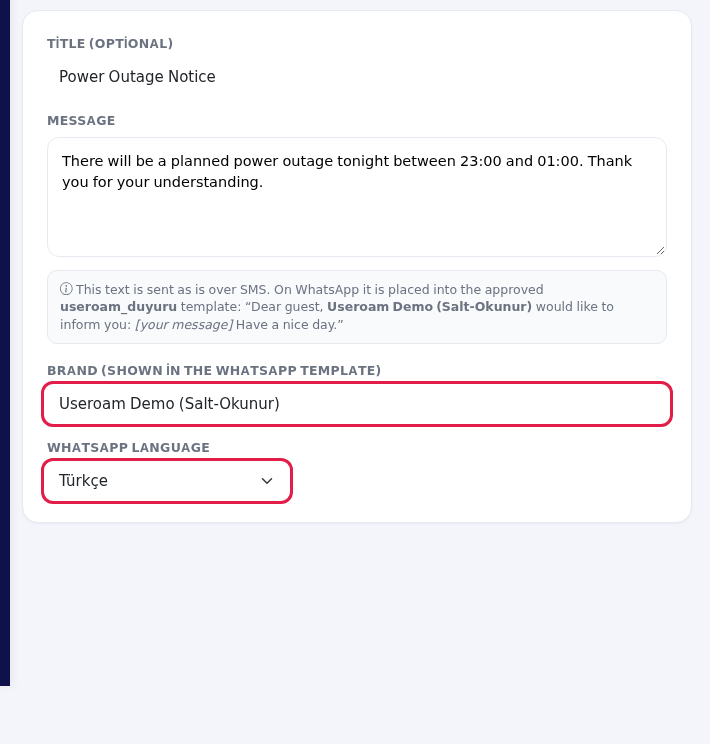
BumerangBrand→(shownCAMPAIGNin→theBulkWhatsApp template) and choose the WhatsApp language (Türkçe, English, Deutsch, Русский, العربية, Українська, فارسی). On SMS the text goes as is; on WhatsApp it is placed into the approved useroam_duyuru template: "Dear guest, Brand would like to inform you: [your message] Have a nice day."
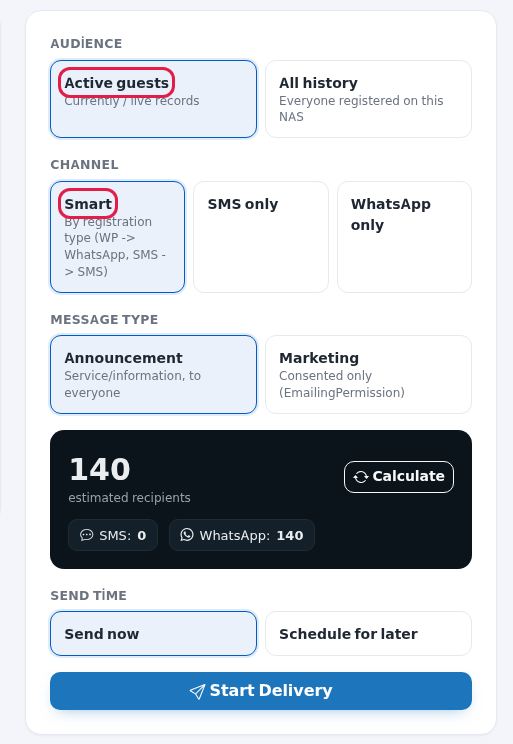
- On the right, choose the Audience and Channel. Audience: Active guests (shown as "Currently / live records": guests whose Wi-Fi registration is valid right now, for example hotel guests in house) or All history (shown as "Everyone registered on this NAS": every guest who has ever registered on this device). Channel: Smart (WhatsApp for WhatsApp registrations, SMS for SMS registrations), SMS only or WhatsApp only.
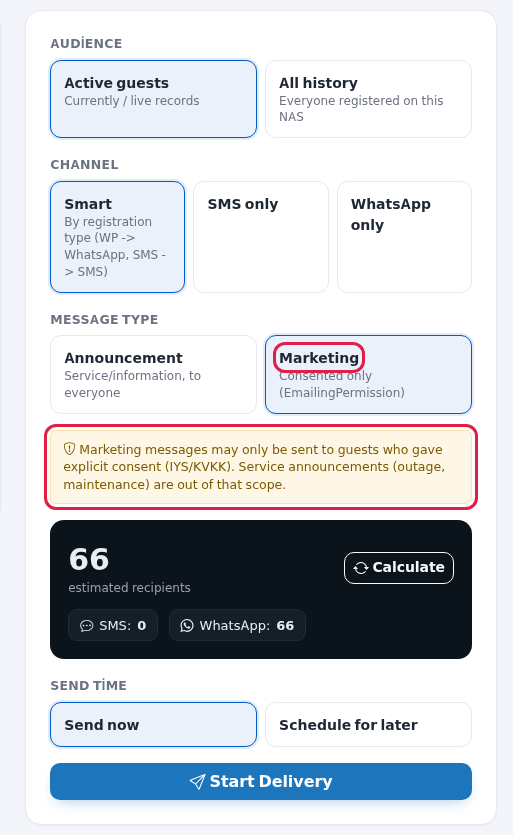
- Choose the Message Type: Announcement (service and information, to everyone) or Marketing (consented guests only). When you pick Marketing, the warning "Marketing messages may only be sent to guests who gave explicit consent (IYS/KVKK). Service announcements (outage, maintenance) are out of that scope." appears and the recipient count drops.
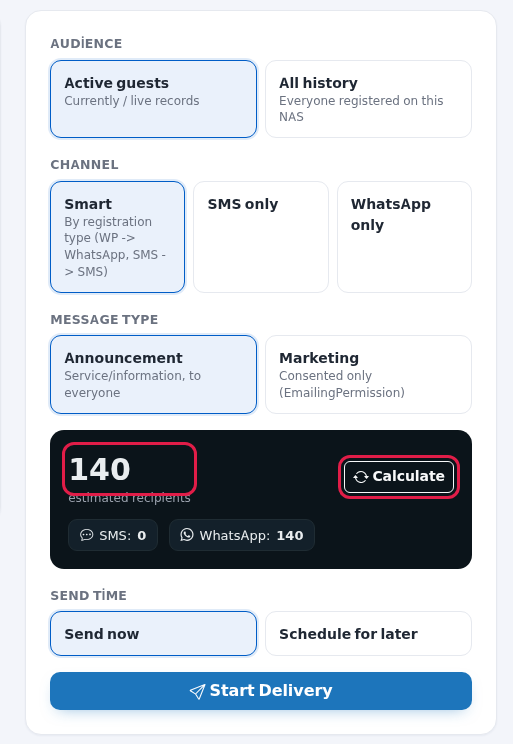
- Check the estimated recipients and the SMS / WhatsApp split in the black box. After changing your choices, press Calculate for an up-to-date number.
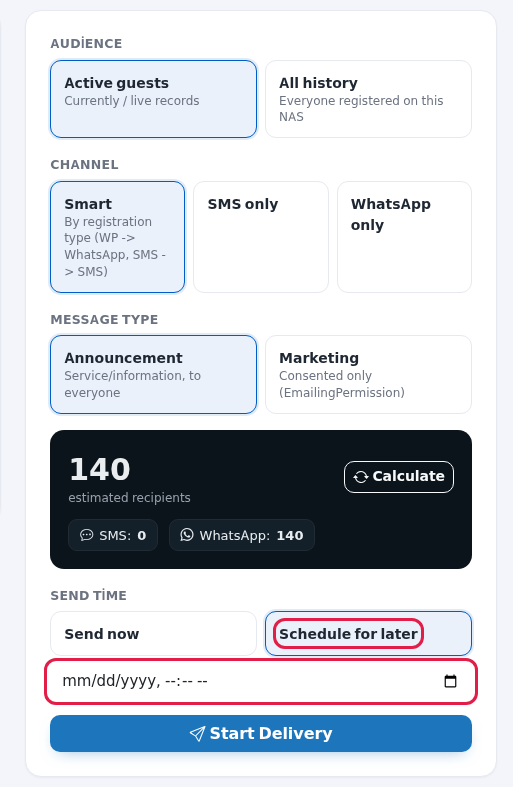
- Choose the Send time: Send now or Schedule for later. If you schedule, pick a date and time in the box that opens; a past time cannot be chosen.
- In the Test send card below, type your own mobile number (example:
5321234567) and press Send test. The exact same message goes only to you; "Test sent to …." appears. Check the message on your phone.
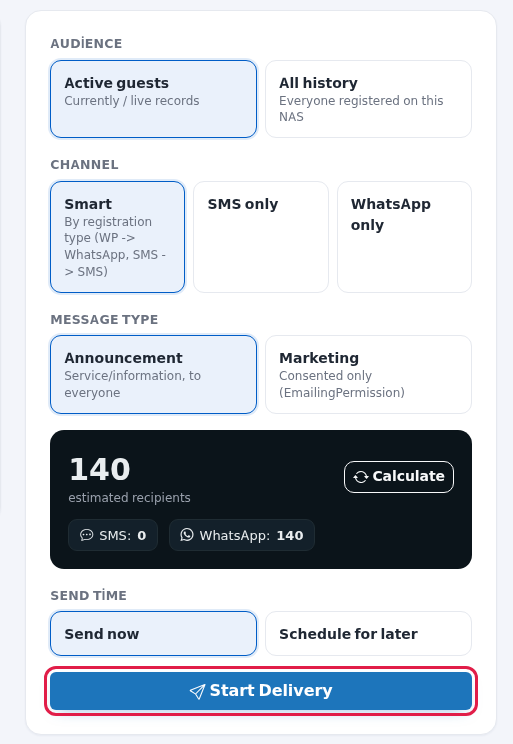
- If everything is right, press Start Delivery and confirm "Start the delivery? Estimated recipients: …". The screen shows "Delivery queued: … recipients (… SMS, … WhatsApp). The engine will send it within a few minutes." or, if you scheduled, "Scheduled to be sent on …".
Recent Deliveries list
Below the form, the last 15 sends are listed: Title, Type, Recipients, Sent (and the failed count, if any), Status, Date. Status values: Scheduled, Ready, Sending, Completed, Cancelled.

- To stop a scheduled send, press Cancel and confirm "Cancel this scheduled send?". If it has already started you see "Could not cancel: the send may have already started, or the record was not found."
- To send the same message again, press Send again. You are asked "This message will be sent again to the CURRENT list of … people. Continue?"; the recipient list is recalculated from the current audience.
Bulk Delivery Report
| Section | What it shows |
|---|---|
| Summary boxes | Total Deliveries (recipients), Sent (and failed), channel split, Delivery Rate (delivered). |
| Charts | Channel Split and Recent Deliveries (recipients/sent). |
| Deliveries table | Title, Type (Announcement / Marketing), Audience (Active / All history), Recipients, Status (Ready, Sending, Completed, Cancelled), Date and a Details button. When empty it says "No deliveries yet." |
| Details screen | The |
| Recipients list | The first 1000 recipients ("+ (first 1000)"): Phone, Channel, Status, Delivered, Sent at, Delivery Time. Search a number with Search phone.... Delivery values: Read, Delivered, Not delivered, Failed, Pending. |
| Refresh SMS Delivery | Asks the carrier again for SMS delivery information. The button shows |
Other texts on the screen
| Where | Text |
|---|---|
| Subtitle | The device Bumerang)
|
| Empty report | " |
| Grey
| Title: |
| Note under the | "This text is sent as is over SMS. On WhatsApp it is placed into the approved useroam_duyuru template:" and an example of the template. |
| Option descriptions | Smart: "By registration type (WP -> WhatsApp, SMS -> SMS)". Announcement: "Service/information, to everyone". Marketing: "Consented only (EmailingPermission)", that is, guests who gave commercial message consent. |
| Test card | "Before the bulk send, send the exact same message to your own number." |
| Confirmation window | If the recipients were not calculated it shows "(not calculated)"; press Calculate and try again. After you confirm, the button shows "Queueing…". |
Messages you may see
| Message | What to do |
|---|---|
| "The message cannot be empty." / "Please enter the message text first." | Fill in the message box. |
| "No valid mobile number was found for these criteria." | Switch the audience to All history or the type to audience has no numbers. |
| "A pending send already exists for the same message." | The
|
"You cannot pick a
| Choose a future date and time. |
| "Invalid number. It must be 10 digits and start with 5 (example: 5321234567)." | Type the |
| "Test send failed: …" | Read the reason; check the number and text and try again. |
| "Send #… has been queued again. Recipients: … (… SMS / … WhatsApp)." | Send again was confirmed. |
| "Scheduled send has been cancelled." | Cancellation is done. |
| "Save error: …" | Refresh the page and try again. |
Frequently asked questions
What is the difference between Active guests and All history?
Active guests are guests whose Wi-Fi registration is valid right now (for example hotel guests in house, or guests whose Wi-Fi access has not expired). They do not need to be connected at that moment. All history is everyone who has ever registered on thethis device.
AnalyticsWhy and Reports → Visit Analytics page — one to two hours beforedid the guestestimated couldrecipients realisticallydrop comewhen in.I
Marketing
I started the delivery. When do the messages go out?
The send is queued and goes out within a legalfew obligation.
You
can follow it in the Recent Deliveries list and in the report.Why does my WhatsApp message start with "Dear guest"?
Bulk WhatsApp messages go through an approved template; your text is placed in the middle of it. On SMS the text goes as is.Related
pages:pagesBumerang
→- Campaigns (automatic messages)
- Sending Calendar
,Campaigns,- Opted-in Guests
,Bumerang Reports.