
Creating your first campaign
What is it for?
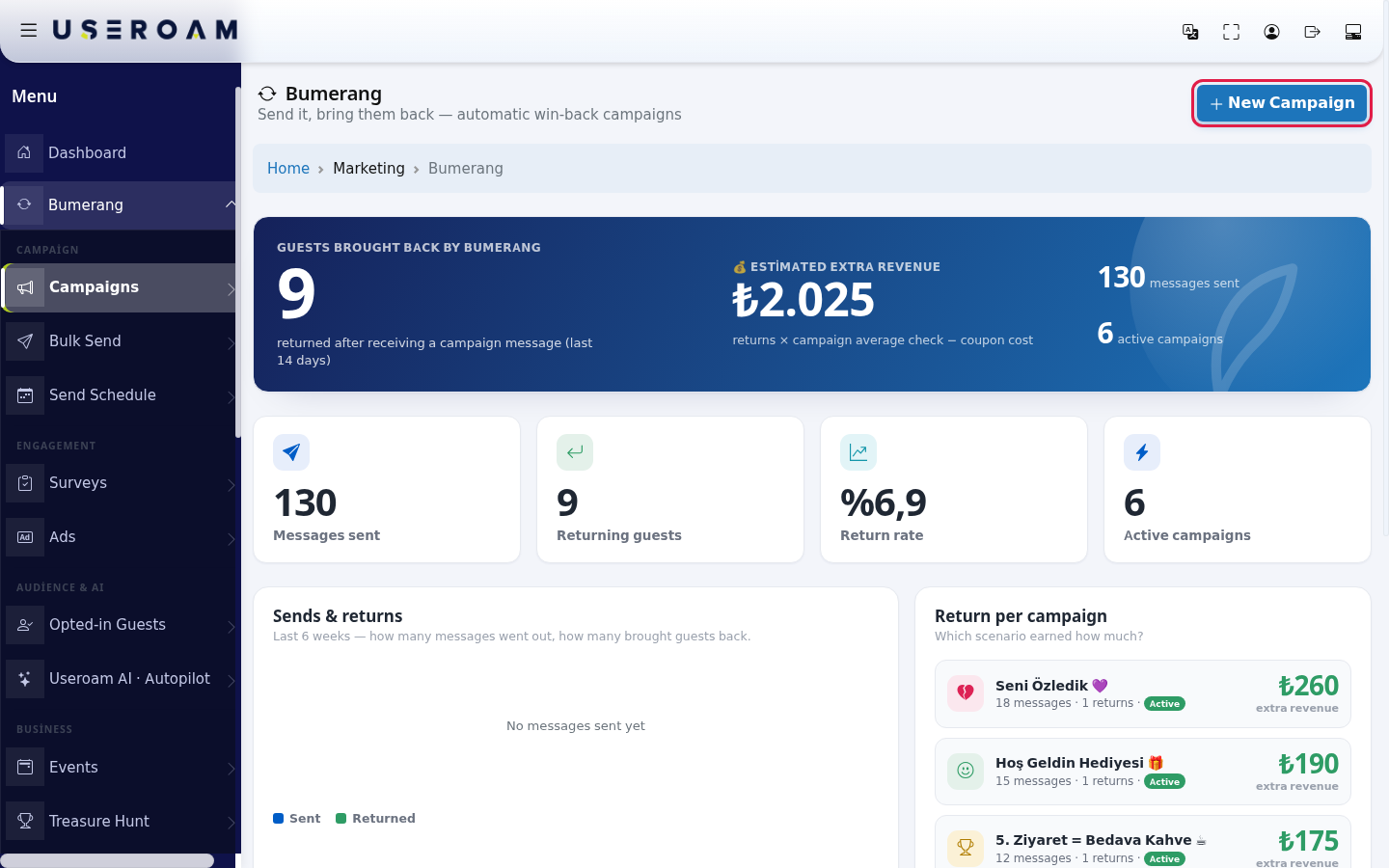
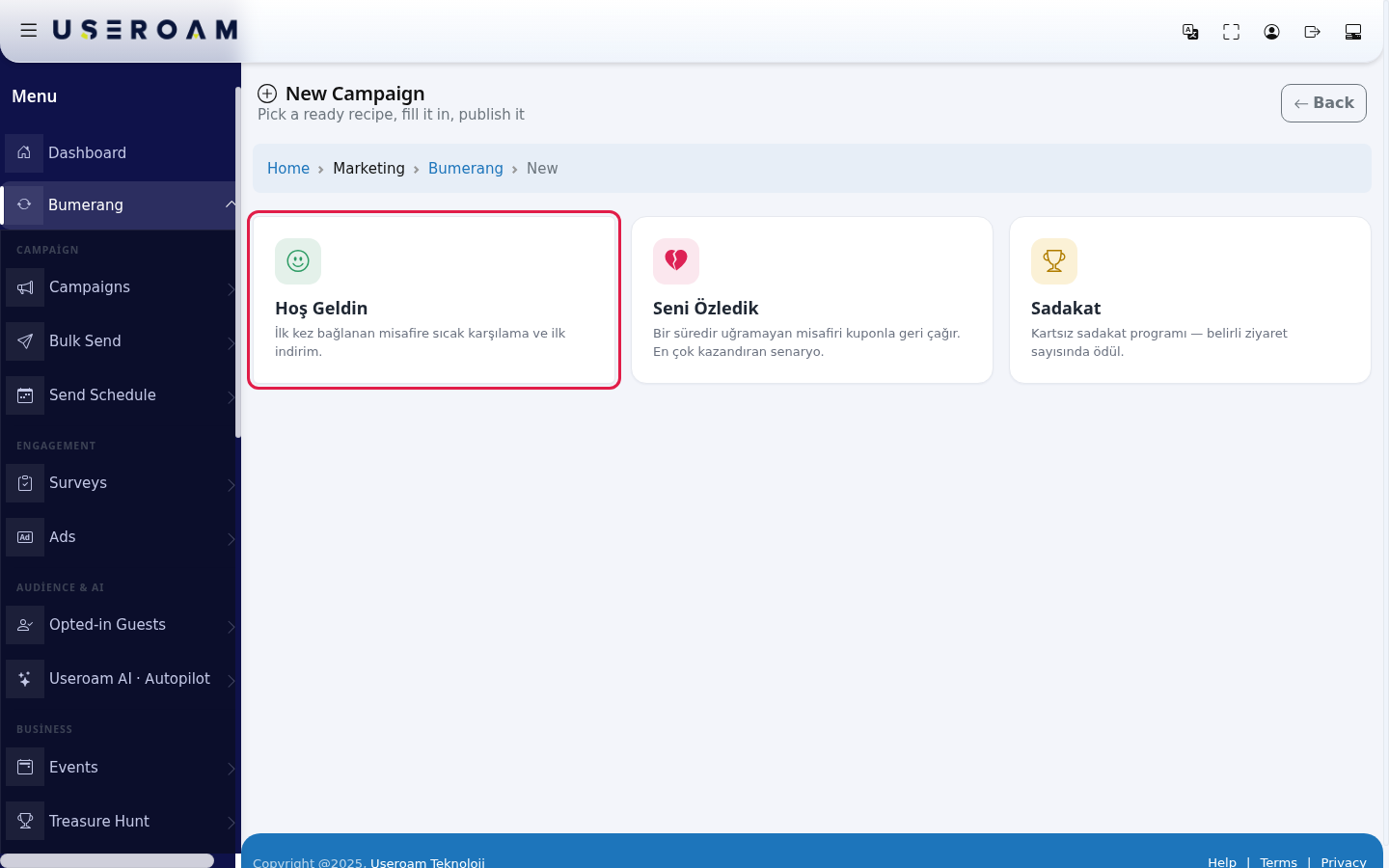
This page walks you through setting up your first Bumerang campaign from start to finish. As an example we set up a Welcome campaign (Hoş Geldin on screen): 30 minutes after a guest connects to Wi-Fi for the first time, they get a thank-you message and a menu link. We Missed You (Seni Özledik) and Loyalty (Sadakat) campaigns are set up with the same steps; only the When? line changes.
When do you use it?
- When you use Bumerang for the first time.
- When you want to add a new scenario (for example a coupon for guests who have not come for a while).
Before you start
- The Bumerang marketing package must be active.
- Messages only go to guests who gave commercial message consent at Wi-Fi login. Check how many you have on the Opted-in Guests screen.
- A QR Menu helps, so that the button in the message takes the guest to your menu. You can also give your own web address instead.
Step by step
- In the left menu, under Bumerang, open Campaigns and press New Campaign at the top right.
- Pick one of the ready recipes. In the English interface the recipe cards still show their Turkish names: Hoş Geldin (Welcome: a warm welcome and a first discount for a guest connecting for the first time), Seni Özledik (We Missed You: calls back a guest who has not visited for a while, with a coupon; the scenario that earns most) or Sadakat (Loyalty: a reward at a set number of visits). In this example click Hoş Geldin.
- Type the Campaign name (example:
Welcome Coffee). On the When? line, set how long after the visit the message goes out: "Send this message 30 minutes after a guest connects for the first time." Just change the number in the box.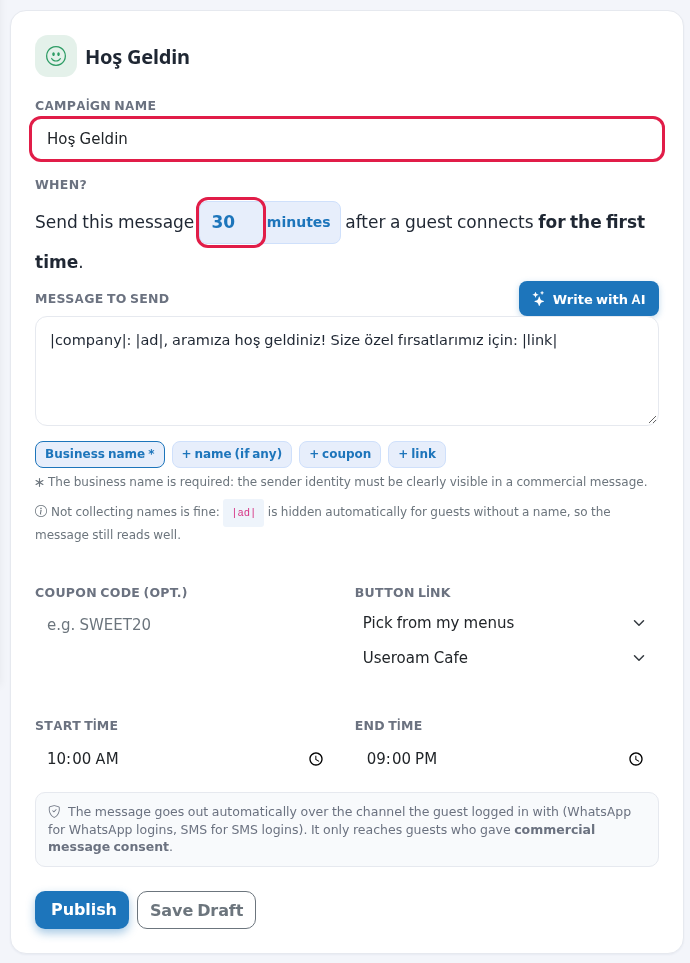
- Edit the ready text in Message to send in your own words, or press Write with AI to let the AI write it (the first time can take 20-40 seconds; when you see "Ready, you can edit it." check the text). Press the tags under the box to add to the message: Business name * (required), + name (if any), + coupon, + link. The tags are filled with real information at send time.
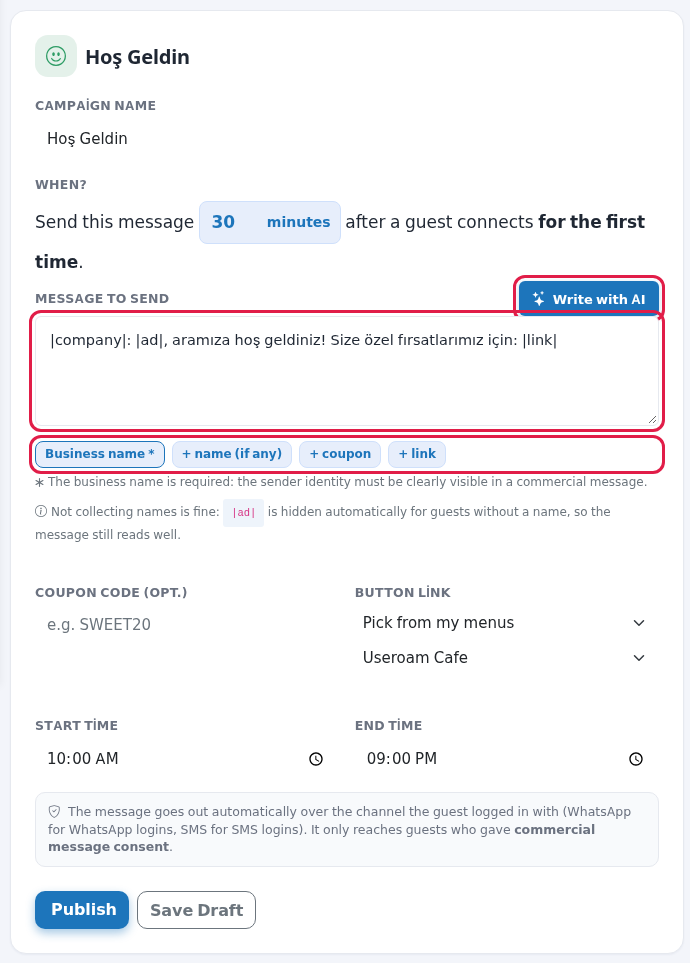
- If you like, type a code in Coupon code (opt.) (example:
HOSGELDIN10). In Button link choose where the guest goes: Pick from my menus (then choose your menu), Pick from my events, Hotel guest portal, Choose from my reward hunts or I will enter a custom URL.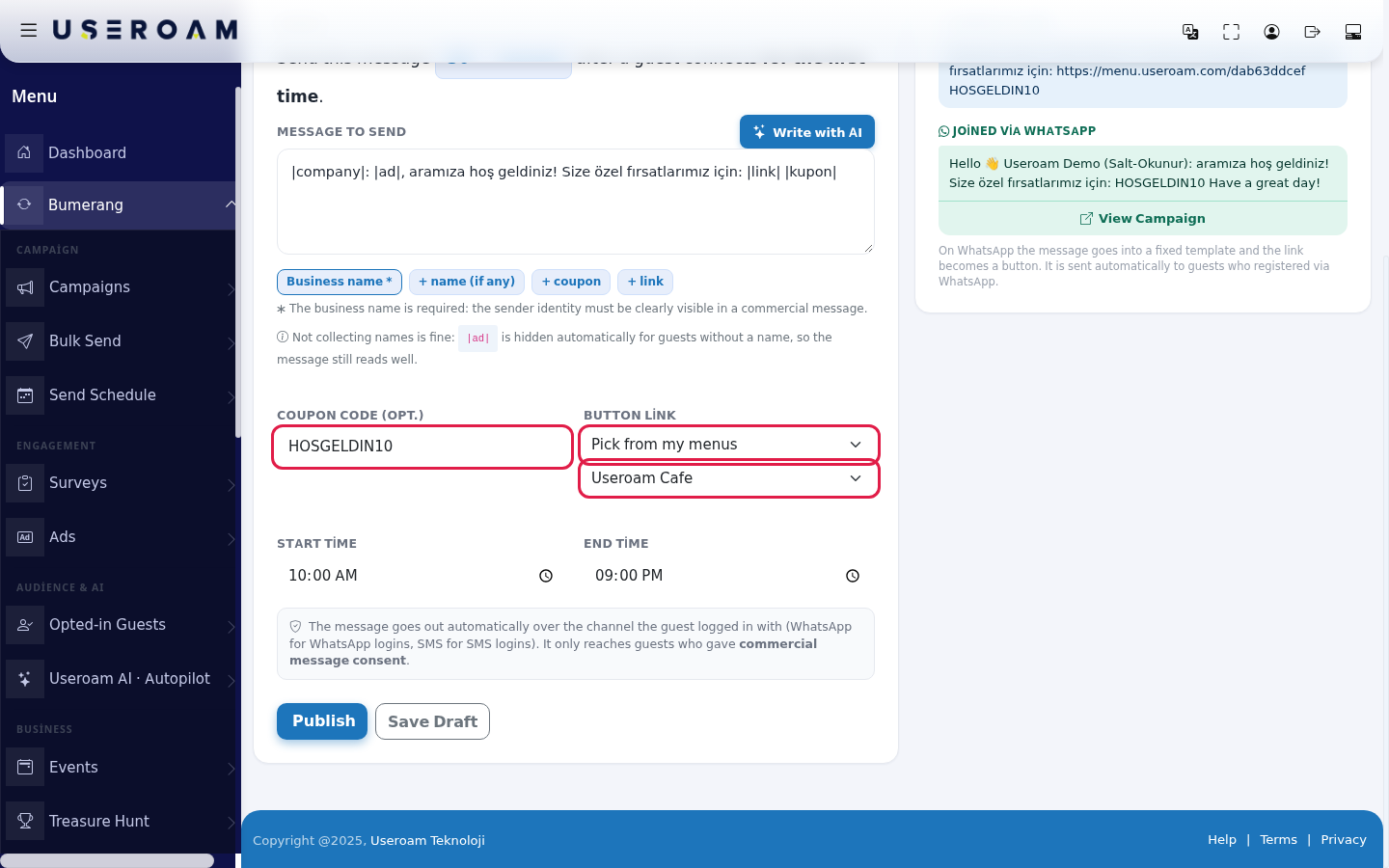
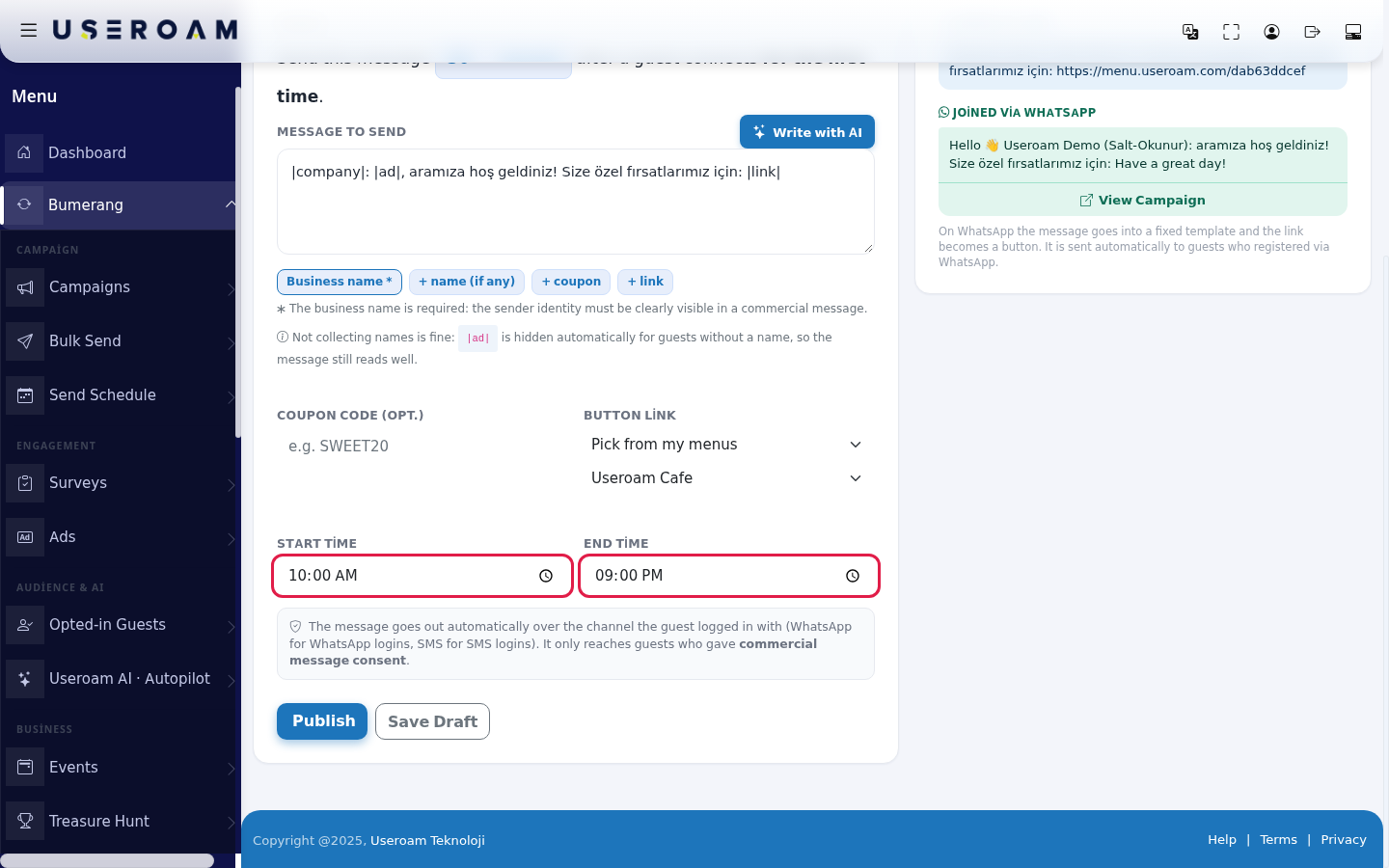
- With Start time and End time, set the hours in which the message may go out (default 10:00 to 21:00). Messages are only sent within these hours, so guests do not get messages at night.
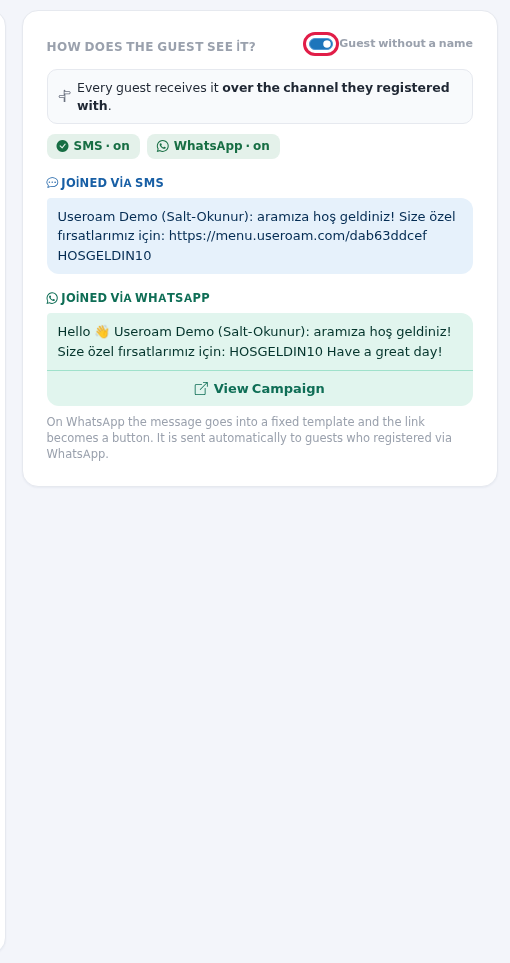
- Check the How does the guest see it? preview on the right. The message is shown separately for a guest who Joined via SMS and one who Joined via WhatsApp. Use the Guest without a name switch to see how it reads for a guest who gave no name. On WhatsApp the message goes into a fixed template and the link becomes a View Campaign button.
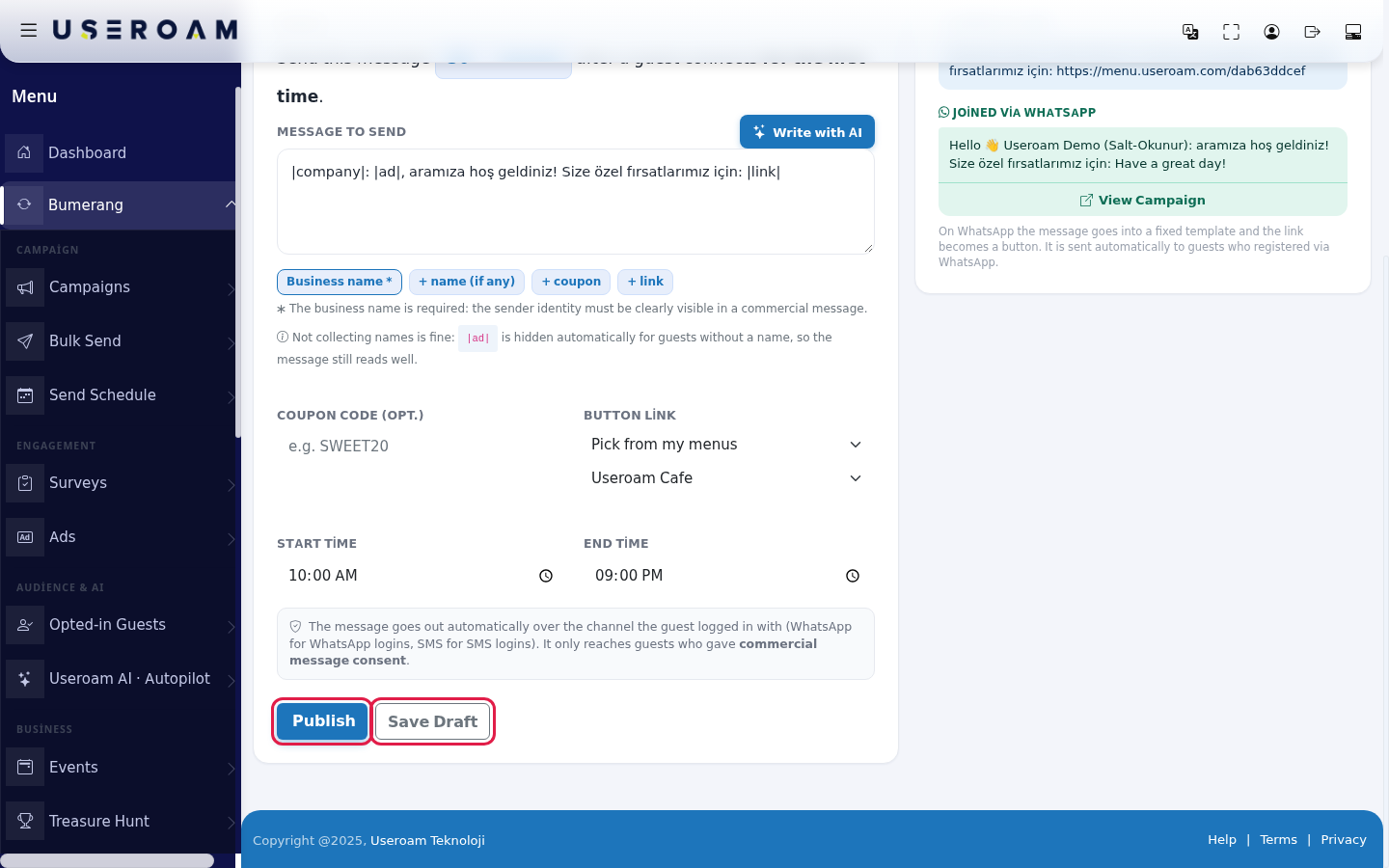
- Press Publish to start right away. If you want to finish later, press Save Draft; a draft campaign sends nothing.
- One more step to measure the campaign's gain: click the campaign in the Campaigns list, press Edit and, under Advanced settings, enter the Average check amount (example:
350). If you gave a coupon, use Link the coupon to the menu to apply the discount to menu prices. Press Save.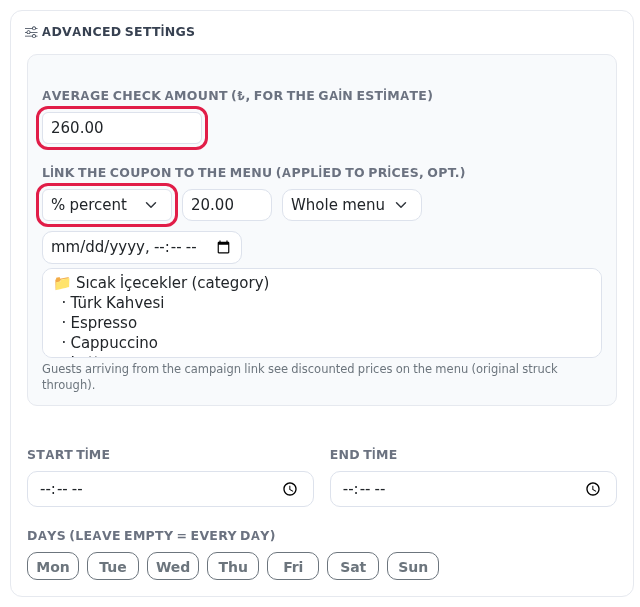
The When? line (by campaign type)
| Recipe | Sentence on screen | Default |
|---|---|---|
| Hoş Geldin (Welcome) | "Send this message … minutes after a guest connects for the first time." | 30 minutes |
| Seni Özledik (We Missed You) | "Send this message if a guest has not visited for … days." | 30 days |
| Sadakat (Loyalty) | "Send this message when a guest visits for the … th time." | 5th time |
Message tags
| Tag (button) | Added to the message | What happens at send time? |
|---|---|---|
| Business name * | |company| | Your business name is written. Required: "The business name is required: the sender identity must be clearly visible in a commercial message." |
| + name (if any) | |ad| | The guest's name is written. "Not collecting names is fine: |ad| is hidden automatically for guests without a name, so the message still reads well." |
| + coupon | |kupon| | The coupon code is written. Saving is not allowed if the coupon code is empty. |
| + link | |link| | On SMS the button link is written; on WhatsApp the link becomes a button under the message. |
In the preview the sample name is "Jane"; the WhatsApp template adds "Hello" at the start and "Have a great day!" at the end.
Other fields and information
| Item | Description |
|---|---|
| Channel note | "The message goes out automatically over the channel the guest logged in with (WhatsApp for WhatsApp logins, SMS for SMS logins). It only reaches guests who gave commercial message consent." The preview shows the SMS · on and WhatsApp · on badges and "Every guest receives it over the channel they registered with." |
| Button link boxes | A second box opens for the type you choose: Select a menu, Select an event, Choose hotel portal, Choose reward hunt. With I will enter a custom URL an address box opens (example: https://…). |
| AI status | When you press Write with AI you see "Useroam AI is writing... (the model warms up on first use, ~20-40 s)"; when done, "Ready, you can edit it.". |
| Box examples | The grey example in Coupon code (opt.) is "e.g. SWEET20". The path under the title (Home, Marketing, Bumerang, New) takes you back. |
| Preview note | "On WhatsApp the message goes into a fixed template and the link becomes a button. It is sent automatically to guests who registered via WhatsApp." |
| Back | Returns to the recipe choice (or to the campaign list); what you typed is not saved. |
| Page tour | On first opening, a short tour explains Message to send, Menu link, Coupon code and Average check. Tour texts: "The text your guest will receive. The |isim|, |kupon| and |link| tags are filled in automatically at send time."; "Pick one of your menus or give a custom URL; the button takes the guest there."; "If you offer a coupon, you can also link it to your menu prices as an automatic discount."; "Your average spend per guest. The gain from returns is calculated with this value." The average check field is not on this screen; it is on the Edit screen after saving (step 9). |
Warnings when saving
| Warning | What to do |
|---|---|
| "The business name is required in the message. Please add the |company| placeholder." | Press the Business name * tag. |
| "The message uses |link|; fill in the Link field or remove |link| from the message." | Make a choice in Button link. |
| "You used |kupon| in the message but the coupon code is empty. Enter a coupon code or remove the |kupon| tag from the message." | Fill in Coupon code. |
| "Invalid campaign type." / "The campaign could not be saved." / "Error: …" | Open the page again from New Campaign and try again. |
| "The AI did not respond, please try again." / "Connection error, please try again." | Press Write with AI again, or write the message yourself. |
Frequently asked questions
I published it. Did my old guests get a message too?
The Welcome campaign only goes to new guests; when switched on it does not send a mass message to guests older than the last 24 hours.
Can I test the message myself?
If you register on the Wi-Fi for the first time with your own phone and tick the commercial message consent, the message reaches you too once the time has passed. You must be within the send hours.
Do I write separate messages for SMS and WhatsApp?
No. The same text is adapted to both channels; you see both in the preview.
Can I change the campaign later?
Yes. See the editing steps on the Campaigns page.