
Events
What is it for?
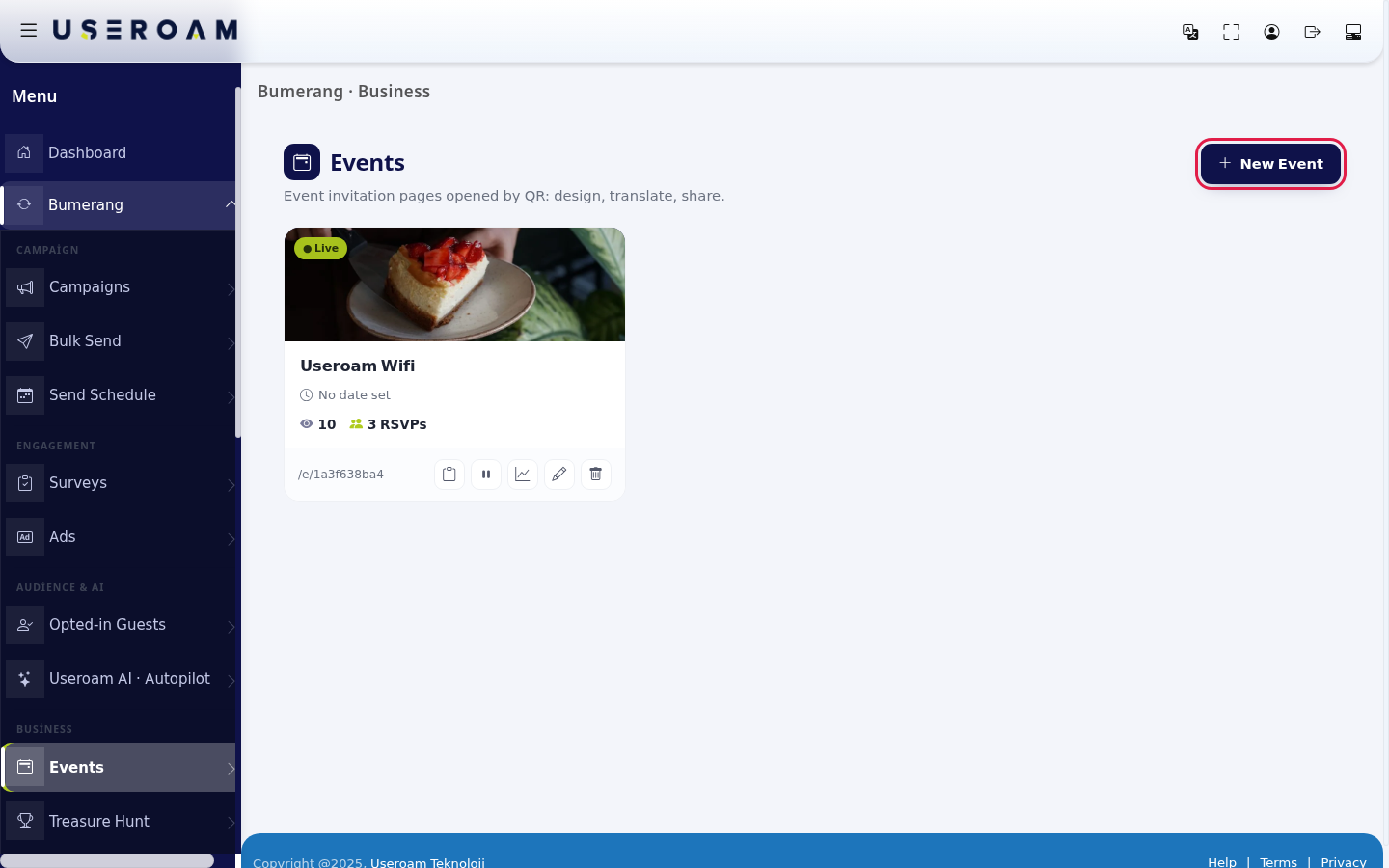
Events is where you build an invitation page for a concert, opening, brunch or special night. The screen subtitle: "Event invitation pages opened by QR: design, translate, share." Guests open the page at menu.useroam.com/e/... and can RSVP. If you serve drinks or food at the event, you can send each guest a personal QR, have staff scan it, and see who received what in the report.
How do I open this screen? In the left menu go to Bumerang → Business → Events. The top of the screen reads "Bumerang · Business".
When to use it
- When you want to announce an event and collect RSVPs.
- When you want to track services such as coffee, food or cloakroom with QR codes.
- When you need a page to link from a campaign or bulk message.
- After the event, to see which staff member served how many guests.
Before you start
- Your device needs a Bumerang (marketing) licence.
- The Events link in the left menu only appears when the module is on: the Event switch on the Business Modules card of Settings → Module Permissions must be on.
- If you will use QR scanning, your departments (for example Restaurant, Waiter) and staff must be set up on Bumerang → Staff. Staff scan QR codes from the Event screen of the Useroam Go app.
Step by step: your first event
- Press New Event at the top right (with no events, the Start in the Studio button in the middle does the same).
- The Event Studio opens. Type the name into Event Name * on the right (example:
Friday Jazz Night), fill in Date & Time and Location, then press Save at the top right.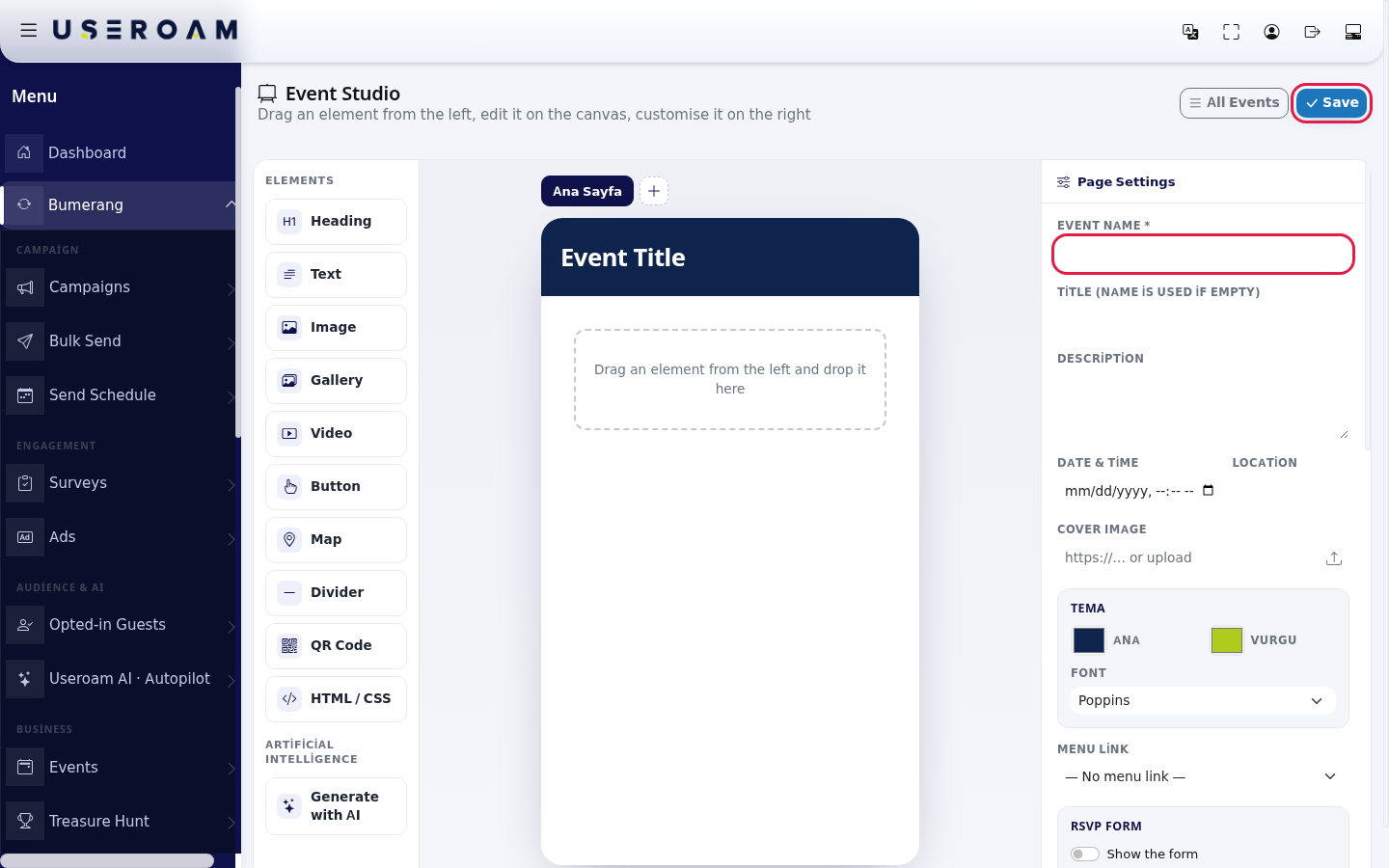
- Design the page by dragging elements from the left, add a cover image, optionally switch on the RSVP Form, and press Save again. Details: Event Studio.
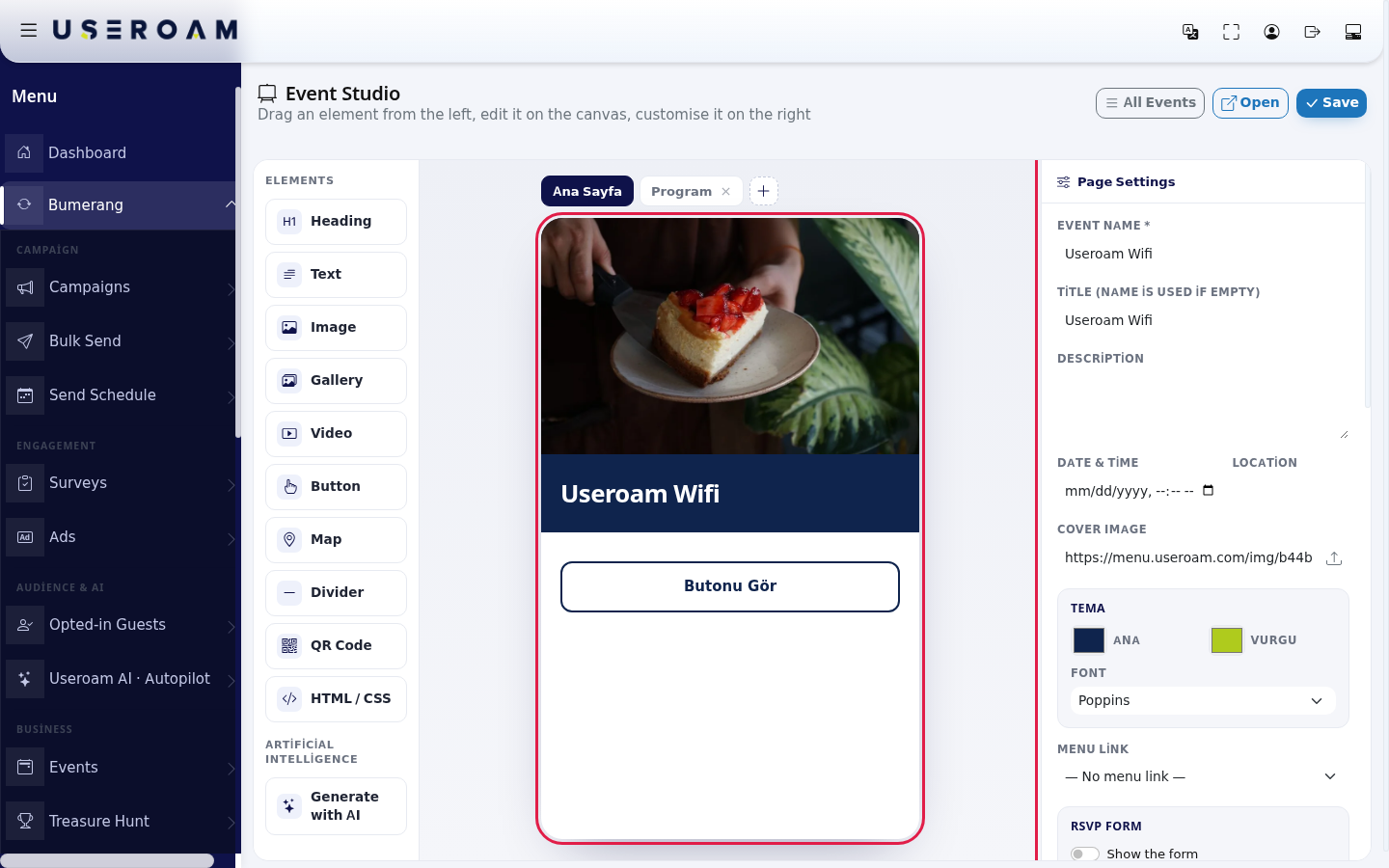
- Go back to the list (All Events). If the card does not show the green ● Live badge (it shows grey Draft), press the play button (Publish) under the card.
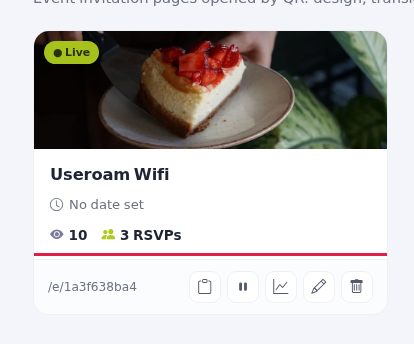
- Copy the address with the clipboard button (Copy link) next to the
/e/...link and share it on social media, in a campaign message or via Bulk Send. - To use personal QR codes, press the chart button (QR Scan Report) on the card, type the guest's number and press Send SMS or Send WhatsApp (details below).

- On the day, staff scan the guest's QR with Useroam Go. Scans appear immediately in the QR Scan Report.
Event card
| Item | What it does |
|---|---|
| Cover image | Opens the studio (Edit). |
| ● Live / Draft | Live: the page is open to guests. Draft: the page does not open. |
| Title and date | Event title, date (for example "12 Sep 2026 · 20:00") and location. Without a date: "No date set". |
| Eye icon and number | How many times the page was viewed. |
| People icon and RSVPs | Number of people who filled in the RSVP form. When above zero it is clickable and opens the RSVP list. |
/e/... link | Opens the guest page in a new tab. |
| Clipboard icon (Copy link) | Copies the full address; the icon briefly turns into a tick. |
| Pause / play (Unpublish / Publish) | Message: "Event unpublished." or "Event is live." |
| Chart icon (QR Scan Report) | Sending personal links and the scan report. |
| Pencil (Edit) | Opens the studio. |
| Bin (Delete) | Deletes after "Delete this event?": "Event deleted." |
Empty state: with no events you see "Create your first event" and "A concert, an opening, a special night… Build an invitation page shared by QR. AI writes the title and translates the languages; guests confirm their attendance."
RSVP list
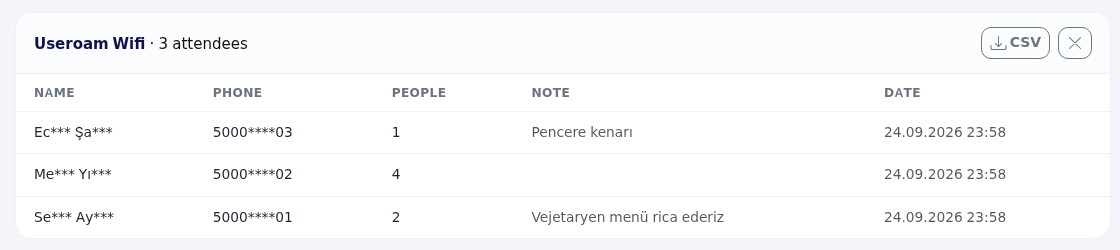
Pressing the RSVPs count opens a list at the top: the event name and the number of attendees; columns Name, Phone, People (party size), Note and Date. Name and phone are masked for data protection. CSV downloads the list (also masked; columns Name, Phone, People, Note, Date). The cross closes it. With no RSVPs: "No RSVPs yet."
QR Scan Report
Opened with the chart button on the card; the header shows the event name and QR Scan Report. The info box at the top explains the buttons:
- Generate link: sends no message at all; it only shows the personal link on screen.
- Send SMS: texts the guest "Etkinlik QR kodunuz: <link>" (the SMS is in Turkish). Enter 10 digits without a leading 0 or 90, for example
5321234567. - Send WhatsApp: sends the same link as a WhatsApp message; it goes out the moment you press the button and it is billable. A QR image cannot be attached, and it is not needed: the guest's QR code already carries this link.
- "At most 5 messages per minute. Pressing twice for the same guest will not send a second message; you have to wait a minute."
Step by step: sending a guest their personal QR
- Type the guest's number into Generate test link (mobile number) (
5321234567) and their name into Name (optional). - To try it first press Generate link. A green box shows "Personal test link is ready. Opening it shows the QR code that staff can scan." and the link. Pressing Enter also only generates the link and sends nothing.
- To send it press Send SMS or Send WhatsApp. Result: "Queued for SMS delivery; it leaves for the operator within a minute." or "WhatsApp message sent." Sending again to the same number does not create a new link; the link the guest already has keeps working.
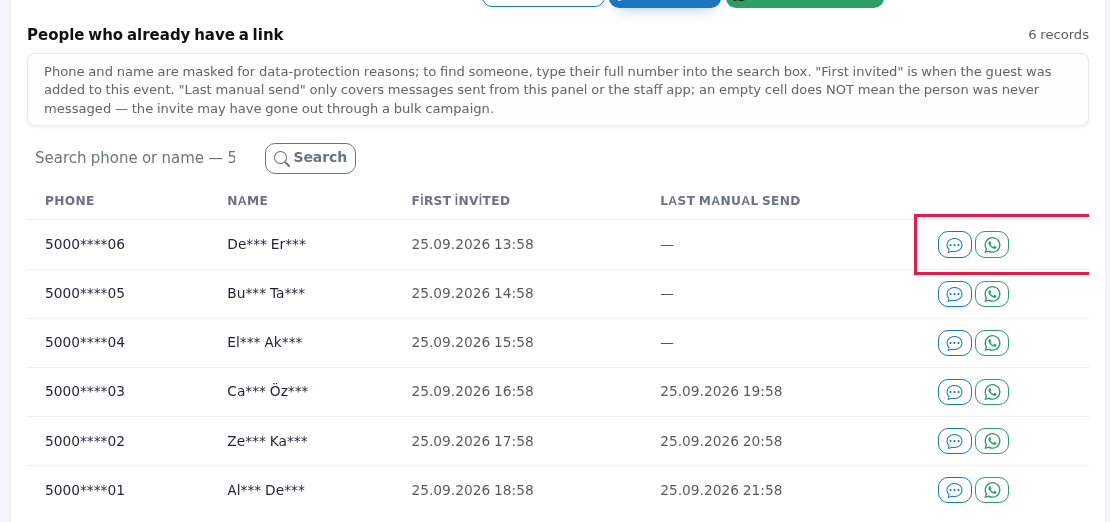
People who already have a link
The number of records is shown on the right. Info note: "Phone and name are masked for data-protection reasons; to find someone, type their full number into the search box. "First invited" is when the guest was added to this event. "Last manual send" only covers messages sent from this panel or the staff app; an empty cell does NOT mean the person was never messaged, the invite may have gone out through a bulk campaign."
- Type the number into Search phone or name and press Search; Clear search brings the list back.
- Columns: Phone, Name, First invited, Last manual send. The blue and green buttons on the row resend the same link by SMS or WhatsApp.
- With more than 100 people: "Showing the 100 most recently added people. If the person you need is not here, type their number into the search box."
- If the search finds nothing: "No record matches your search. Try the 10-digit number (starting with 5), or clear the search and browse the list."
- If no link was ever generated: "No link has been generated for this event yet. Enter a number in the box above and send it; the person is added to this list automatically."
Filter, counters and tables
Filter boxes: Start date, End date, Department and Staff (All shows everything). Press Filter; Clear removes it. With a filter on: "Filter applied. All figures below and every downloaded file reflect this filter."
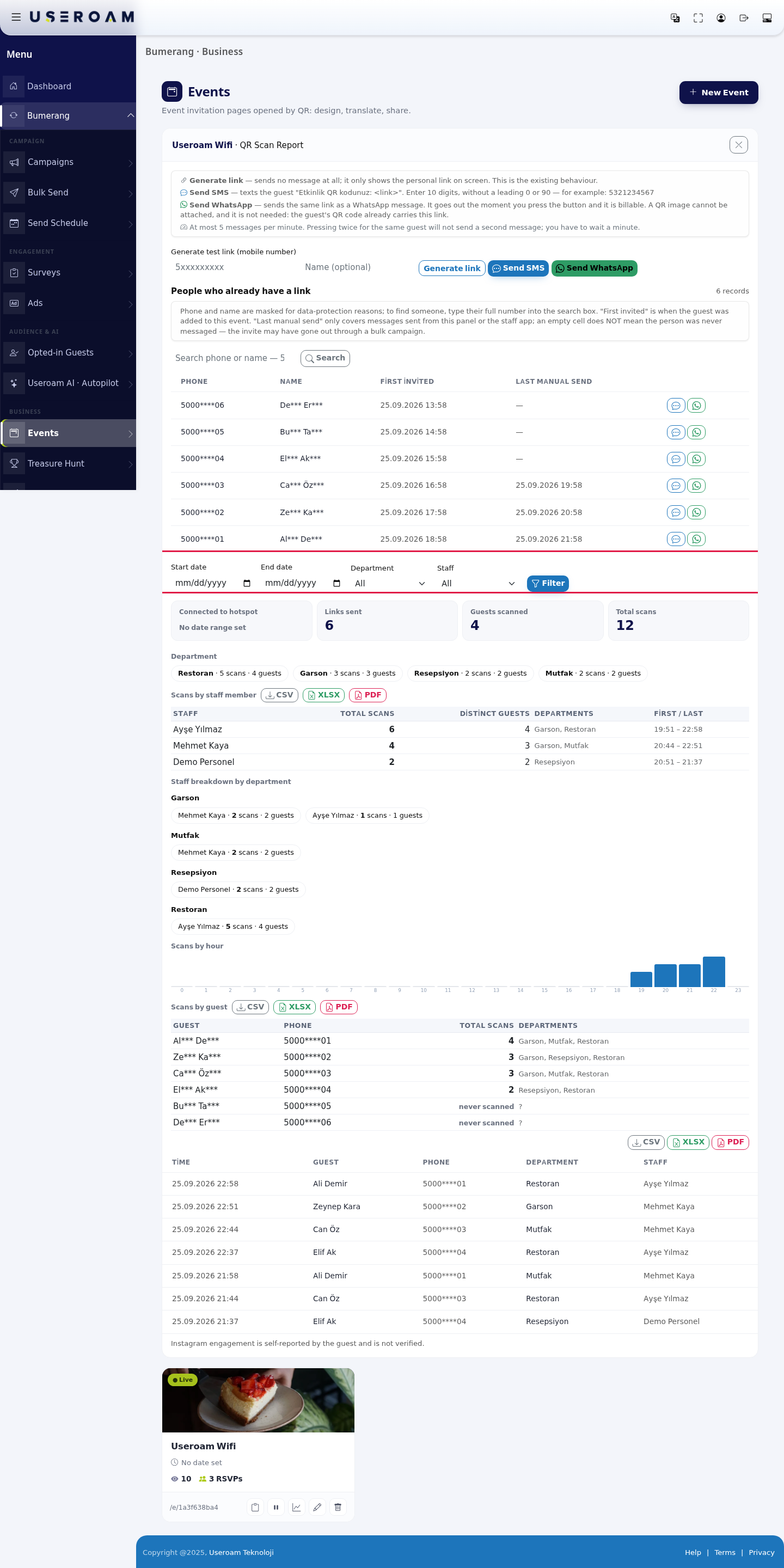
| Counter / table | Meaning |
|---|---|
| Connected to hotspot | Distinct guests who joined the Wi-Fi between the event's start and end time. Without an end time: "No date range set". Note: the studio has no end time field, so this box shows that text for most events. |
| Links sent | Guests who have a personal link. |
| Guests scanned | Distinct guests whose QR was scanned at least once. |
| Total scans | Number of all scans. |
| Department chips | For each department, the number of scans and guests. |
| Scans by staff member | Staff, Total scans, Distinct guests, Departments, First / Last scan time. Staff names are not masked. |
| Staff breakdown by department | Under each department, which staff member made how many scans. |
| Scans by hour | Bars for hours 0-23. |
| Scans by guest | Guest, Phone (masked), Total scans, Departments. Guests with a link but no scans show "never scanned". |
| Scan list | Each scan: Time, Guest, Phone, Department, Staff. With no scans: "No QR codes scanned yet." |
The CSV, XLSX and PDF buttons next to the staff, guest and scan tables download that table with the current filter (file title "Event QR Report"). The note at the bottom: "Instagram engagement is self-reported by the guest and is not verified."
Messages you may see
| Message | What to do |
|---|---|
| Enter a valid mobile number (10 digits starting with 5). | Type the number as 5321234567. |
| Could not generate link. Check that the event is published. | Publish the event with the play button on the card. |
| The event is not published, so the link would not open. Publish the event first. | Publish, then send again. |
| This record has no valid mobile number (10 digits starting with 5); no message was sent. | Type the correct number in the box above and send again. |
| You have hit the limit of 5 messages per minute. Please try again shortly. | Wait a minute. |
| This guest was messaged a moment ago. You can try again in a minute. | Wait; this prevents double sending. |
| The message could not be sent. Check the number and try again. | Correct the number and try again. |
| Record not found. Refresh the page and try again. / Event not found. | Refresh; the event may have been deleted. |
Frequently asked questions
A guest says the link does not open.
The event may be a Draft. Publish it with the play button on the card.
If I send twice to the same guest, do they get two QR codes?
No. There is one link per number; resending sends the same link.
How many times can a guest use the same QR?
Unlimited by default. Limit it with QR scan rule and Allowance per department in the studio.
Why does the SMS not include the event name?
The SMS is deliberately short and without Turkish characters so it fits into one SMS.
How do I promote the event with a campaign?
Add the /e/... link to a Bumerang → Campaigns or Bulk Send message.
Related pages
- Event Studio: page design, RSVP, languages, QR rules.
- Useroam Go: Event: how staff scan the QR.
- Bulk Sending and Campaigns.