
Guest 360°
What is it for?
Guest 360° combines each guest's Wi-Fi visits, survey score and behaviour group (segment) into one profile: "Wi-Fi visits + surveys + RFM segments merged into one profile". You see who is loyal and who is drifting away, and set up the right campaign for that group. Segments are calculated automatically from how often and how recently the guest came.
When do you use it?
- When you want to find guests who are drifting away (at risk) or have not come for a long time.
- When you are thinking of a thank-you campaign for your most valuable guests (champions).
- When you want to see how many times a guest came and their survey score.
Step by step
- In the left menu, under the ANALYTICS heading, click Guest 360°. Under the title you see the total number of guests and the number that are "marketing-opted-in". The Bumerang button at the top right goes back to the Campaigns screen.
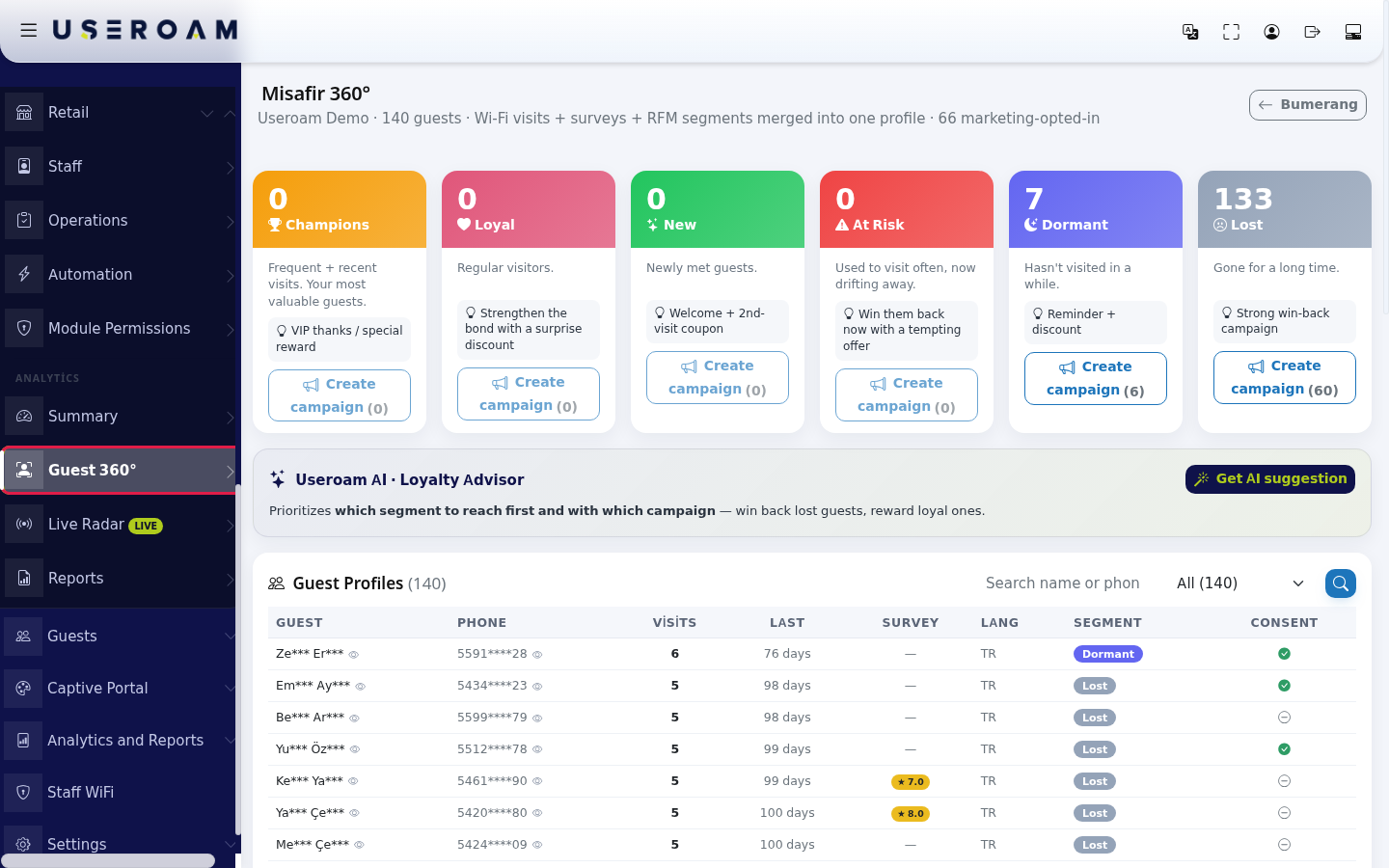
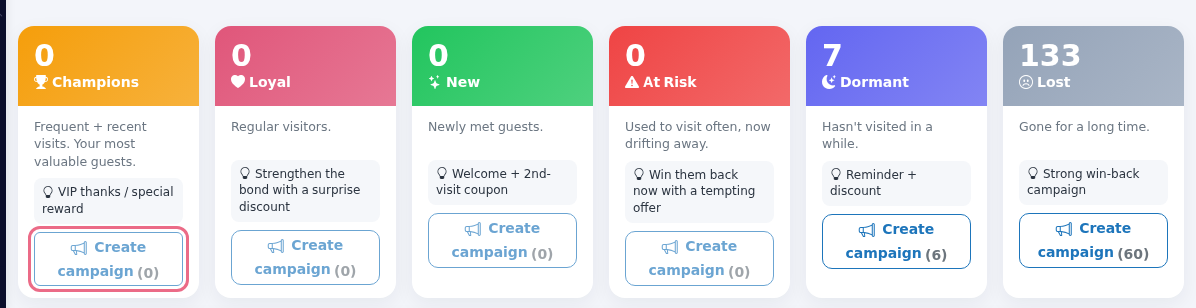
- Read the six segment cards at the top; each shows the number of guests, a short description and a suggested campaign. To set up a campaign for a group, press the card's Create campaign button (the number in brackets is the consented guests in that group; with none, the button is disabled). The button opens the New Campaign screen, where you set up the campaign.
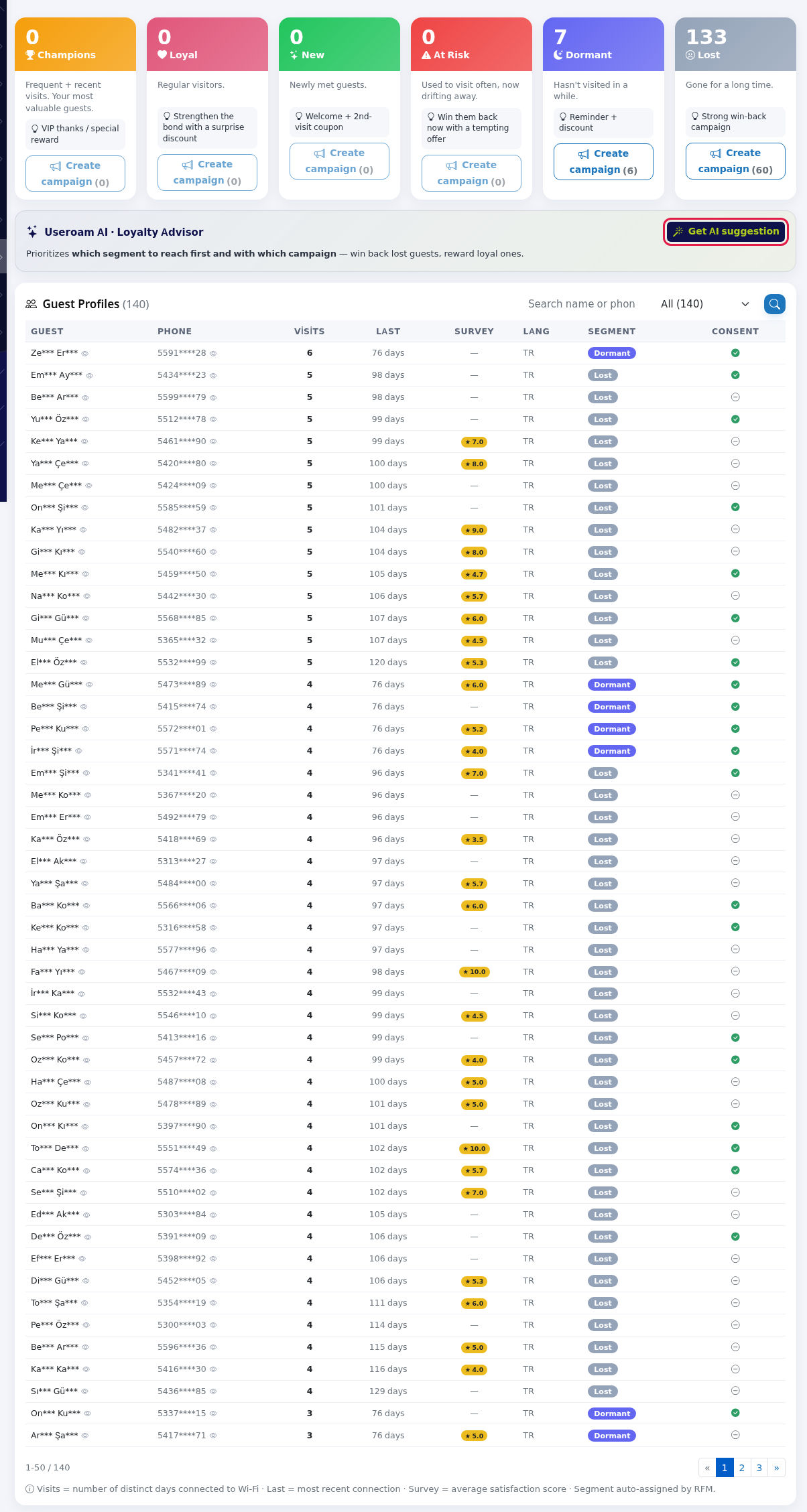
- If you do not know which group to reach first, press Get AI suggestion in the Useroam AI · Loyalty Advisor card. The AI prioritises "which segment to reach first and with which campaign" (while working it shows "Useroam AI is analyzing your guests…").
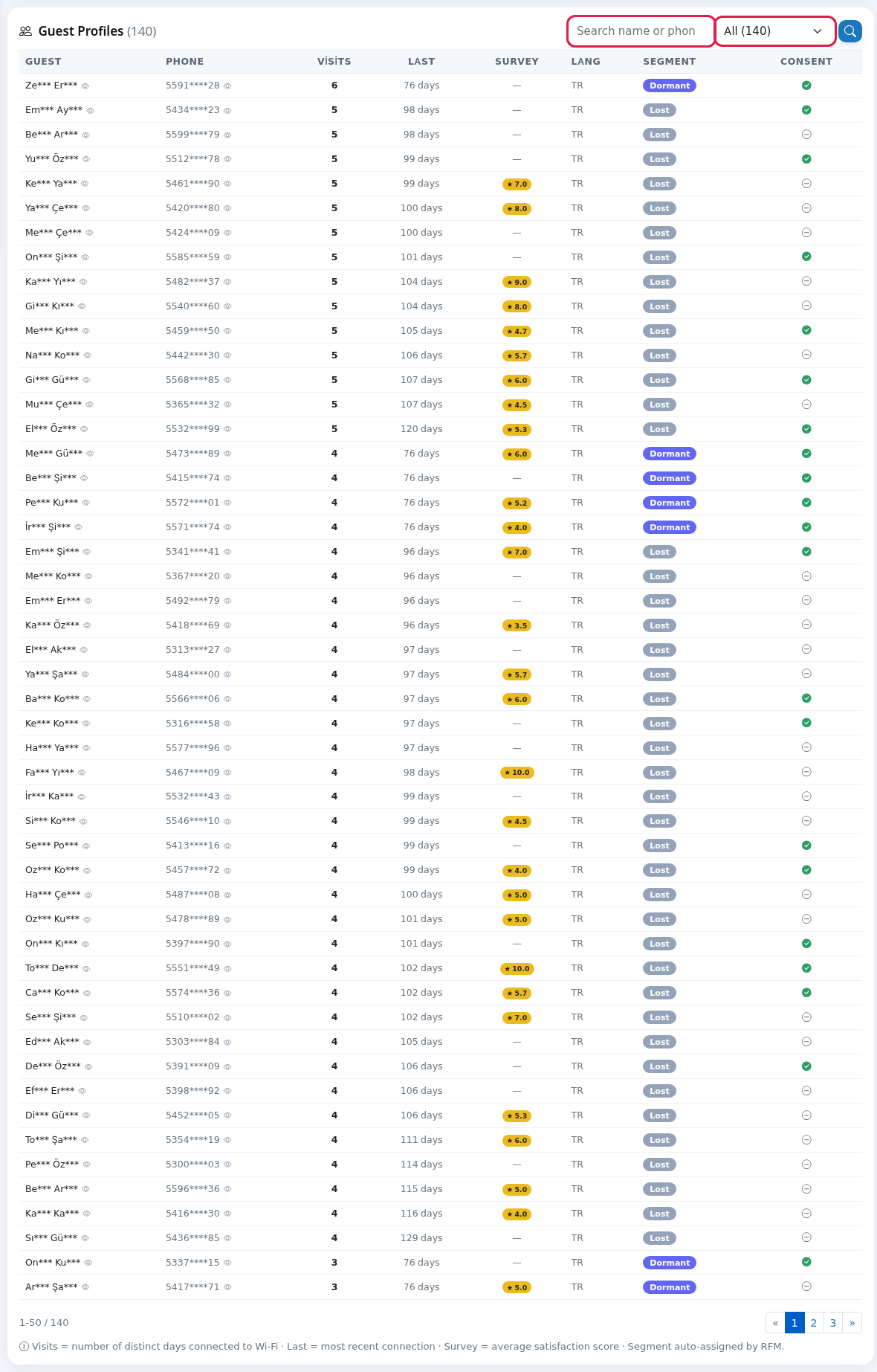
- To find a guest in the Guest Profiles list, type in Search name or phone, choose All or a segment in the segment box and press the search button. Clear resets the search. The list shows 50 guests per page.
Segments
| Segment | Who? | Suggested |
|---|---|---|
| Champions | Frequent + recent visits. Your most valuable guests. | VIP thanks / special reward |
| Loyal | Regular visitors. | Strengthen the bond with a surprise discount |
| New | Newly met guests. | Welcome + 2nd-visit coupon |
| At Risk | Used to visit often, now drifting away. | Win them back now with a tempting offer |
| Dormant | Hasn't visited in a while. | Reminder + discount |
| Lost | Gone for a long time. | Strong win-back campaign |
List columns and messages
| Item | Meaning |
|---|---|
| Guest / Phone | Name and phone (masked under KVKK). The eye icon shows the full value if you have permission. |
| Visits | Number of distinct days connected to Wi-Fi. |
| Last | Days since the last connection ("… days"). |
| Survey | Average satisfaction score (star badge). Empty (a dash) with no survey. |
| Lang / Segment / Consent | The guest's language, segment badge and marketing consent (green tick: consented). |
| Bottom note | "Visits = number of distinct days connected to Wi-Fi · Last = most recent connection · Survey = average satisfaction score · Segment is automatic based on RFM." |
| "No guest matches this filter." | Reset the search with Clear. |
| "No registered guests yet. Profiles build automatically as guests connect to the Wi-Fi and register." | Just wait. |
| AI messages | "No guest data yet. Suggestions will appear as guests connect to the Wi-Fi.", "Useroam AI is currently unavailable, please try again shortly.", "Currently unavailable.", "Connection issue, please try again.": try again in a few minutes. |
Frequently asked questions
Does Create campaign send to that segment?
No. The button opens the New Campaign screen. Pick the recipe that fits the segment's suggestion (for example We Missed You for Dormant) and set up the campaign.
Are my own staff in the list?
Phone numbers on the Excluded Users list are not included.