
Live Radar
What is it for?
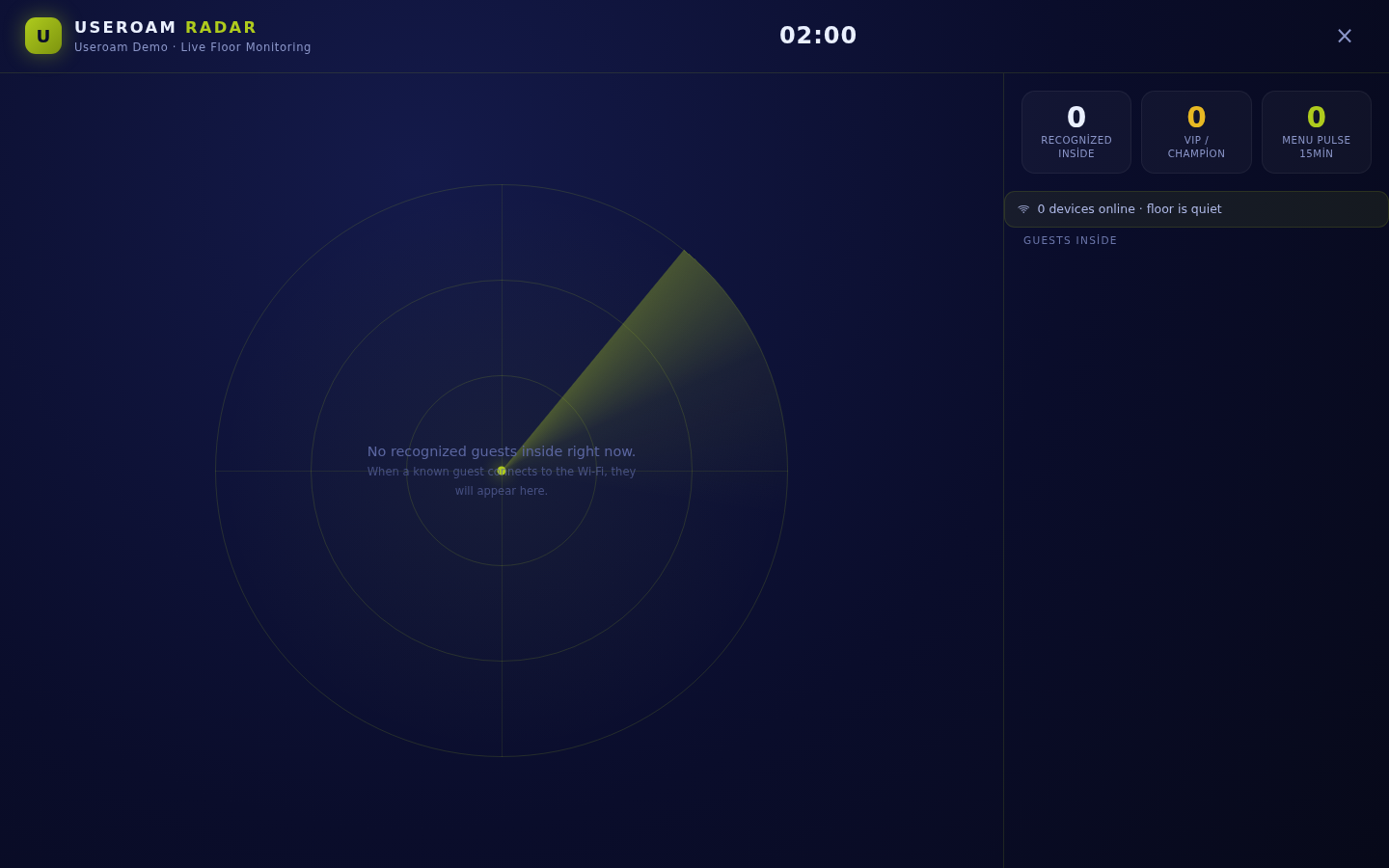
Live Radar (Useroam RadarRadar, "Live Floor Monitoring") is a full-screen monitoring board showingthat shows, live, the recognised guests currentlywho are in your venue, live.right Anow and have been before. When a known guest appears on screen the moment they connectconnects to Wi-Fi —they appear on screen, so staff instantly see whoat once that a VIP or a long-absent guest has arrived.
When do you use it?
- To keep open on a screen at the front desk or till.
- When you want to give special attention to a loyal or drifting guest when they arrive.
- When you want to see how busy the floor is and how much the menu is being viewed.
Step by step
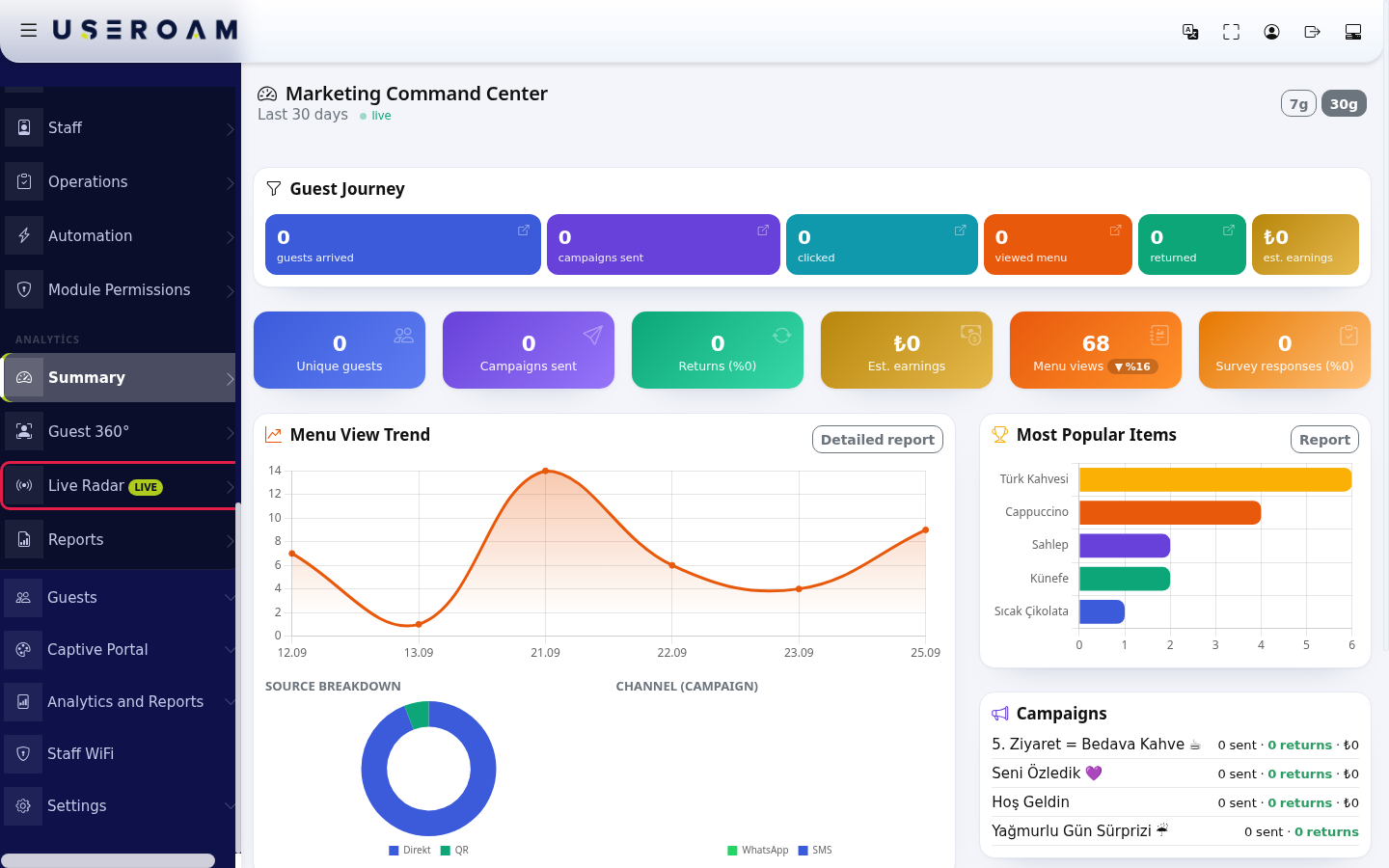
- In the left menu, under the ANALYTICS heading, click Live Radar (with the LIVE badge).
- The radar opens full screen. Recognised guests inside appear as dots on the radar in the middle; on the right are three numbers: Recognized Inside, VIP / Champion and Menu Pulse 15min (menu opens in the last 15 minutes). The strip below shows "… devices online" and the floor status ("floor is quiet" when nothing is happening, otherwise "… menu views (15min)"). The Guests Inside list shows each guest's name, segment, visit number, last visit and minutes inside. The clock is at the top; the Close (cross) button at the top right closes the screen.
Information on the screen
Item Meaning Segment badges Champion, Loyal, New, At Risk, Dormant, Lost (see Guest 360°). Visit information "… . visit", Last visit: "today" or "… days ago"; for a first-time guest "First visit". "… min inside" shows how long the guest has been connected. Consent "📣 marketing opt-in" or "no consent": whether campaigns can be sent to the guest. Guest without a name Shown as "Guest"; phone numbers are masked. Empty screen "No recognized guests inside right now." and "When a known guest connects to the Wi-Fi, they will appear here." Frequently asked questions
The screen is always empty.
Radar only shows guests who registered before (recognised). A first-time guest joins the list once registration is complete. If no recognised guest is inside, the screen stays empty.Do my staff appear on the radar?
Phone numbers on the Excluded Users list are not shown.How do I
openclosethisthe screen?From
Press theleftcrossmenu,(Close)go toBumerang → ANALYTICS → Live Radar. TheLIVElabel inat themenutopmarks it as a real-time screen.right.
Related
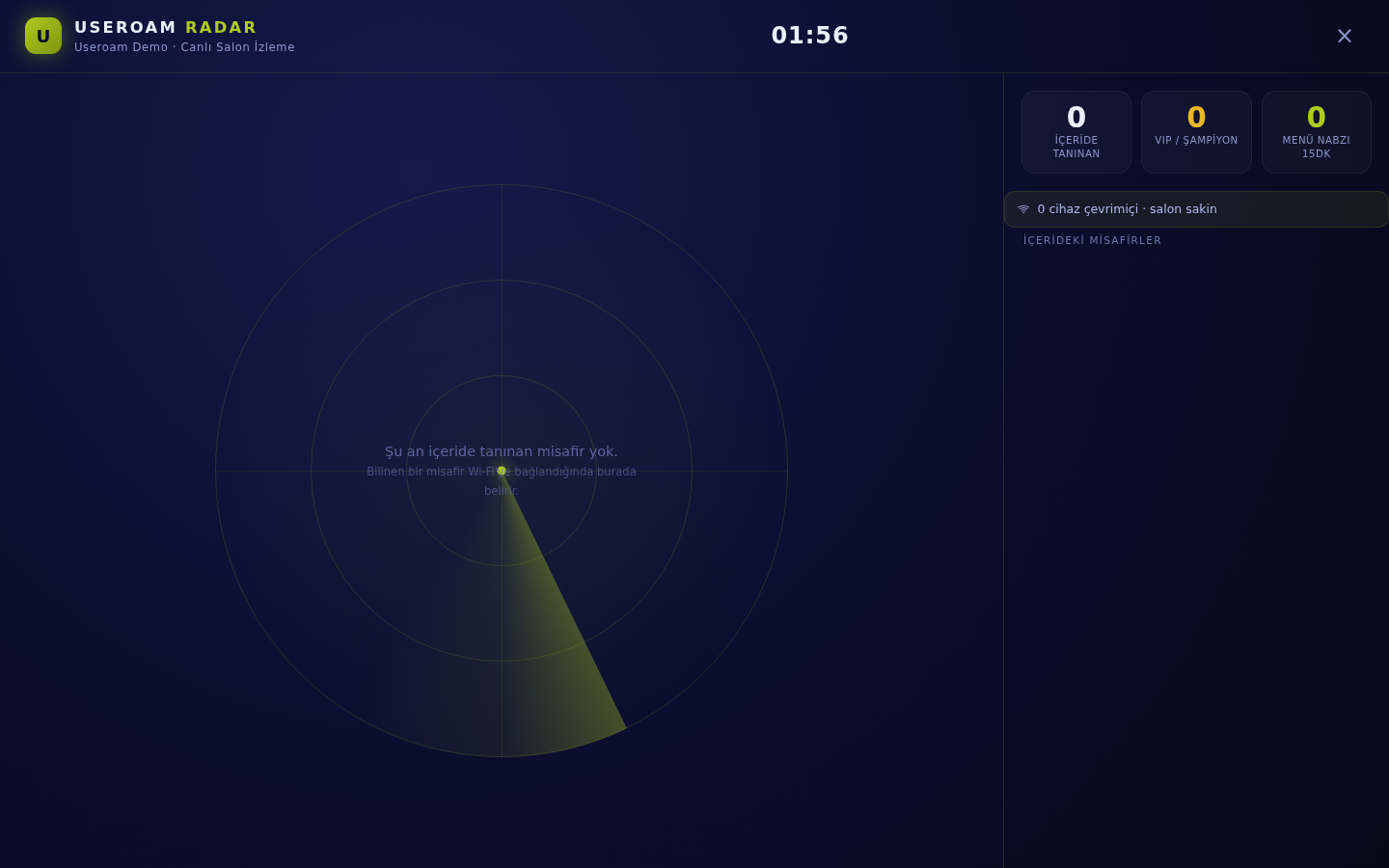
The top bar shows your business name, the "Live Venue Monitoring" heading and the current time.
The figurespages
RECOGNISEDGuestINSIDE:how many registered guests are currently in the venue.360°VIP / CHAMPION:how many of those are in your most valuable segment.If this is above 0, a guest worth attending to is on the floor.MENU PULSE 15MIN:how many times the menu was opened in the last 15 minutes — an early signal of order volume.Device status:how many devices are connected and how busy the venue is overall (for example"0 devices online · venue quiet").Summary
GUESTS INSIDE
Recognised guests are listed as cards in this section. When nobody is in, the screen reads:
"No recognised guests inside right now. A known guest will appear here as soon as they connect to Wi-Fi."
How to use it
As a floor/service screen:keep it open on a monitor in the staff area. When the VIP / Champion counter rises, the service team can give special attention.Kitchen planning from the menu pulse:a fast-rising menu pulse means a wave of orders is coming.If many guests are unrecognised:your portal registration rate is low. Review theCaptive Portalsettings and the number of form fields.
Note:Radar only showsregistered (recognised)guests. For the total number of connected devices, seeGuests → Active Guests.
Related pages:Bumerang → Guest 360°(segments),Guests → Active Guests,Restaurant Solution → Online Menu.