
Staff
What is it for?
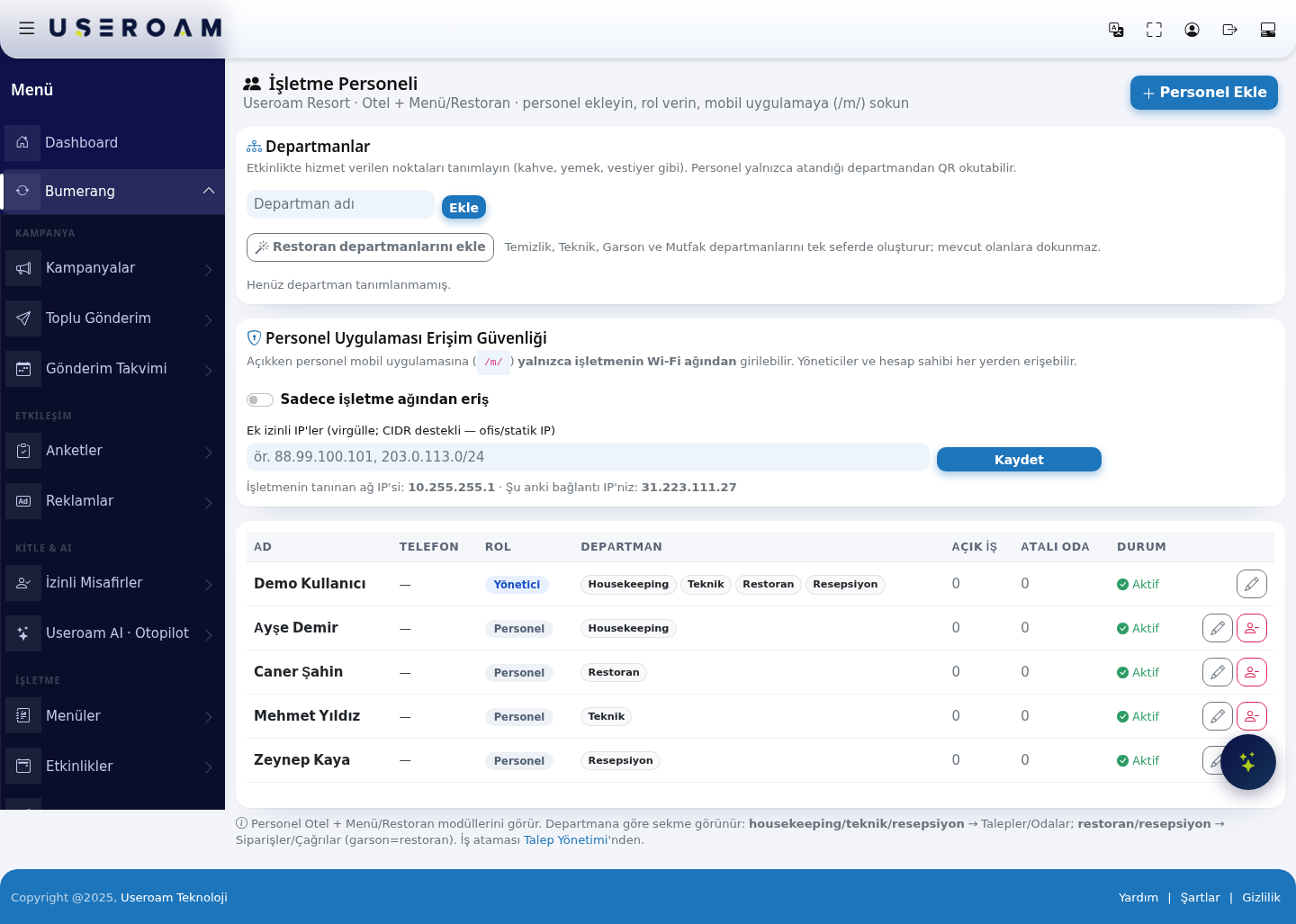
The Business Staff managesscreen is where you manage your team on the teamfloor working(housekeeping, waiters, technical, front desk). You add staff members and choose their department and role; the person then sees requests, tasks and orders in your hotel and restaurant operation:the addUseroam staff,Go assign roles and give them access to the mobilestaff app (/m/).on Requesttheir assignment and departmental permissions are set from this screen.
How do I open this screen?From the left menu, go toBumerang → Staff.
When 1.do Departmentsyou use it?
Define the service points used at an event (coffee, food, cloakroom and so on). Staff can only scan QR codes for the department they are assigned to — the department is the permission boundary.
TypeWhen a new staff member starts or leaves.- When a staff member's area changes (for example from cleaning to the front desk).
- During the first setup, to create departments and decide what each department sees in the app.
- When you want the staff app to open only from the venue Wi-Fi.
Before you start
- The venue must have a
departmentHotel or QR Menu / Restaurant profile. Otherwise the screen says "This device has no hotel or menu profile. First create a Hotel Portal or a Digital Menu." and the Add Staff button stays disabled. - To make changes you must be the account owner or a venue manager. Otherwise you see "You can view this page, but changes require an account administrator or a venue manager."
Step by step: add your first staff member
- In the left menu, under the BUSINESS heading, click Staff.
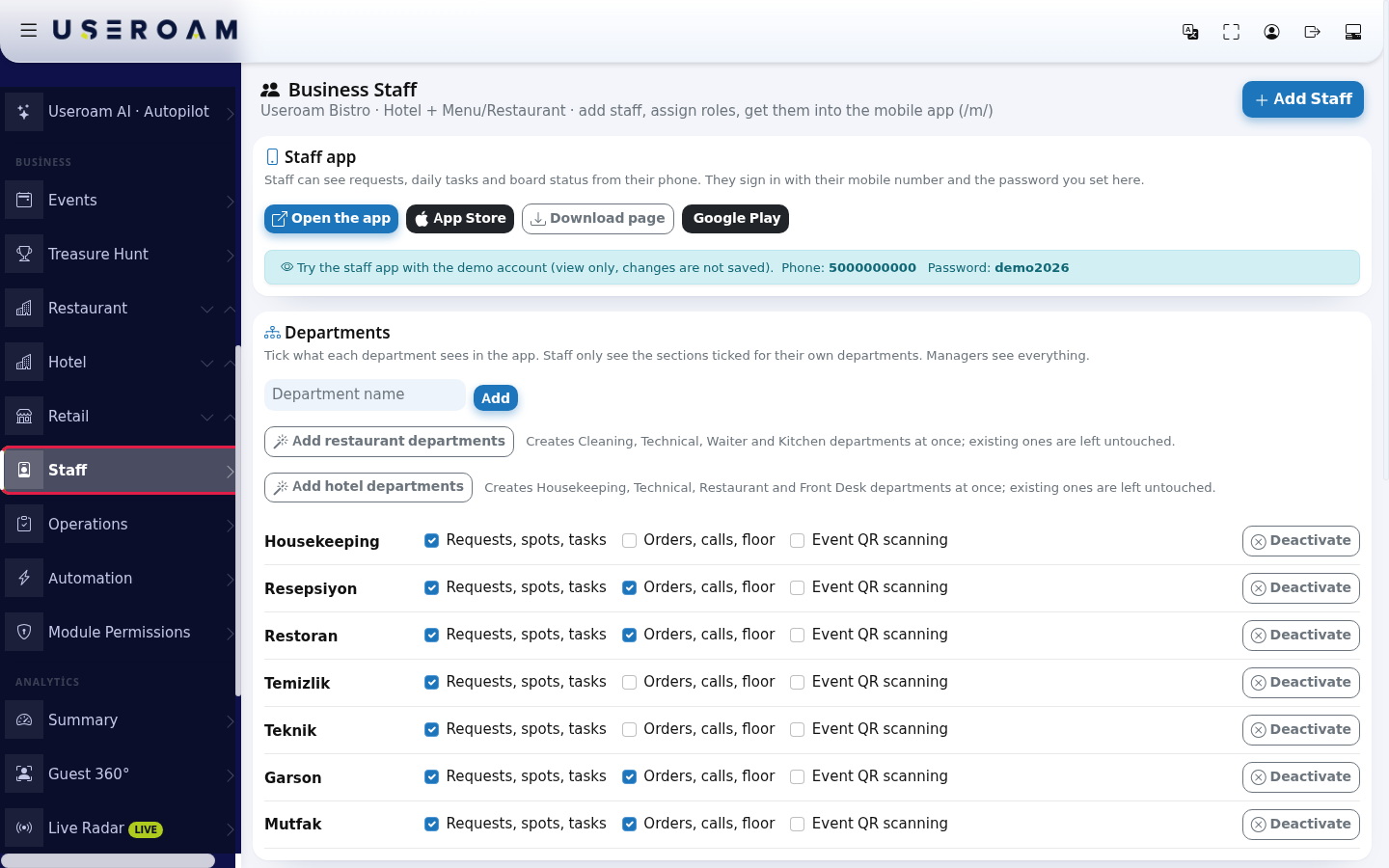
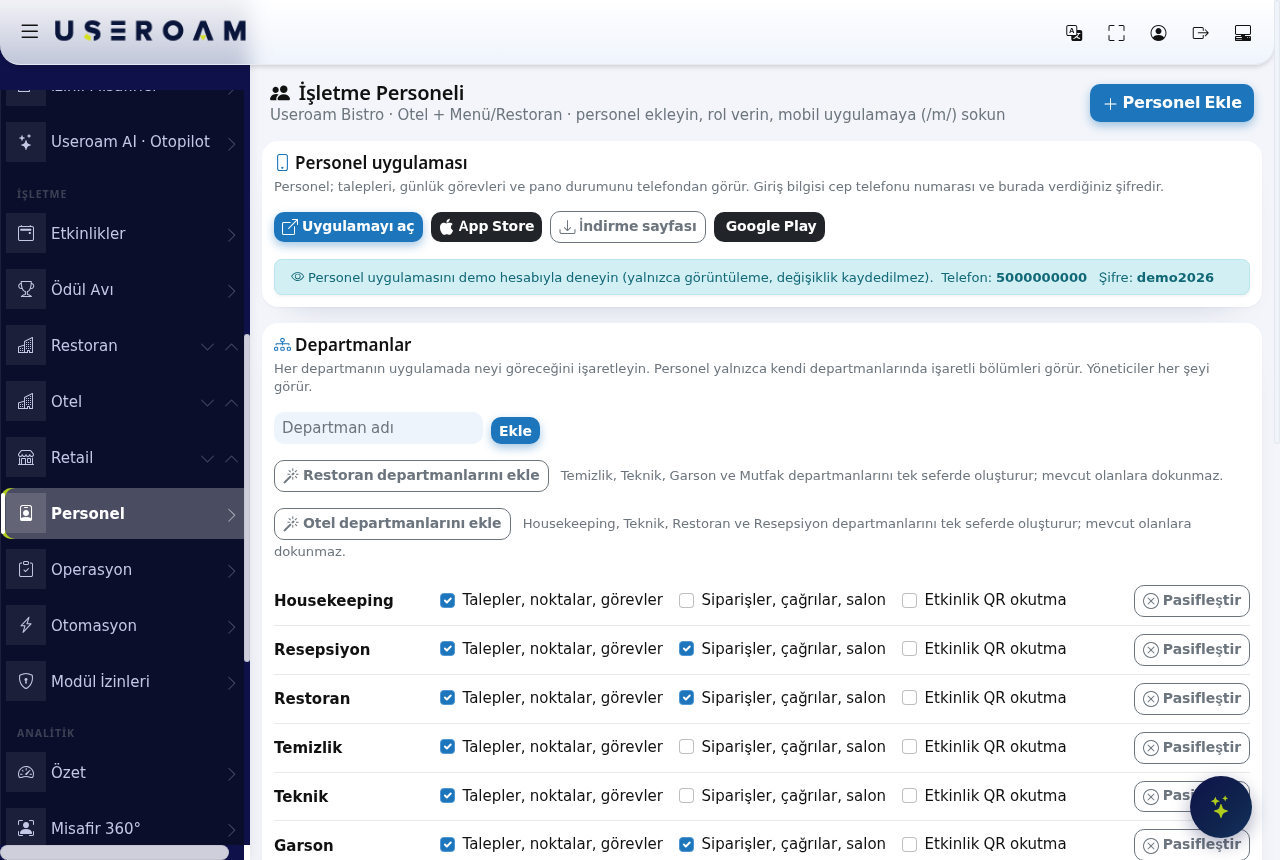
- Create your departments in the Departments card. To add one at a time, type a name in Department name (example:
Bar) and press Add. - For a ready list, press Add restaurant
departments:departmentscreates(Cleaning, Technical,WaiterWaiter, Kitchen) or Add hotel departments (Housekeeping, Technical, Restaurant, Front Desk); existing departments are left untouched.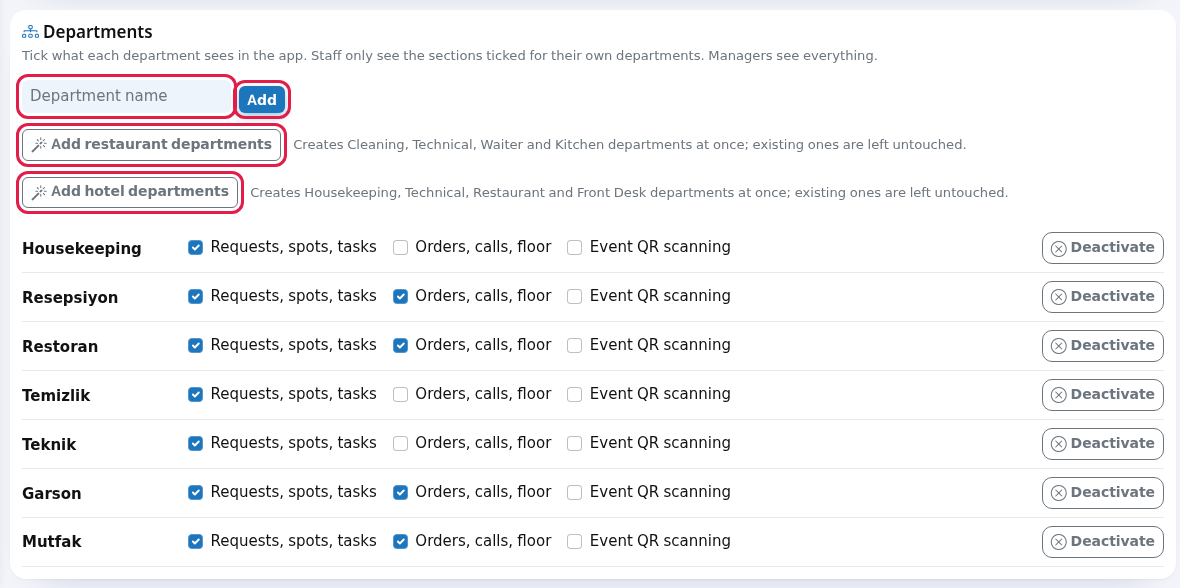
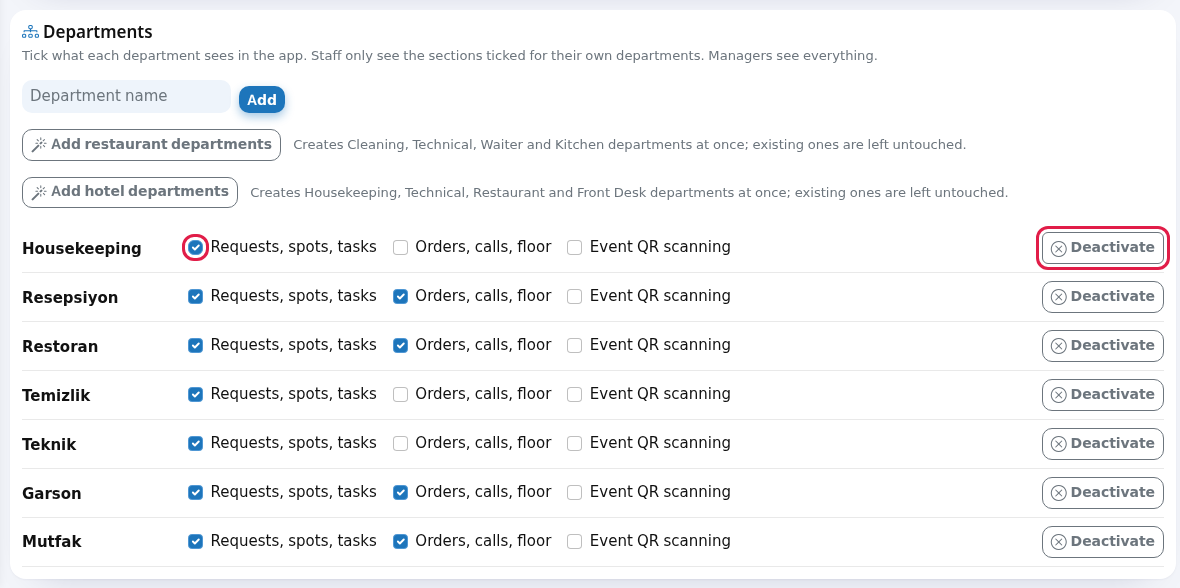
- On each department row, tick what appears in the app: Requests, spots, tasks, Orders, calls, floor, Event QR scanning. The change is saved as soon as you tick a box ("Department app access saved."). Close a department you no longer use with Deactivate; bring it back with Reactivate.
- Press Add Staff at the top right.

- Fill in the New Staff Member window: Name (required), Last Name, Mobile phone (login ID) (example:
5321234567), Role andKitchenat least one Department(s) box. Under How should the password be delivered? keep Send by SMS (recommended). Then press Add.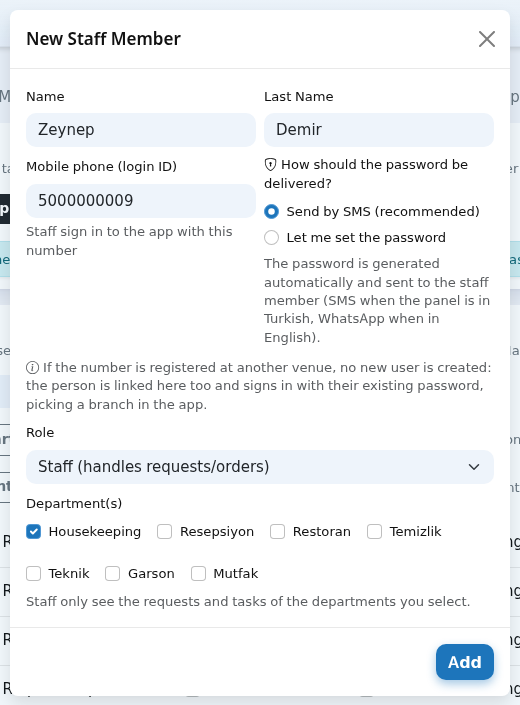
- If an SMS will not reach the person (for example a foreign number), choose Let me set the password and type a password of at least 6 characters in
onethego,boxleavingbelow.existingNoonesmessageuntouched.is sent in this case; you give the password to the person.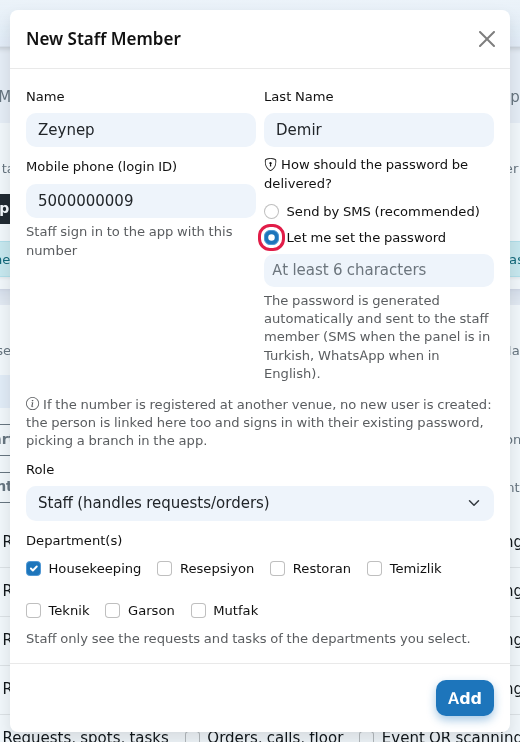
- The
Withstaffnonememberdefined,appears in the list. Ask them to install the app: share the App Store, Google Play or Download page links in the Staff app card. To open itreadsin a browser, use Open the app.
Step by step: edit or remove a staff member
- In the staff table, press the pencil icon on the person's row.
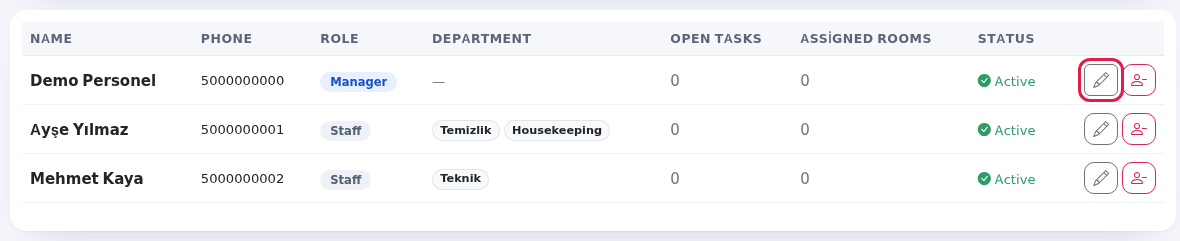
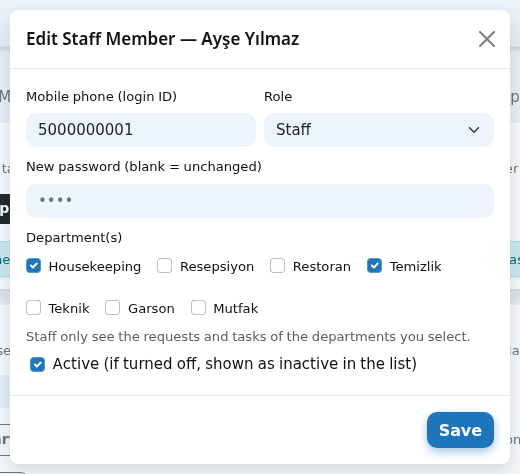
- In the Edit Staff Member window, change the phone, Role or departments. To change the password, type it in New password (blank = unchanged) (at least 6 characters). To pause the person, untick Active; they show as Inactive in the list. Press Save.
- To remove the person completely, press the red Remove staff member icon on the row and confirm "
NoRemovedepartmentsthisdefinedstaffyet.member from the venue? Their mobile app access will be revoked."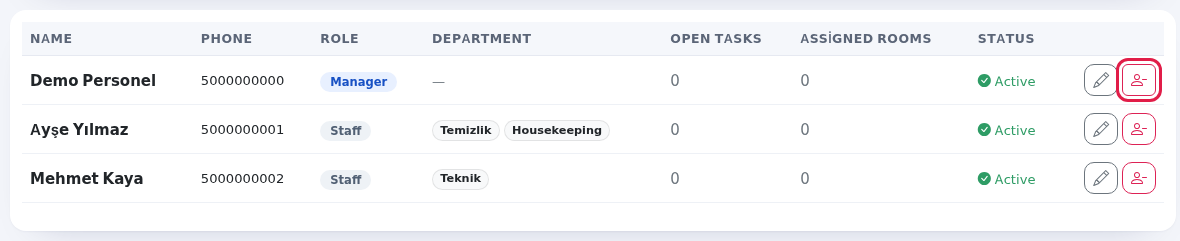
2.Step by step: app settings
- In the Staff-created requests card, switch on Staff can open requests from the app and press Save. When on, staff open requests like "fault in room 305" themselves; the request goes to the right department. When off, only managers open requests.

- In the Staff App Access Security
- card,
- if you switch on
AccessAllow access only from the businessnetwork:network,whenstaffon,can only sign in to thestaff mobileapp(/m/) canonly be openedfrom thebusiness's ownvenue Wi-Fi.Fi. Managers and the account owner canaccesssignitin from anywhere. AdditionalIfallowedyouIPs:alsoawantcomma-separated list with CIDR support (for youran office or staticIPs)IP to work, type the IPs separated by commas in Extra allowed IPs (example:88.99.100.101, 203.0.113.0/24) and press Save.
The bottom of the
screencard shows thebusiness'sRecognizedrecognisedbusiness network IP andyourYour current connection IP.—
- if you switch on
Fields canand checkcolumns on the rightscreen
| Field | What it does |
|---|---|
| Subtitle | Shows the
|
| Demo info strip | Only on the demo venue: "Try the staff |
| Role | Staff
|
| Department(s) | Staff only see the
you |
| Number used at several venues | "If the number is registered at another venue, no new user is created: the person is linked here too and signs in with their existing password, picking a branch in the app." |
| Table columns. The role badge is Manager or Staff; departments show as badges. | |
| Open Tasks | Shown when the hotel module is set up: open requests on the person and rooms assigned to them. Use it to balance the workload. |
| Status | Active or Inactive. |
| Below the table | A summary of the modules staff see and the
|
| "No staff yet. Add one from the top right." | Shown when the list is empty. |
Messages you may see
| Message | What to do |
|---|---|
| "Staff | Nothing; the person signs in with the password they received. |
| "Password set manually, no message sent. Password: …" | Give the password to the person yourself. |
| "Password COULD NOT BE SENT. Temporary password: … (hand it over manually)." | The message did not go out; give the temporary password on screen to the person. |
| "Existing staff member also added to this | The person also works at another of your venues; they use their old password. |
| "Enter a valid mobile number: 10 digits, e.g. 5321234567" | Type the number as 10 digits (example: 5321234567). |
| "This number is already a staff member of this venue." / "This mobile number is already registered, please use another" | Look for that number in the list, or use another number. |
| "New password must be at least 6 characters." | Type a password of at least 6 characters. |
| "Staff member updated." / "Staff member not found." | Saved / the person was removed in the meantime; refresh the page. |
| "You cannot remove yourself from the staff list." | Another manager can remove your own account. |
| "Staff member removed and the user account was deleted." / "Staff member removed from the venue and access revoked. The user account was kept so their name still shows on past records." / "Staff member removed from this venue. The user account and their access at the other venue were kept." | Removal is done. Which one you see depends on whether the person has past records or another venue. |
| "Department added." / "… departments added." / "Department name cannot be empty and must be 60 characters or less." | Result of a |
| "Department status updated." / "Department app access saved." | Deactivation or a box change was saved. |
| "Request setting saved." / "PWA access security updated." | An app setting was saved. |
| "Staff management is only for business managers and the account owner." | You do not have permission; ask the account owner. |
Frequently asked questions
5000000000My staff member did not get the SMS.
If the screen said "Password COULD NOT BE SENT", give the temporary password yourself. To change it later, edit the staff member and use demo2026New password. WithThe staff member can also get a new password with "Forgot password" in the app.
The staff member sees no tabs in the app.
The person needs at least one department, and at least one box must be ticked on that department's row.
The staff member cannot sign in from home.
Allow access only from the business network is on. This is intended; if they must sign in from home, switch it youoff canor browseadd their IP to Extra allowed IPs.
The same person works at two of my venues.
Add them at the appsecond asvenue with the same number; no new account is created and the person picks a manager;branch changesin arethe not saved.app.
Related
pagespages:Hotel
Solution- Useroam
→Go: Staff accounts and departments- Useroam Go: App screens by department
- Hotel: Request Management
,Room- Operations
Board,Retail → Request Monitor,Settings → Administrators.