
Staff Accounts and Departments
Useroam Go accounts are created in the panel. This page covers adding staff, setting up departments and what the roles mean.
How do I open this screen? Open Staff from the left menu.
1. Adding staff
- Click Add Staff.
- Enter the first name and last name.
- Enter the mobile number in Phone (e.g. 5301234567). This number is the app username.
- Choose a Role: Staff or Manager.
- Tick one or more departments under Department(s).
- (Optional) If they should also get job notifications by email, type their address in Email (optional); the Email notifications switch comes on.
- Save.
You do not type the password. It is generated automatically and sent to the staff member (SMS when the panel is in Turkish, WhatsApp when in English). Staff who forget it use Forgot password on the app's sign-in screen to get a new one by SMS.
2. Roles
- Staff: sees only jobs for their own departments and the points they are responsible for.
- Manager: sees everything; assigns jobs, sends reminders (Nudge), adds and edits tasks.
3. Departments and what the app shows
- In the Departments section, type a department name and click Add.
- Next to each department, tick what it sees in the app:
- Requests, spots, tasks
- Orders, calls, floor
- Event QR scanning
- Changes save as soon as you tick a box.
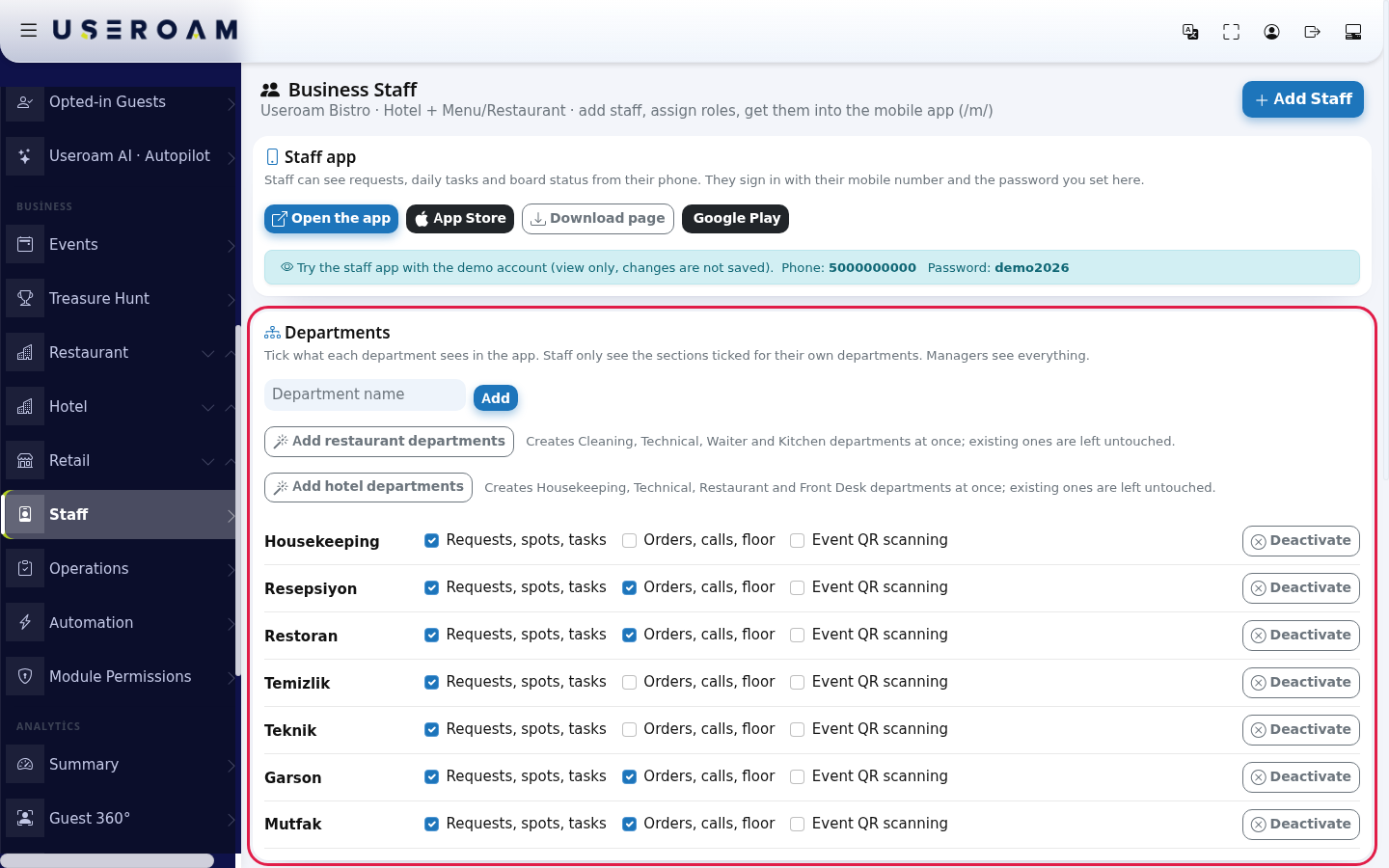
Staff only see the sections ticked for their own departments. Staff without a department only see the Profile tab, with the warning "No work area has been given to you yet".
Shortcuts: Add restaurant departments (Cleaning, Technical, Waiter, Kitchen) and Add hotel departments (Housekeeping, Technical, Restaurant, Front Desk). They leave existing departments untouched. Switch off a department you do not use with Deactivate.
4. How requests reach a department
Every request type is linked to a department. When a request is opened it goes to that department's staff (in a restaurant it is assigned automatically to the least busy person). Points and rooms can also have an owner (a person or a department); you set this on the Operations screen.
5. Staff-created requests
When Staff can open requests from the app is on in the Staff-created requests card, staff can open requests themselves. The request goes to the right department and managers see who opened it (Opened by:). When off, only managers open requests.
6. Email notifications
A person with an email address and Email notifications on also gets emails in addition to app notifications. Manager: job assignment, overdue (SLA and daily tasks 30 minutes late), job completed, task completed and out-of-range reading. Staff: when a job is assigned to them and when a daily task assigned to them is late. Nudges and request messages send no email. Full table: the "Email notifications" section of the Staff page.
7. App links and demo
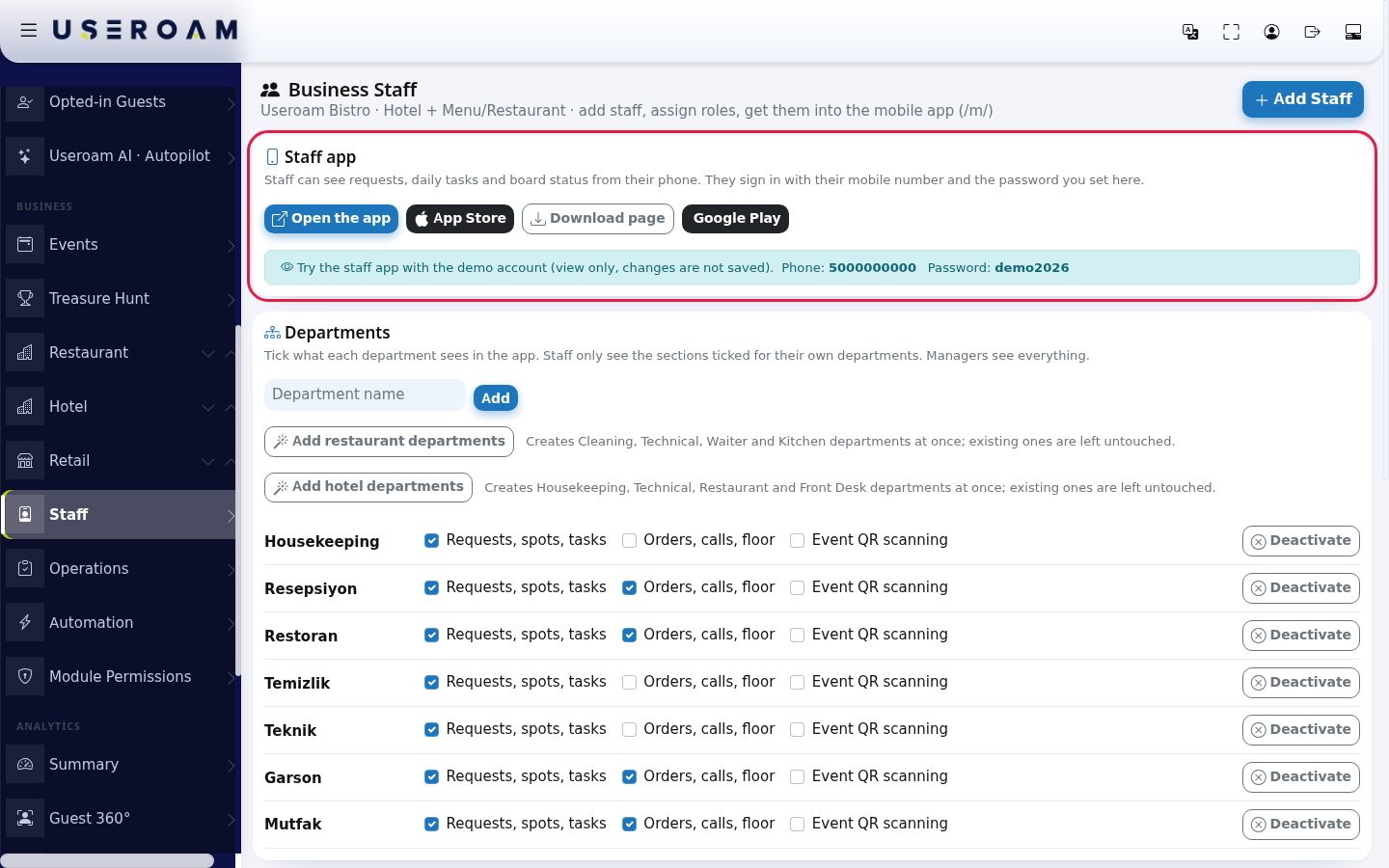
The Staff app card has these links: Open the app (web app), App Store, Google Play and a Download page you can share with staff.
On the demo account the card also shows trial credentials: phone 5000000000, password demo2026. The demo sign-in is view only; changes are not saved.
Related pages: Useroam Go → What is Useroam Go?, App Screens by Department; Staff; Operations.