
Surveys
Surveys let you send satisfaction and feedback forms to your guests. Product-rating questions also appear as star badges on your digital menu — so a survey does not only measure, it enriches your menu too.
How do I open this screen? From the left menu, go to Bumerang → ENGAGEMENT → Surveys.
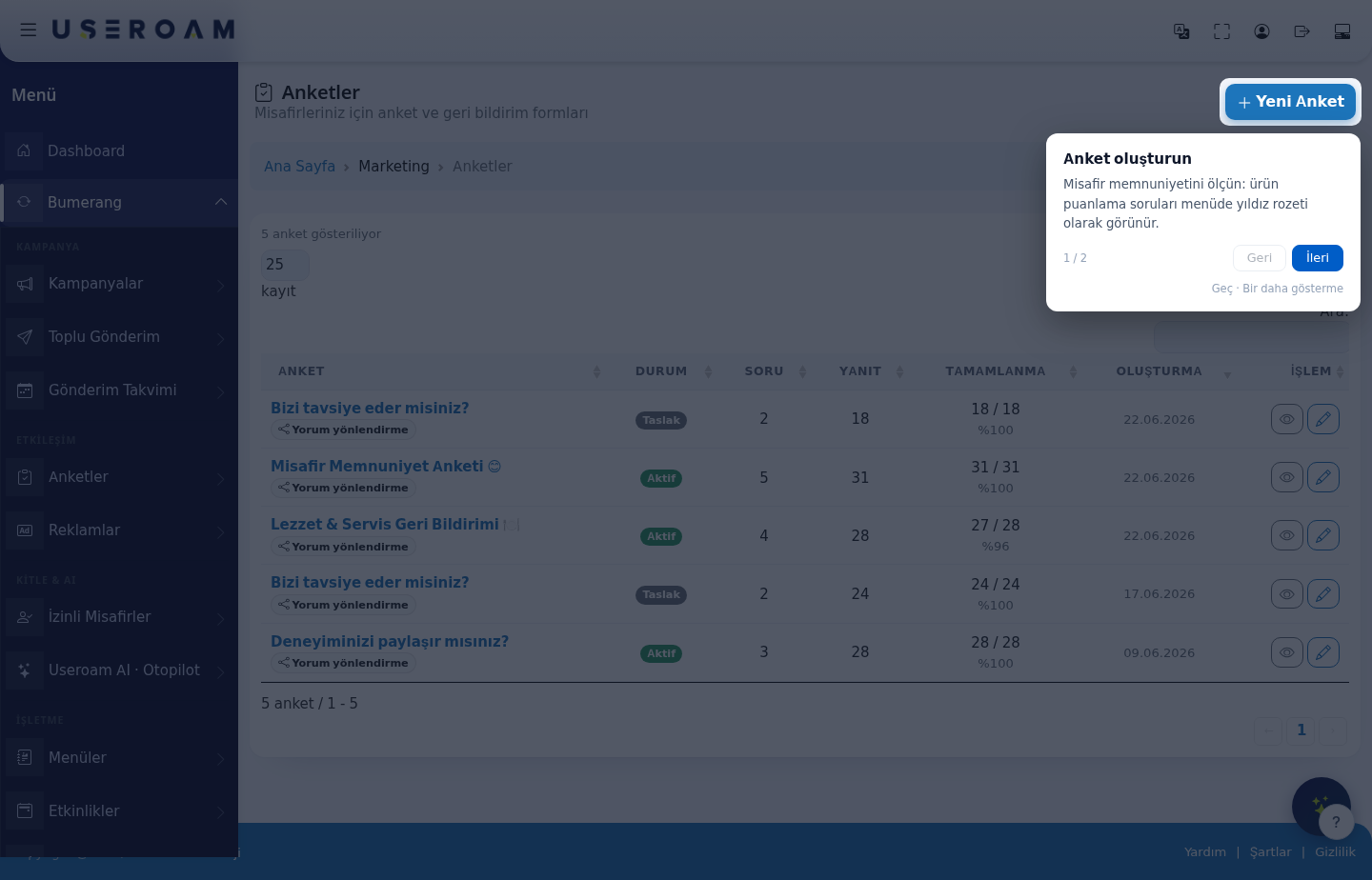
Table columns
- SURVEY: the survey's name, with its type beneath it (for example review routing).
- STATUS: Active or Draft. Only active surveys are shown to guests.
- QUESTIONS: how many questions the survey has.
- RESPONSES: the total number of responses.
- COMPLETION: how many responses were filled in to the end, and the percentage (for example 27 / 28 · 96%). A low rate means the survey is too long — reduce the number of questions.
- CREATED: when the survey was created.
- ACTION: the edit and view-results buttons.
New Survey
The New Survey button creates a survey. Give it a name and add the questions. Product-rating questions appear as star badges on the menu, so it pays to ask questions that match the product names on your menu.
Keep it short: the guest is filling this in while connecting to Wi-Fi or paying the bill. Three to five questions usually gives the highest completion rate.
Navigating the list
The 25 / 50 / 100 / All selector sets records per page and the Search box filters instantly. The total and the page arrows sit below the table.
Related pages: Bumerang → Menus (star badges), Useroam AI · Autopilot (reads survey responses and produces suggestions), Bumerang Reports.