
Surveys
What is it for?
The Surveys screen lists the satisfaction and feedback surveys you show to guests and shows their results. A survey can open on the Wi-Fi login screen, or go to the guest as a link by SMS / WhatsApp. It can send satisfied guests on to review sites such as Google. Product rating questions also appear as star badges on your digital menu.
If you are setting up a new survey, go to Creating a survey. This page covers reading the list and a survey's results, and exporting them.
When do you use it?
- When you want to follow guest satisfaction (NPS, star rating).
- When you want to read the comments guests wrote.
- When you need survey results as Excel, CSV or PDF.
Before you start
- Surveys are part of the Bumerang marketing package. Without it the screen says "Marketing Module Inactive": "A Marketing Pro license upgrade is required to use surveys, Google Review redirection and guest satisfaction measurement tools. Please contact your reseller."
Step by step: read survey results
- In the left menu, under Bumerang, open the ENGAGEMENT heading and click Surveys. The list opens: Survey, Status, Questions, Responses, Completion, Created, Actions.
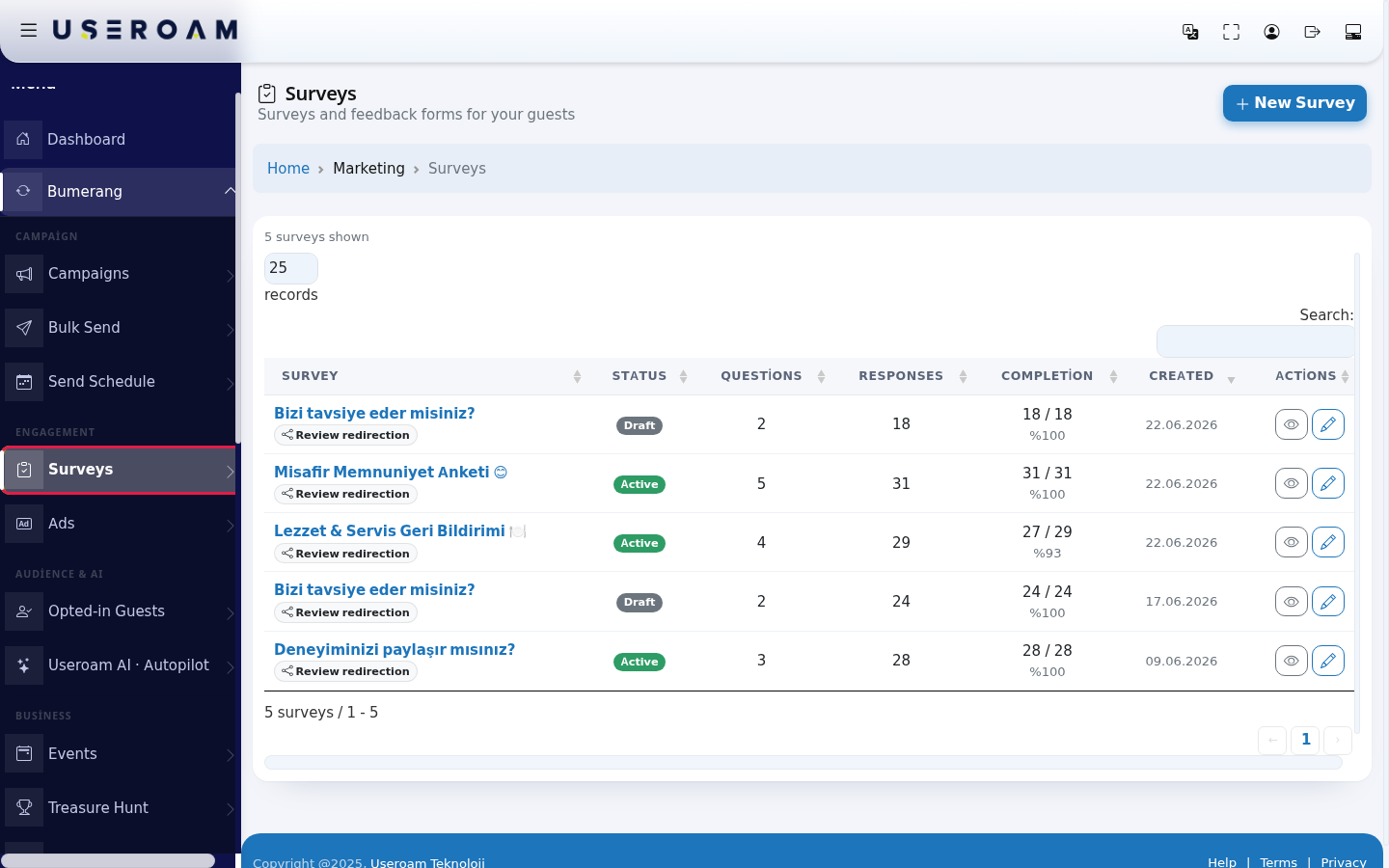
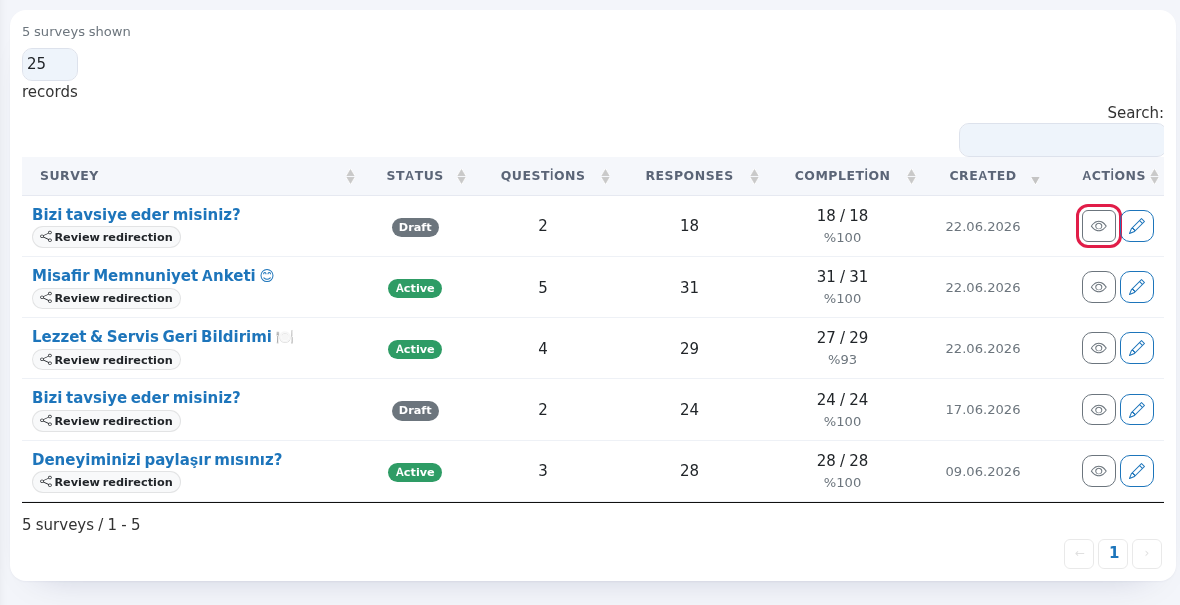
- Press the eye icon (Details) on a survey's row. The pencil icon (Edit) edits the survey. The Review redirection badge under the survey name shows that redirection to a review site is on for that survey.
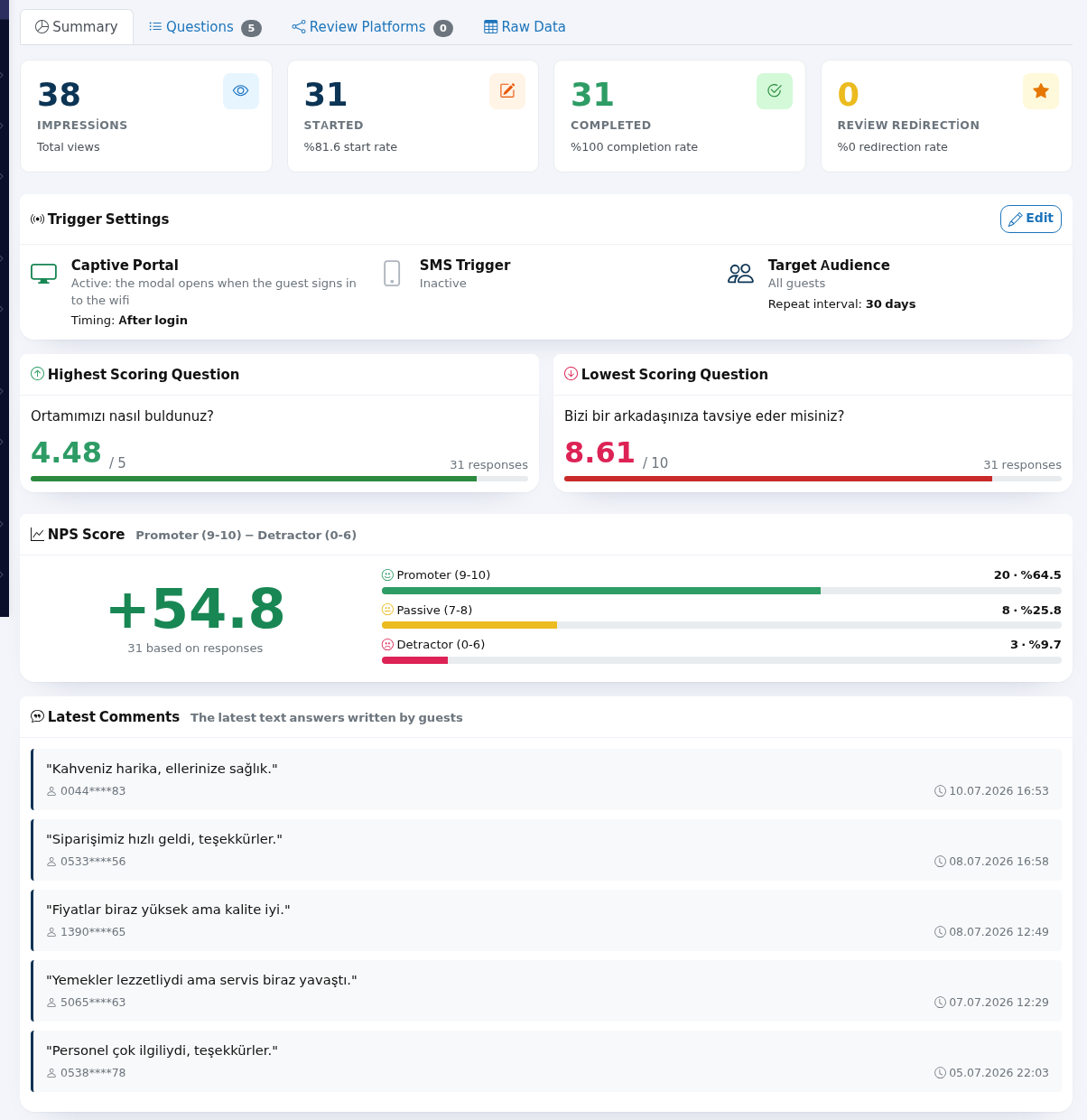
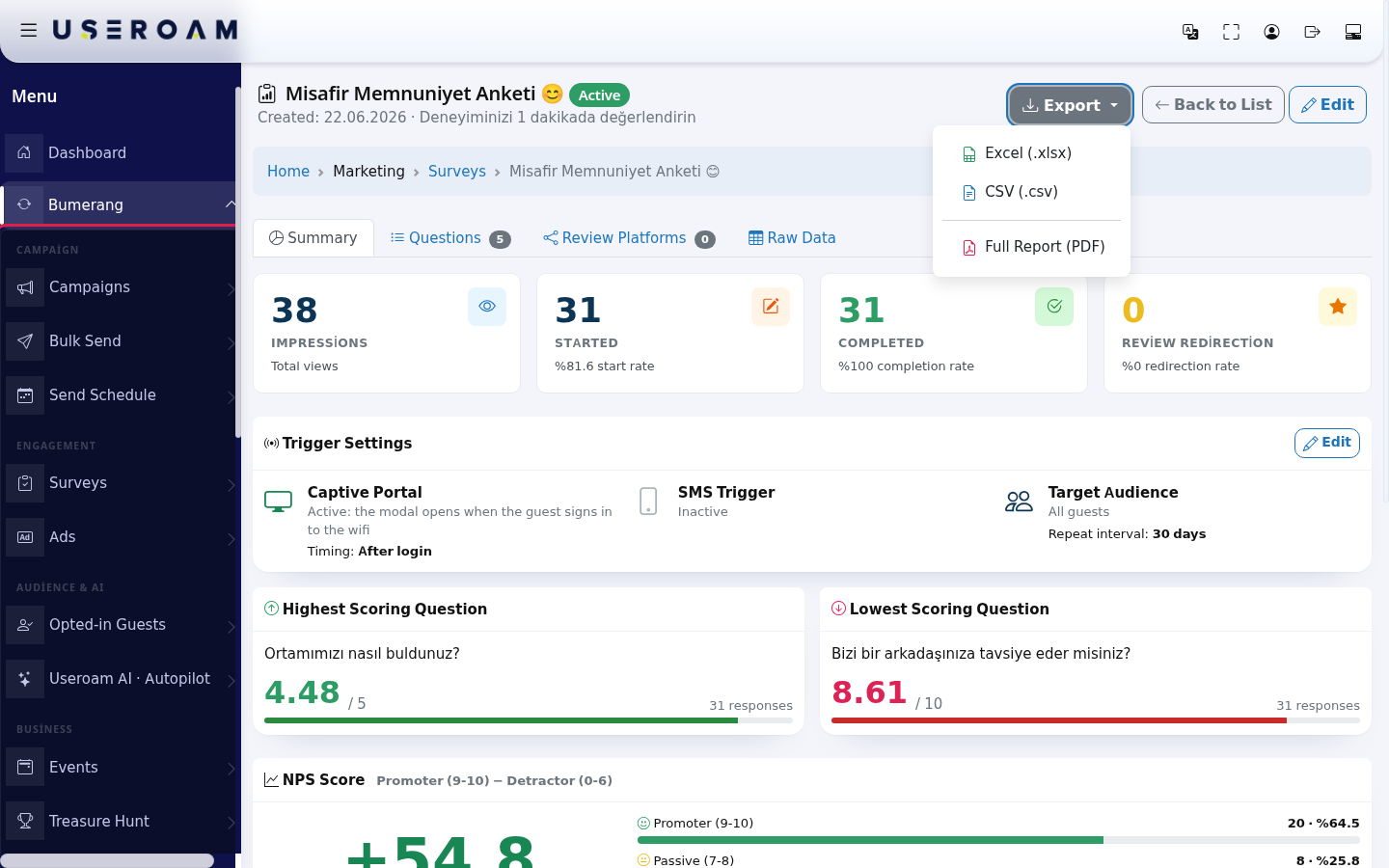
- The details screen opens on the Summary tab. At the top, four boxes: Impressions (total views), Started (start rate), Completed (completion rate), Review Redirection (redirection rate). Below: Trigger Settings, Highest Scoring Question, Lowest Scoring Question, NPS Score and Latest Comments.
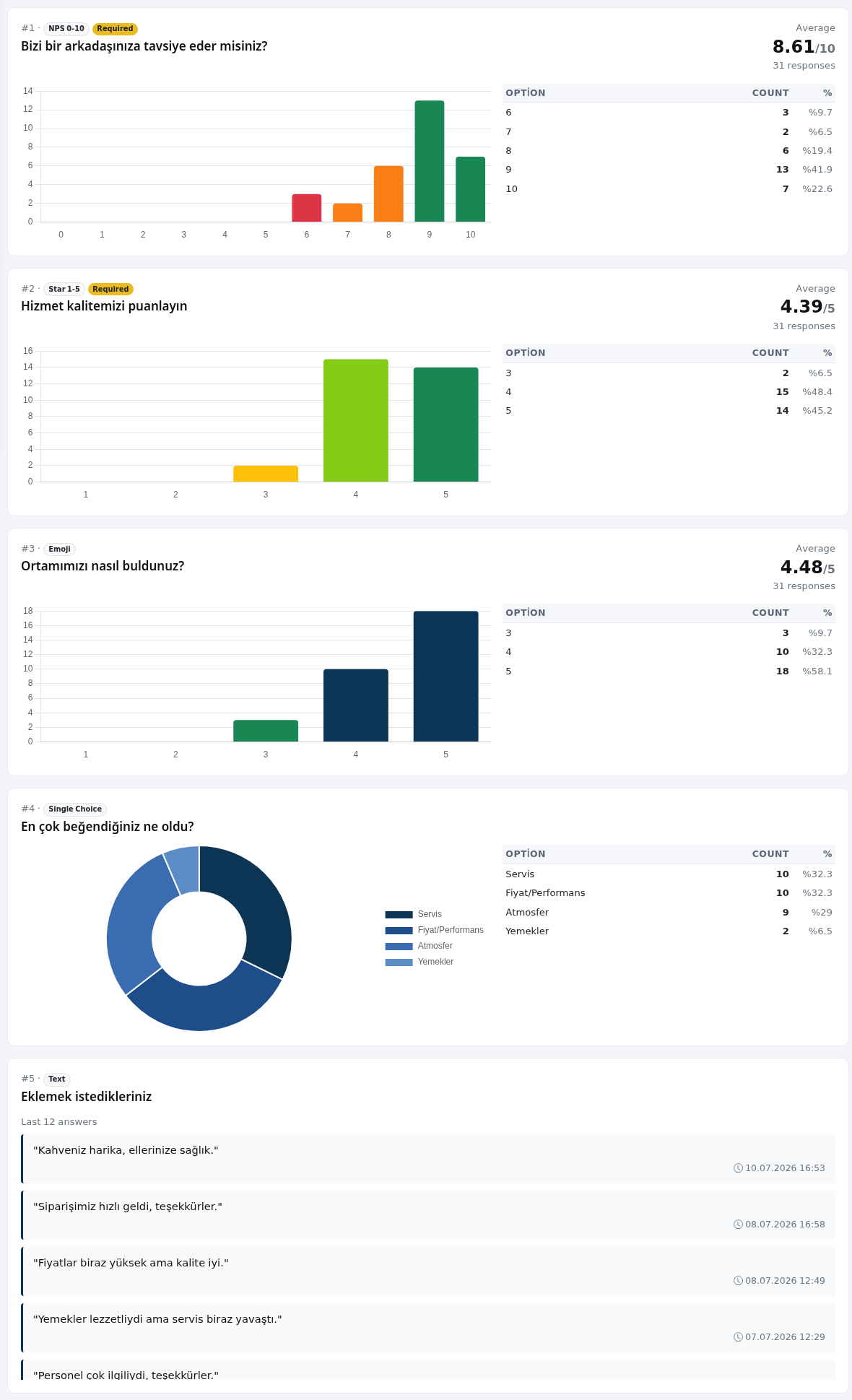
- The Questions tab has a chart for each question: Average and distribution for score questions, Option / Count for choice questions, the latest answers for text questions.
- The Review Platforms tab shows how many times satisfied guests clicked each review site (Platform Click Statistics). Press Add / Edit Platform to add one.

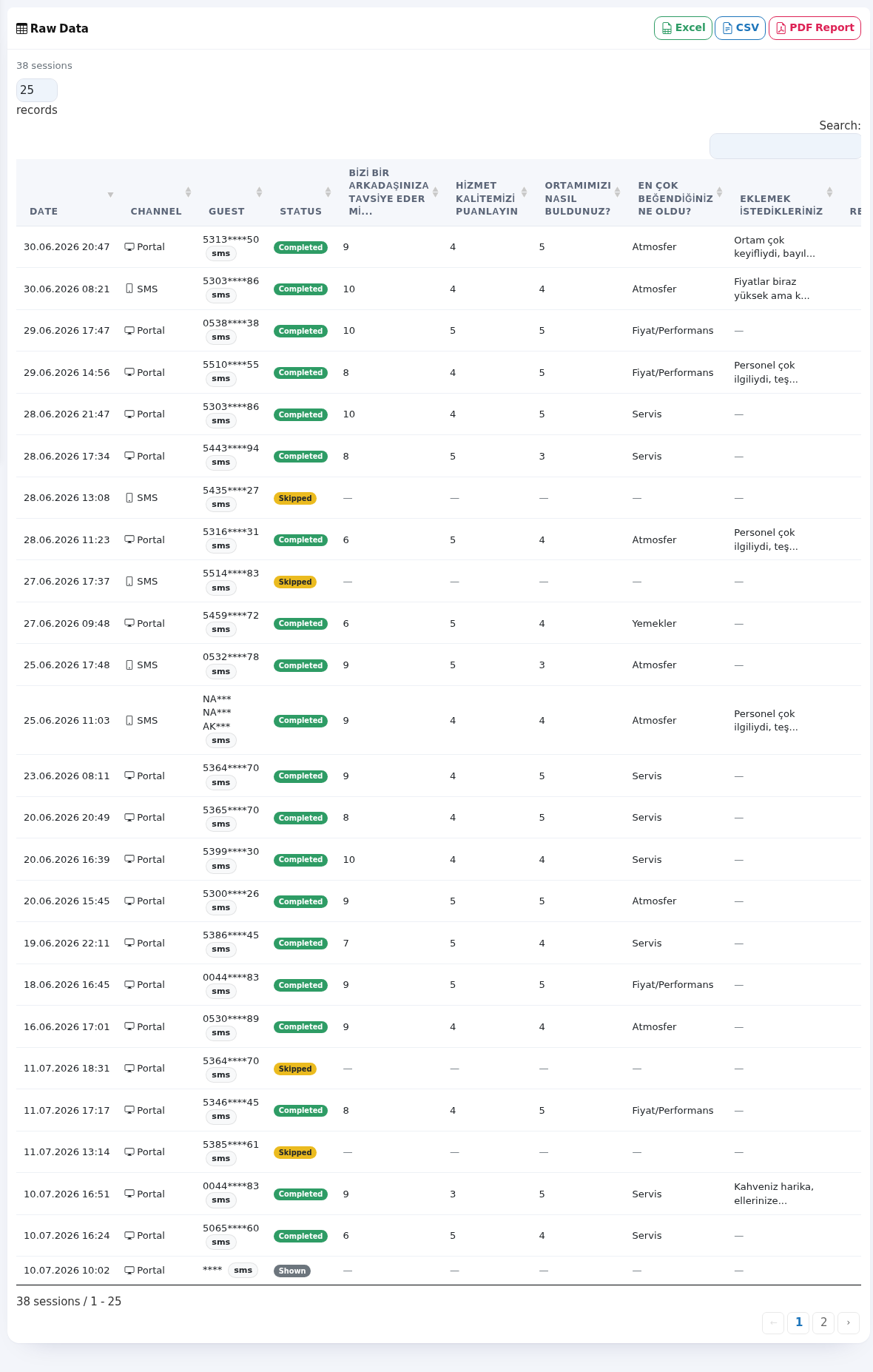
- The Raw Data tab shows each survey session on one row: Date, Channel, Guest (masked), Status, the answer to each question and Redir. (whether the guest was sent to a review site). Use the search box to filter.
- To get the results as a file, press Export at the top right: Excel, CSV or Full Report (PDF). The PDF report opens as a PDF file in a new tab; you can download or print it there.
Items on the list screen
| Item | Meaning |
|---|---|
| Status badges | Draft (not shown to guests), Active (published), Paused, Completed, Archive. |
| Title | "Surveys and feedback forms for your guests". Without the package the top says "This module is not active yet". |
| SMS timing | In the SMS trigger box on the details screen the send time is written as "… minutes later", "… hours later", "… days later", "… weeks later" or "… months later". |
| Completion | Completed / started sessions and a percentage (example: 27 / 29, %93). |
| List tools | "… surveys shown", records per page (… records, All), the Search: box, and "… surveys / 1 - 5" at the bottom. With no results: "No surveys found" or "No surveys". |
| Empty list | "No Surveys Yet": "Create your first survey to measure guest satisfaction, increase your Google Review count or improve your service." and "You can start in 1 click with ready templates: NPS, Star, Star+Comment...". Press Create My First Survey. |
| Page tour | Create a survey ("Measure guest satisfaction: product rating questions appear as star badges on the menu.") and Your surveys ("Response volume and status are here. Use the buttons in the row for details and export."). |
Items on the details screen
| Item | Meaning |
|---|---|
| Title row | Survey name, status badge, Created: date and description. On the right: Export, Back to List, Edit. |
| With no answers | "No Responses Yet": "This survey has not received any responses yet." If it is a draft: "The survey is in Draft status; set the status to "Active" to publish it."; if live: "Your survey is live. It will be shown when your guests connect to the wifi or click the SMS link." and an Edit Survey button. |
| Trigger Settings | Captive Portal: "Active: the modal opens when the guest signs in to the wifi" or Inactive; Timing: Before login / After login. SMS Trigger: "Active: automatic SMS is being sent", Sent: and clicks; the send time (Immediately (as soon as login finishes), … minutes / hours / days / weeks / months later). Target Audience: All guests, First-time visitors or Returning guests; Min. logins:, Repeat interval: … days, "Mandatory: cannot be skipped", Display/SMS time range:. Edit on the right opens the settings. |
| NPS Score | "Promoter (9-10) − Detractor (0-6)": the share of guests scoring 9-10 minus the share scoring 0-6. Below it: Promoter (9-10), Passive (7-8), Detractor (0-6) counts and "based on … responses". |
| Latest Comments | "The latest text answers written by guests", with masked phone and date. |
| Question types | Star 1-5, NPS 0-10, Emoji, Single Choice, Multiple Choice, Yes/No, Text. Required questions have a Required badge. With no answers: "This question has not been answered yet." or "Question charts cannot be shown because there are no answers yet.". Text questions show "Last … answers". |
| Platform table | Platform, Status, Clicks; the main target has a Primary badge; with no address it says "URL empty". Total redirection clicks:. With no platform: "No review platform has been added to this survey yet." and Add Platform. |
| Raw Data statuses | Shown, Started, Completed, Skipped, Expired; the Redir. column shows Yes / No or "Redirected (no platform information)". Channel: Portal, SMS. At the top: "… sessions"; the screen shows a limited number of rows ("(first … shown; download "Excel" or "CSV" for all)"). With no sessions: "No sessions yet. Once the survey is published and answers start arriving, you can see the detail of every session here." List tools: "… sessions / 1 - 25", "No records", "No sessions". Top right: Excel, CSV, PDF Report. |
PDF report (Survey Report)
Full Report (PDF) or PDF Report produces a PDF file: Report Date:, Survey Created:, General Statistics (Impressions, Started, Completed, Review Redirection), NPS Score, Question Details (for choice questions Option, Count, Distribution; for text questions "text answers (at most 50 shown)") and Review Platform Redirections (Platform, Status Active / Inactive, Clicks). The bottom says "All rights reserved". If you try to open another account's survey you see "Unauthorized access" or "Survey not found".
Frequently asked questions
My survey is never shown.
Its status may be Draft; use Edit to set it to Active (published). Check the trigger settings as well (see Creating a survey).
Many impressions, few completions.
Guests may be skipping the survey (Skipped in Raw Data). Try fewer questions.
My NPS is negative.
More guests scored 0-6 than 9-10. Look at the complaints in Latest Comments.
Why are phone numbers starred?
Guest phone numbers are masked under KVKK.
Related pages
- Creating a survey
- Bumerang Reports (Survey Results Summary)
- Sending Calendar