
Useroam AI · Autopilot
What is it for?
Useroam AI · Autopilot is an AI assistant that scans your guest data regularly and does marketing work on your behalf. It notices guests who have not come for a while and prepares a win-back campaign, promotes a menu item that gets many views, and warns you about missing event settings. Under the heading "This week I did … things for you." you see what it did, item by item.
When do you use it?
- When you have no time for campaigns and want to leave the work to automation.
- When reviewing the work Autopilot prepared that is waiting for your approval.
- When you want to stop Autopilot or change how it works (fully automatic or with approval).
Before you start
- Autopilot is off by default. When off, the screen says "Leave Bumerang to me.": "I read your guest data, spot the opportunity, and run campaigns, surveys and menus on your behalf." Press Start Autopilot to start it ("Off by default · you can stop it anytime").
- Campaigns prepared by Autopilot also go only to consented guests.
Step by step
- In the left menu, under Bumerang, open the AUDIENCE & AI heading and click Useroam AI · Autopilot. If Autopilot is on, the top shows the "Autopilot on · watching your data" badge and this week's work count ("I completed … of them automatically, … are awaiting your approval.").
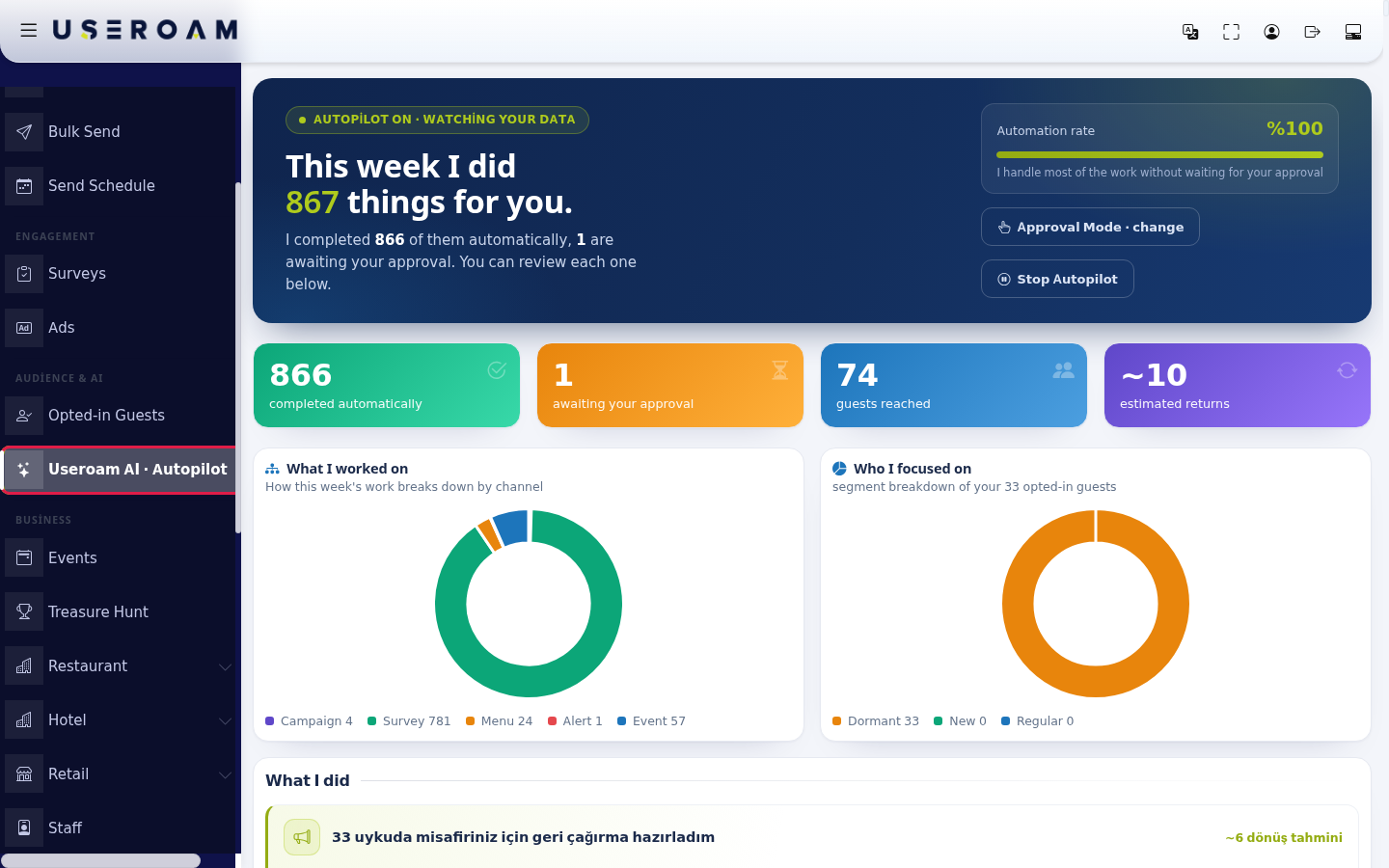
- Choose how it works at the top right. The Automation rate box shows what share of the work is done without approval. The mode button shows the current mode: Approval Mode (asks for your approval before sending) or Fully Automatic (sends without asking); press the button (change) to switch. To turn Autopilot off, press Stop Autopilot.
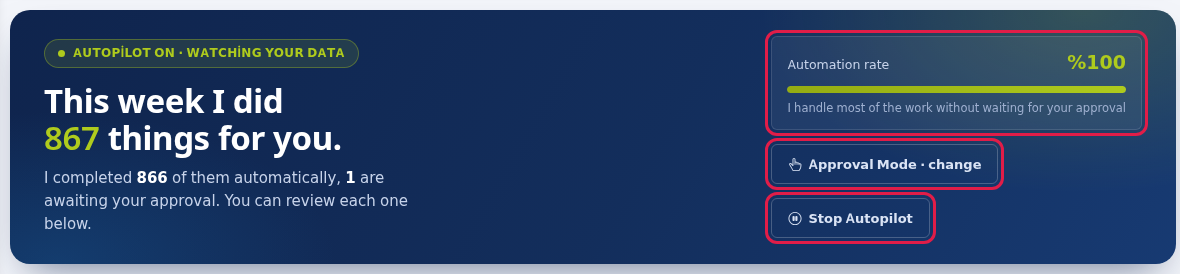
- Read the summary in the four boxes and two charts. Boxes: completed automatically, awaiting your approval, guests reached, estimated returns. The What I worked on chart shows the split of work into Campaign, Survey, Menu, Alert and Event; the Who I focused on chart shows consented guests as Dormant, New, Regular.
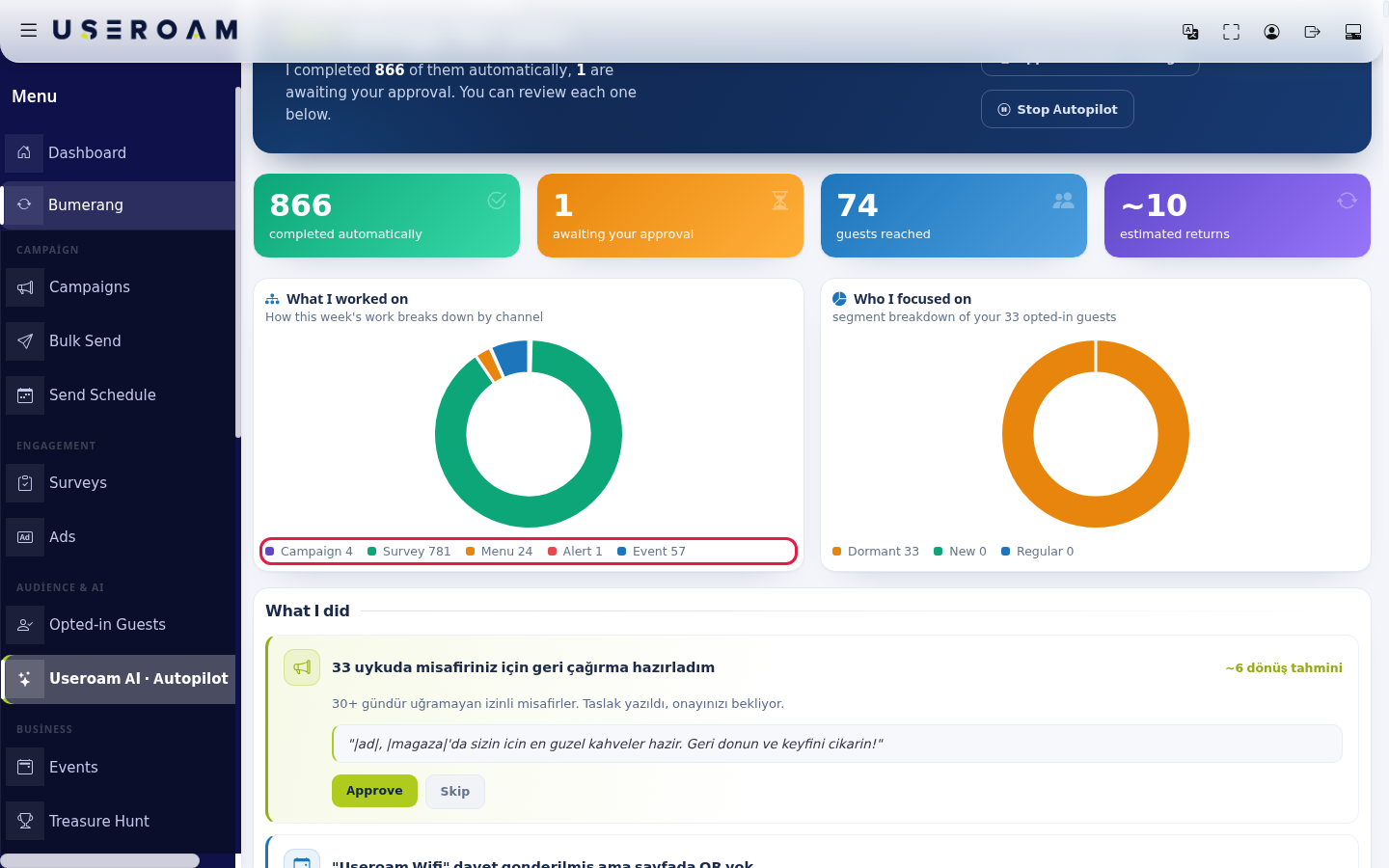
- In the What I did list, items awaiting approval are at the top on a yellow background. Read the prepared message draft (the draft texts are in Turkish). If it is fine, press Approve: the campaign is set up and starts sending (for an event reminder the SMS goes out at once). If you do not want it, press Skip; the item leaves the approval queue and nothing is sent.
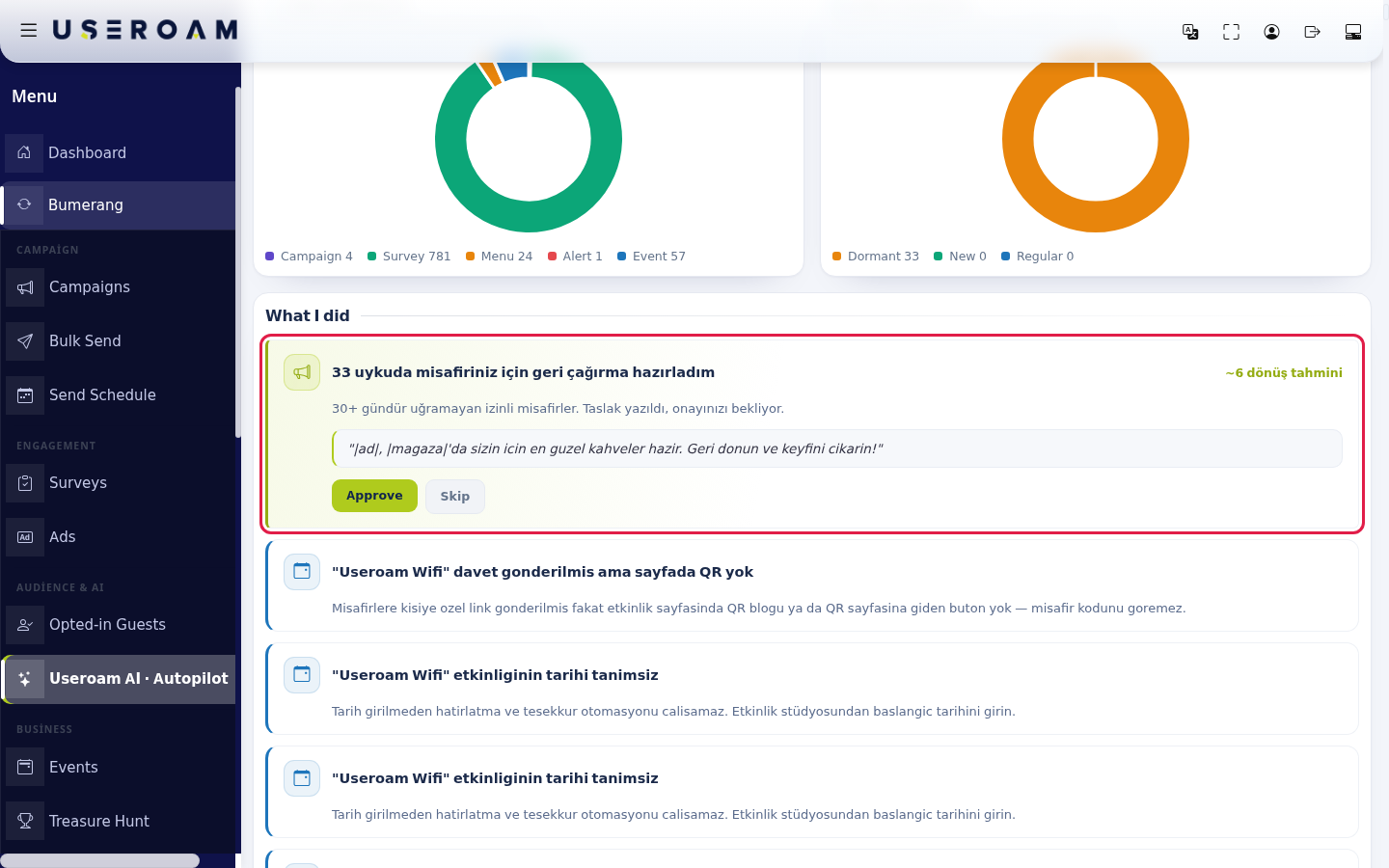
Items and messages on the screen
| Item | Meaning |
|---|---|
| Automation rate subtitle | "I handle most of the work without waiting for your approval" (short form "I handle most of the work without approval"). |
| Mode descriptions | On hover: "Fully automatic: sends without asking for approval" or "Approval mode: asks for your approval before sending". |
| Chart subtitles | "How this week's work breaks down by channel" and "segment breakdown of your … opted-in guests". |
| Work cards | Each card says what was done, a short reason and, if any, the expected effect (for example "~6 return estimate", "+ visibility"). Alert cards describe something you need to fix (for example an event with no start date). |
| Result of an approved event item | "… guests were sent an SMS", "All of them had already been messaged for this event", "License not eligible, nothing was sent" or "Event not eligible (inactive or its page has no QR)". |
| First opening | "Scanning your data…": "I just started, I'll list the opportunities I find in the first scan here." |
| Below the list | Last scan: date and time ("now" if there has been no scan yet). |
Frequently asked questions
Should I choose Fully Automatic or Approval Mode?
Approval Mode is recommended at first: Autopilot prepares, and it is sent only if you read it and press Approve. Once you trust its messages you can switch to Fully Automatic.
I approved it. When does the message go out?
When a campaign item is approved, the campaign is set up; the messages go out through the campaign engine within a few minutes, over the guest's login channel (WhatsApp or SMS). You see the new campaign on the Campaigns screen.
The same alert appears many times in the list.
Autopilot may report a missing setting again at every scan. Fix what the alert describes (for example enter the start date in the Event Studio).
How do I turn Autopilot off completely?
Press Stop Autopilot. Existing campaigns keep their own status; you can pause them on the Campaigns screen.