
WhatsApp Portal Settings
WhatsApp Portal Settings
WhatsApp login lets guests enter their phone number and receive the verification code as a WhatsApp message. Its settings are identical to the SMS portal.
How do I open it? From the left menu, go to Captive Portal → Whatsapp Portal.
Use the switch (Whatsapp Login Module) at the top to turn it on or off. The page has General Settings and Theme Settings tabs.
General Settings
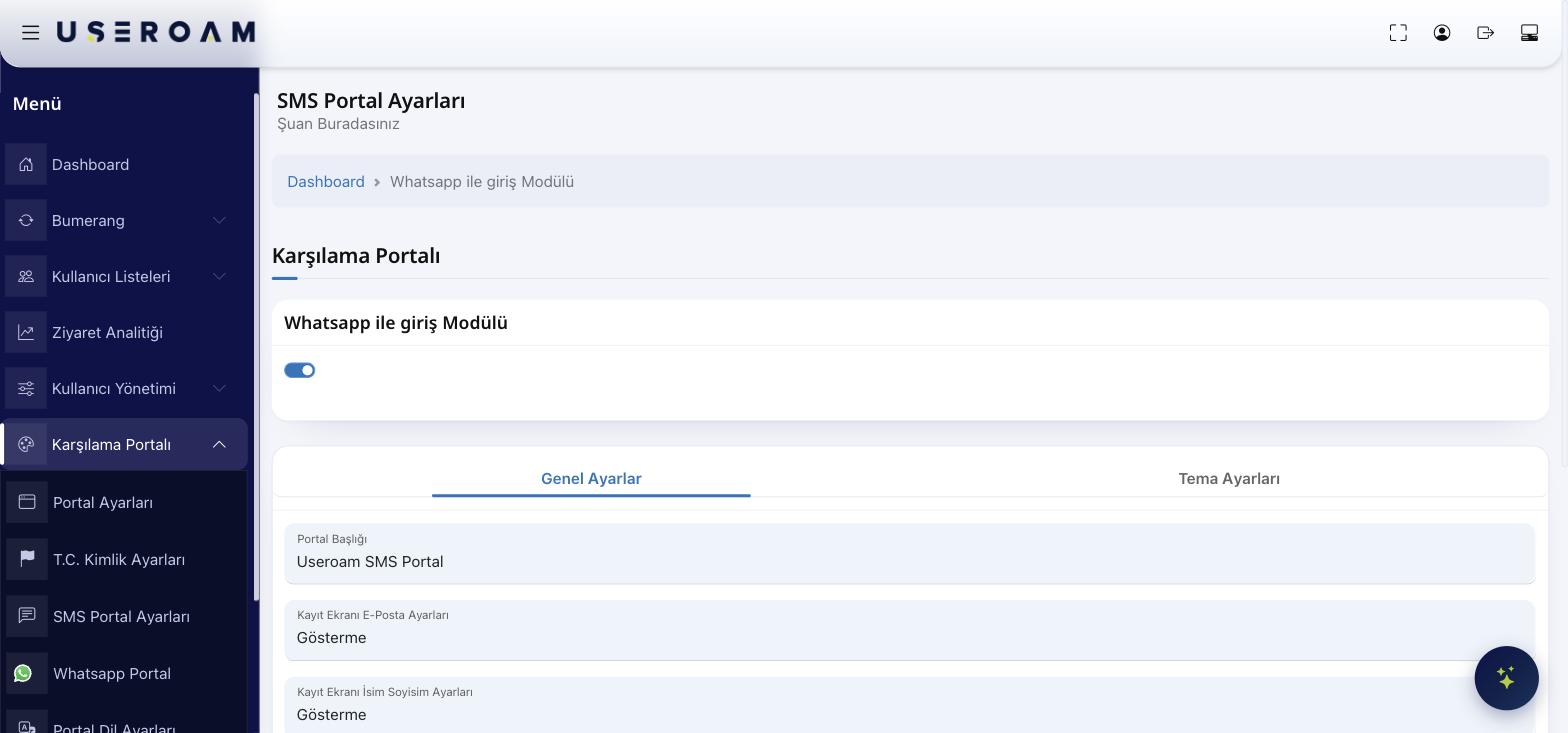
- Portal Title: The text shown at the top of the login screen.
- Registration E-mail Setting: Show / Show and Required / Hide.
- Registration Name/Surname Setting: Show / Show and Required / Hide.
- Register with Coupon: Turn on for coupon-code login.
- City/District/Neighborhood: Turn on to collect location details.
- Status: Active / Passive / Pending Approval.
Press Save after changes.
Theme Settings
The appearance settings are the same as the SMS portal: Logo, Logo Size, Background and colors (Login Box, Button, Button Hover, Button Text, Link, Text).
Important — Firewall Permission
For WhatsApp login to work, guests must reach WhatsApp servers before they go online. Your firewall / walled-garden must allow WhatsApp addresses. See the "WhatsApp Login — Firewall Allowlist" section in the setup guides for the list.
Tips & FAQ
- Guest can't see the code in WhatsApp. Usually the firewall permission is missing; apply the allowlist above.
- Advantage over SMS: the message is free (WhatsApp), but the guest must have WhatsApp installed.