
WhatsApp Portal Settings
What is it for?
The WhatsApp Portal screen switches the Register with WhatsApp button on the guest login screen on or off and sets what the WhatsApp sign-up form asks for (e-mail, name, coupon code, province and district). The guest types their phone number and is verified over WhatsApp; no SMS credit is used.
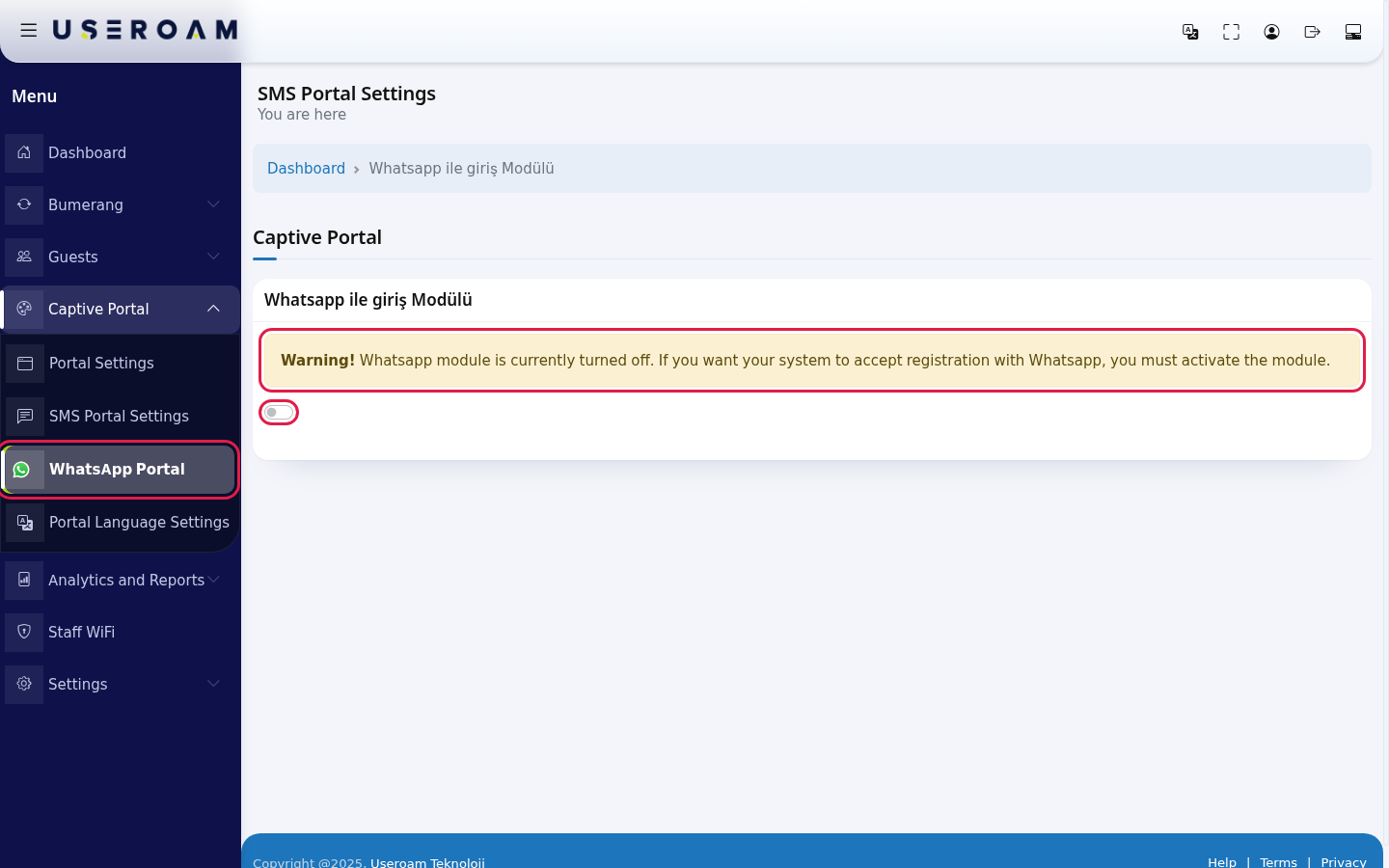
How do I open this screen? In the left menu, click Captive Portal → WhatsApp Portal. Note: the screen title currently reads SMS Portal Settings by mistake. The path line and the card title read Whatsapp ile giriş Modülü (WhatsApp login module, shown in Turkish even in the English panel), which tells you that you are on the right screen. You are here appears under the title; Dashboard in the path line takes you to the home screen.
When do I use it?
- You want guests to register quickly with WhatsApp (no SMS credit is used).
- You want to ask for e-mail or name on the WhatsApp sign-up form.
- You want new WhatsApp sign-ups to wait for your approval.
Before you start
- WhatsApp login works with two screens. This screen turns on the button and the form; the guest group and WhatsApp details are on Settings → WhatsApp Settings.
- The guest must reach WhatsApp before being online. Make sure the allowed addresses (walled garden) listed in your device's installation guide are set on your firewall. Without them WhatsApp verification does not complete even with the module on.
- If you use Waiting for Approval, pending sign-ups go to Pending Approval.
Step by step
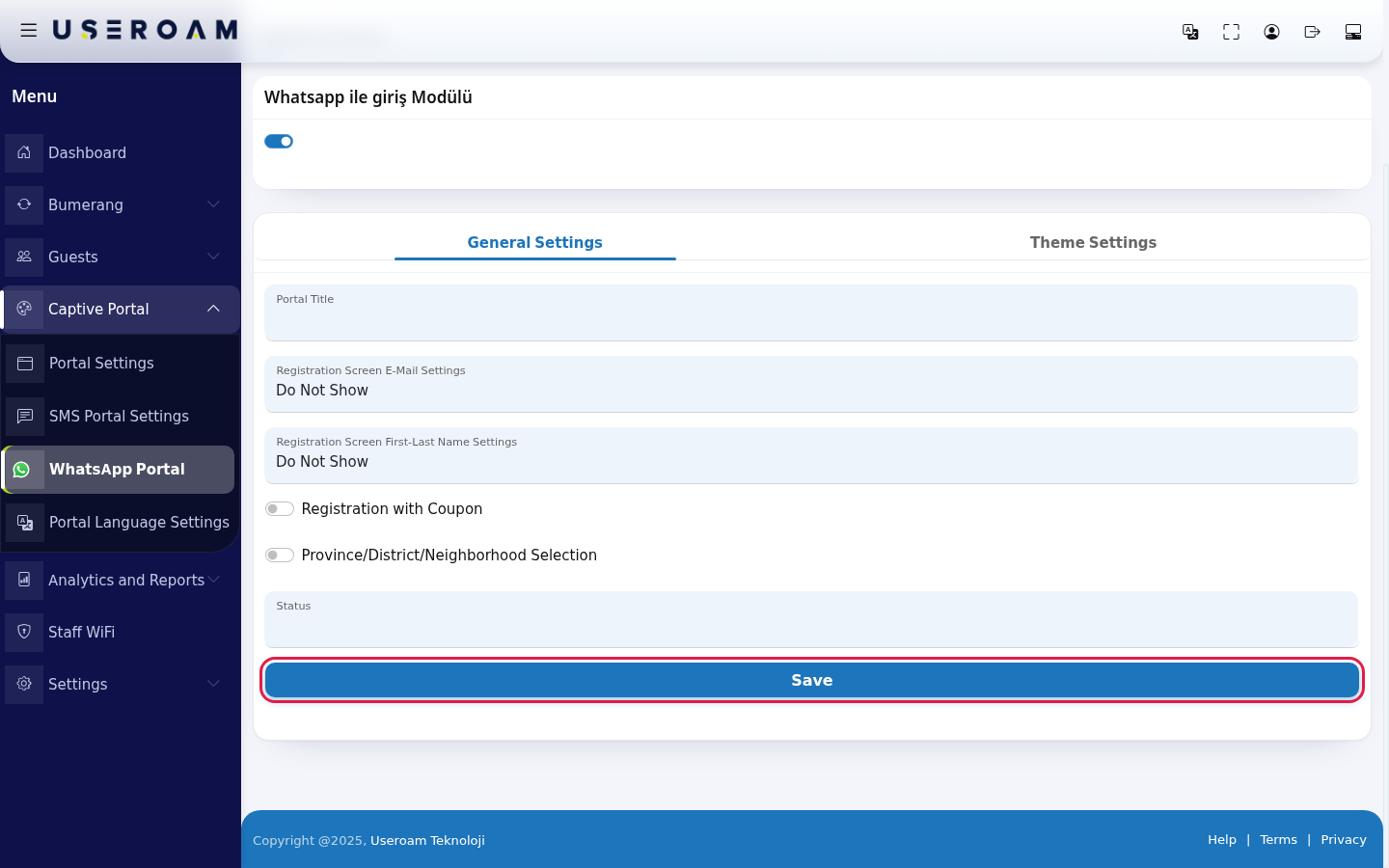
In the left menu, click Captive Portal → WhatsApp Portal. If the module is off, the Whatsapp ile giriş Modülü card shows a switch that is off and this warning: Warning! Whatsapp module is currently turned off. If you want your system to accept registration with Whatsapp, you must activate the module.
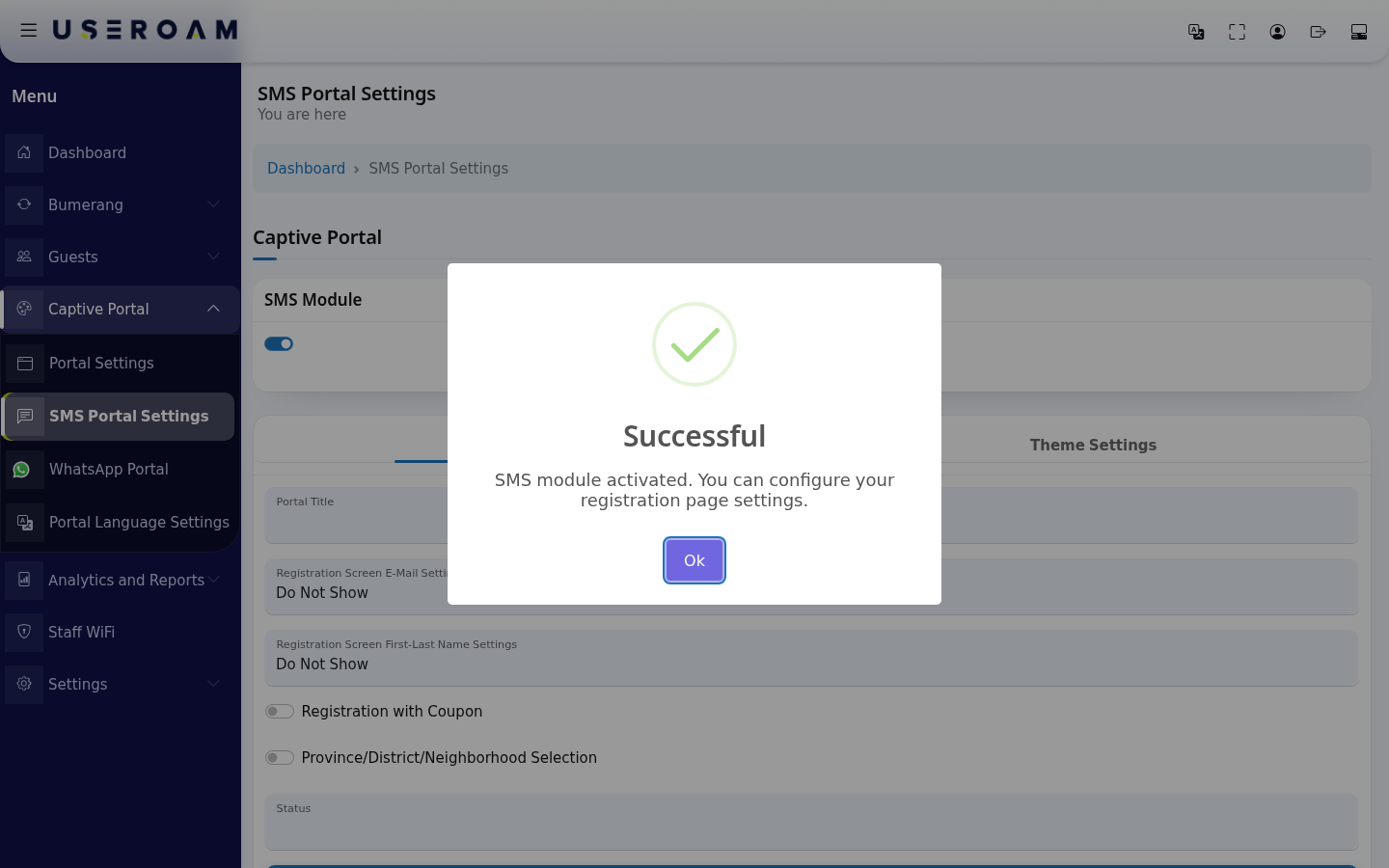
Turn the switch on. You do not need to save: it is saved the moment it changes and a Successful window says Whatsapp module activated. You can configure your registration page settings. If you turn it off it says Whatsapp module deactivated. and the Register with WhatsApp button disappears. The window looks the same as the one on SMS Portal Settings.
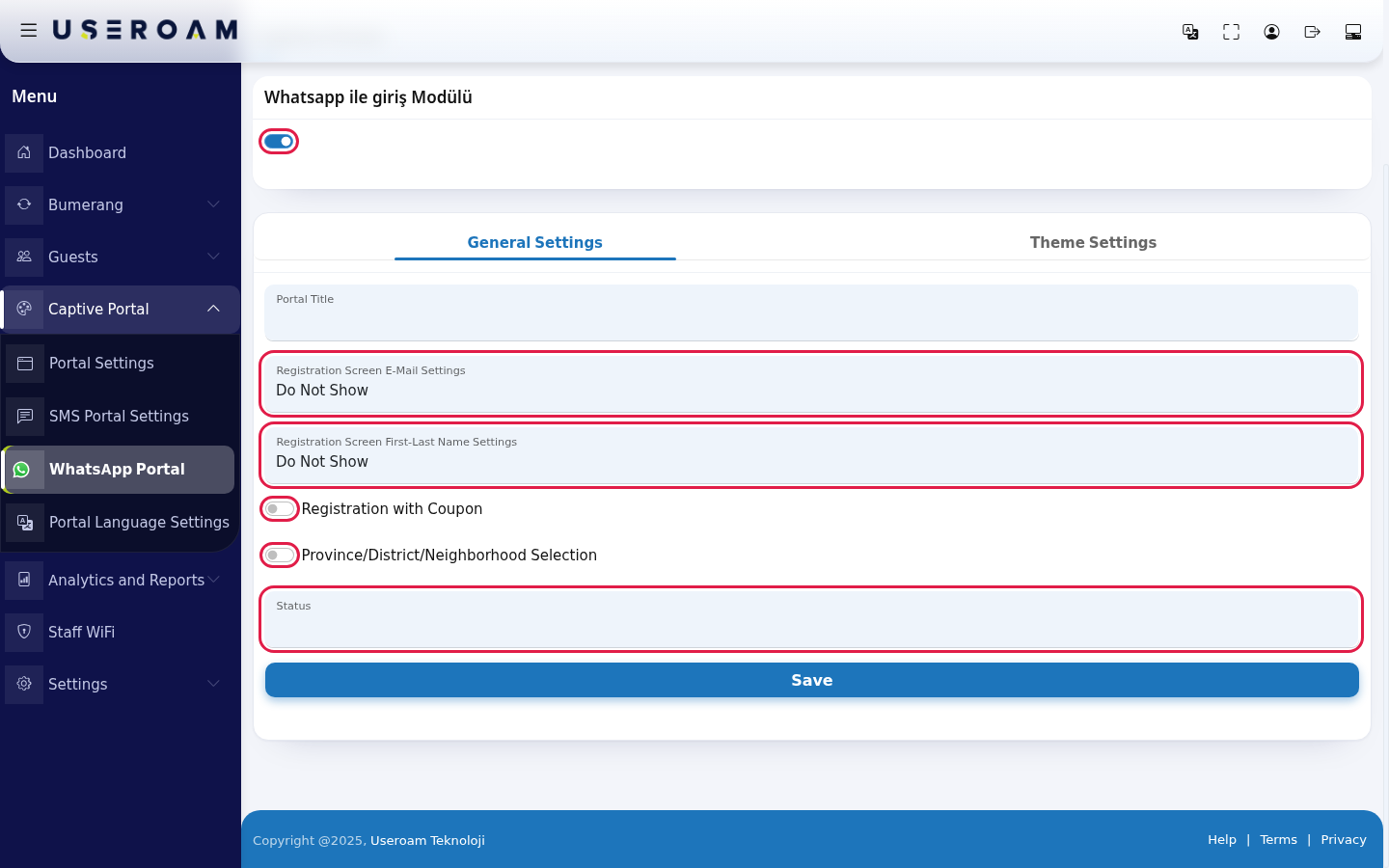
With the switch on, General Settings and Theme Settings appear. Set up the sign-up form on General Settings:
- Registration Screen E-Mail Settings: Show, Show and Required, Do Not Show.
- Registration Screen First-Last Name Settings: the same three options.
- Registration with Coupon: asks for a coupon code (codes from Coupon Codes).
- E-mail delivery permission: only appears while the e-mail box is shown. Whether the commercial message consent box shows on the login screen depends on your Bumerang (marketing) licence.
- Province/District/Neighborhood Selection: asks for province, district and neighbourhood.
- Status: Active (guest gets online right away), Waiting for Approval or Passive (sign-up waits for your approval).
To show the form that appears with the switch on, this image was produced on the demo account without pressing the switch.
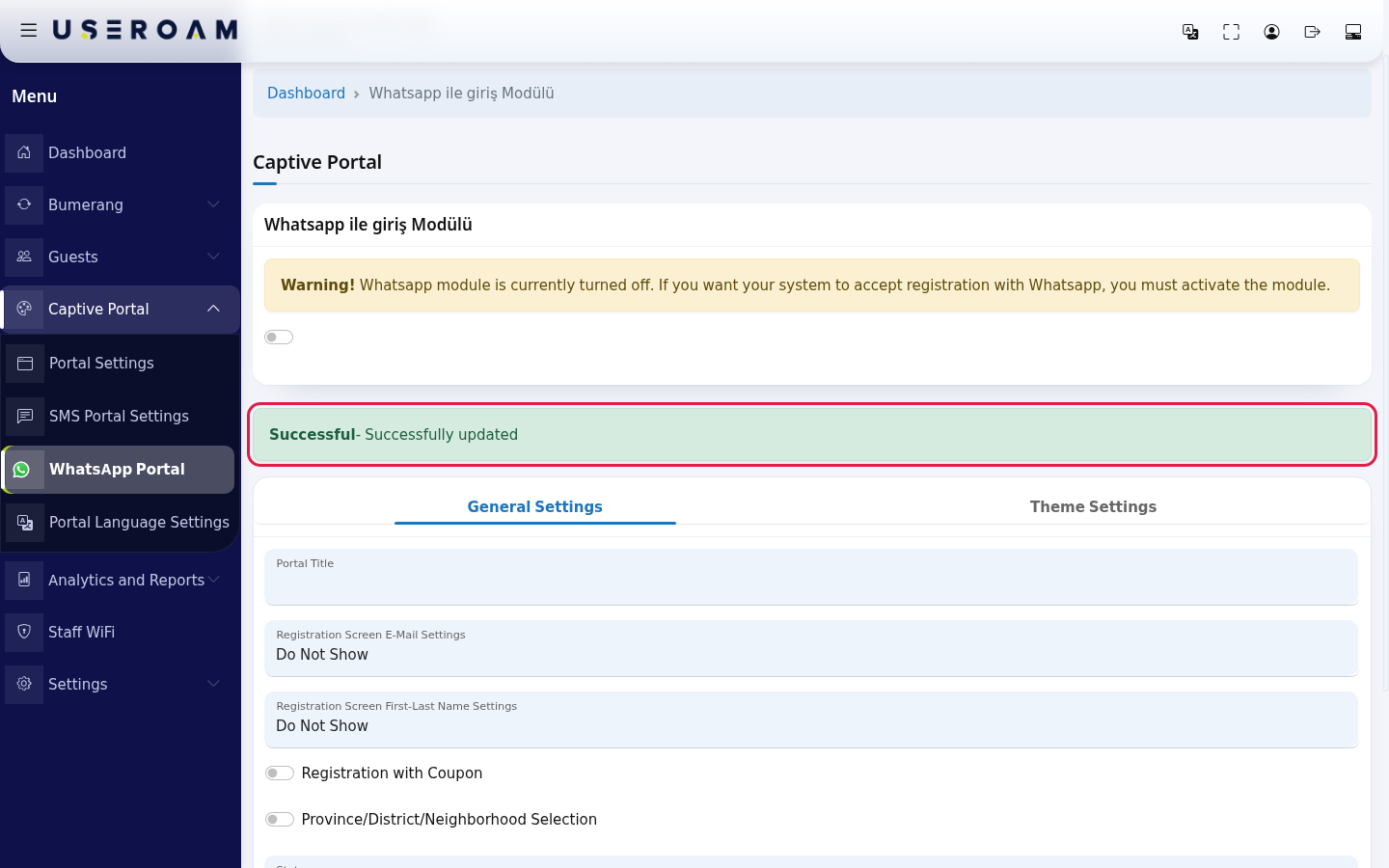
Press Save at the bottom of the tab. The page reloads, your choices stay in place and a green Successful- Successfully updated message appears above the settings card. The same message appears when you save on the Theme Settings tab.
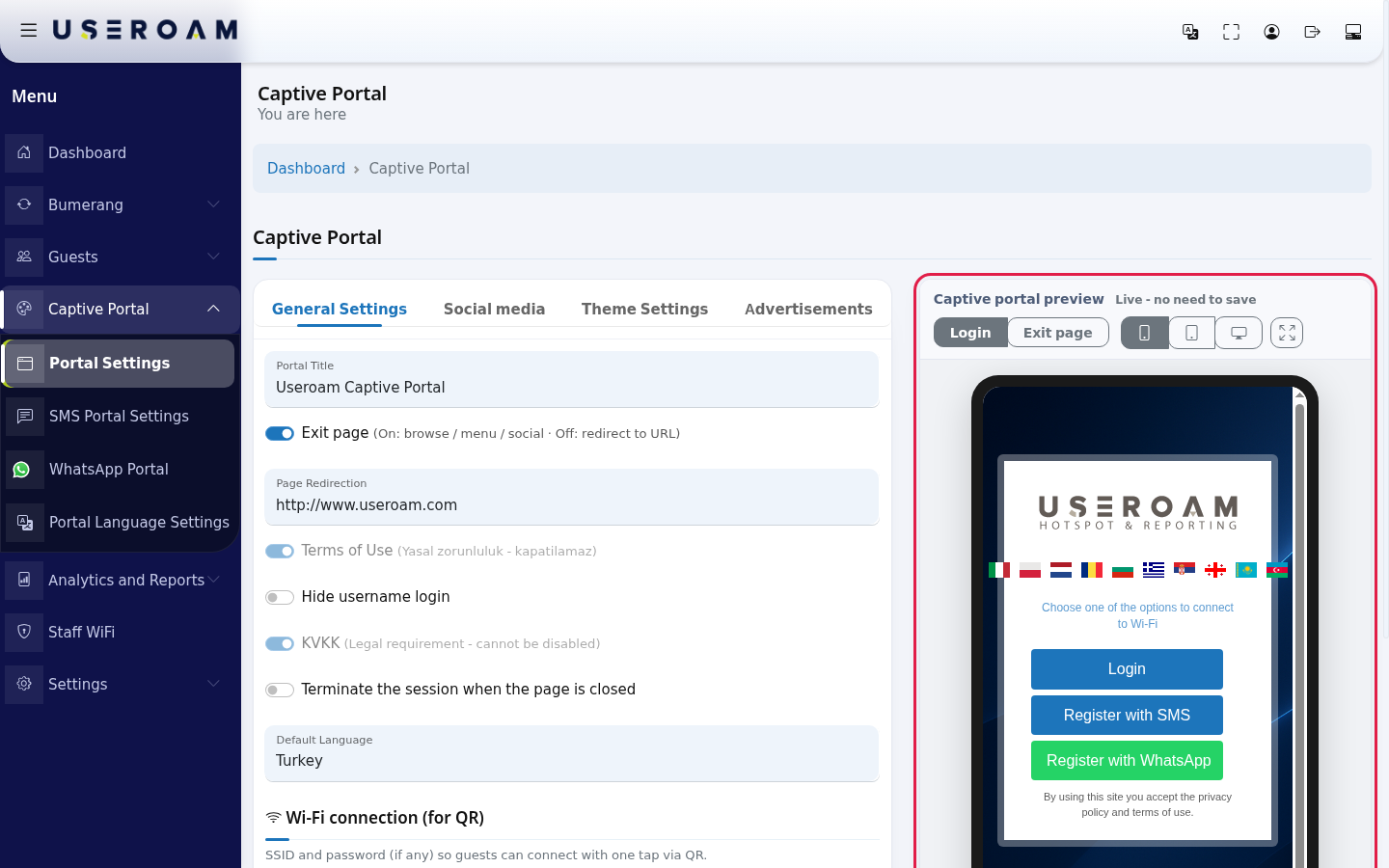
Check in the Portal Settings preview that the Register with WhatsApp button is visible. Then join the guest network with a real phone and register once.
Every field and button on the screen
| Field / Button | What it does | Example |
|---|---|---|
| Whatsapp ile giriş Modülü switch | Turns the Register with WhatsApp button on or off. Saved the moment it changes. | On |
| Portal Title | For devices using the old separate sign-up page; on the current login screen the title comes from Portal Settings. | Can stay empty |
| Registration Screen E-Mail Settings | Show, Show and Required, Do Not Show. | Do Not Show |
| Registration Screen First-Last Name Settings | Show, Show and Required, Do Not Show. | Show |
| Registration with Coupon | Asks for a coupon code. | Off |
| E-mail delivery permission | Commercial message consent box; shown according to the Bumerang licence. | - |
| Province/District/Neighborhood Selection | Asks for province, district and neighbourhood. | Off |
| Status | Active, Passive, Waiting for Approval. | Active |
| Theme Settings tab (Logo Seçimi, Logo Size, Background Selection, Color Settings: Login Box Color, Button Color, Button Font Color, Link Color, Font Color; Reset Colors) | Same as the Theme tab on SMS Portal Settings; only applies to the old separate sign-up page. The look of the current login screen comes from Portal Settings. | - |
The WhatsApp form the guest sees
When the guest taps Register with WhatsApp, a country code list, a mobile phone box and, depending on your choices, name, e-mail, coupon, province and district fields appear. Because WhatsApp verification runs through a service abroad, the form also has an overseas data transfer consent box; without it the guest cannot continue and sees a warning asking them to accept the international data transfer or choose another method (SMS / national ID). While verification runs, a waiting text (your internet is being prepared) appears. You change these texts on the screen described in Editing Portal Texts.
Frequently asked questions
The switch is on but guests cannot log in with WhatsApp.
Usually the allowed addresses on the firewall are missing. Check your device's installation guide. A group must also be selected on WhatsApp Settings.
The screen title says SMS Portal Settings. Am I in the wrong place?
No. This is a known title error; if the card title reads Whatsapp ile giriş Modülü, you are on the right screen.
I saved but no Successful message appeared.
When the save works, Successful- Successfully updated appears above the card. If there is no message and your choices went back to the old values, nothing was saved: reload the page and try again; if it keeps happening, contact our support team.
Can I use SMS and WhatsApp together?
Yes. Both buttons appear on the login screen and the guest picks one.
Where do I see guests who logged in with WhatsApp?
In SMS / WhatsApp Users and SMS / WhatsApp Reports.