
WhatsApp Portal Settings
WhatsApp Portal Settings manage the flow in which guests register from the welcome screen over WhatsApp. The guest taps "Log in with WhatsApp", sends the message in the chat that opens, and is logged in automatically once delivery is confirmed. Because it uses no SMS credit, it is the preferred option at busy locations.
How do I open this screen? From the left menu, go to Captive Portal → WhatsApp Portal.
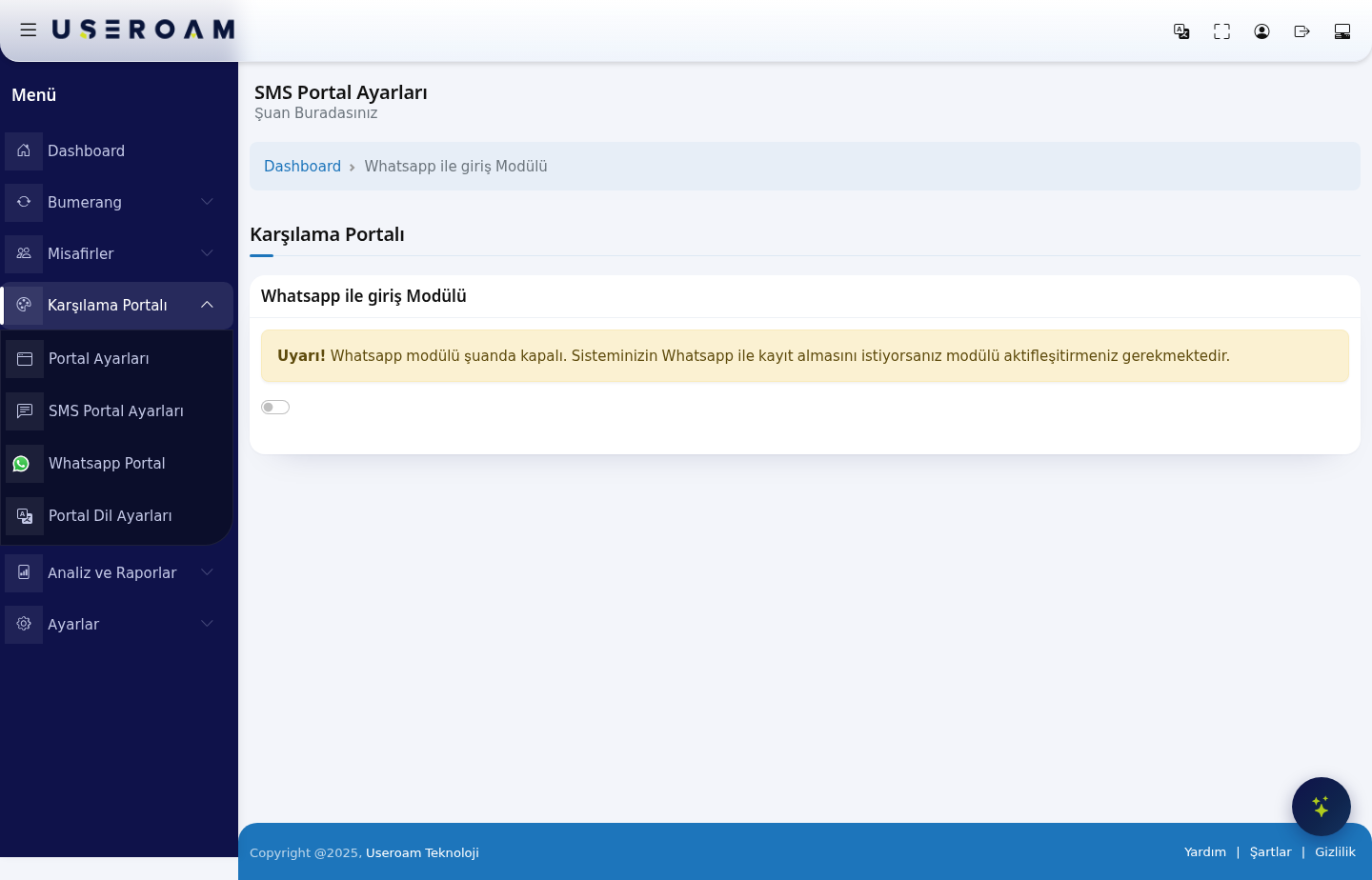
WhatsApp login module
The WhatsApp login module switch sits at the top of the page. While the module is off, the screen shows only this warning:
Warning! Whatsapp module is currently turned off. If you want your system to accept registration with Whatsapp, you must activate the module.
Turning the switch on reveals the General Settings and Theme Settings tabs.
*.wa.me, *.whatsapp.com, *.whatsapp.net, g.whatsapp.net, mmg.whatsapp.net, fbsbx.com and *.useroam.com. Without these rules the WhatsApp login screen will not open. See the page for your device under Installation Guides for details.1. General Settings
- Portal Title: the text shown at the top of the WhatsApp registration screen.
- Email settings on the registration screen: Show, Show and require or Hide.
- Name and surname settings on the registration screen: the same three options.
- Registration with coupon: lets guests register with a coupon code. Codes are generated on the Guests → Coupon Codes page.
- Email permission: shows the marketing-email consent checkbox; guests who consent count as opted in in Bumerang.
- Province / district / neighbourhood selection: asks the guest for location details, used in reporting and segmentation.
- Status: determines whether the WhatsApp portal is live.
Confirm your changes with Save.
2. Theme Settings
The appearance of the WhatsApp registration screen is configured independently: Logo Selection and Logo Size, Background Selection, and six colour fields (Login Box Colour, Button Colour, Button Hover, Button Text Colour, Link Colour, Text Colour). Reset Colours returns everything to the defaults.
Related pages: Settings → WhatsApp Settings (line/service configuration), Guests → SMS / WhatsApp Users, Analytics and Reports → SMS / WhatsApp Reports.