
Device Selection
The Device Selection screen lists the firewall / location records linked to your account. In multi-site businesses this is where you choose which location's panel you are working in; every setting you change applies to the selected device.
How do I open this screen? Open Device Selection from the account menu at the top right. Accounts with a single device continue straight to that device after signing in.
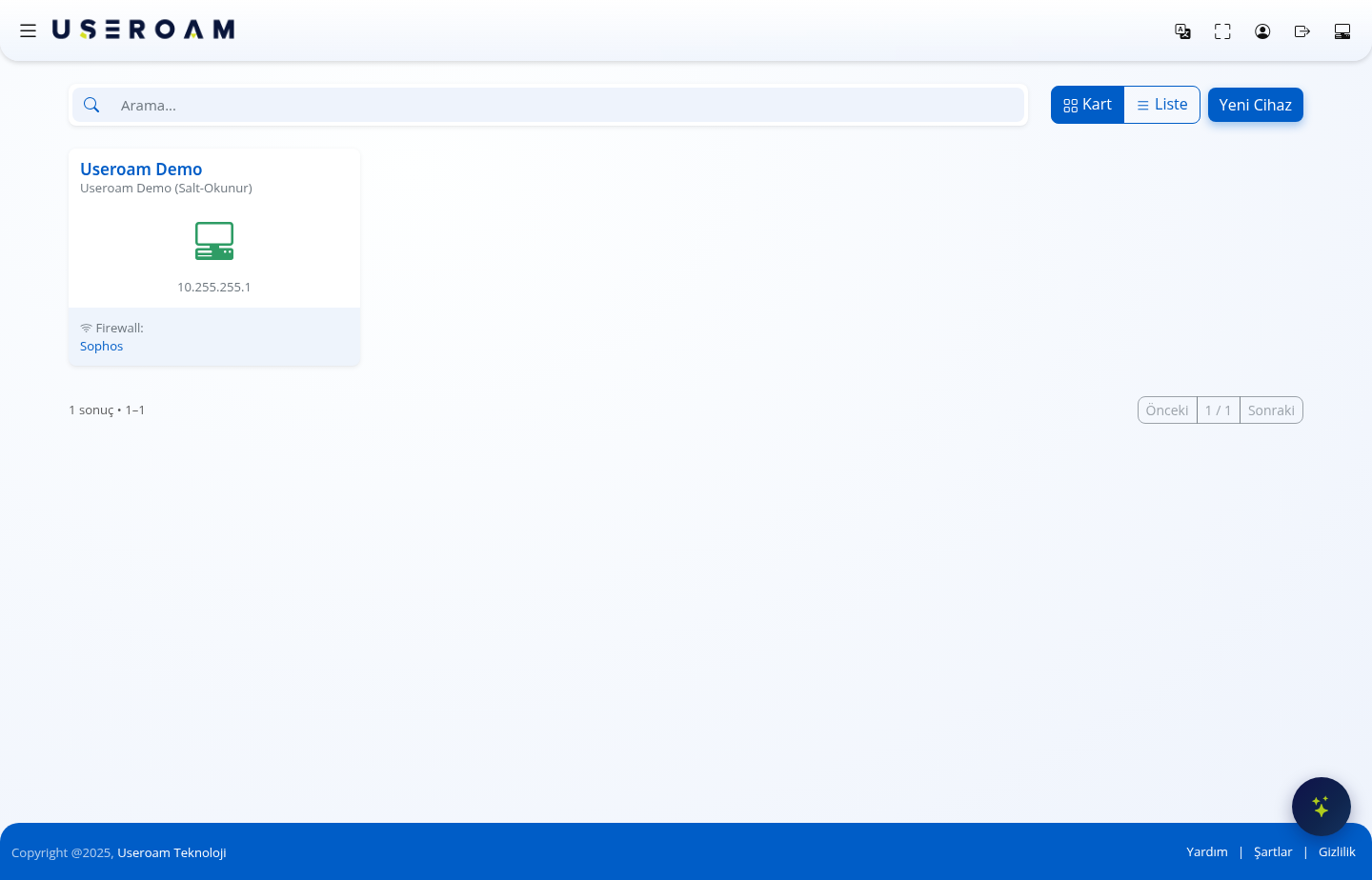
View and search
- Card / List (on screen: Kart / Liste): switches between a card view and a row list. The list view is faster to scan when you have many locations.
- Search: filters instantly by device name or address.
- Previous / Next: pages through the devices when they do not fit on one screen. The total is shown below as "1 result • 1–1".
What the device card shows
- Device name: the name you gave it in the panel (for example Useroam Demo).
- Device address: the device's WAN / management IP address (for example
10.255.255.1). - Firewall: the detected brand (for example Sophos). The installation guide and API integration follow from this brand.
- Read-only label (on screen: Salt-Okunur): indicates you have view-only rights on this device and cannot make changes.
Clicking a device reloads the panel with that device's data.
New Device
The New Device button creates a new firewall record. The system selects your license automatically; you fill in the device type (Sophos, Fortinet, PaloAlto, Mikrotik, Ruijie), the device address (WAN IP) and, where required, 5651 Logging and the device serial number.
Next step: after adding the device, follow the page for your brand under Installation Guides to configure the firewall side. The RADIUS secret and the portal template are on the Settings → Device Settings page.