
Device Selection
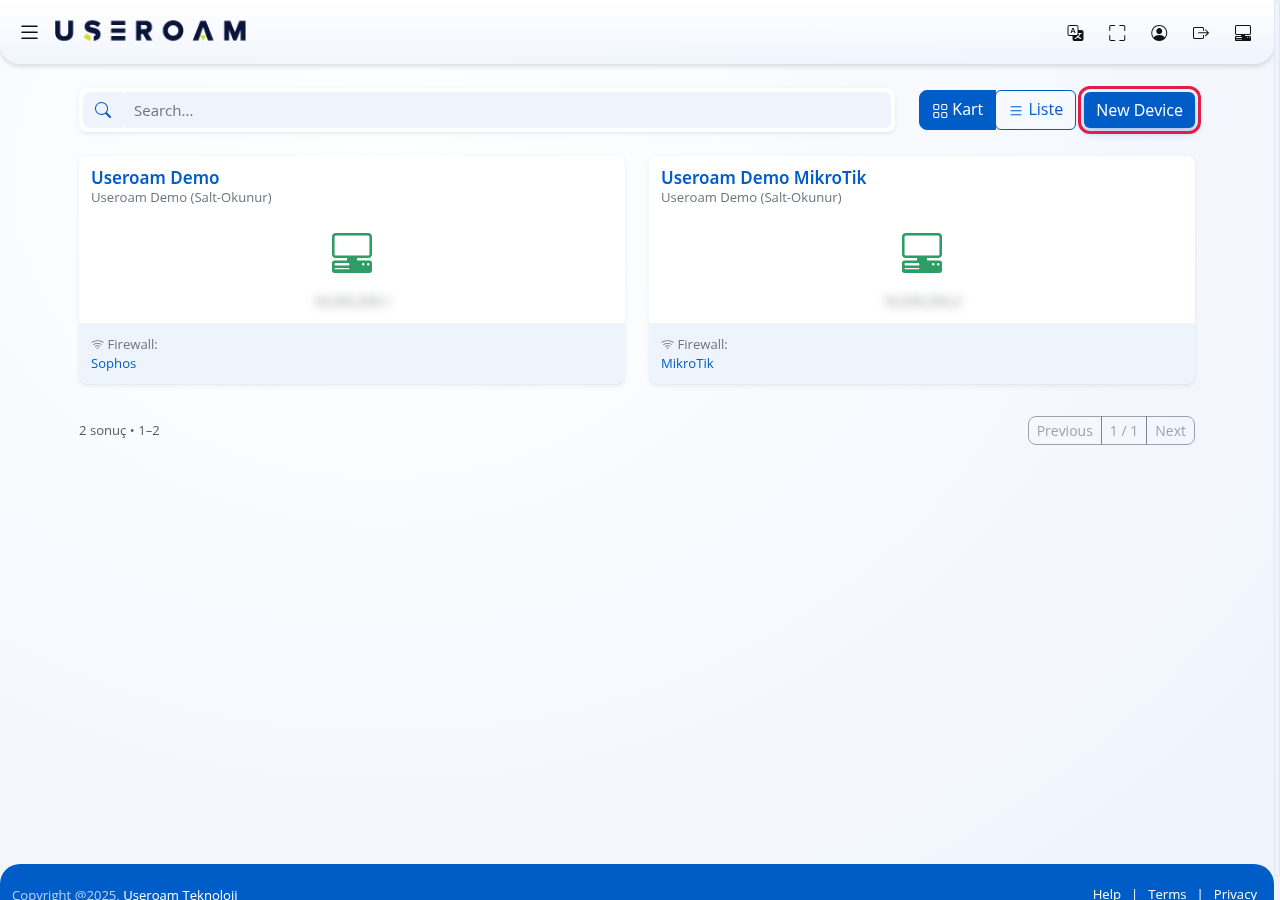
Device Selection is the screen where, after signing in, you choose which business (which device) to open. In Useroam every branch or guest Wi-Fi network is a device: the firewall or router guests connect through (Sophos, FortiGate, MikroTik and so on). Every panel screen works on the device you select.
What is it for?
If you have several branches or devices, it lets you switch between them. Each device's licence status, IP address and type are shown here. Adding a new device also starts here.
When do I use it?
- After every sign-in (it opens by itself after two-factor authentication).
- To look at another branch while inside the panel: click the computer icon at the far right of the top bar (Device Selection).
- When adding a new branch or firewall.
Before you start
- Only devices you are authorised for are listed. If you cannot see a device, ask your account administrator for access (Administrators).
- If you came from the dealer panel to a customer, a box at the top says "... müşterisinin cihazları görüntüleniyor (redirected from dealer panel)" (this customer's devices are shown) with a Bayi Paneli (Dealer Panel) back button.
Step by step
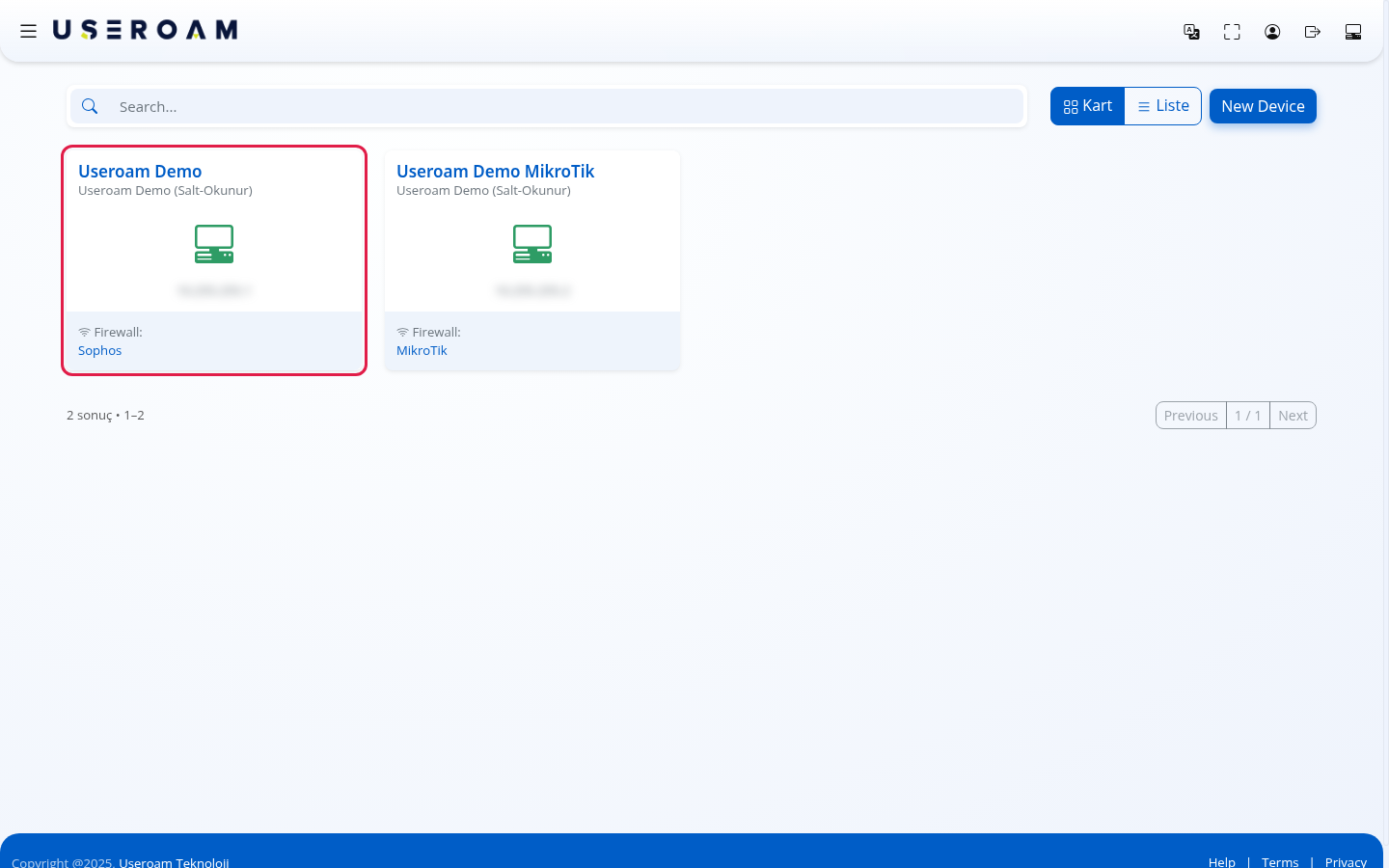
Step 1: Click the card of the device to open
The screen opens in Kart (Card) view. Each card shows the device name at the top, the company name under it, a computer icon with the IP address in the middle and the device type under Firewall: at the bottom. A green icon means the licence is valid, red means it has expired. Click anywhere on the card to open that device's Dashboard.
Step 2 (optional): Switch to list view
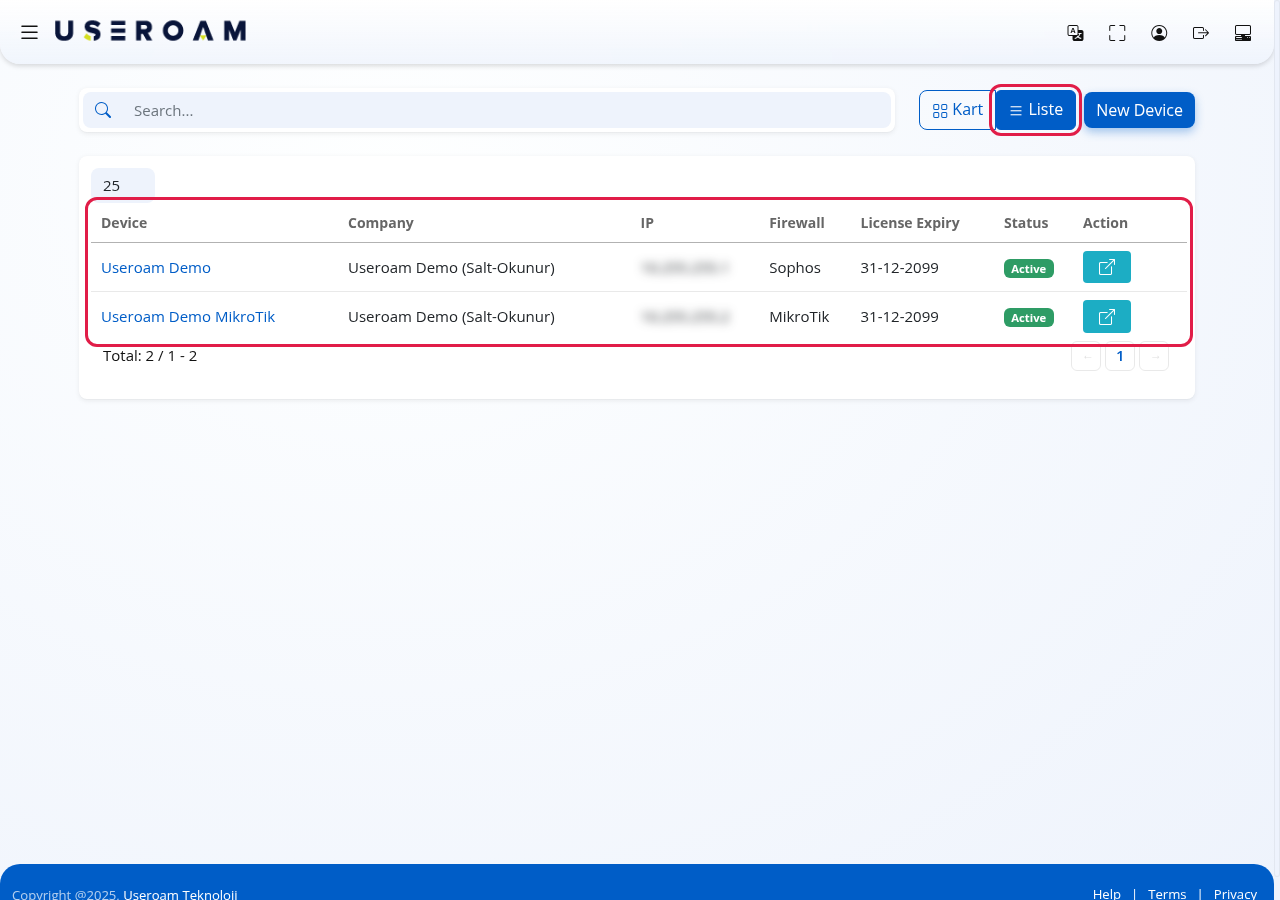
With many devices, use Liste (List) at the top right. Your choice is remembered in your browser. Columns: Device (clickable name), Company, IP, Firewall, License Expiry, Status (green Active or red Expired badge) and Action (arrow button that opens the device). Click a column header to sort; the number box at the top left sets rows per page (10, 25, 50, 100, All). Below the table there is a counter such as "Total: 2 / 1 - 2" and page buttons.
Step 3 (optional): Search for a device
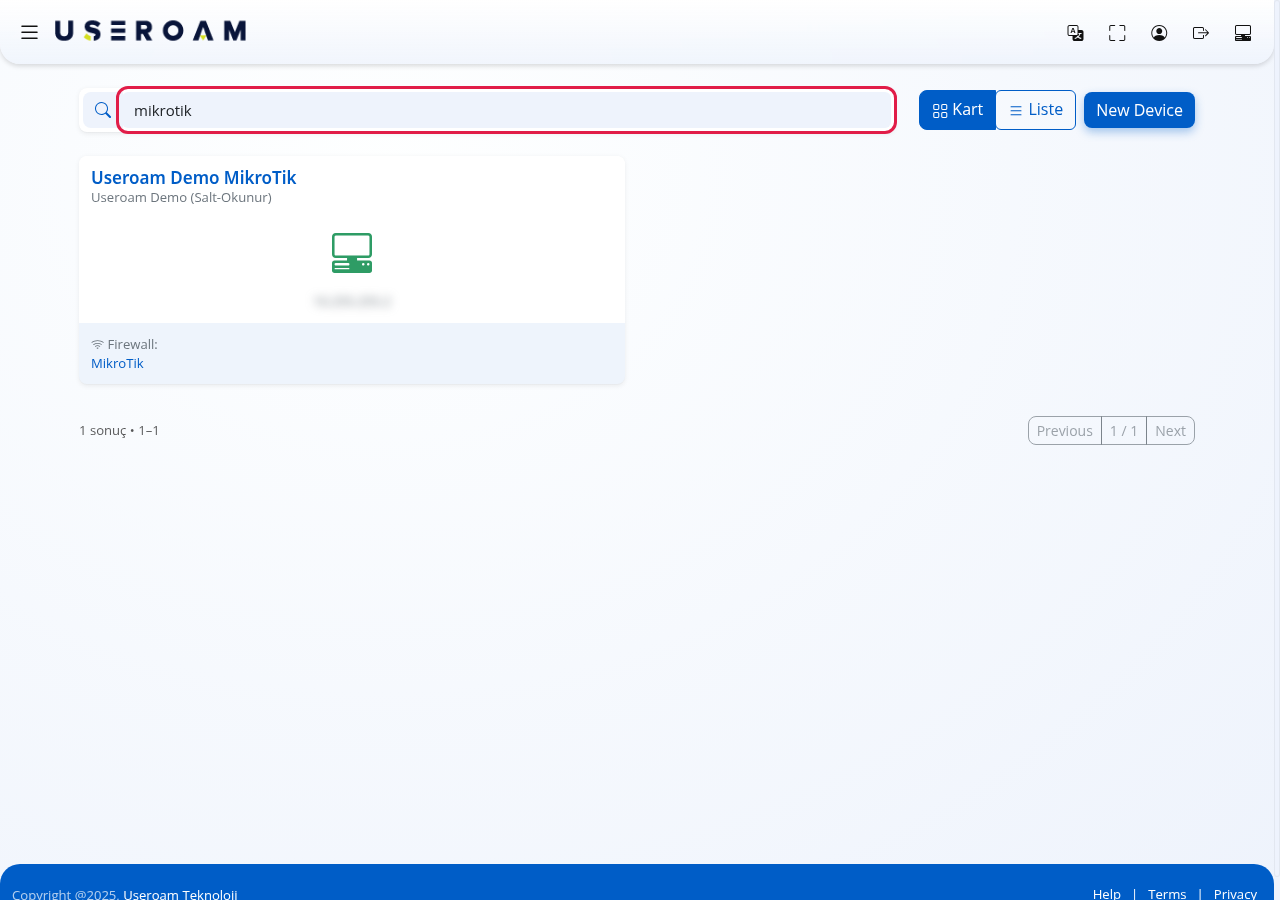
Type part of a device name, company, IP, firewall type or date in Search.... The list narrows as you type; Turkish characters and upper/lower case do not matter.
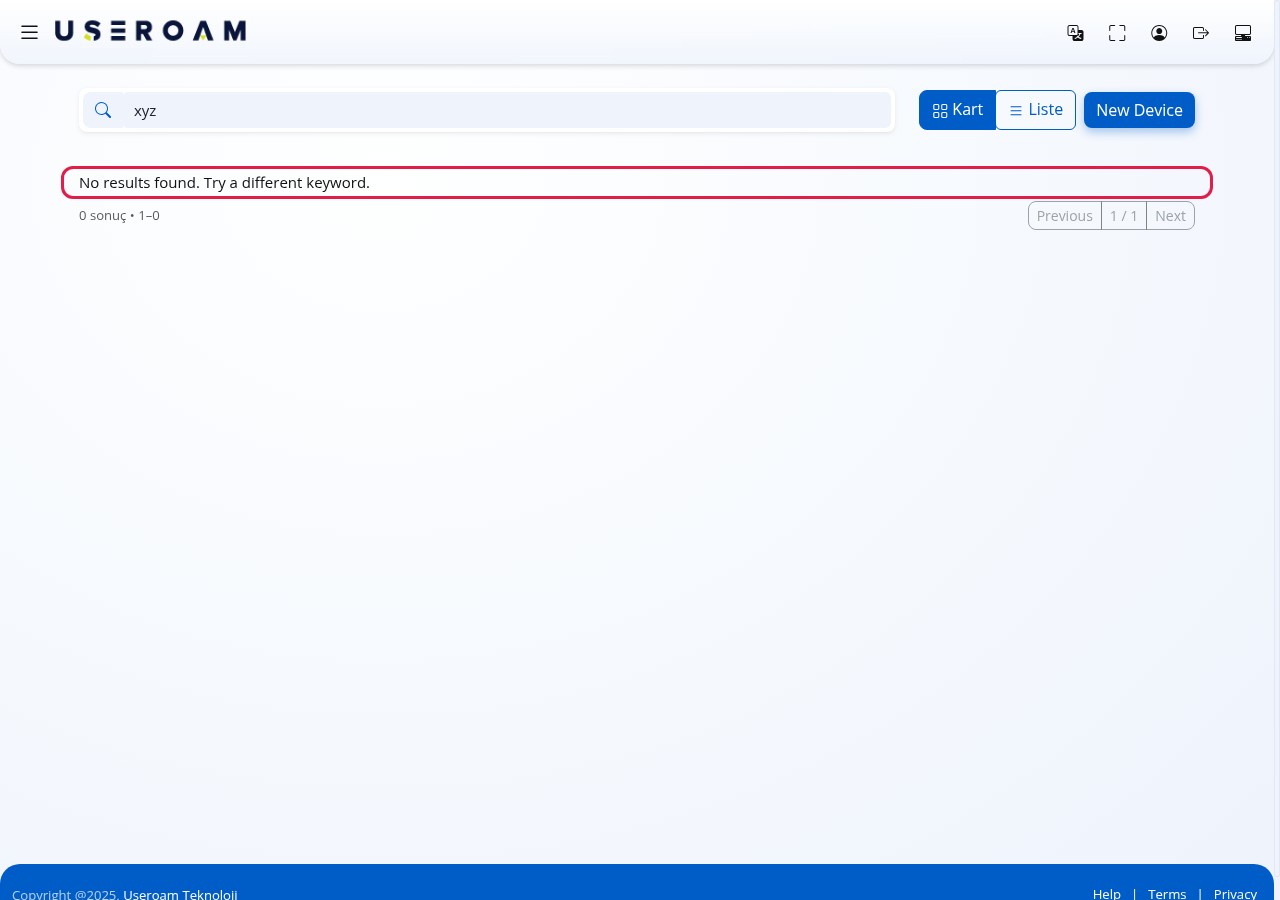
If nothing matches you see "No results found. Try a different keyword." Clear the search to see all devices again.
Step 4 (optional): Add a new device
New Device at the top right opens the new device screen. Steps: Adding a New Device.
Every field and button
| Field / Button | What it does | Example |
|---|---|---|
| Search... | Filters devices by name, company, IP, firewall type. | kemer |
| Kart (Card) | Card view (24 cards per page). | |
| Liste (List) | Table view. | |
| New Device | Opens the new device screen. | |
| Device card | Name, company, IP, Firewall: type. Click to open. | Useroam Demo, Sophos |
| Icon colour | Green: licence valid. Red: licence expired. | |
| Previous / Next | Page through cards. "1 / 1" shows the page; a counter such as "2 sonuç • 1–2" (2 results) is on the left. | |
| Device, Company, IP, Firewall | List columns. | |
| License Expiry | Last day of the licence. | 31-12-2026 |
| Status | Active or Expired. | |
| Action | Arrow button opens the device. | |
| Rows per page box | 10, 25, 50, 100, All. | 25 |
| Total | Number of devices and the range shown. | Total: 2 / 1 - 2 |
Warnings and empty states
| Message | Meaning | What to do |
|---|---|---|
| No results found. Try a different keyword. | Nothing matches the search, or there are no devices at all. | Clear the search. If there are no devices, add one with New Device. |
| No Record | No rows to show in list view. | Clear the search. |
| No device found that you are authorized for | (From the dealer panel) you have no access to this customer's devices. | Ask your dealer administrator; return with Bayi Paneline Dön. |
| No device matches your search. | (From the dealer panel) nothing matches. | Change the search. |
| Red icon / Expired badge | The device licence has expired; guest sign-ins stop. | Contact your sales representative or dealer (License Information). |
Frequently asked questions
I have only one device. Do I see this screen every time? Yes; it always opens after sign-in. Click your card once.
How do I switch to another branch? Click the computer icon at the far right of the top bar (Device Selection) and pick the other card.
A device is missing. You may not have access to it. Ask your account's main administrator.
Why is the IP address shown? It is the address the device uses on the internet; Useroam recognises the device by it. If it changed, update it in Device Settings.
Kart/Liste are in Turkish in the English panel. These two buttons and the card counter are currently Turkish only.