
Hotel Guests
What is it for?
The Hotel Guests list shows hotel guests who signedsign in throughto the hotelWi-Fi portal with atheir room number and identityID details.details. UseYou itcan to seefollow who is online during the stay, which room they are in and when their access ends. You can also block, delete or edit a guest.
When do I use it?
- You want to check whether the guest in a room is registered on the
networkWi-Fi. - A guest extends their stay and
whenyouaccesswantexpirestobasedchange the check-out date. - You want to stop a guest's sign-ins.
Before you start
- The list fills on
thedevicescheckoutthatdate.usehotel
Howsign-in (sign-in with room number or a hotel management system connection). If you doInotopenuse thisscreen?sign-in method, the list stays empty and shows No Record. - ID numbers, first names and last names are masked under the Turkish data protection law, KVKK.
- The list heading and the Cinsiyet
From(gender) column are still Turkish in the English interface.
Step by step
- In the left
menu,menugo toopen Guests→and click Hotel Guests.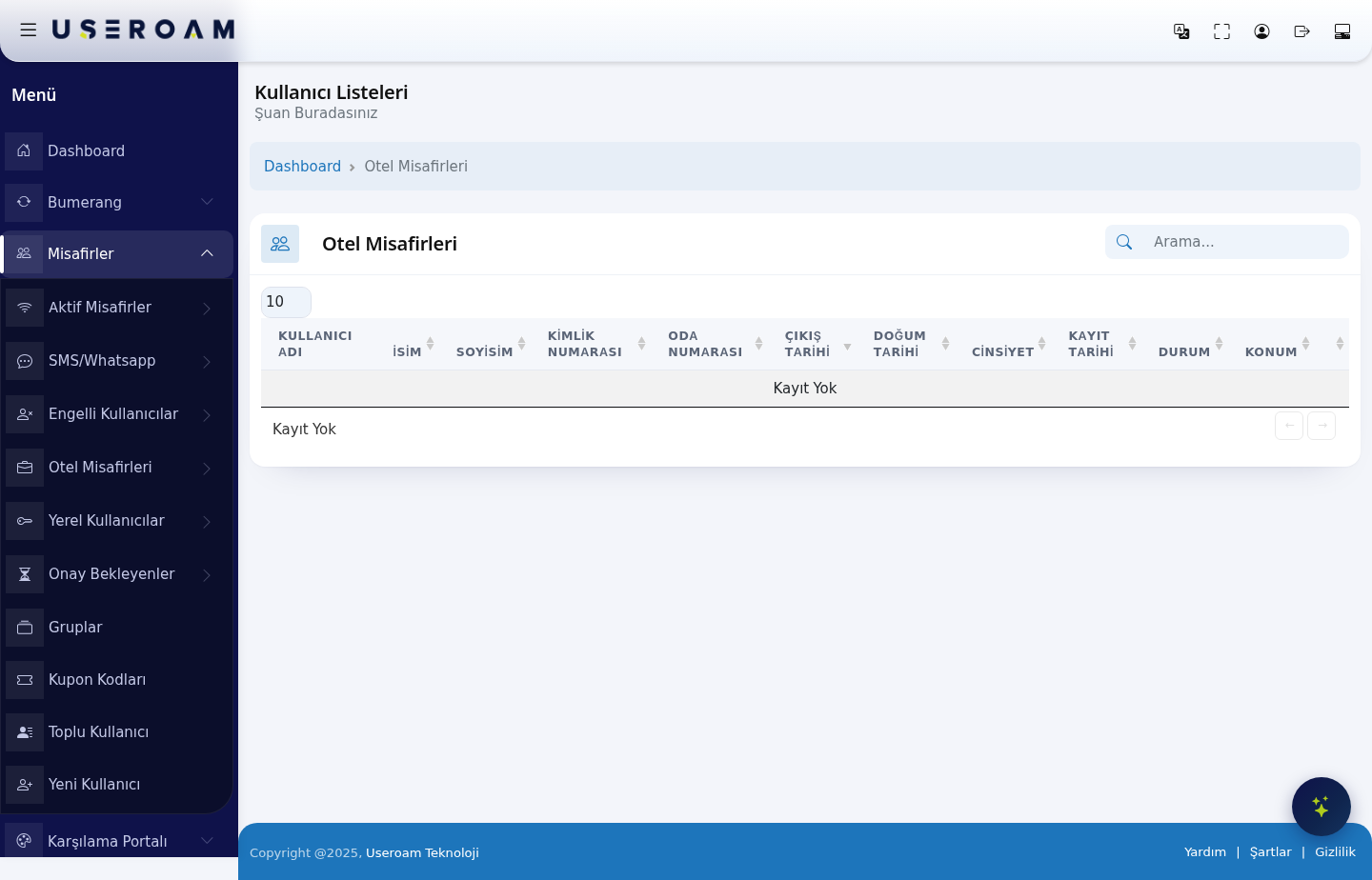
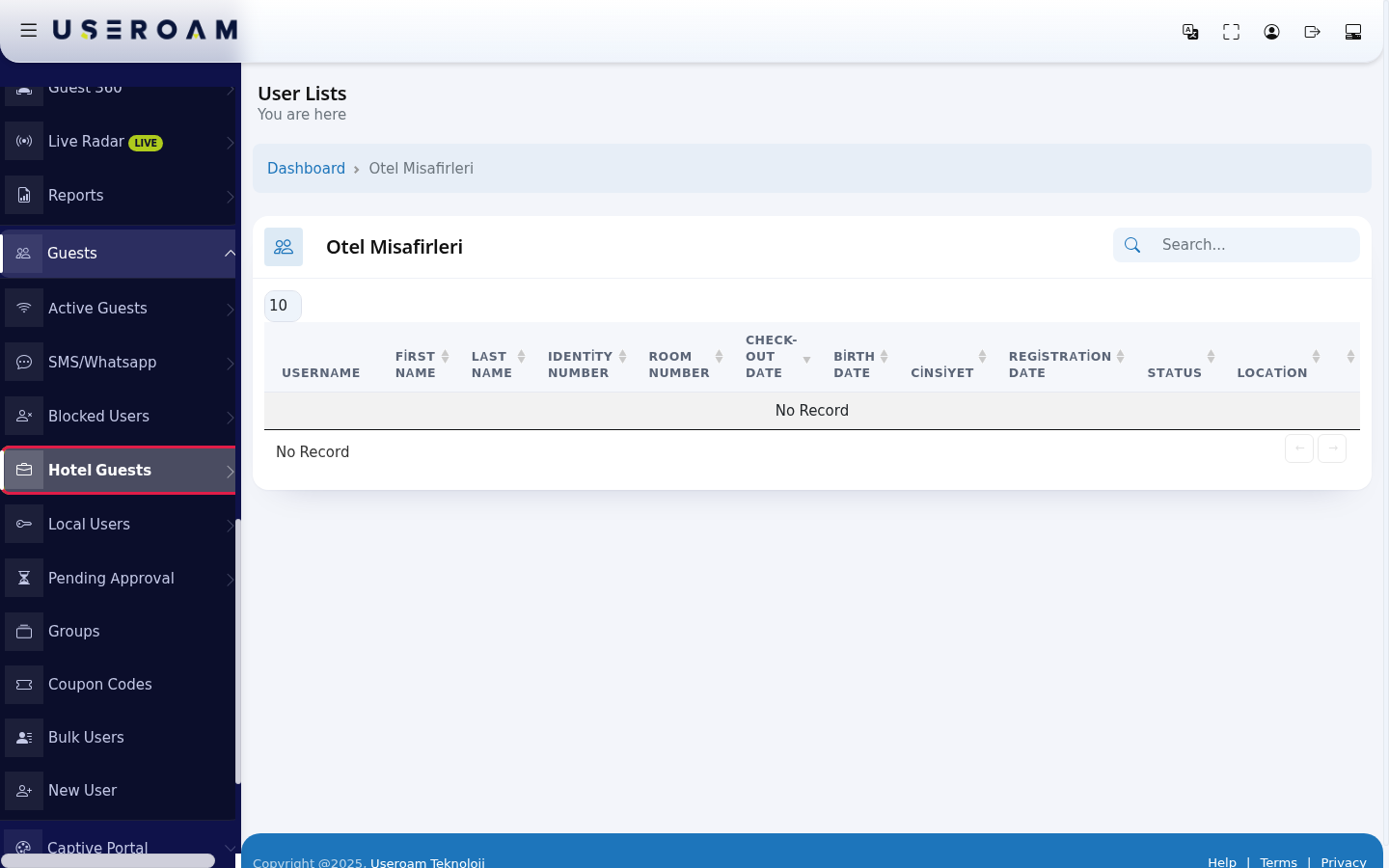
Table columns USERNAME:To find a guest, type theguest'sroomidentitynumber in thesystem.FIRST NAMESearch.../boxLAST NAME:at theguest'stopname.right. ROOM NUMBER:Use theroombuttonsthe guest is staying in — this is how you match a guest to a room during a complaint or support request.CHECKOUT DATE:at the end of thestay.row: yellow Disable User, red Delete User, blue Edit User (hover to see their names). The edit screen is the same as the one described on SMS / WhatsApp Users: User Information and Group and Password tabs.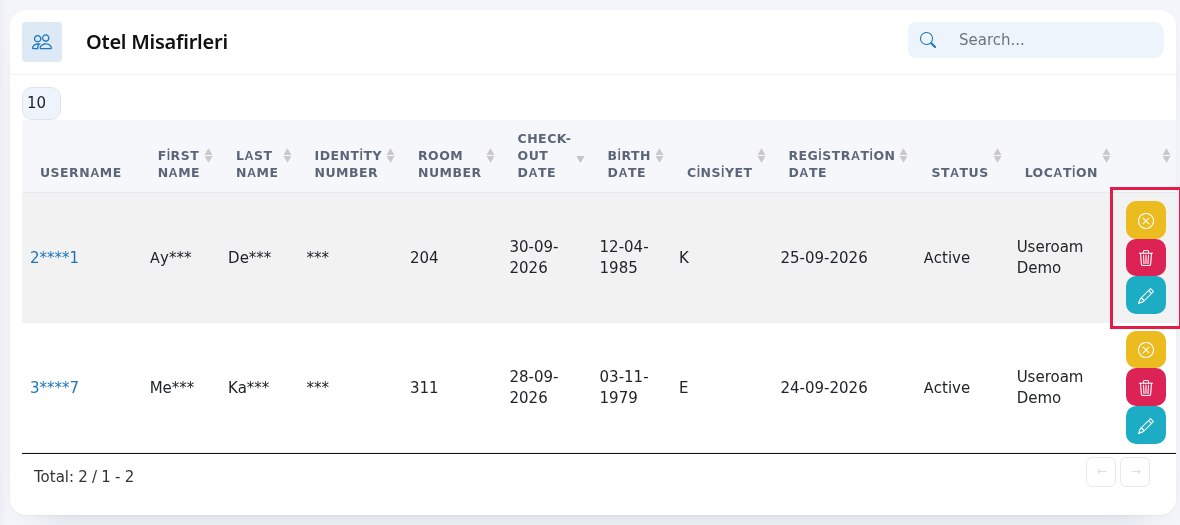
Every field and button on the screen
| Field / Button | What it does |
|---|---|
| Username | The guest's login name (masked). Click it to open the edit screen. |
| First Name, Last Name | The guest's name (masked). |
| Identity Number | ID or passport number used at sign-in (masked). |
| Room Number | The guest's room. |
| Check-out Date | The day the stay ends. Wi-Fi access ends on this |
| Birth | Details K female, E male). |
| The guest's first sign-in day. | |
| Status | Active, Passive |
| Location | The device the guest |
| Yellow, red and blue buttons | Disable User (green Enable User if blocked), Delete User (deletes without asking), Edit User. A guest waiting for approval gets a green Confirm first. |
| Search..., number box, Total | Search, rows per page (10, 25, 50, 100, All) and total records. |
Frequently asked questions
The guest checked out but is still on the also shows past records. The system.
STATUS:list. whether the account is active.
LOCATION: the device/hotel the guest belongs to.
When there are no records, the table reads "No Record".
Navigating the
The listSearchboxaccess filters instantly across all columns — the fastest way to findof a guest bywhose roomcheck-out number.date Thehas 10passed /ends; 25the /record 50staying /on 100the /list Alldoes selectornot setsmean recordsthey perstill page.have access.
RelatedThepages:list is empty.
Your device may not use hotel sign-in. To set it up see the Hotel Solution→ Guest Portal(loginbookscreenorsettings),contactHotel Solution → Room Board,Hotel Solution → Speed Package Sales.support.