
Lost & Found
Lost & Found lets you record and track items found during cleaning, with a photo. When a guest calls, you can answer "has anything like that been handed in?" within seconds.
How do I open this screen? From the left menu, go to Bumerang → BUSINESS → Lost & Found.
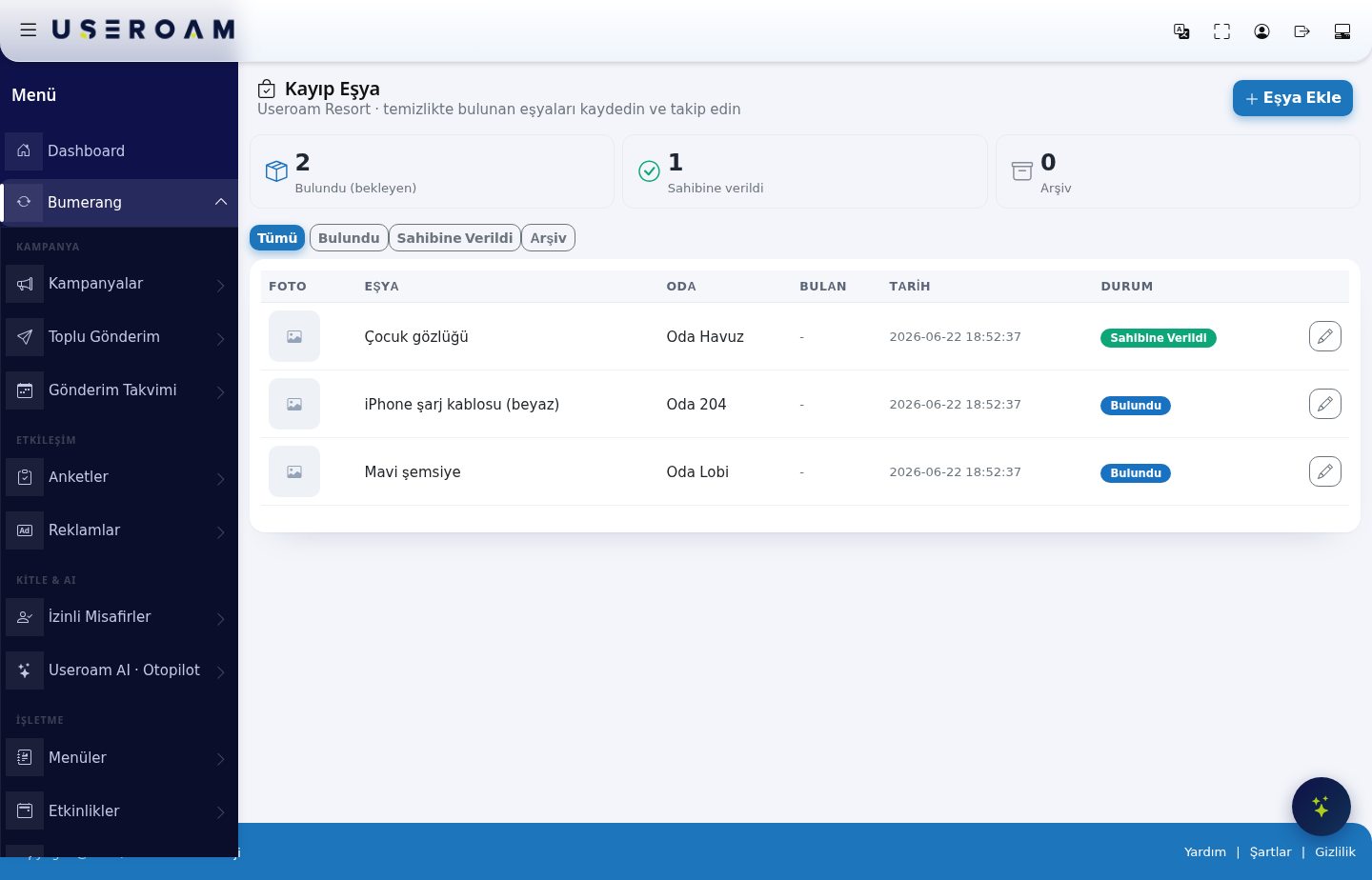
1. Status counters and filters
Three counters sit at the top of the page: Found (pending), Returned to owner and Archive. The All / Found / Returned to Owner / Archive buttons underneath filter the list by status.
2. Add Item
- Item description *: what the item is (for example "iPhone charging cable (white)"). Include distinguishing details such as colour and brand so similar items are not confused.
- Room (if known): where the item was found. This can be a room number or a shared area such as Lobby or Pool.
- Select / take photo: a picture of the item. You can take it straight from a phone. The photo is the most practical way to confirm you are handing over the right item.
3. Table columns
- PHOTO: the item's image.
- ITEM: the description.
- ROOM: where it was found.
- FOUND BY: the staff member who found it.
- DATE: the date and time of the record.
- STATUS: the item's current status.
4. Update Status
Opening a record lets you change its status:
- Found (pending): you have the item, the owner has not come forward.
- Returned to owner: the item has been handed over.
- Archive: for items nobody has claimed for a long time. Removes it from the list without deleting the record.
Note (who collected it, when, etc.): record the handover here. If a dispute arises later you have a record — we recommend noting the staff member who handed it over, the person who collected it, and the time.
Confirm your changes with Save.
Related pages: Hotel Solution → Request Management, Room Board, Guests → Hotel Guests.