
Lost & Found
Lost Property is the list where you record items found during cleaning or elsewhere in the hotel and track them until they are returned to their owner.
What is it for?
- Keeps a photo, room, finder and date for every found item in one place.
- Helps you find an item quickly when a guest calls and note who collected it and when.
When do you use it?
- When housekeeping finds an item in a room.
- When a guest asks about or collects their item.
- To archive items nobody has claimed for a long time.
Before you start
- A hotel profile must exist. Otherwise the screen says There is no hotel profile on this device. First create it on the Hotel Portal page.; the Hotel Portal link opens Guest Portal.
Step by step
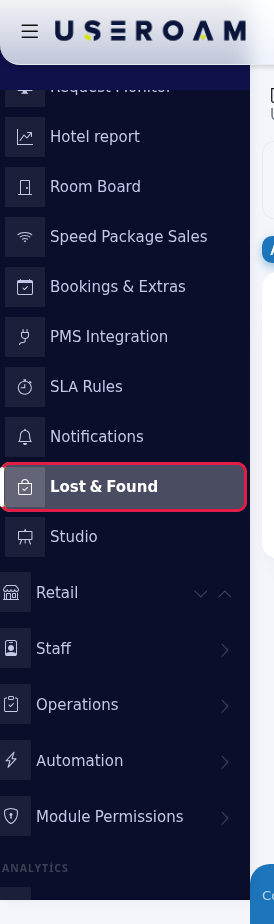
- Open the screen. In the left menu press Hotel → Lost & Found.
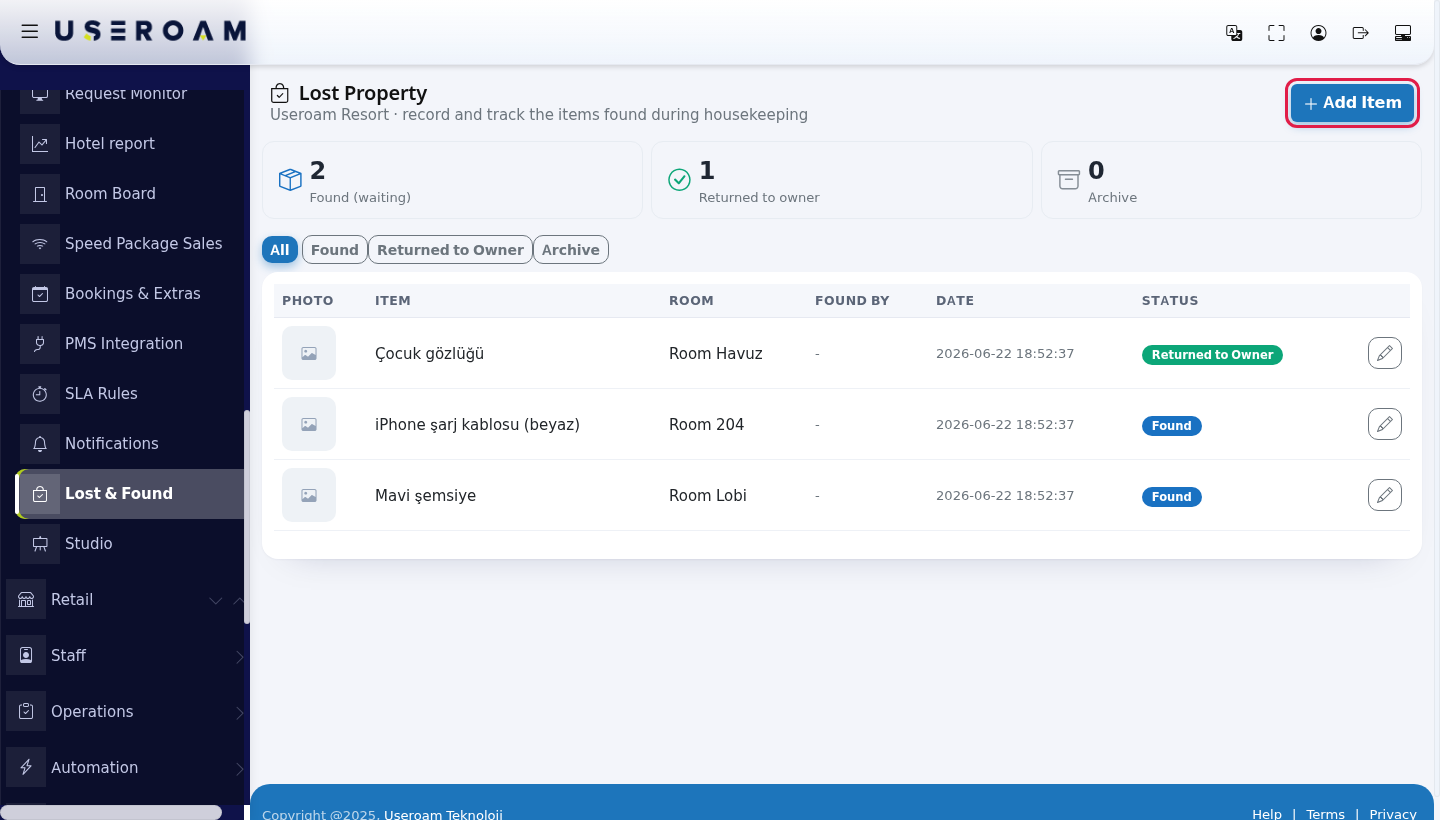
- Look at the numbers and the list. The cards at the top show Found (waiting), Returned to owner and Archive. The All, Found, Returned to Owner and Archive buttons filter the list. Press Add Item for a new record.
- Record the item. Type the Item description (for example
black wallet), enter the Room if known, add a picture with Choose / take a photo (it then says Photo selected) and press Save. The record opens as Found.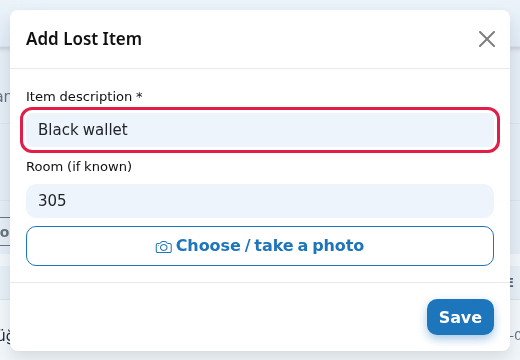
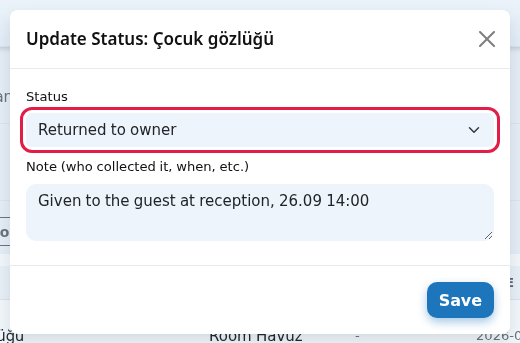
- Update the status when returned. Press the pencil button on the right of the row. In the Update Status window choose Returned to owner, write who collected it and when in Note and press Save.
Every field and button on the screen
| Field / button | What it does | Example |
|---|---|---|
| Subtitle: record and track the items found during housekeeping | - | - |
| Add Item | Opens the Add Lost Item window. | - |
| List columns | Photo (opens large when pressed), Item (with the note if any), Room, Found by, Date, Status (Found, Returned to Owner, Archive). | Room 204 |
| Item description * | Required (500 characters). The box shows the example e.g. black wallet, charger, glasses. | black wallet, charger, glasses |
| Room (if known) | Optional. | e.g. 305 |
| Choose / take a photo | Opens the camera on a phone. | - |
| Status (Update Status) | Found (waiting), Returned to owner, Archive. | Returned to owner |
| Note (who collected it, when, etc.) | Handover details. The window does not show the old note; saving replaces it with what you type. | Given to the guest at reception |
Messages
| On screen | Meaning |
|---|---|
| Lost item saved. / Status updated. | Done. |
| An item description is required. | Type a description and save again. |
| Invalid status. | Pick a status from the list. |
| No records. | No items for the selected filter. |
Frequently asked questions
I changed the status and the old note disappeared.
The note field is rewritten when you update the status. Enter the note again if you want to keep the old information.
Can I delete a record?
There is no delete button; move the item to Archive.
Does lost property show in the report?
Yes: Hotel Report → the Guests and rooms tab shows lost items and how many were returned to owner.